How to fix Windows 11 update KB5132061 failing to install
Hello Folks,
We at Daily Techocracy are back with some juicy info for all you kind readers....lets get to it !!
The November 2026 Windows 11 update, KB5132061, is refusing to install on a lot of PCs. It downloads, climbs to 99%, and then Windows Update says "Install error" with a code like 0x800f0993, 0x80070306 or 0x800f0989. Hit Retry and it does the same thing again. If that sounds like your PC, here's what's going on and how to get the update in.
Quick answer: Microsoft has confirmed the KB5132061 install errors and says an automatic repair reaches affected PCs through Windows Update within 24 to 48 hours. So, restart, wait a day and click Check for updates again. If it still fails, turn off Windows Sandbox, run DISM and SFC, reset the Windows Update files, or install the update by hand from the Microsoft Update Catalog.
What is KB5132061?
KB5132061 is the regular security update for November 2026, released on Patch Tuesday, 10 November. It takes Windows 11 version 26H2 to build 26300.9974, version 25H2 to build 26200.9974 and version 24H2 to build 26100.9974.
It's not an optional extra. It carries a big batch of security fixes, plus fixes for USB audio devices failing with error code 10, missing HDMI audio on some AMD graphics cards and Remote Desktop connection failures. Windows Latest also notes it may need two or more restarts because of a pending Secure Boot certificate update.
Why does KB5132061 fail with 0x800f0993, 0x80070306 or 0x800f0989?
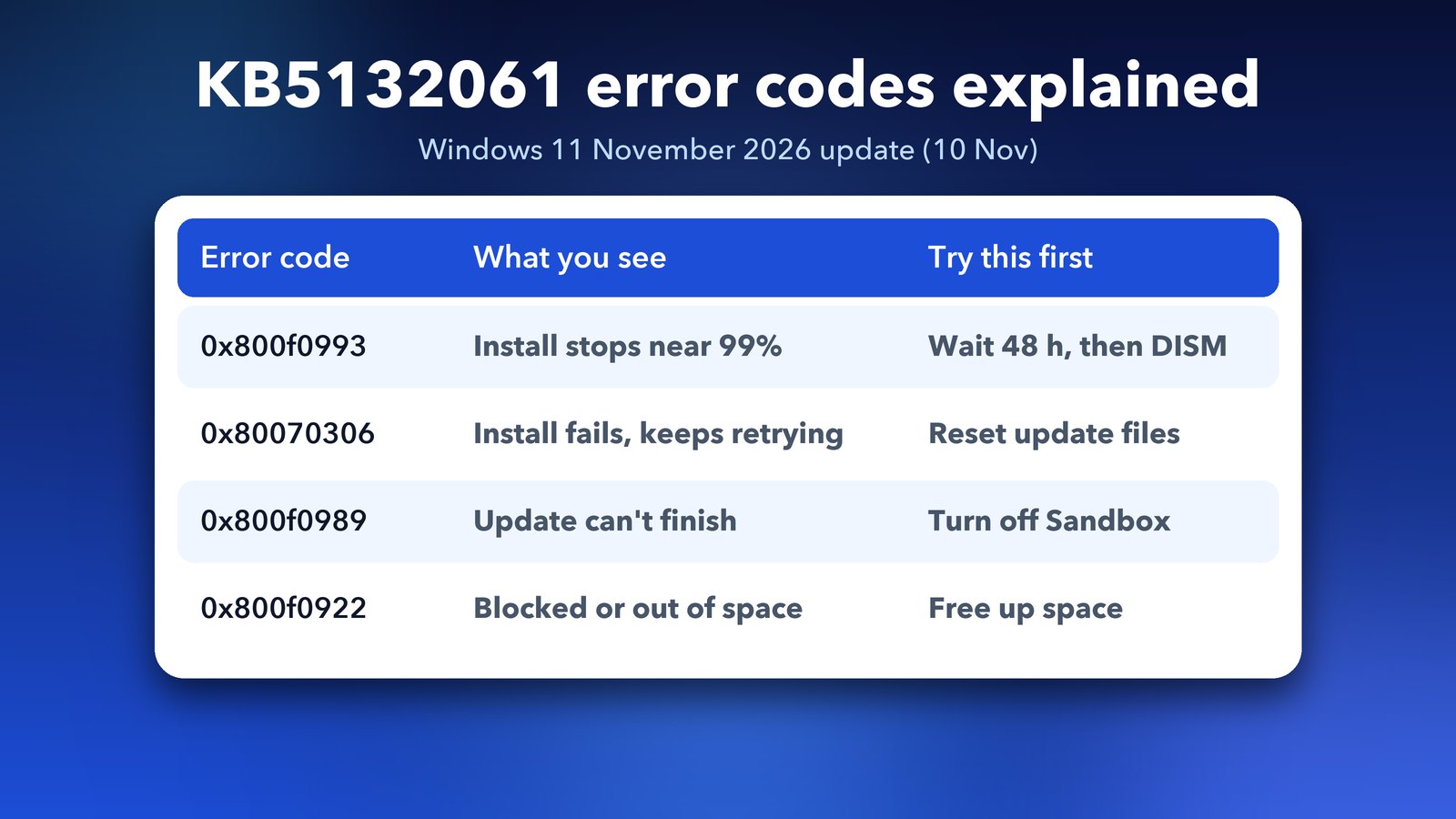
Microsoft hasn't shared the root cause, but it has confirmed the problem. Its notes say the update "might fail to install on some devices" and that installation can repeatedly retry or fail with error codes 0x80070306, 0x800f0989 or 0x800f0993.
According to BleepingComputer, Microsoft tied the failures to PCs that had installed the optional October preview update, KB5127936. PCs that skipped that preview aren't affected. If you've read our guide on Ctrl+Alt+Del not working after a Windows 11 update, you'll know that same preview caused other trouble too.
There's one more suspect. In Windows Latest's testing, the update failed on one PC with Windows Sandbox turned on and installed once Sandbox was turned off. Not everyone with the error uses Sandbox, though, so treat it as one possible cause, not the only one. A few people have also reported 0x800f0922, which usually points to a lack of space in the small system reserved partition or a blocked connection during install.
Is Microsoft fixing it?
Yes. Microsoft started an automatic repair on 11 November at 10am Pacific time. It says affected PCs should be repaired within 24 to 48 hours of hitting the error. After that, Windows Update downloads and installs KB5132061 by itself. On 16 November, Microsoft marked the issue as resolved on its KB5132061 support page.
The sources don't fully agree on who's affected. Microsoft's page lists Windows 11 24H2 Enterprise and Education, but home users on 25H2 and 26H2 have reported the same errors on Reddit and in Windows Latest's own tests. So, if you're on a Home or Pro PC, the steps below are still worth a try.
Step 1: Restart, wait and try again
This sounds too simple, but it's Microsoft's own fix. The repair arrives quietly in the background, and your PC needs to be on and online to get it.
- Save your work and restart the PC. Use Restart, not Shut down.
- Leave it on and connected to the internet for a few hours.
- Open Settings > Windows Update and click Check for updates.
- If KB5132061 installs, restart when asked. Expect one or two extra restarts.
If 48 hours have passed and it still fails, move on to Step 2.
Step 2: Free up space and unplug extras
Cumulative updates need room to unpack. Open Settings > System > Storage and make sure you have at least 20 GB free on the C: drive.
While you're at it, unplug USB drives, card readers and docks you don't need. Pause any third-party antivirus for the install, then turn it back on straight after. Both can get in the way of an update at the last stage, which is exactly where KB5132061 stops.
Step 3: Turn off Windows Sandbox for the install
If you use Windows Sandbox, this is the quickest real test. You can turn it back on afterwards.
- Click Start, type Turn Windows features on or off and open it.
- Untick Windows Sandbox and click OK.
- Restart the PC when Windows asks.
- Go to Settings > Windows Update and click Check for updates.
If you don't see Windows Sandbox in the list, it isn't installed and isn't your problem. Skip to the next step.
Step 4: Repair Windows files with DISM and SFC
DISM and SFC are two free repair tools built into Windows. DISM fixes the store of files that updates install from, and SFC (System File Checker) then fixes the files Windows is running on. A damaged file here is a very common reason updates stop at 99%.
- Click Start, type Terminal, right-click it and choose Run as administrator.
- Type
DISM /Online /Cleanup-Image /RestoreHealthand press Enter. It can take 10 to 20 minutes, and it may look stuck at 20% or 62% for a while. Let it run. - When it finishes, type
sfc /scannowand press Enter. - Restart and try Windows Update again.
Step 5: Reset the Windows Update files
Windows keeps downloaded updates in a folder called SoftwareDistribution. If a broken copy of KB5132061 is sitting there, Windows keeps retrying the same bad files. Clearing it forces a fresh download.
Open Terminal as administrator again and run these lines one at a time:
net stop wuauservnet stop bitsnet stop cryptsvcren C:\Windows\SoftwareDistribution SoftwareDistribution.oldren C:\Windows\System32\catroot2 catroot2.oldnet start cryptsvcnet start bitsnet start wuauserv
Restart, then check for updates. Once the update is in, you can delete the two .old folders.
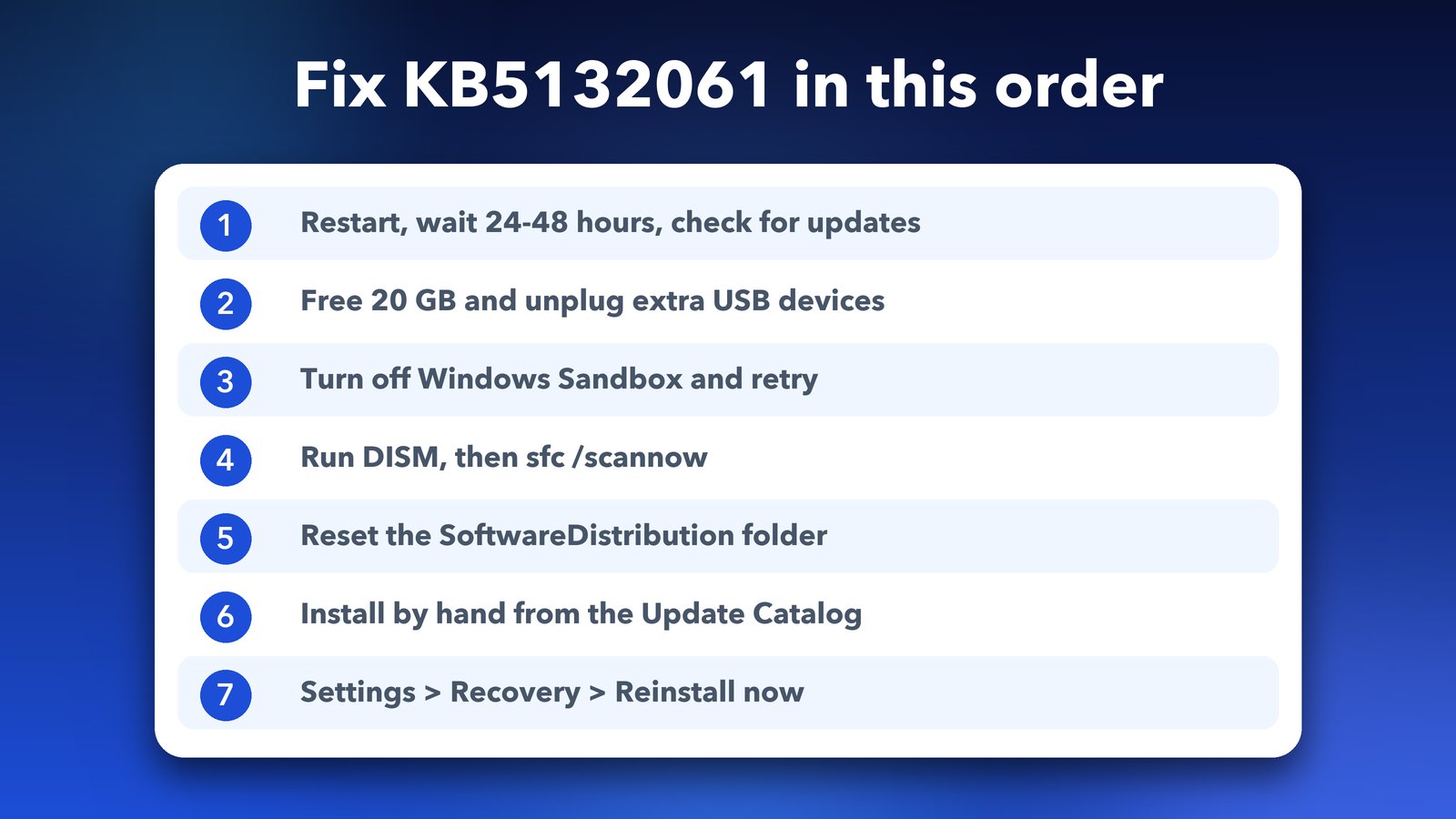
Step 6: Install KB5132061 by hand from the Microsoft Update Catalog
The Microsoft Update Catalog is Microsoft's official download site for single updates. Installing from there skips some of the Windows Update steps that fail.
- Check your version first: open Settings > System > About and look at Version (24H2, 25H2 or 26H2) and System type (x64 or ARM64).
- Open the KB5132061 page on the Microsoft Update Catalog.
- Find the line that matches your version and system type, and click Download.
- Run the .msu file you downloaded and restart when it's done.
Microsoft says the update needs servicing stack update KB5132688 or later. Windows Update normally handles this, but if the .msu says it doesn't apply to your PC, search the Catalog for KB5132688, install it first, and try again. One user told Windows Latest the offline installer failed once and worked on a later try, so don't give up after one attempt.
Step 7: Use "Fix problems using Windows Update"
If nothing else works, Windows 11 has a repair option that reinstalls Windows on top of itself. It keeps your files, apps and most settings, and it installs the latest update as part of the process.
- Back up anything important first. It's rare to lose files, but a backup costs nothing.
- Open Settings > System > Recovery.
- Next to Fix problems using Windows Update, click Reinstall now.
- Leave the PC plugged in. It downloads Windows and restarts a few times, which can take an hour or more.
It's slow, but in my experience it's the most dependable last resort when an update simply won't go in any other way.
Step 8: Pause updates if you need a break
If the failed retries are slowing your PC down and you need it for work today, open Settings > Windows Update and click Pause updates. Pick one week. This stops the loop while Microsoft's repair reaches your PC.
Don't leave updates paused for long. KB5132061 closes real security holes, so come back to it within the week.
Should you uninstall KB5127936 first?
Usually not. KB5132061 already includes everything from the October preview, so removing KB5127936 doesn't help on its own. Microsoft's automatic repair is the fix for PCs that installed the preview. Uninstall it only if the preview itself causes problems, as some readers saw in our Task Manager freezing guide.
To avoid this next time, skip optional preview updates. In Settings > Windows Update, turn off "Get the latest updates as soon as they're available". You'll still get every regular monthly update, just without the test versions. For a look at what last month's regular update changed, see our roundup of the Windows 11 October 2026 update.
My honest take
KB5132061 is annoying, but it isn't dangerous. Your PC keeps running on the October update while it fails, so nothing is lost. For most people, a restart and a day's wait is all it takes, because Microsoft's repair does the work. If you're still stuck after that, DISM plus a reset of the update folder sorts out nearly everything else, and the Update Catalog is a solid backup plan. Keep a recent backup, skip preview updates, and next month's update should go in without a fight.
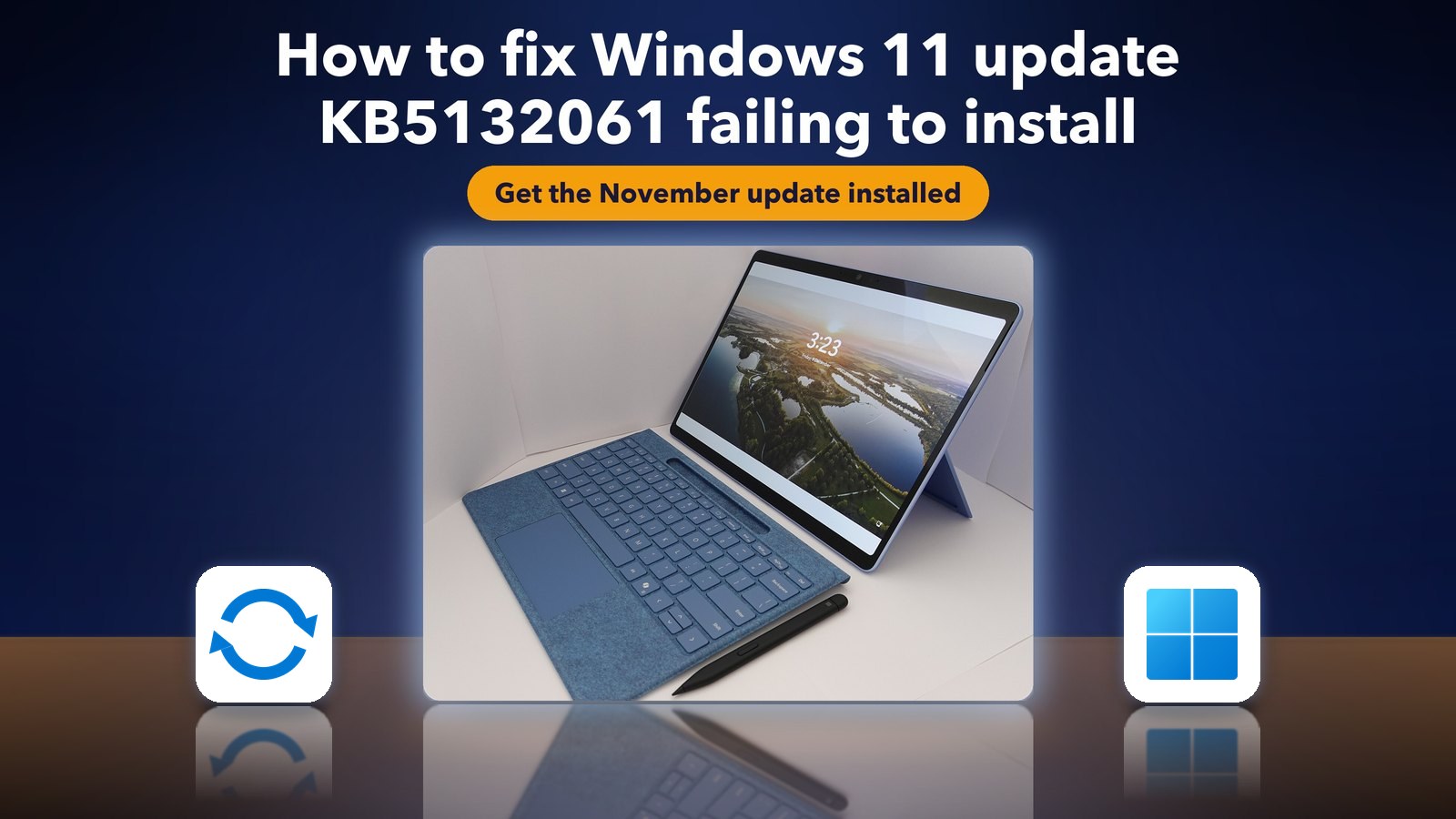
Image credits: Microsoft Surface Pro photo by KK IN HK, Wikimedia Commons, CC BY-SA 4.0. Windows 11 logo via Wikimedia Commons. Update icon and panels by Daily Techocracy.
Sources: Microsoft Support, KB5132061 release notes and known issues (10-17 November 2026); BleepingComputer, Microsoft confirms KB5132061 installation issues (12 November 2026); Windows Latest, Microsoft investigates KB5132061 issues (11 November 2026); r/Windows11 November cumulative update thread.