How to fix Wi-Fi dropping after sleep on a Windows 11 laptop
Hello Folks,
We at Daily Techocracy are back with some juicy info for all you kind readers....lets get to it !!
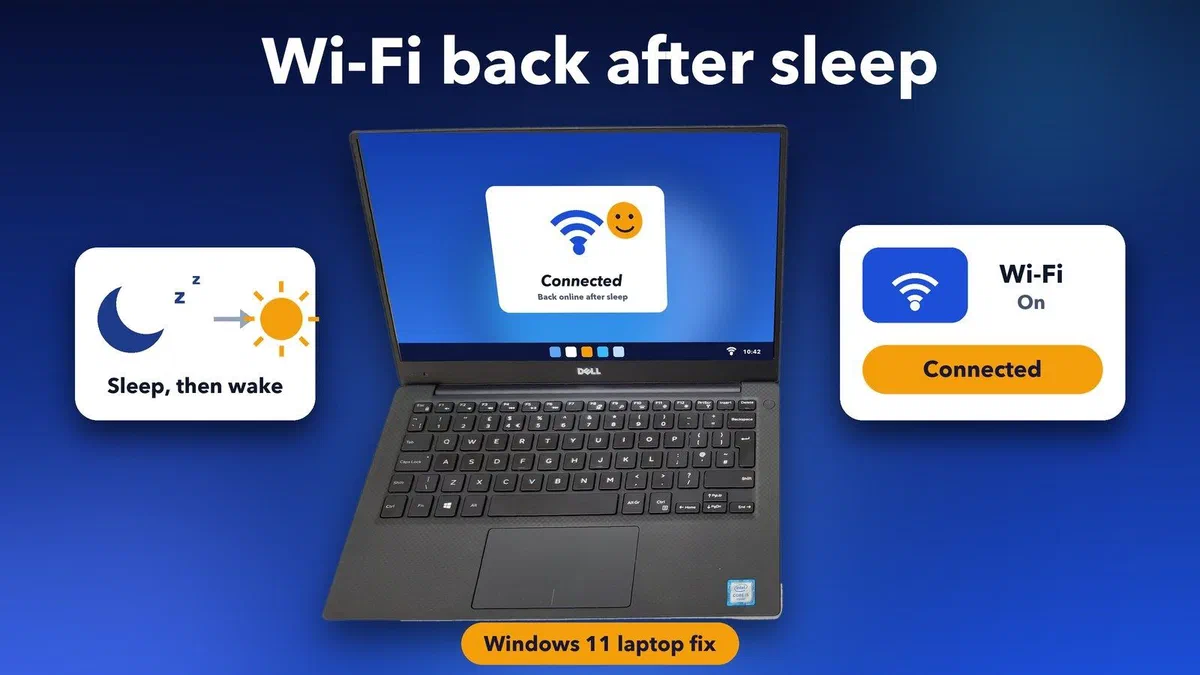
You open your laptop after lunch, and the Wi-Fi icon shows a little globe or a "No internet" message. Your phone is online, the router is fine, and yet the laptop refuses to connect until you restart it. This is one of the most common Windows 11 complaints, and it's almost never a broken Wi-Fi card. In most cases, Windows is putting the Wi-Fi adapter to sleep to save battery and then failing to wake it up properly. Here's how to get back online right now and stop it for good.
Quick answer: When Wi-Fi drops after sleep on a Windows 11 laptop, turn Airplane mode on and off, or disable and re-enable the Wi-Fi adapter, to reconnect without a restart. To stop it coming back, untick "Allow the computer to turn off this device to save power" for the Wi-Fi adapter in Device Manager, set the wireless power saving mode to Maximum Performance and update the Wi-Fi driver from your laptop maker.
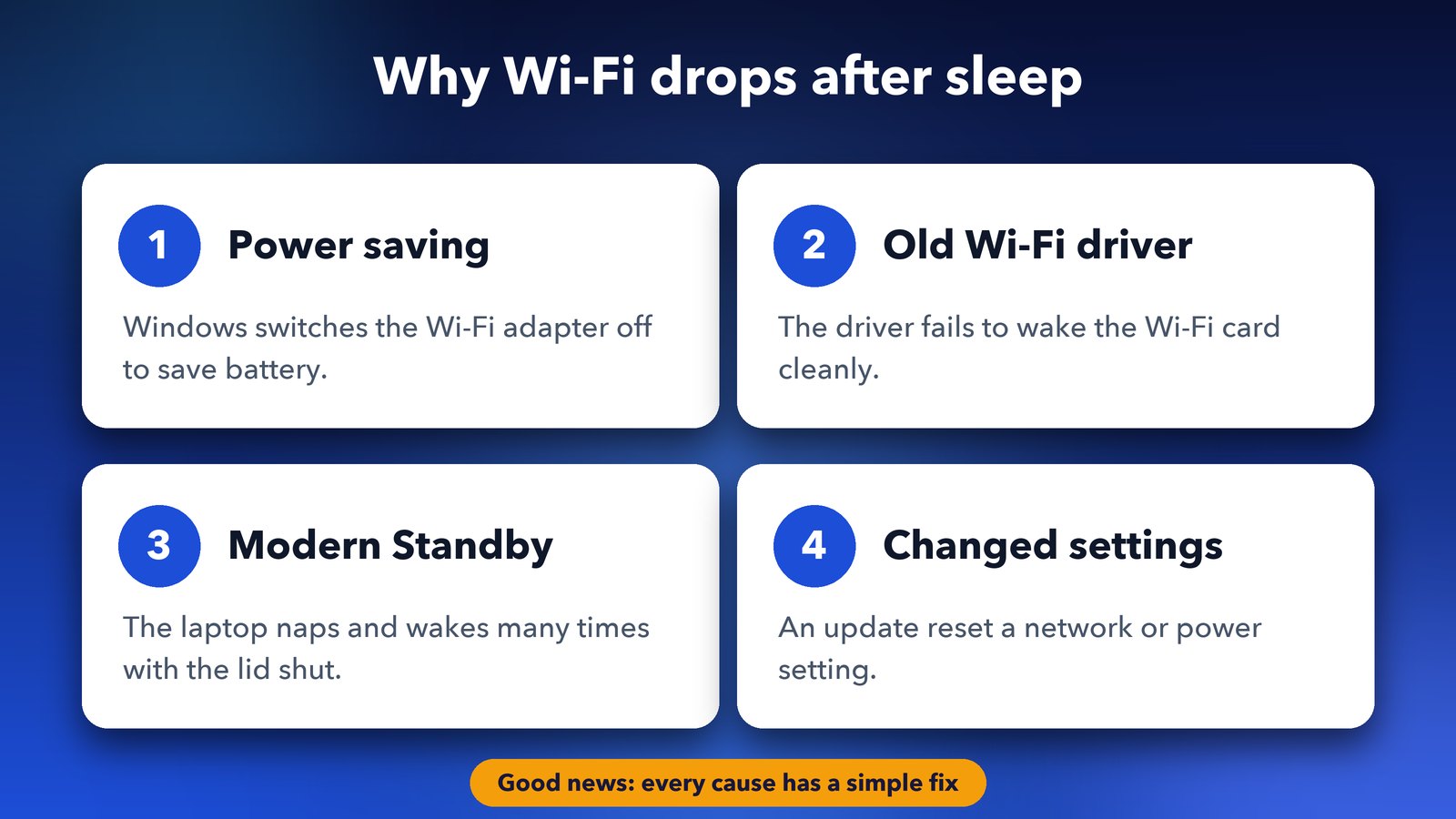
Why does Wi-Fi stop working after sleep on Windows 11?
Wi-Fi usually drops after sleep because Windows switches the Wi-Fi adapter off to save power and the driver doesn't bring it back cleanly when the laptop wakes. Outdated drivers, aggressive power saving and network settings that a Windows update changed are the usual culprits.
Most new laptops use Modern Standby. It works like a phone, so the laptop stays half awake to fetch email and updates while the lid is shut. That means the Wi-Fi adapter is turned off and on many times during a single nap. If the driver trips up even once, you wake up to no internet.
The good news is that each cause has a simple fix. Microsoft's own Wi-Fi troubleshooting guide covers the general checks. The steps below focus on the sleep problem itself.
Step 1: Get back online without restarting
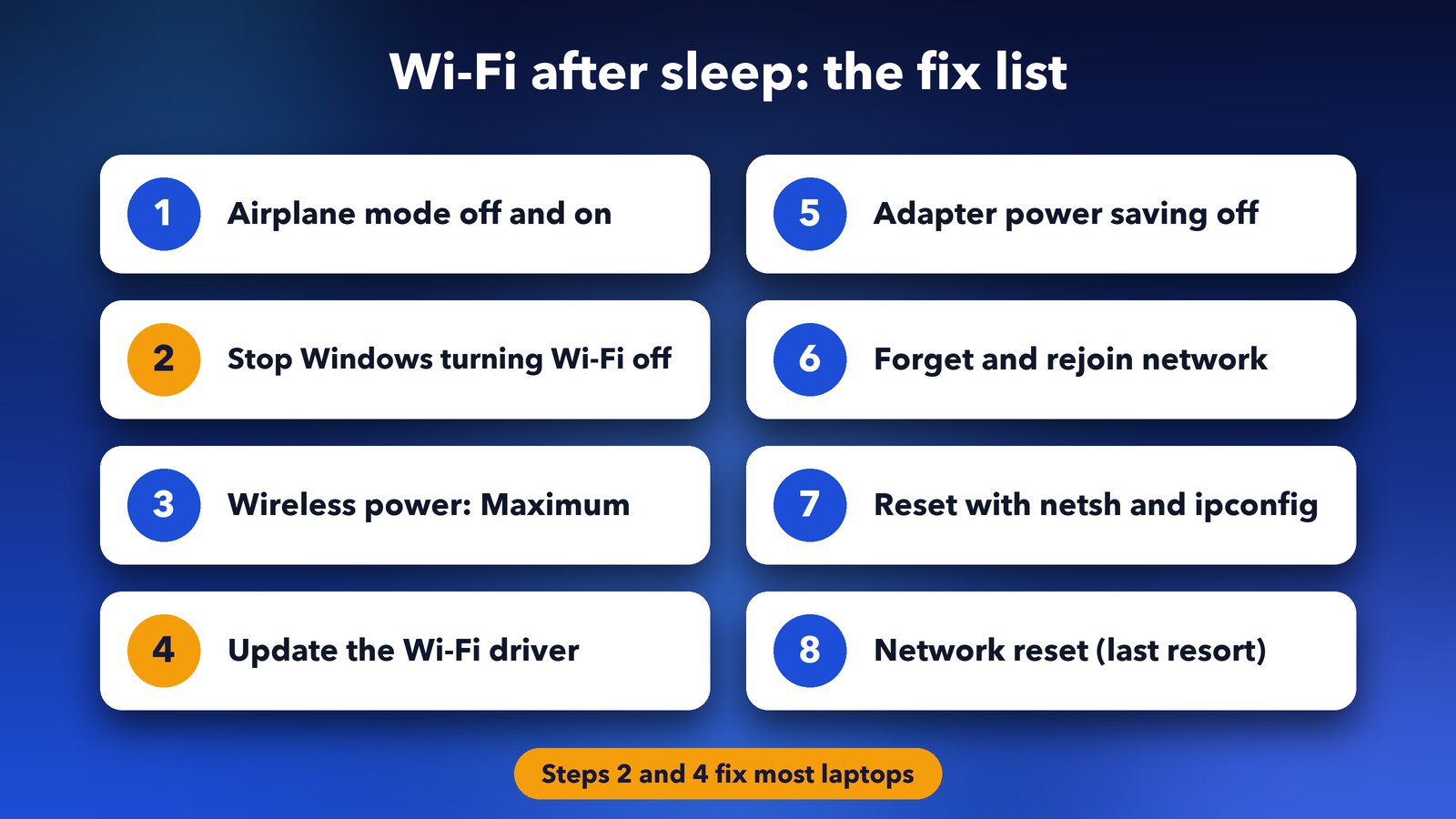
The fastest way to reconnect is to restart the Wi-Fi adapter rather than the whole laptop. It takes about ten seconds and doesn't close any of your apps.
- Press Windows + A to open Quick Settings.
- Click Airplane mode to turn it on, wait five seconds, then click it again to turn it off.
- If Wi-Fi still won't connect, go to Settings > Network & internet > Advanced network settings. Click your Wi-Fi adapter, choose Disable, then choose Enable.
This gets you working again, but it doesn't stop the problem. Do the next steps once, and you shouldn't need this trick every morning.
Step 2: Stop Windows from turning off the Wi-Fi adapter
This is the fix that works most often. It tells Windows not to switch the Wi-Fi adapter off on its own, so there's nothing to wake up when you open the lid.
- Right-click the Start button and choose Device Manager.
- Expand Network adapters. Right-click your Wi-Fi adapter (its name usually includes "Wi-Fi", "Wireless" or "802.11") and choose Properties.
- Open the Power Management tab.
- Untick Allow the computer to turn off this device to save power, then click OK.
- Restart your laptop.
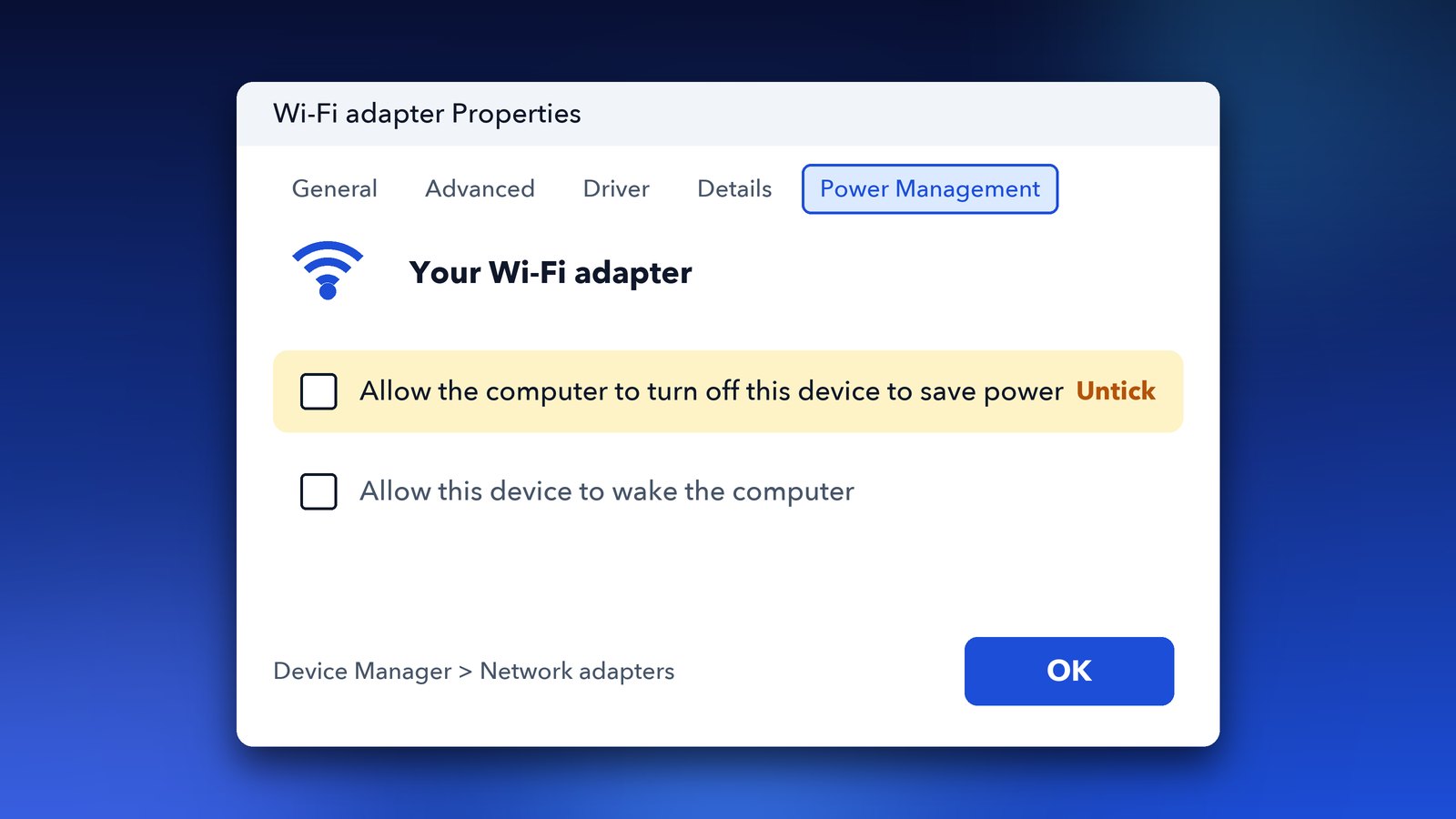
On some newer laptops the Power Management tab isn't there at all. That simply means the driver handles power by itself. Skip to Step 3.
Step 3: Set wireless power saving to Maximum Performance
Windows has a separate power saving switch just for the Wi-Fi adapter. Setting it to Maximum Performance keeps the connection steady, and on most laptops the battery cost is very small.
- Press Windows + R, type
powercfg.cpland press Enter. - Next to your current plan, click Change plan settings, then Change advanced power settings.
- Expand Wireless Adapter Settings, then Power Saving Mode.
- Set both On battery and Plugged in to Maximum Performance, then click OK.
Some laptops hide this setting. If you can't see it, don't worry. Steps 2 and 4 matter more.
Step 4: Update the Wi-Fi driver from your laptop maker
An old or buggy Wi-Fi driver is the second most common cause. The driver is the small piece of software that lets Windows talk to the Wi-Fi card, and new versions often fix sleep and wake bugs.
- First, open Settings > Windows Update > Advanced options > Optional updates. Install any network or Wi-Fi driver listed there.
- Next, check your laptop maker's support app or website, such as Dell SupportAssist, Lenovo Vantage, HP Support Assistant or MyASUS. Their drivers are tested for your exact model.
- If your laptop has an Intel Wi-Fi card, Intel's Driver & Support Assistant can install the newest Intel driver.
Did the problem only start after a recent update? Then try the opposite. In Device Manager, open the Wi-Fi adapter's Properties, go to the Driver tab and click Roll Back Driver. If the button is greyed out, there's no older driver saved.
Step 5: Turn off power saving inside the adapter's settings
Many Wi-Fi cards have their own power saving options hidden in the driver. Turning these down helps when the first four steps didn't fully fix it.
- In Device Manager, open your Wi-Fi adapter's Properties again and go to the Advanced tab.
- Look through the list for anything with "power" in the name.
- On Intel adapters, set MIMO Power Save Mode to No SMPS. On other brands, set any power saving option to Disabled or Off.
- Click OK and restart.
The names differ from brand to brand, so only change options that clearly mention power saving.
Step 6: Forget the network and reconnect
Sometimes the saved details for your home network get muddled, especially after you change the router or its password. Forgetting the network gives Windows a clean start.
- Go to Settings > Network & internet > Wi-Fi > Manage known networks.
- Click Forget next to your network.
- Pick the network again from Quick Settings and type the password.
Step 7: Reset the network stack with a few commands
These commands clear Windows' saved network data and get a fresh address from your router. They're safe, and they fix many odd connection problems.
- Right-click Start and choose Terminal (Admin).
- Type each command below and press Enter after each one:
netsh winsock resetnetsh int ip resetipconfig /releaseipconfig /renewipconfig /flushdns
- Restart your laptop.
Step 8: Use Network reset as the last resort
Network reset removes and reinstalls every network adapter and puts all network settings back to default. It fixes stubborn cases, but you'll need to re-enter your Wi-Fi passwords and set up any VPN again afterwards.
- Go to Settings > Network & internet > Advanced network settings.
- Click Network reset, then Reset now, and confirm.
- Your laptop restarts in about five minutes. Reconnect to Wi-Fi when it's back.
Tips if Wi-Fi still drops after sleep
If the steps above didn't stop it, the cause is usually your Windows version, your router or the Wi-Fi card itself. These checks narrow it down.
- Check your Windows version. Windows 11 version 24H2 Home and Pro stop getting updates on 13 October 2026, according to Microsoft's release health page. Go to Settings > Windows Update and move to the newest version so you keep getting fixes.
- See how your laptop sleeps. Open Terminal and type
powercfg /a. If you see "Standby (S0 Low Power Idle)", your laptop uses Modern Standby, and Steps 2 to 5 are the ones that matter most. - Try the other Wi-Fi band. If your router shows separate 2.4 GHz and 5 GHz networks, connect to the other one for a day. If the drops stop, update the router's firmware.
- Test with a phone hotspot. If the laptop reconnects to your phone's hotspot after sleep without trouble, the router is the problem, not the laptop.
- Run the built-in troubleshooter. Go to Settings > System > Troubleshoot > Other troubleshooters and run Network and Internet.
Still no luck after all of this? A USB Wi-Fi adapter is a cheap way to test whether the built-in card is failing. If the USB adapter stays connected after sleep, contact your laptop maker about a repair.
Final thoughts
Wi-Fi dropping after sleep is annoying, but it's nearly always a power setting or a driver, not broken hardware. On my own laptop, Step 2 alone fixed it, and the battery life barely changed. If your laptop has other wake-up troubles, read our guides on fixing a laptop screen that stays black after sleep and fixing a touchpad that stops working after sleep.
Image credits: featured image uses a photo of a Dell XPS 13 by Green-Curtain, Wikimedia Commons, CC BY-SA 4.0 (screen content illustrated by Daily Techocracy). Other graphics by Daily Techocracy.