How to turn off the new Siri on iOS 27
Hello Folks,
We at Daily Techocracy are back with some juicy info for all you kind readers....lets get to it !!
The new Siri in iOS 27 does a lot more than the old one, and not everyone wants it. Some people find it pops up too often. Others just prefer the Siri they know, or do not want AI features running on their phone. The good news is you can turn it off, or go back to Siri Classic, in under a minute. Here is how, plus what stays on afterwards.
Quick answer: Open Settings, tap Siri, scroll down and tap Turn Off Siri, then confirm. To keep a simpler Siri, tap Turn On Siri afterwards and choose Siri Classic. iOS 27 has no single switch for all Apple Intelligence features, so summaries, Siri suggestions and similar extras must be switched off one by one.
What is the new Siri in iOS 27?
It is a rebuilt Siri that Apple calls Siri AI, and it is labelled as a beta. It needs an iPhone with Apple Intelligence, and reports say it is English-only at launch and not available in the EU at first. It also has its own app icon on the Home Screen. You can read more about its early updates in our post on Siri's pace and expressiveness in the iOS 27 beta.
Siri Classic is the older Siri from iOS 26 and earlier. Apple lets you switch between the two, so you don't have to give up Siri completely just to avoid the new one.
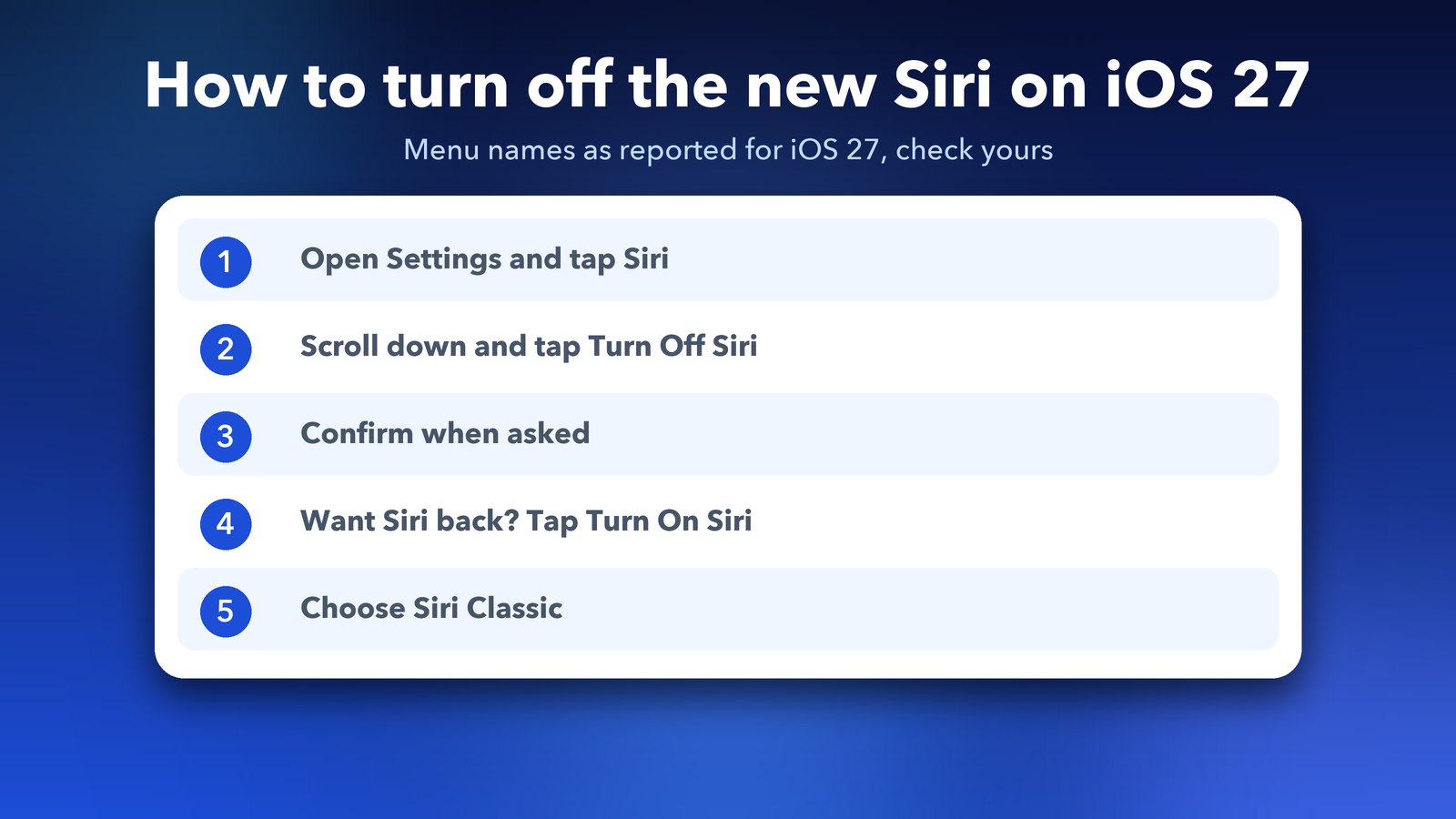
How do I turn off Siri AI on my iPhone?
You turn it off in the Siri settings. It takes four taps.
- Open Settings.
- Tap Siri.
- Scroll to the bottom and tap Turn Off Siri.
- Tap Turn Off Siri again to confirm.
This follows the steps given by Cult of Mac and by Apple's own guidance as summarised by other sites. Apple changes menu names between updates, and I couldn't open Apple's iOS 27 page text myself, so if you don't see these words, use the search box at the top of Settings and type Siri.
You can also press and hold the Siri AI icon on your Home Screen and choose Remove App, if you don't want the app showing there. Cult of Mac lists this as optional.
How do I switch back to Siri Classic?
Turn Siri off first, as above. Then go back into the Siri settings, tap Turn On Siri, and choose Siri Classic. That gives you the older assistant without the new AI version.
One thing to know: sources report that Siri Classic still sits on top of Apple Intelligence, so some AI summaries may stay on. That leads to the next question.
Does turning off Siri turn off Apple Intelligence?
No. In iOS 27 there is no single master switch. Turning off Siri does not stop other AI features like summaries or Writing Tools. You switch each one off yourself, using the paths below.
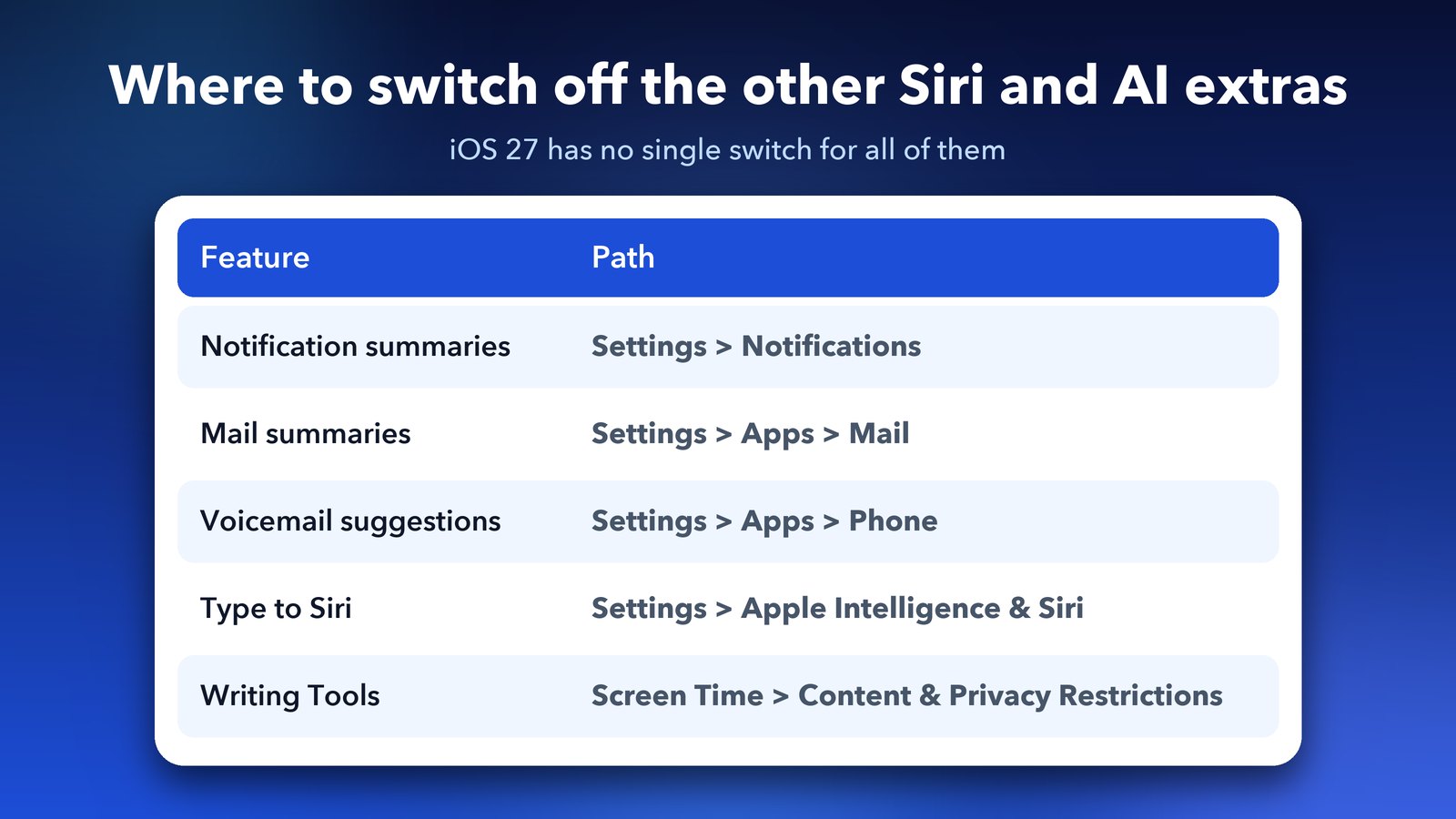
- Notification summaries: Settings > Notifications. Turn off Prioritize Notifications and Summarize Notifications.
- Mail: Settings > Apps > Mail. Turn off Summarize Message Previews, and Personalize Smart Replies if you like. Normal replies still work.
- Phone: Settings > Apps > Phone. Turn off Suggestions in Voicemail. Voicemail itself keeps working.
- Type to Siri: Settings > Apple Intelligence & Siri > Talk & Type to Siri, then turn off Type to Siri.
- ChatGPT in Siri: Settings > Apple Intelligence & Siri > ChatGPT, then turn off Use ChatGPT.
- Writing Tools and image creation: Settings > Screen Time > Content & Privacy Restrictions > Intelligence & Siri, then set Writing Tools or Image Creation to Don't Allow.
The paths come from Cult of Mac and iThinkDiff. They do not agree on every label, for example where the Messages summary switch lives, so treat the exact wording as a guide and use Settings search if one is missing. Apple also has a page called Turn off and restrict access to Apple Intelligence features on iPhone, which is the official place to check.
How do I turn off Siri suggestions on iPhone?
Siri suggestions are the app and shortcut ideas that show up in Search and on the Lock Screen. On earlier iOS versions, Apple's guide says to open Settings, tap Siri, then Suggestions, and switch off the ones you don't want. That includes notifications, App Library, sharing and listening suggestions.
I couldn't confirm that the iOS 27 screen uses exactly the same labels. One site reports the same Suggestions list under Settings > Siri in iOS 27. Open Settings > Siri on your phone and look for a Suggestions section. Turning off Siri itself doesn't switch these off, so check them even after you have turned Siri off.
What stops working when Siri is off?
Voice and button activation stop, so "Hey Siri" and the side button no longer start an assistant. Features that need Siri, such as asking it to set a timer or send a message by voice, won't work. You can still set timers and send messages by hand, of course.
Some Apple Intelligence features can still be on, as noted above, and you can leave them on if you find them useful. For example, you might switch off notification summaries but keep Mail previews.
Which is better, Siri Classic or no Siri?
It depends on what bothers you. If the new Siri pops up too often or you don't trust AI with your requests, Siri Classic is a gentle middle path. If you want no assistant at all, turn Siri off and then work through the extras list. If privacy is the worry, also turn off ChatGPT in Siri, since that is a separate switch.
On a Mac the story is similar. If you also use macOS 27, see how to turn off Apple Intelligence on macOS 27. And if your iPhone feels slow or warm after updating, our iOS 27 battery drain guide has a checklist.
That's it. Take a minute now, and your iPhone will behave the way you want. If a menu name looks different on your phone, trust what you see on screen, and use Settings search.
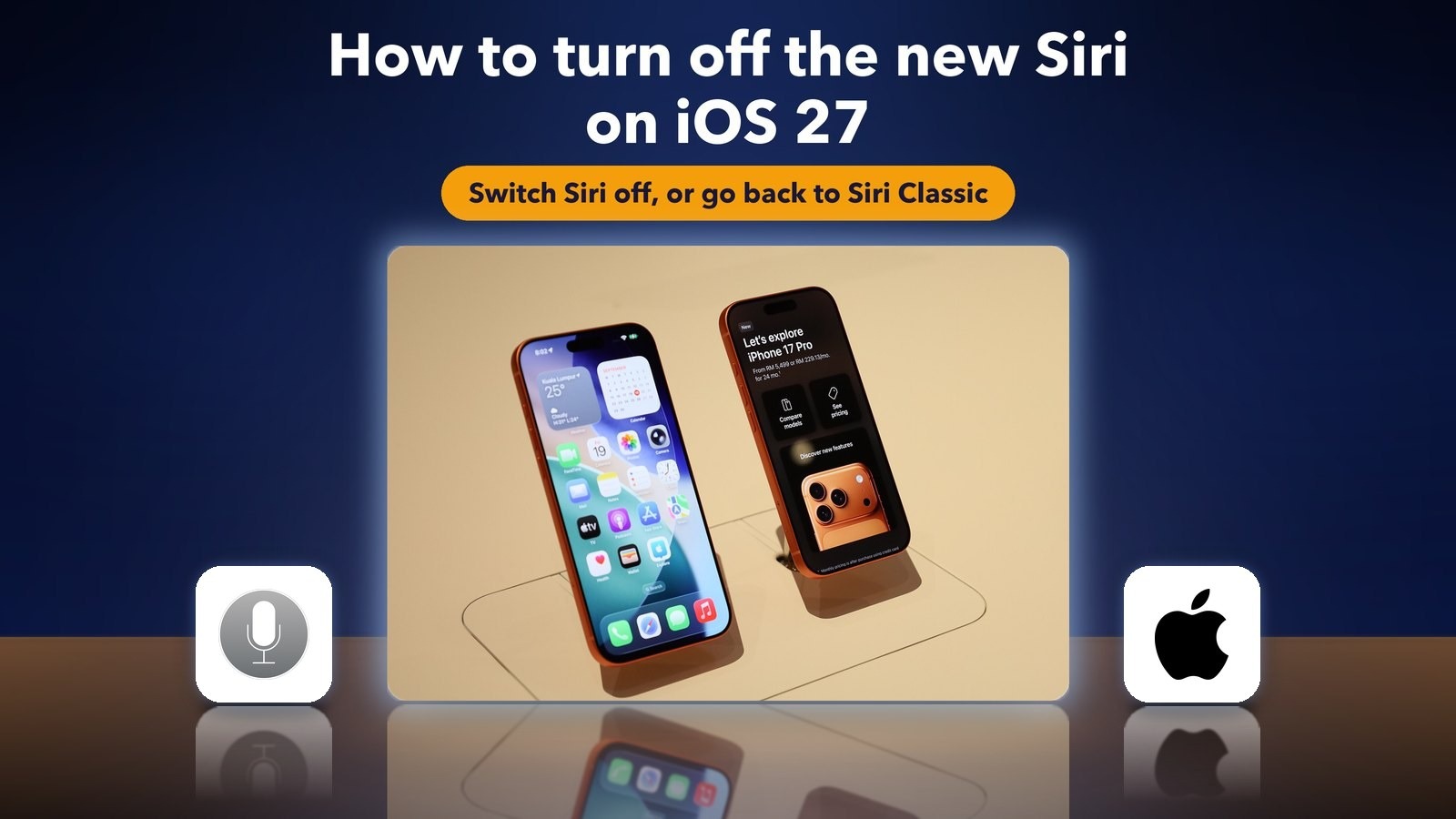
Image credits: iPhone photo by Ahmad (EmpAhmadK) via Wikimedia Commons (CC0). Siri icon and Apple logo: Apple, via Wikimedia Commons.
Sources: Cult of Mac (19 Sep 2026); iThinkDiff; Apple Support, iPhone User Guide.