How to turn off Apple Intelligence on macOS 27
Hello Folks,
We at Daily Techocracy are back with some juicy info for all you kind readers....lets get to it !!
You updated to macOS 27 and found two surprises. Your free space dropped by a big chunk, and the old on/off switch for Apple Intelligence seems to be gone. You are not alone. This is one of the most talked-about complaints on the Mac forums this month. Here is what is actually true, what you can switch off, and what you cannot.
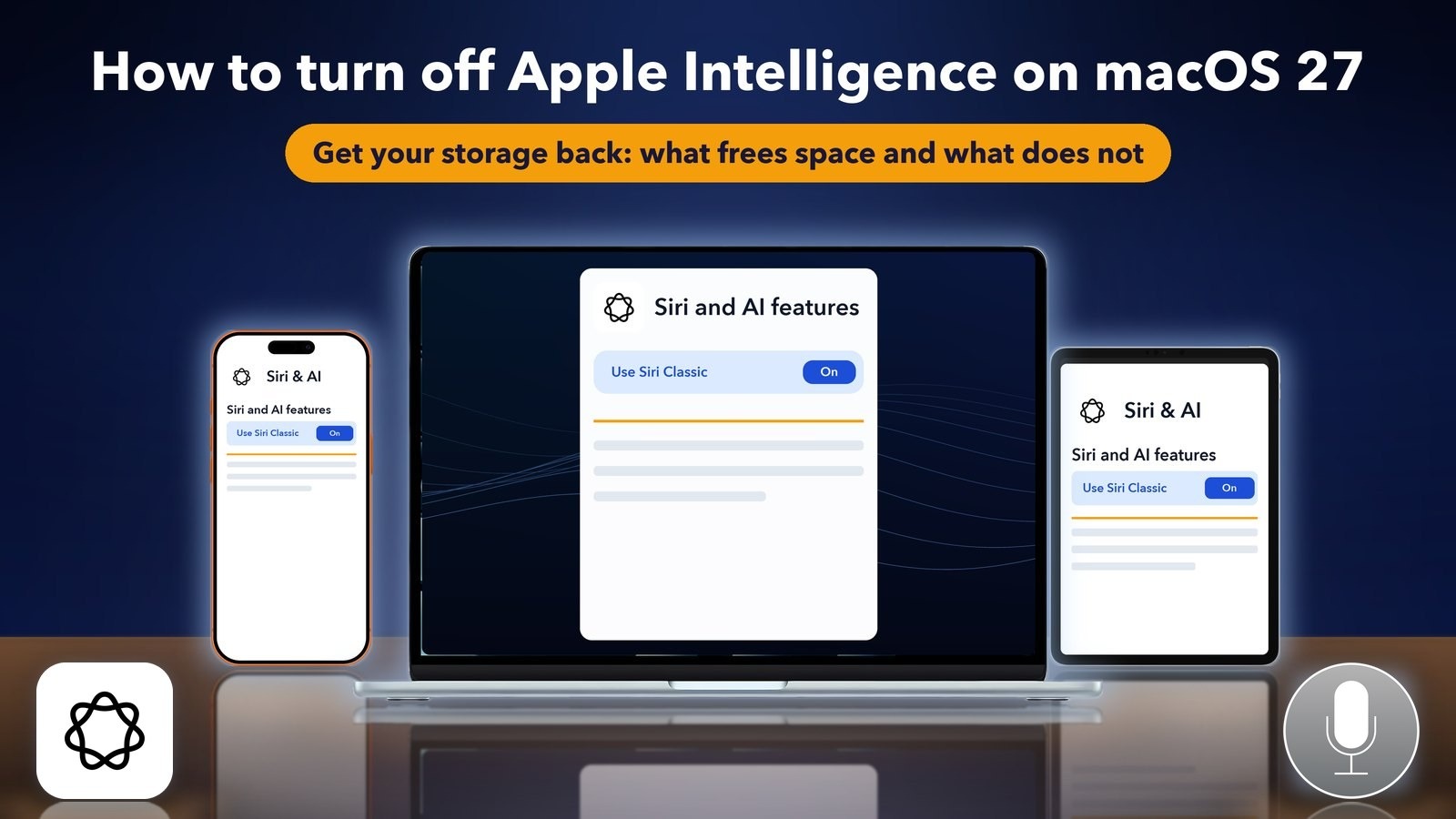
Quick answer: Reports say macOS 27 has no single master switch for Apple Intelligence. You turn it off feature by feature, through Screen Time, Siri and the Notifications, Mail and Messages settings. Turning features off hides them, but it does not clearly give the storage back. Apple has no documented way to delete the downloaded models.
Is there still an Apple Intelligence switch on macOS 27?
It depends on who you ask. The older path was System Settings, then Apple Intelligence & Siri, then the button next to Apple Intelligence. Apple's own page still describes it for macOS Tahoe. For macOS 27, several reports say the master toggle was removed, and Apple's macOS 27 page does not describe one either.
Open System Settings and look first. If you see the button, use it. If you do not, follow the steps below. I could not test every Mac, so treat the menu names as a guide.
How do I turn off Apple Intelligence features on a Mac?
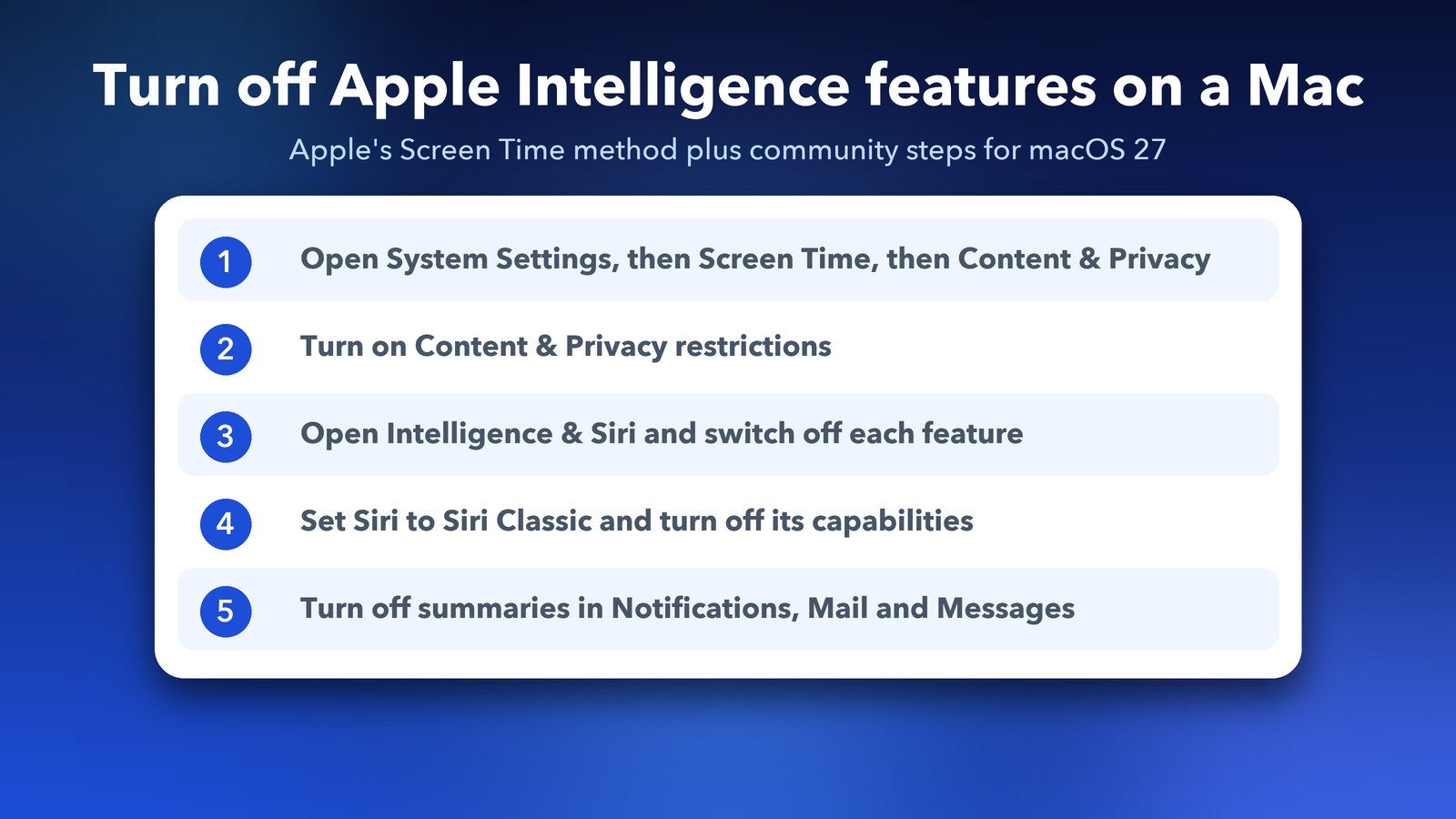
Use Apple's Screen Time method to block the features, then switch off the extras one by one. Apple's guide to blocking Apple Intelligence features lists the Screen Time part. A community write-up on Apple Community adds the other steps for macOS 27.
- Open System Settings, click Screen Time, then click Content & Privacy and turn the restrictions on.
- Under Intelligence & Siri, switch off Writing Tools, Image Creation and Intelligence Extensions. Intelligence Extensions covers third-party helpers such as ChatGPT.
- In the same area, click Siri, switch it to Siri Classic and turn off each item under Capabilities.
- Open System Settings, then Notifications, and turn off Summarize notifications.
The Apple Community post is a user guide, not an Apple document, and the Screen Time page layout can vary between versions. If a menu name looks different on your Mac, search for it in the System Settings search box.
How do I turn off the AI features inside Mail, Messages and Finder?
Each app has its own switch. The same Apple Community post lists them. Go through the ones you use:
- Messages: Settings, General, then turn off Summarize Messages.
- Mail: Settings, Viewing, then turn off Summarize Message Previews. Under Composing, turn off Personalize Smart Replies. In the View menu, make sure Show Mail Categories is unticked.
- Finder: Settings, then untick Suggest file names.
- Journal: Settings, General, then turn off Get Writing Prompts.
There is one more place. Go to System Settings, then Siri, then App Access. The post says each app has a Learn from this application switch there, and some also have Show Siri Suggestions in application. That is a lot of apps to go through, so do the ones you care about most.
How much storage does Apple Intelligence use?
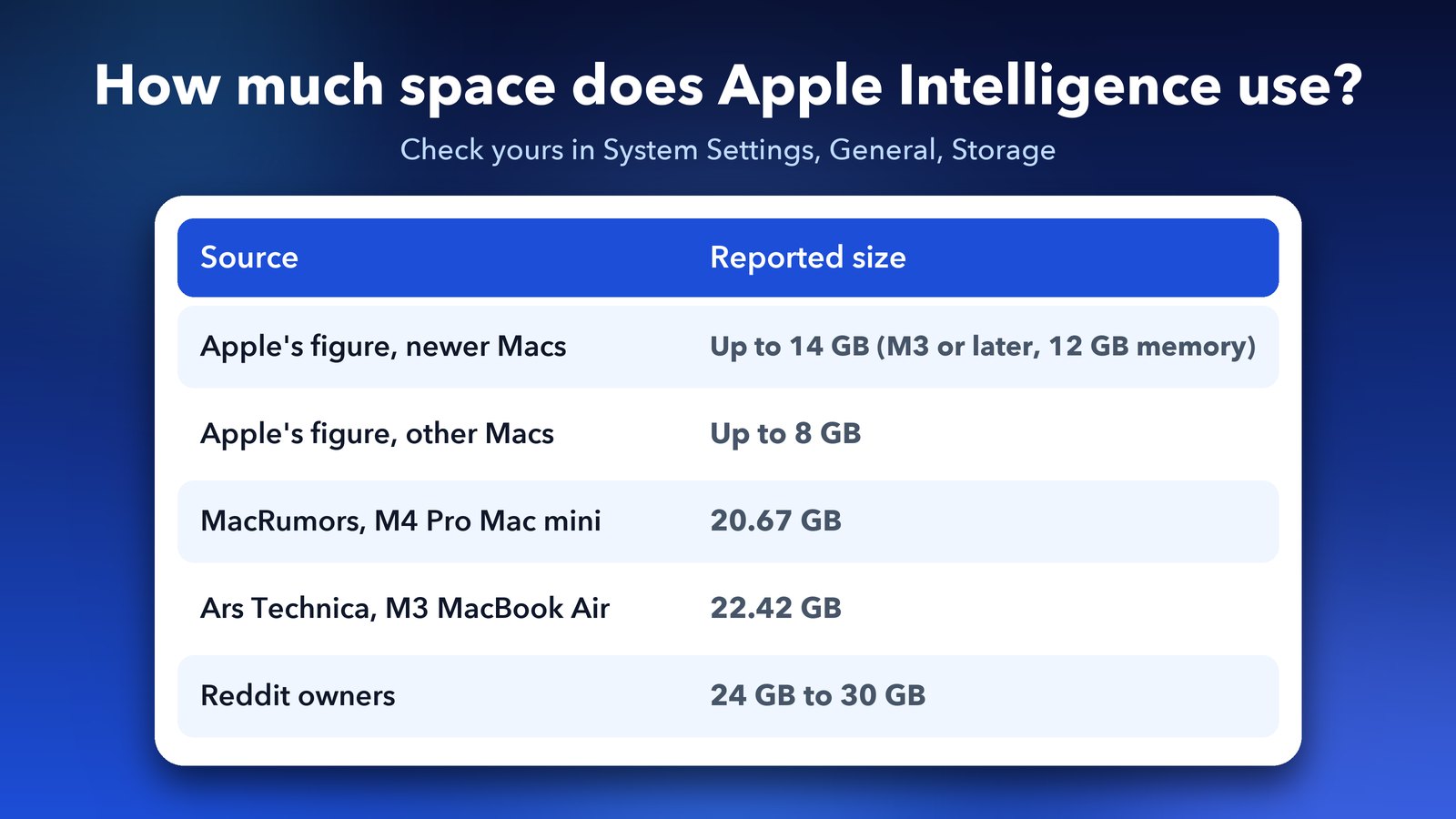
Apple says up to 14 GB on Macs with an M3 chip or later and at least 12 GB of memory, and up to 8 GB on other supported Macs. Real Macs show more. MacRumors measured 20.67 GB on an M4 Pro Mac mini. Ars Technica saw 22.42 GB on an M3 MacBook Air. Some Reddit users report 24 GB to 30 GB. These numbers come from a MacDailyNews round-up.
To see your own number, open System Settings, then General, then Storage, and look for the Apple Intelligence line. Apple has not said whether its 14 GB figure matches that line.
Will turning Apple Intelligence off free my storage?
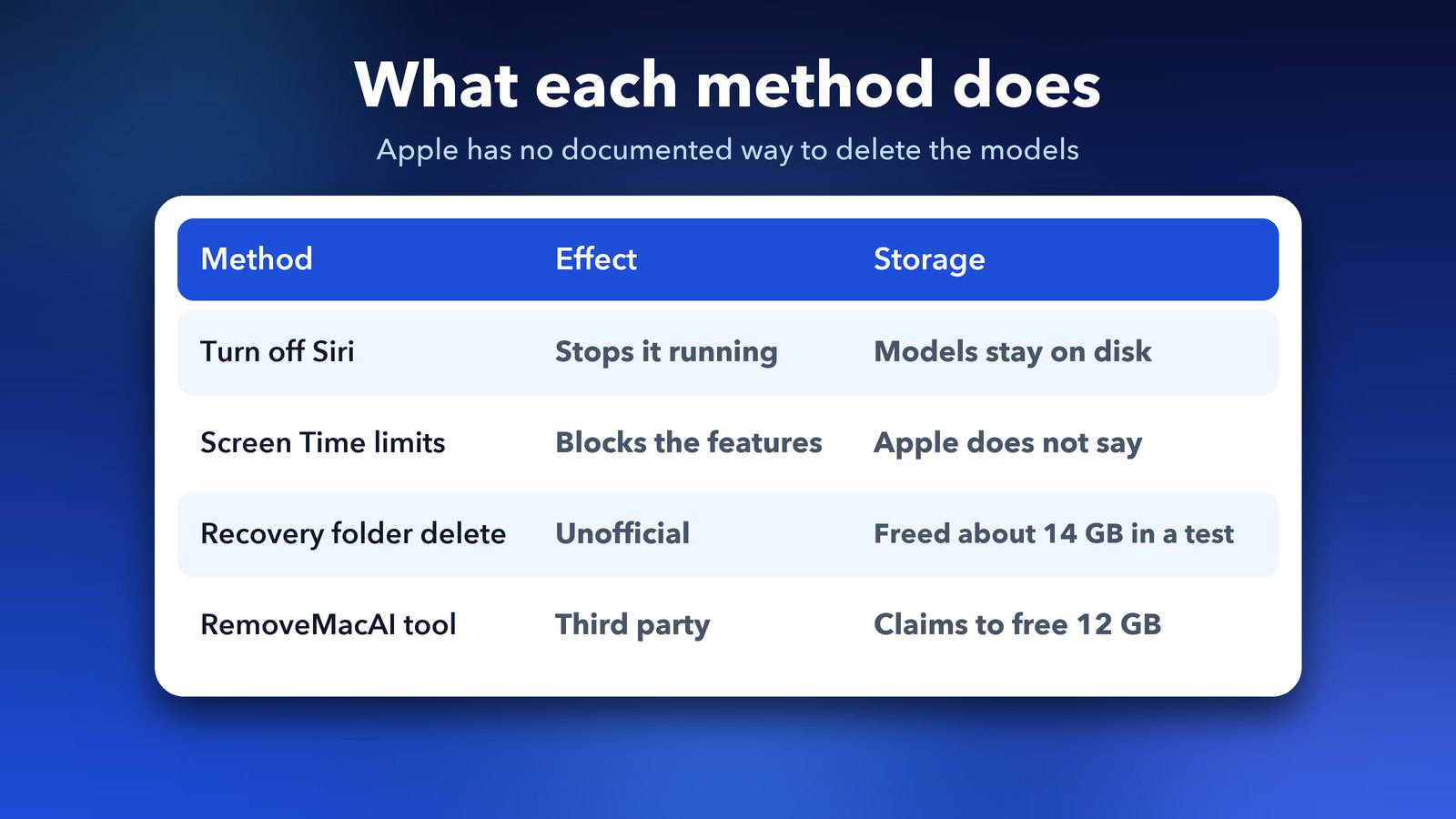
Probably not straight away. The reports I found say turning Siri off stops it from running, but the model files stay on the disk. Apple has no documented button that deletes them. One reader on a Mac news site said they got no space back, which fits the other reports. A University of Wisconsin help page says the models are removed when you switch Apple Intelligence off, but that page covers the older behaviour.
Is there a way to delete the models?
There are unofficial ways, and I would be careful with them. AppleInsider tested deleting the generative-models folder from Recovery. Storage dropped from 27.59 GB to 3.07 GB, and free space rose by about 14 GB. The same report warns that results vary, the models may come back, and you should back up first.
A free command-line tool called RemoveMacAI claims to turn off the features and delete about 12 GB of models. Help Net Security describes it and says it needs an Apple silicon Mac. It also switches off Siri, Writing Tools, Genmoji, Image Playground and Photos Clean Up. The developer says it collects no data, but nobody independent has confirmed that. I have not run it, and I would not install anything from a one-line script on my main Mac.
What stops working if I turn it all off?
Writing Tools, summaries, image tools and Siri AI answers go away. According to the Help Net Security report, apps that use Apple's on-device model, the Use Model action in Shortcuts, and some Calendar features also stop working. Dictation keeps working. If you only dislike a few things, such as the Ask Siri entries or suggested replies, switch off just those.
Which way should I use?
If you want the AI out of your way, do the Screen Time steps and the per-app switches. They are safe and you can reverse them in a minute. If your real problem is storage, check the Storage screen first, because System Data and old files may be bigger than Apple Intelligence. Only try the unofficial removal methods if you are comfortable with Recovery and have a backup.
Want more from the apps that came with your Mac? Our guide on using Notes and Reminders together is a good next read. If Spotlight is giving you trouble, see how to fix Spotlight not finding files on a Mac.
Open Settings, Storage and see your number today. You may be surprised.
Image credits: MacBook Air M4 render, iPhone 17 Pro vector (TheGoldenBox) and iPad Pro 11 mockup (Jem Riggs) from Wikimedia Commons (CC BY-SA 4.0), with illustrated screens and a custom wallpaper. Apple Intelligence and Siri icons from Wikimedia Commons; the icons belong to Apple. Other graphics by Daily Techocracy.