How to fix Task Manager freezing on Windows 11
Hello Folks,
We at Daily Techocracy are back with some juicy info for all you kind readers....lets get to it !!
You know the moment. An app locks up, the fan roars, and you press Ctrl+Shift+Esc to end it. Then Task Manager freezes too. Windows 11 users have been complaining about this for a while, and this week a Microsoft engineer explained why it happens. Below is the reason in plain words, and the steps I'd try, in order, to get your PC back.
Quick answer: Task Manager freezes when the PC is so overloaded that even Task Manager can't get what it needs. Wait 30 seconds, then press Ctrl+Alt+Delete and open Task Manager from there, or right-click the stuck app on the taskbar and choose End task. If it keeps happening, turn on the End task option in Settings, restart File Explorer and run the Windows repair commands.
Why does Task Manager freeze on Windows 11?
It freezes because a busy PC starves every program of time, and Task Manager is not exempt. Raymond Chen, a long-time Microsoft engineer, explained this on his blog on 27 October 2026. Windows Latest covered it on 30 October.
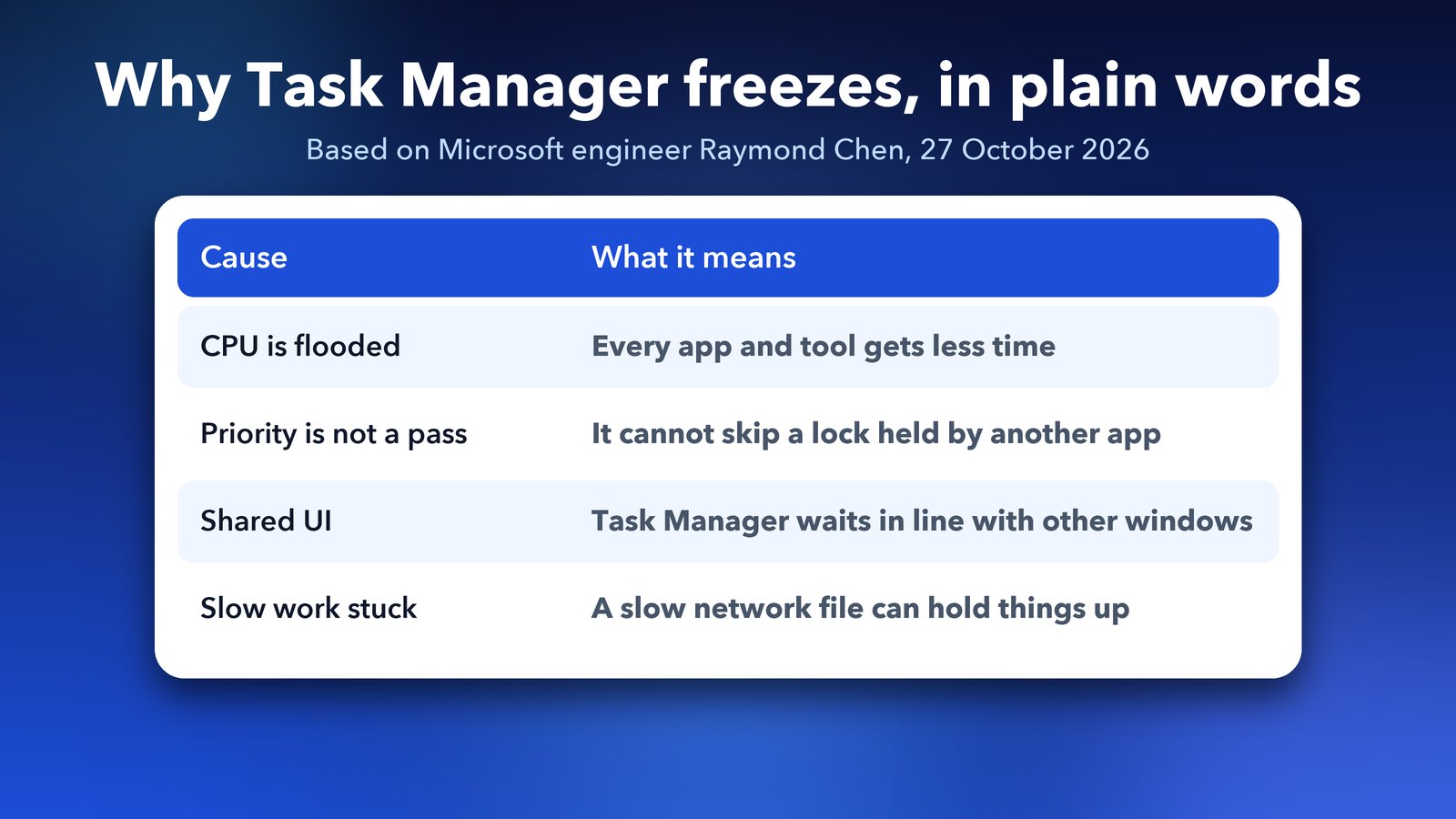
Here is what he said, in simpler words:
- When the CPU is saturated, all processes suffer, including the taskbar and Task Manager.
- Giving a program a higher priority only moves it up the line for CPU time. It does not let it skip a lock that another program is holding.
- Task Manager still has to use the shared window system. There it waits in line with every other app.
- If the thing causing the trouble is stuck on slow work, such as a slow network file, a priority boost doesn't help.
You can read the original post on Microsoft's Old New Thing blog. One more point from Chen is worth remembering. He wrote that running Task Manager at the highest priority would not fix this, and he said the same back in 2010. So this is how Windows works, not a one-off glitch from a single update.
Step 1: Wait 30 seconds
If the freeze started because one app is hogging the CPU, waiting often works. Give the PC about 30 seconds without clicking anything. Constant clicking only adds more requests to the pile.
If you can hear the fan and the disk light is on, the PC is still working. If nothing at all changes after a couple of minutes, move to the next step.
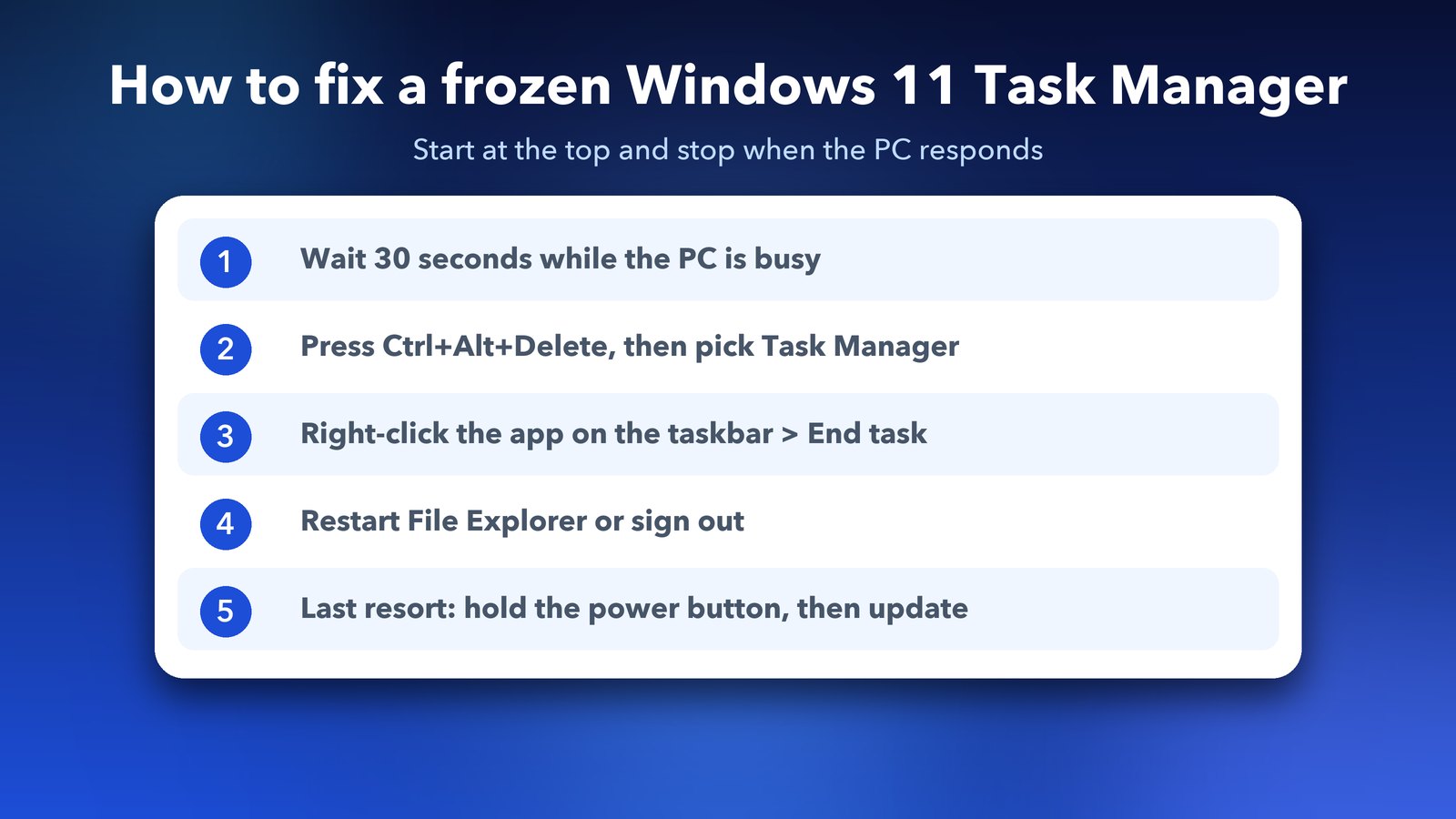
Step 2: Open Task Manager from Ctrl+Alt+Delete
Press Ctrl+Alt+Delete and pick Task Manager from the blue screen. Chen's post points out that this screen runs on a separate, protected desktop. That makes it more likely to answer when your normal desktop is stuck. From the same screen you can also sign out or restart.
It can still lag when Windows is in really bad shape, so give it a few seconds to appear. If Ctrl+Alt+Delete itself does nothing, see how to fix Ctrl+Alt+Del not working after a Windows 11 update.
Step 3: End the stuck app from the taskbar
You can close a frozen app without opening Task Manager at all. Right-click its icon on the taskbar and select End task. This option isn't always visible, so turn it on first:
- Open Settings.
- Go to System, then Advanced.
- Turn on End task.
Windows Latest gives this path. On some builds the same page is called For developers instead of Advanced, so use the search box in Settings if you can't find it. I'd turn it on now, before the next freeze, because it is the quickest way out.
Step 4: Restart File Explorer or sign out
If the taskbar and Start menu are frozen too, Windows Explorer may be the part that is stuck. Task Manager can restart it once it opens. Select Windows Explorer in the Processes list, then choose Restart.
When you can't even do that, use Ctrl+Alt+Delete and choose Sign out. Signing out closes your apps, so save your work if you can. It clears the overload without a full restart.
Step 5: Force a restart as a last resort
If nothing responds, hold the power button until the PC turns off, then start it again. You may lose unsaved work, and that is why it is the last step. After it boots, go to Settings > Windows Update and install anything waiting, then see the fixes below.
How do I stop Task Manager freezing again?
You can't remove the cause completely, because Chen's explanation shows it's a limit of how Windows shares CPU time. You can make a freeze less likely, though. These are the habits that helped me:
- Find the heavy app. After a freeze, open Task Manager, sort by CPU, and note which app was at the top. If it's always the same app, update it or remove it.
- Close extra browser tabs and startup apps. In Task Manager, open Startup apps and disable things you don't need at login.
- Keep Windows updated. Go to Settings > Windows Update. Microsoft has fixed Task Manager bugs in past updates.
- Check free disk space. A nearly full drive slows everything down.
If a slow Wi-Fi connection to a network drive is the cause, our guide on fixing Wi-Fi drops after sleep on a Windows 11 laptop may help, and a loud fan is often a sign of heavy load, so see how to fix a loud laptop fan on Windows 11.
What if Task Manager won't close or opens many copies?
This is a different problem. After the October 2025 update KB5067036, some people found that closing Task Manager left it running in the background, and each new open added another copy. Microsoft said the buildup of background processes can slow other apps.
If you see several Task Manager entries, open Command Prompt as administrator and type taskkill /im taskmgr.exe /f. This ends every copy at once. It is safe, because Task Manager just starts fresh next time. Installing the latest Windows update is the lasting fix, so check that you are up to date.
Can repair commands fix a freezing Task Manager?
Sometimes, when damaged system files are the cause. Open Command Prompt as administrator and run these two, one after the other:
sfc /scannowDISM /Online /Cleanup-Image /RestoreHealth
Restart the PC afterwards. A reader on Microsoft's Q&A site said this brought their taskbar and Task Manager back. That is one user's report, not an official fix, and it won't help when the real reason is just an overloaded PC.
My honest take
I'd love it if Windows warned you before things lock up, or paused the app that is hogging the PC. Windows Latest argues the same. Until that happens, Ctrl+Alt+Delete and the taskbar End task option are your best friends. Set them up before you need them.
If this saved your afternoon, you may also like our post on the Windows 11 October 2026 update.
Image credits: Surface Pro photo by KK IN HK via Wikimedia Commons (CC BY-SA 4.0). Windows 11 and Task Manager icons: Microsoft, via Wikimedia Commons.
Sources: Raymond Chen, The Old New Thing (27 Oct 2026); Windows Latest (30 Oct 2026).