How to Fix Split View Not Working on iPadOS 26
Hello Folks,
We at Daily Techocracy are back with some juicy info for all you kind readers....lets get to it !!
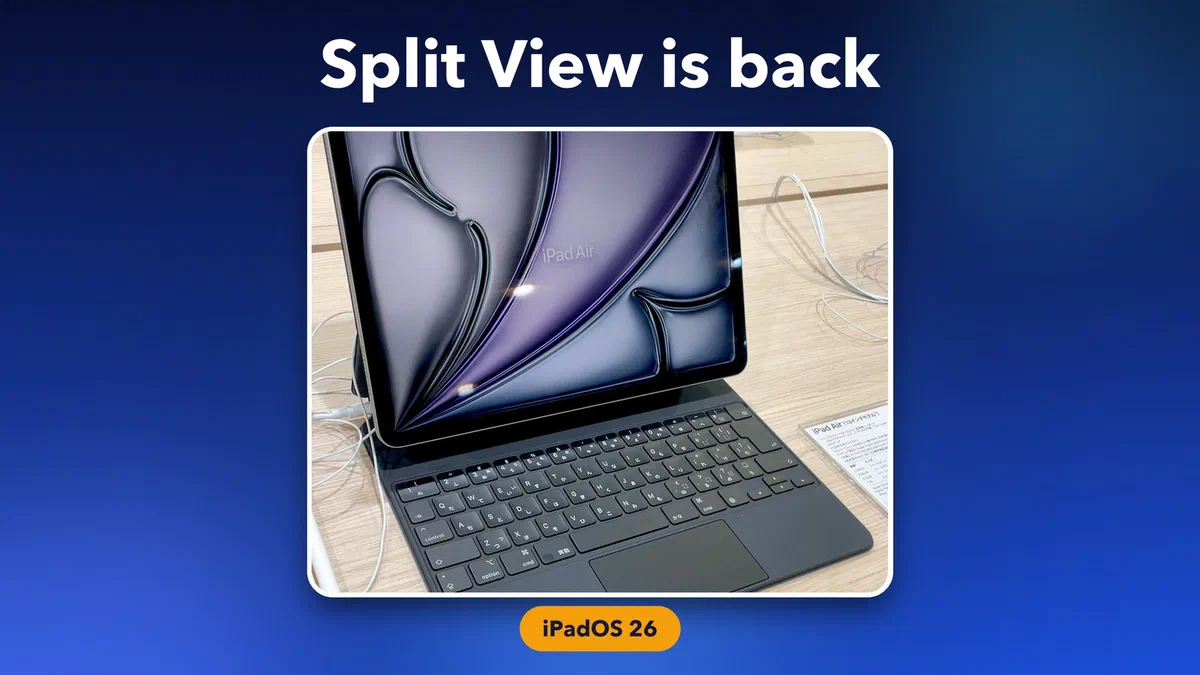
You updated your iPad, went to open two apps side by side like you always do, and nothing happened. No Split View. You drag an app to the edge and it just snaps back, or the old three-dot button at the top of the screen is gone. You haven't broken anything. Apple rebuilt iPad multitasking in iPadOS 26, and Split View now lives inside a new mode that's easy to miss.
Quick answer: In iPadOS 26 and 27, Split View only works in Windowed Apps mode. Go to Settings > Multitasking & Gestures and choose Windowed Apps. Then update to iPadOS 26.2 or later, which brought back the drag-from-the-Dock gesture: drag an app icon from the Dock to the left or right edge and it fills half the screen. For Slide Over, touch and hold the green button on a window and choose Enter Slide Over.
Why Split View disappeared after the iPadOS 26 update
With iPadOS 26, Apple replaced the old Split View and Slide Over with a new window system, much like a Mac. Apps can now sit in resizable windows with three small coloured buttons in the top-left corner (close, minimise and full screen). Then Apple brought the old tricks back, one update at a time:
- iPadOS 26.0: Split View and Slide Over removed. You could only line up windows by flicking them to the edges of the screen.
- iPadOS 26.1: Slide Over came back, inside Windowed Apps mode.
- iPadOS 26.2: the drag-from-the-Dock gesture came back. Drag an app to a side edge and it fills half the screen. Most people call this the return of Split View, even though Apple doesn't use the name any more.
- iPadOS 27: no changes to multitasking. Everything below works the same way.
So Split View usually "doesn't work" for one of three reasons: your iPad is set to Full Screen Apps, it's on iPadOS 26.0 or 26.1, or the app you're using doesn't support windows.
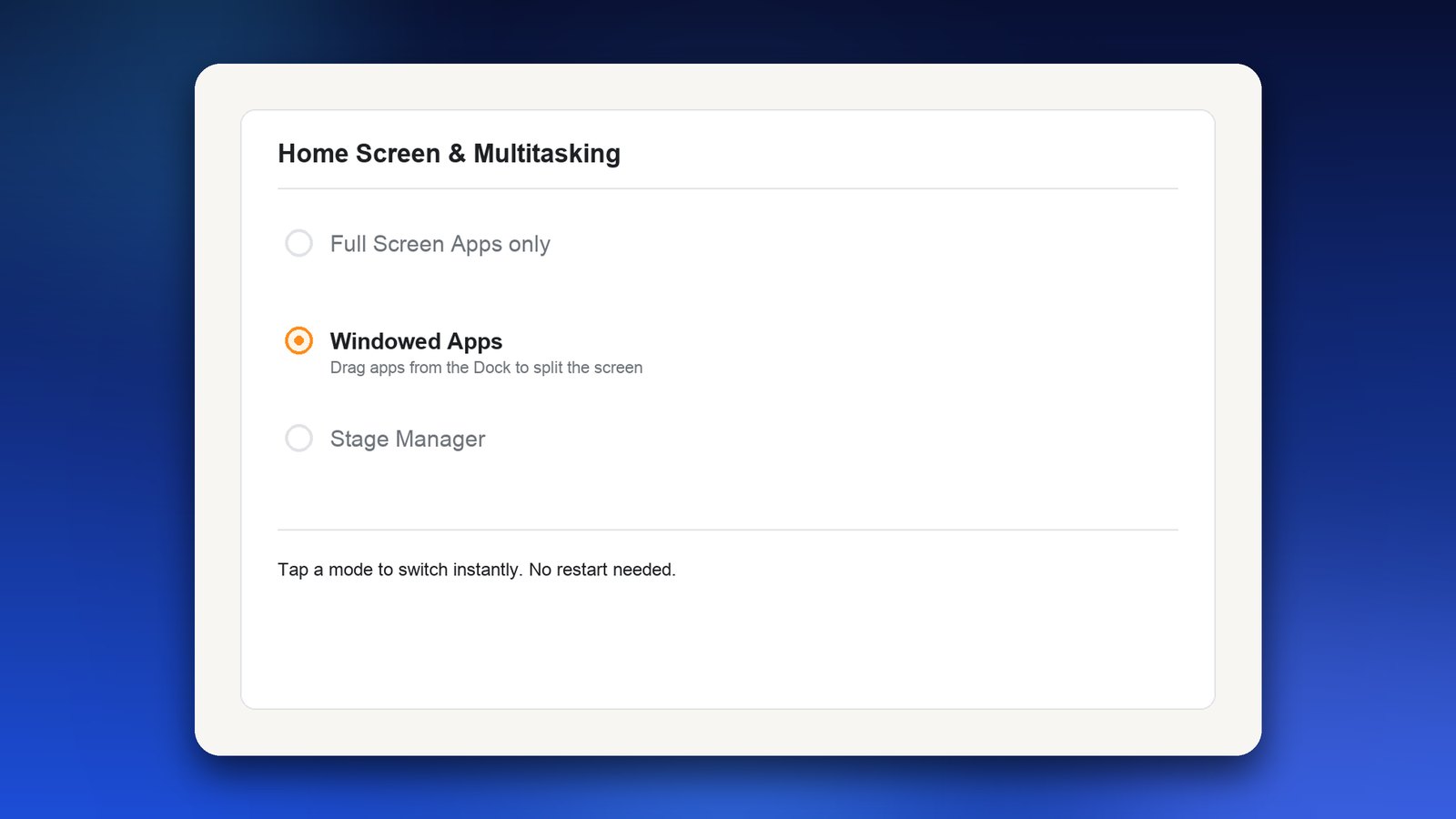
Step 1: Switch to Windowed Apps
This one setting fixes the problem for most people.
- Open the Settings app.
- Tap Multitasking & Gestures.
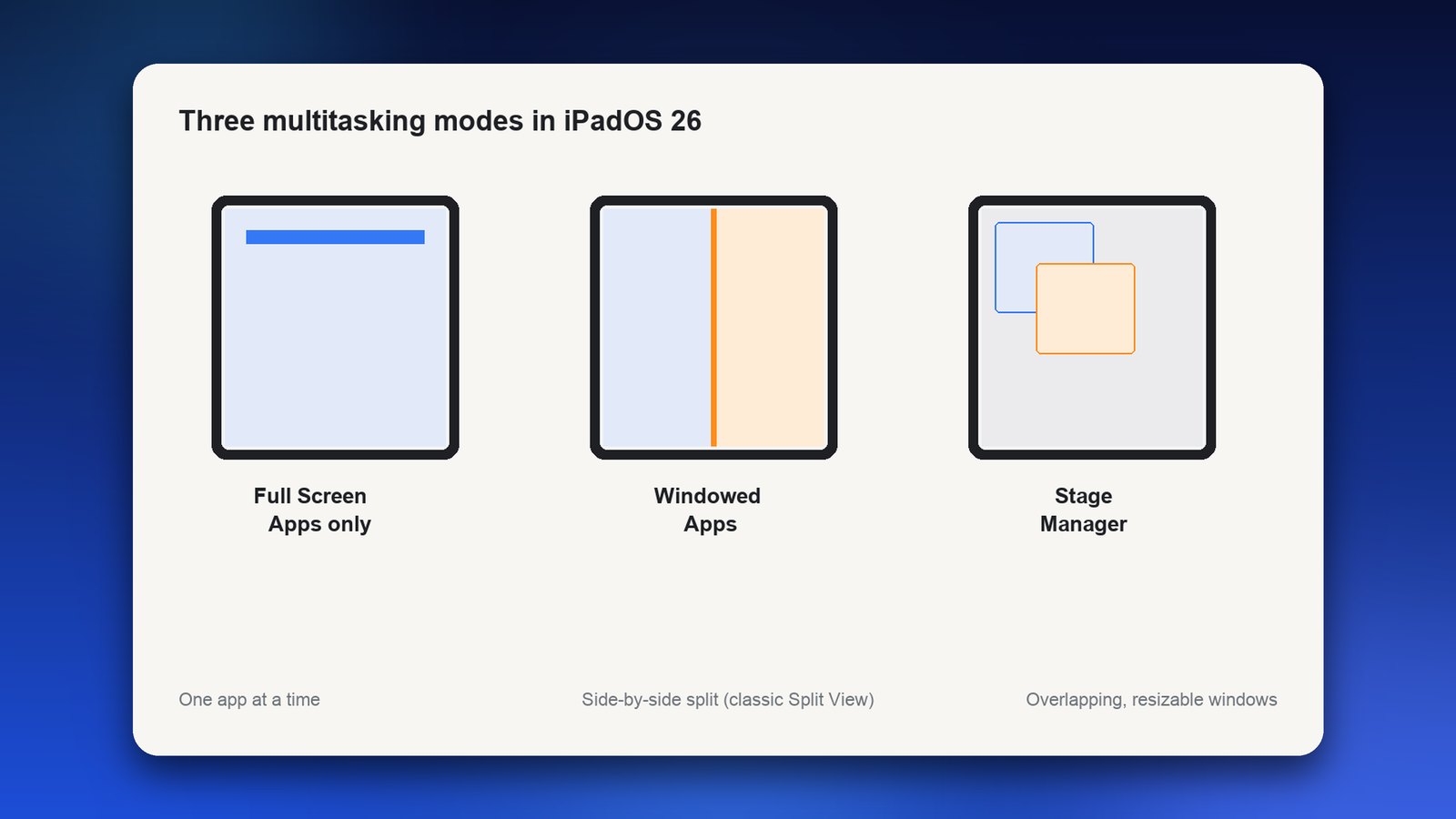
- You'll see three choices: Full Screen Apps, Windowed Apps and Stage Manager. Choose Windowed Apps.
In Full Screen Apps mode every app fills the whole screen, and there's no way to split it. That's the mode that often catches people out after the update.
Step 2: Update to iPadOS 26.2 or later
If you're on iPadOS 26.0 or 26.1, the classic drag-to-split gesture simply doesn't exist yet. Updating fixes that.
- Go to Settings > General > Software Update.
- Install the latest version. If your iPad offers iPadOS 27, that works too.
- Restart your iPad when it's done.
Step 3: Split the screen the new way
Once you're in Windowed Apps on iPadOS 26.2 or later, you have two easy ways to put two apps side by side.
Drag from the Dock:
- Open the first app.
- Swipe up a little from the bottom edge to show the Dock.
- Drag a second app's icon to the left or right edge of the screen, then let go. It fills that half.
- Drag the thin bar between the two apps to give one more room.
Use the window buttons: touch and hold the green button at the top-left of an app window. You'll see layout options for placing the window on the left or right half of the screen. Pick one, then choose the second app for the other side. You can also flick a window quickly towards the left or right edge to snap it there.
Drop an icon in the middle of the screen instead of at an edge and it opens as a floating window. Keep going towards the edge until you see the half-screen outline before you let go.
Step 4: Bring back Slide Over
Slide Over, the small floating app you can hide off the side of the screen, needs iPadOS 26.1 or later and Windowed Apps mode.
- Open the app you want in Slide Over.
- Touch and hold the green button at the top-left of its window.
- Choose Enter Slide Over.
- To hide it, drag it off the left or right edge. Swipe in from that edge to bring it back.
Only one app can be in Slide Over at a time. Put a second one there and it replaces the first. If you drag an app from the Dock, you can also drop it on the small arrows at the side of the screen to send it straight to Slide Over.
Step 5: Check Stage Manager isn't the mode you're in
Stage Manager is the third choice in Settings > Multitasking & Gestures. It groups overlapping windows into stacks on the left of the screen. It's great on a big iPad with a keyboard, but it can feel like Split View has vanished, because windows float rather than snap into halves.
Since iPadOS 26, Stage Manager runs on every iPad that gets the update, not only the M-chip models. So an iPad that never had it before can now be switched into it by accident. If that's you, go back to Windowed Apps in Step 1.
Step 6: When one app won't split
If most apps split but one doesn't, the problem is that app, not your settings.
- No coloured buttons at the top of the window? The app doesn't support windows, so it can't go into Split View or Slide Over. Apple's own Settings app is one example.
- Update the app: open the App Store, tap your profile picture and update everything. Many developers added window support after iPadOS 26.
- Restart the app: swipe up and pause to see your open apps, swipe the app away, then open it again.
- Restart the iPad: hold the top button and either volume button, then slide to power off. This clears a lot of window glitches after an update.
Tips and troubleshooting
- Two apps only: the half-and-half layout holds two apps. For three or more, use free windows in Windowed Apps or switch to Stage Manager.
- Pinch doesn't resize windows: drag the bar between two apps, or drag the bottom-right corner of a floating window.
- Using a keyboard? Hold the Command key to see the shortcuts for the app you're in.
- Battery drains faster: running several apps on screen uses more power. If your battery suddenly drops, see our guide to iPad battery drain on iPadOS 27.
If your iPad also has Stage Manager acting up on its own, our guide on fixing Stage Manager not working in iPadOS 26 covers that separately. Apple's own iPad multitasking guide has more on windows.
Frequently asked questions
Did Apple remove Split View in iPadOS 26?
Yes and no. iPadOS 26.0 replaced the old Split View and Slide Over with a new windowing system. Apple then brought Slide Over back in iPadOS 26.1 and the drag-from-the-Dock split gesture in iPadOS 26.2. You need Windowed Apps turned on to use them.
Why can't I drag an app to the side of my iPad screen anymore?
Either your iPad is set to Full Screen Apps, or it's on a version older than iPadOS 26.2. Go to Settings > Multitasking & Gestures and choose Windowed Apps, then update in Settings > General > Software Update.
How do I get Slide Over back on my iPad?
Update to iPadOS 26.1 or later and turn on Windowed Apps. Then touch and hold the green button at the top-left of an app window and choose Enter Slide Over. Only one app can be in Slide Over at a time.
Does iPadOS 27 change Split View?
No. iPadOS 27 keeps the same windowing system as iPadOS 26.2, so the same settings and gestures work on both.
Does my iPad support Stage Manager in iPadOS 26?
Yes. Since iPadOS 26, Stage Manager works on every iPad that can run the update, not only M-chip models. You switch to it in Settings > Multitasking & Gestures.
Did Windowed Apps bring your Split View back, or are you still stuck? Tell us which iPad you have.
New image credits: “M2 iPad Air 13inti” by Kyu3a, CC BY-SA 4.0, via Wikimedia Commons.