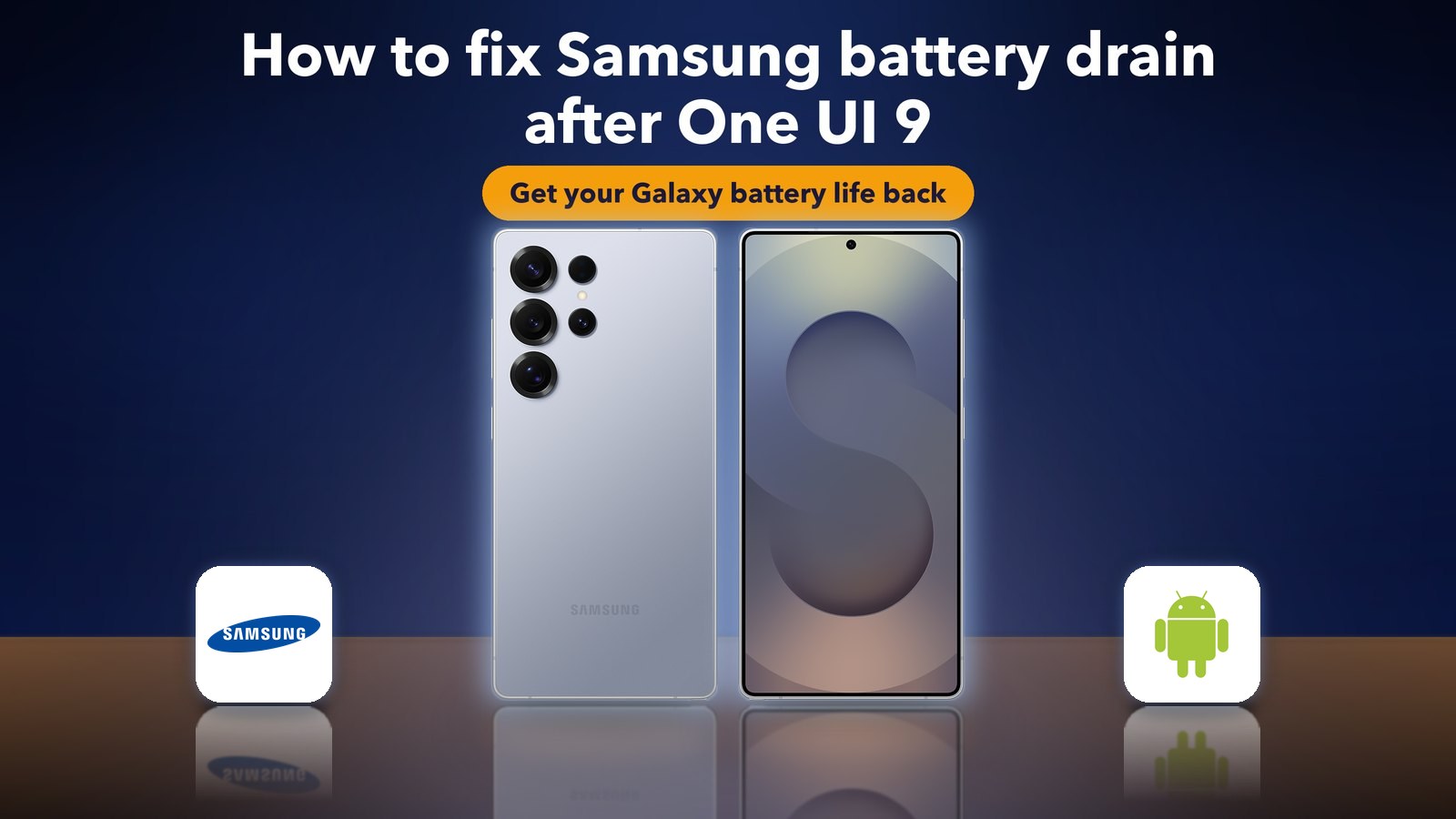
How to fix Samsung battery drain after One UI 9
Hello Folks,
We at Daily Techocracy are back with some juicy info for all you kind readers....lets get to it !!
One UI 9 is rolling out to more Samsung Galaxy phones, and the top complaint is battery life. In the last 30 days, Samsung owners started close to 80 Reddit threads about One UI 9 problems, with titles like "Latest software update kills the phone". Here is what Samsung has said, how to tell normal drain from a real problem, and the steps that fix it.
Quick answer: Give your Galaxy two or three days after the update, because One UI 9 keeps optimising apps in the background. Then open Settings > Battery and check which apps use the most power. Put heavy apps to sleep under Background usage limits, update all apps in the Galaxy Store and Play Store, and restart. If the drain is still extreme, wipe the cache partition in recovery mode or book a check with Samsung.
Is One UI 9 causing battery drain?
For some owners, yes, but Samsung hasn't confirmed a bug.
- BGR reported on 28 October 2026 that Galaxy S24 and S25 owners were seeing faster drain after One UI 9. One Galaxy S24 Ultra owner said the battery dropped by 95% in about three hours and 15 minutes of screen-on time, mostly watching YouTube. Samsung reportedly got in touch with that user to book a service appointment.
- TechRepublic said Android Authority asked Samsung about the reports, but no cause or software fix has been confirmed.
- In Android Authority's reader poll, published on 27 October, 22.3% of voters said they'd hit "a few" issues after One UI 9, and another 9.1% said their issues were minor.
So, most Galaxy owners are fine, which points to something on your phone, like an app or a setting.
Is battery drain normal after a big update?
A little, for a short time. After a big update like One UI 9, your phone does a lot of work in the background. It re-optimises apps, rebuilds search indexes and re-scans photos. That uses extra power for a day or two. BGR made the same point: drain after an update is often temporary, and some apps need time to catch up with the new software.
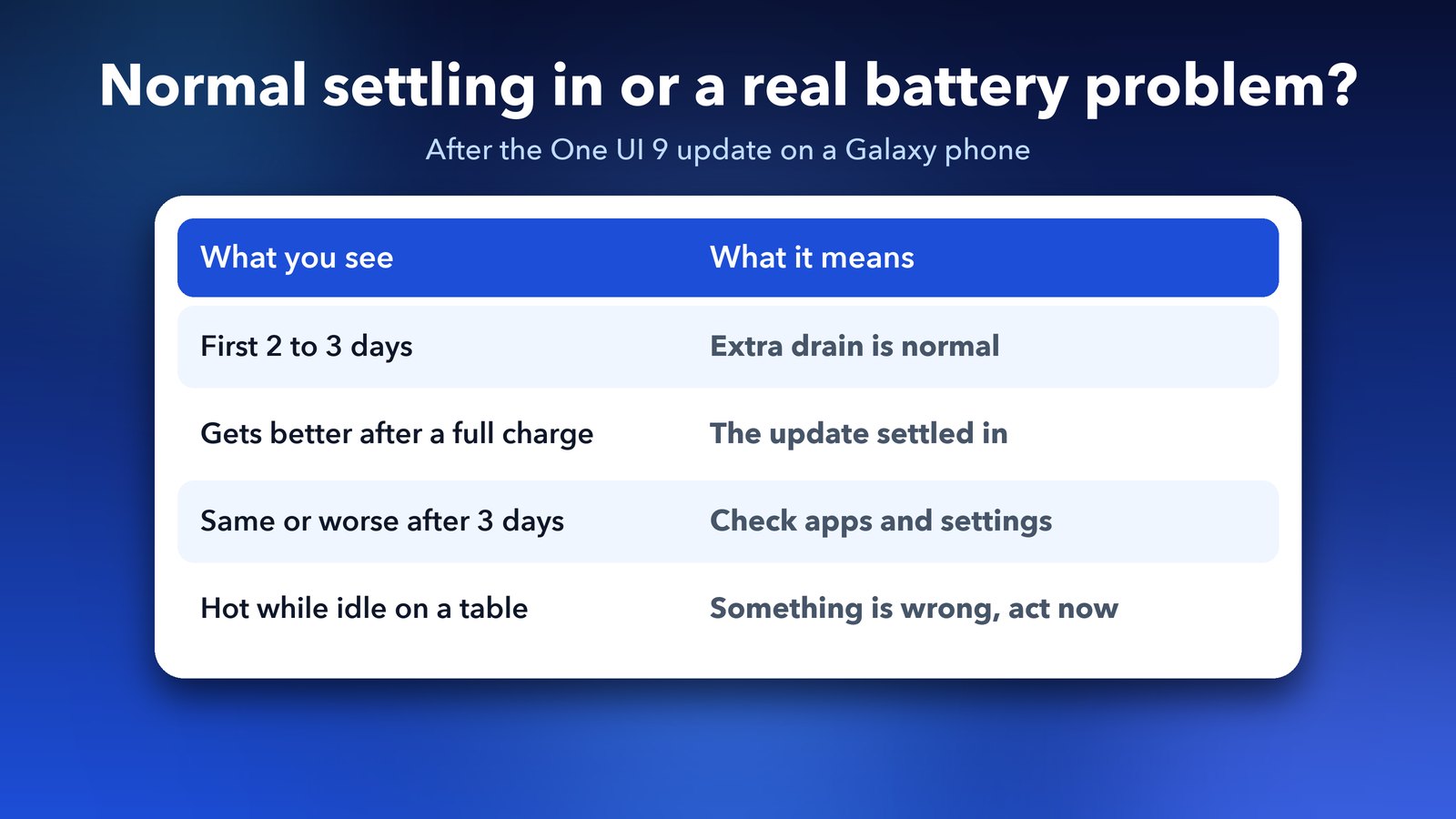
Here's a simple rule I use. If the drain improves after two or three days of normal use and a full charge cycle, it was the update settling in. If it stays the same or gets worse, or if the phone gets hot while sitting on a table, something is wrong and the steps below will help.
Step 1: Give it a few days and charge normally
Don't change settings on day one. Use the phone normally for two or three days and charge it as usual. Stay on Wi-Fi when you can, because syncing over mobile data uses more power.
Step 2: Find the app that's draining your battery
This is the most useful step, because it shows you the real cause. Samsung's battery menu lists how much power each app has used.
- Open Settings and tap Battery. On some models and regions this sits under Battery and device care.
- Tap the battery usage graph to see the list of apps.
- Look for an app near the top that you haven't used much. That is your likely culprit.
Social media, video apps and games are common names here. If Android System sits at the top, the phone may still be finishing its post-update work.
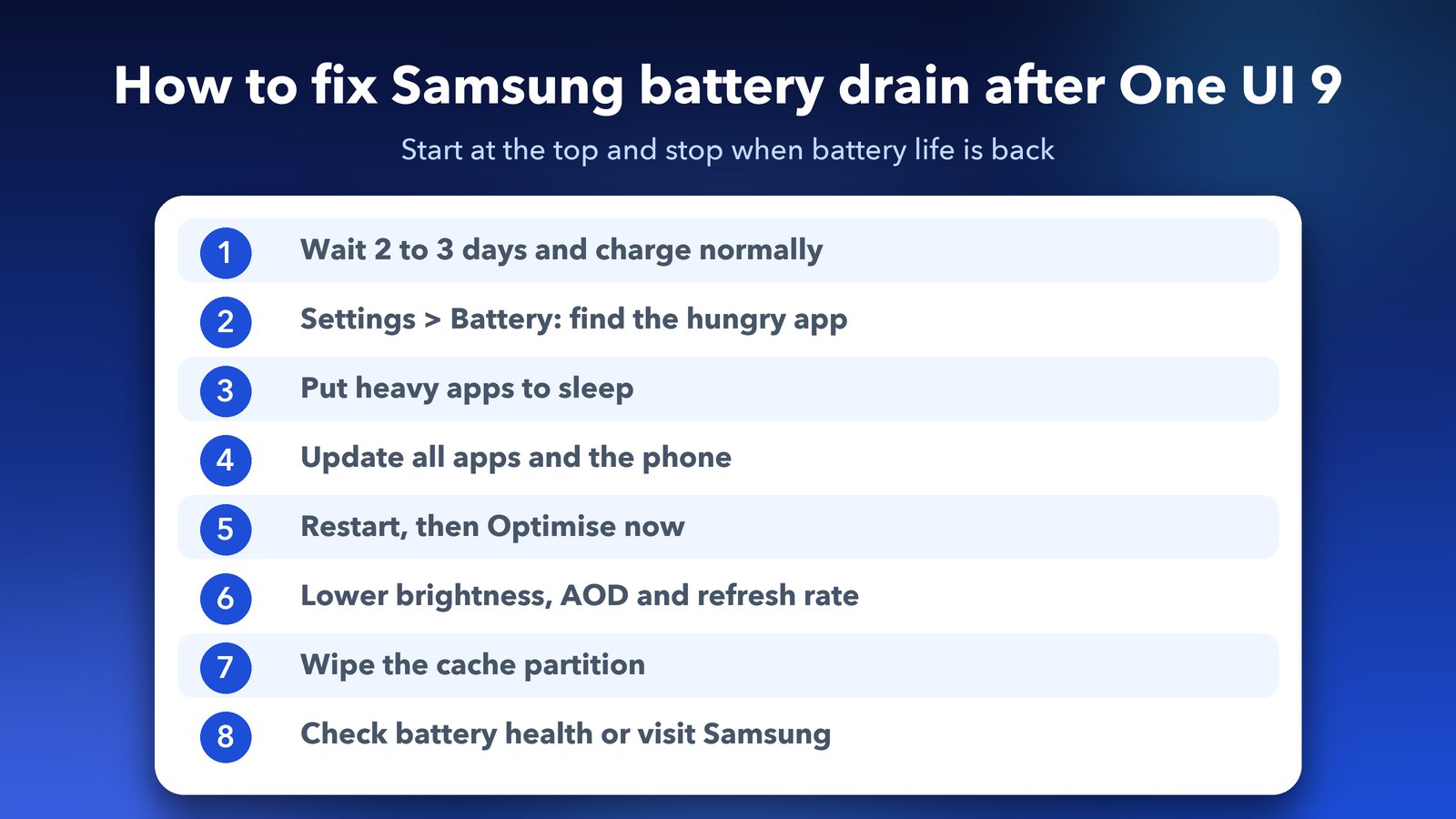
Step 3: Put heavy apps to sleep
Galaxy phones can stop apps from running in the background. Samsung's support pages give this path:
- Open Settings and tap Battery. Again, on some phones it is Battery and device care, then Battery.
- Tap Background usage limits.
- Turn on Put unused apps to sleep.
- Tap Deep sleeping apps and add the app you found in Step 2, unless you need its notifications.
Deep sleeping apps only run when you open them, so you won't get their notifications. For messaging apps, use Never sleeping apps instead. Can't find the menu? Search Settings for "Background usage limits".
Step 4: Update every app
Old app versions can misbehave on new software.
- Open the Play Store, tap your profile picture, then Manage apps & device, and tap Update all.
- Open the Galaxy Store, tap Menu, then Updates, and update everything there too. Samsung's own apps often update through the Galaxy Store.
Then go to Settings > Software update and tap Download and install. Samsung often ships a follow-up update with fixes.
Step 5: Restart and use Optimise now
Restart the phone after the updates. Then run Samsung's built-in tune-up: open Settings, go to Device care (or Battery and device care), and tap Optimise now. Samsung's support page says this closes apps running in the background and checks for apps using too much battery.
Step 6: Turn down the biggest power users
Try these for a day to see what helps.
- Screen brightness and refresh rate. The screen uses the most power. Go to Settings > Display, turn on Adaptive brightness, and set Motion smoothness to Adaptive rather than always high.
- Always On Display. Set it to show only when you tap the screen, or turn it off under Settings > Lock screen and AOD.
- Power saving. Samsung says Power saving limits background data and turns off heavy features like Always On Display. Turn it on from the quick settings panel when you need to stretch the battery.
- Location and scanning. Check which apps use your location all the time in Settings > Location > App permissions, and change them to only while using the app.
Step 7: Wipe the cache partition
This clears temporary system files left over from the old version. It doesn't delete your photos, apps or messages, but it does need a few careful button presses. On recent Galaxy phones, the phone must be connected to a computer or USB audio device with a cable to reach recovery mode.
- Turn the phone off.
- Connect it with a USB cable, then press and hold the Side button and the Volume up button together.
- When the recovery menu appears, use the volume buttons to select Wipe cache partition, and press the Side button to confirm.
- Select Yes, then choose Reboot system now.
Step 8: Check battery health or book a service visit
If none of this helps, the battery itself might be wearing out. The Samsung Members app has a Diagnostics section that includes a battery status test. Open Samsung Members, look for Support or Diagnostics (the name varies by version), and run the Battery status check.
If the test shows a weak battery, or the phone gets hot while idle, book a check with Samsung. In the S24 Ultra case BGR reported, Samsung offered a service appointment, so it's worth asking.
Galaxy S26 Ultra stuck on the setup screen after a reset?
This is a different One UI 9 bug, and it's more serious than battery drain. According to Notebookcheck and Cybernews, some Galaxy S26 Ultra owners who factory reset their phone on One UI 9 couldn't finish the setup, because the phone couldn't connect to Samsung's servers.
If this happens to you, try a different Wi-Fi network, or skip Wi-Fi and set up over mobile data. If it still won't go through, contact Samsung support before trying anything else. Until Samsung fixes this, I'd avoid a factory reset on an S26 Ultra unless you really need one.
Should you wait before installing One UI 9?
If your Galaxy works well and One UI 9 has just arrived, waiting a week or two for the follow-up update is reasonable. Check our roundup of the Samsung October 2026 security update to see what Samsung has already fixed.
But don't wait months, because Samsung's updates include security patches.
More Samsung and Android fixes
If your phone is also running out of space, which can slow it down and make it work harder, see how to fix "Storage almost full" on Android. If file sharing stopped working after the update, our guide on fixing Quick Share not working on Android may help. And if your Galaxy feels slow or stutters since the update, see how to fix Samsung lag and stutter after One UI 9.
My honest take
One UI 9 isn't ruining every Galaxy battery. Most drain I've read about comes down to one or two hungry apps or the first days of settling in. Samsung should still say clearly whether there's a bug. Until then, check your battery usage, put heavy apps to sleep, keep everything updated, and ask Samsung for help if the drain is extreme.
Image credits: Galaxy S25 Ultra product images by Samsung (samsung.com). Samsung logo and Android robot via Wikimedia Commons. Panels by Daily Techocracy.
Sources: BGR (28 Oct 2026); TechRepublic; Android Authority One UI 9 reader poll (27 Oct 2026); Notebookcheck and Cybernews on the Galaxy S26 Ultra setup bug; Samsung support pages on battery and background usage limits.