How to use Reminders and Calendar together
Hello Folks,
We at Daily Techocracy are back with some juicy info for all you kind readers....lets get to it !!
Most of us keep two lists for the same day. Meetings sit in Calendar, and little jobs like "call the bank" sit in Reminders. Then we forget one of them. The good news is that Apple's own apps can share one view, and you don't need to buy anything extra.
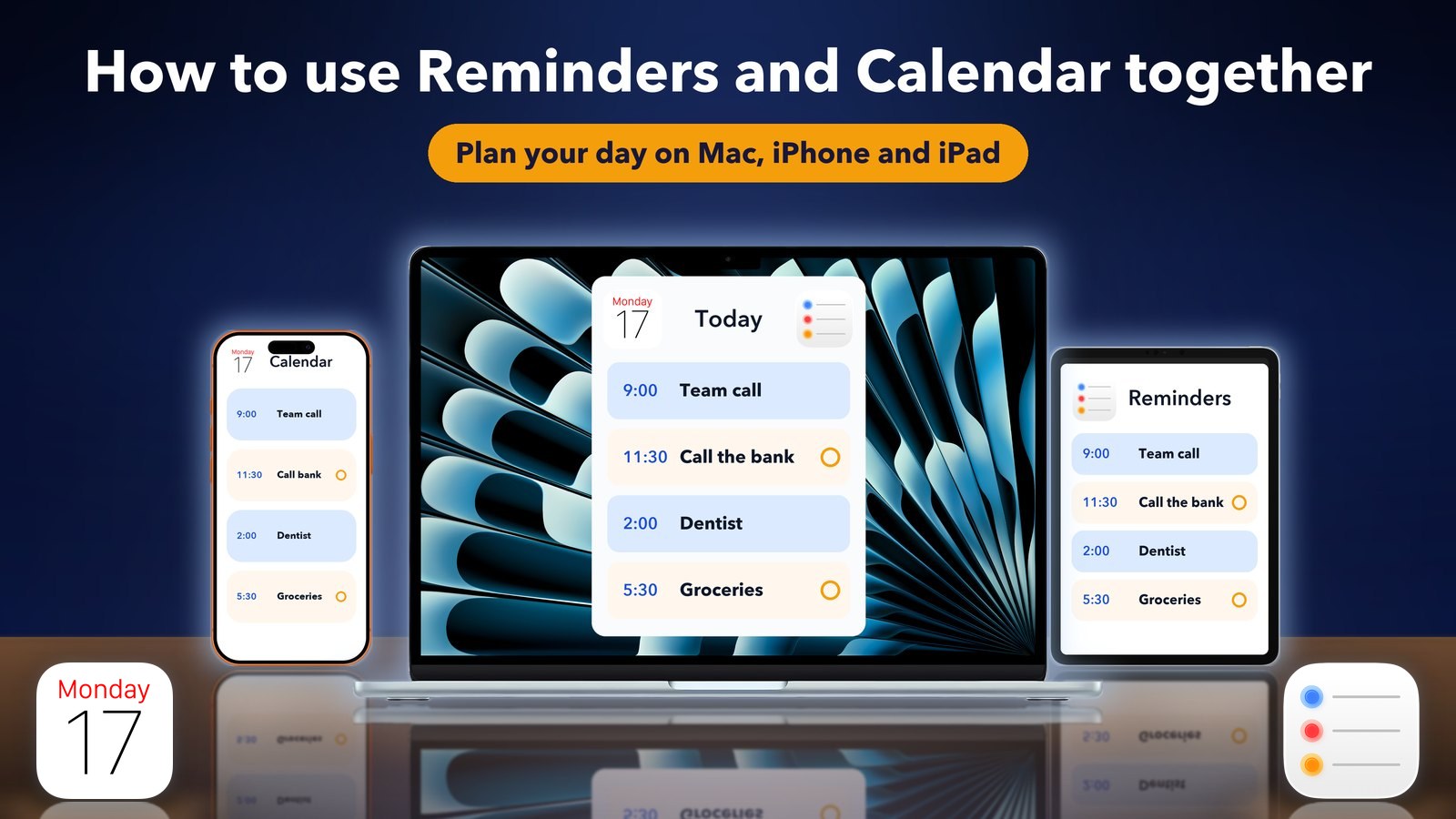
Quick answer: Open Calendar and turn on Scheduled Reminders. Your timed reminders then show up inside your day, next to your meetings. On iPhone it is under the Calendars button at the bottom. On a Mac it is a checkbox in the calendar list. iOS 27 also lets you type reminders in plain words.
How do I show Reminders in the Calendar app on iPhone?
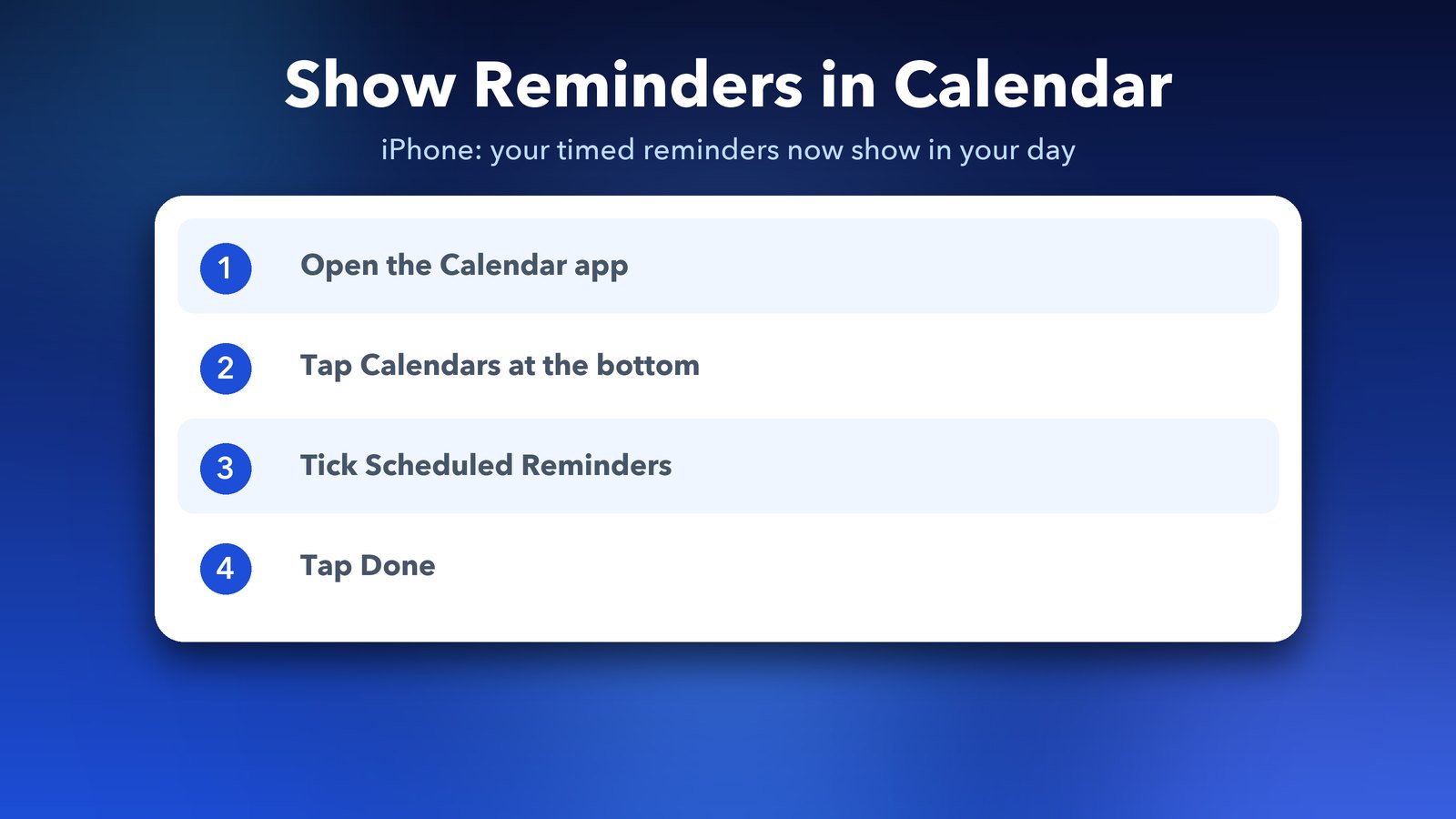
Tap Calendars at the bottom of the Calendar app, then turn on Scheduled Reminders. Apple's iPhone guide says reminders with a time then appear at that time in your day, and all-day reminders show in the all-day section.
- Open the Calendar app.
- Tap Calendars at the bottom of the screen.
- Tick Scheduled Reminders.
- Tap Done.
Hiding them is the same steps in reverse. It only hides them in Calendar. Nothing is deleted from the Reminders app. Asurion's tips page says this has worked since iOS 18.
Why are my reminders not showing in Calendar?
Two things cause this most often. First, the reminder needs a date, because Calendar only shows scheduled ones. A reminder with no date stays in the Reminders app only.
Second, Apple Community replies suggest checking that Calendar and Reminders both use iCloud. Look in Settings, then your Apple Account, then iCloud. These replies come from other users, not Apple, so treat them as a tip to try.
How do I do the same on a Mac?
Open Calendar on your Mac and tick the Scheduled Reminders box in the calendar list. If you can't see the list, choose View, then Show Calendar List.
You can also add a reminder without leaving Calendar. Click the Create Quick Event button in the toolbar, then click New Reminder. Type a title, click the date next to "remind me" and pick At a Time if you want a time. Apple says the reminder goes to the list you have selected, or to your default list from the Reminders app.
To tick something off, click the Mark Complete button next to its name. To delete one, right-click it and choose Delete. Deleted reminders stay in Recently Deleted in Reminders for 30 days, so a slip is easy to undo. Apple explains all of this on its Calendar for Mac reminders page.
What is new in Reminders and Calendar in iOS 27?
iOS 27 adds plain-language entry, a bigger widget and a few smaller changes. The best-known one is that you can describe a reminder or an event in your own words, and Apple Intelligence fills in the date, time and place.
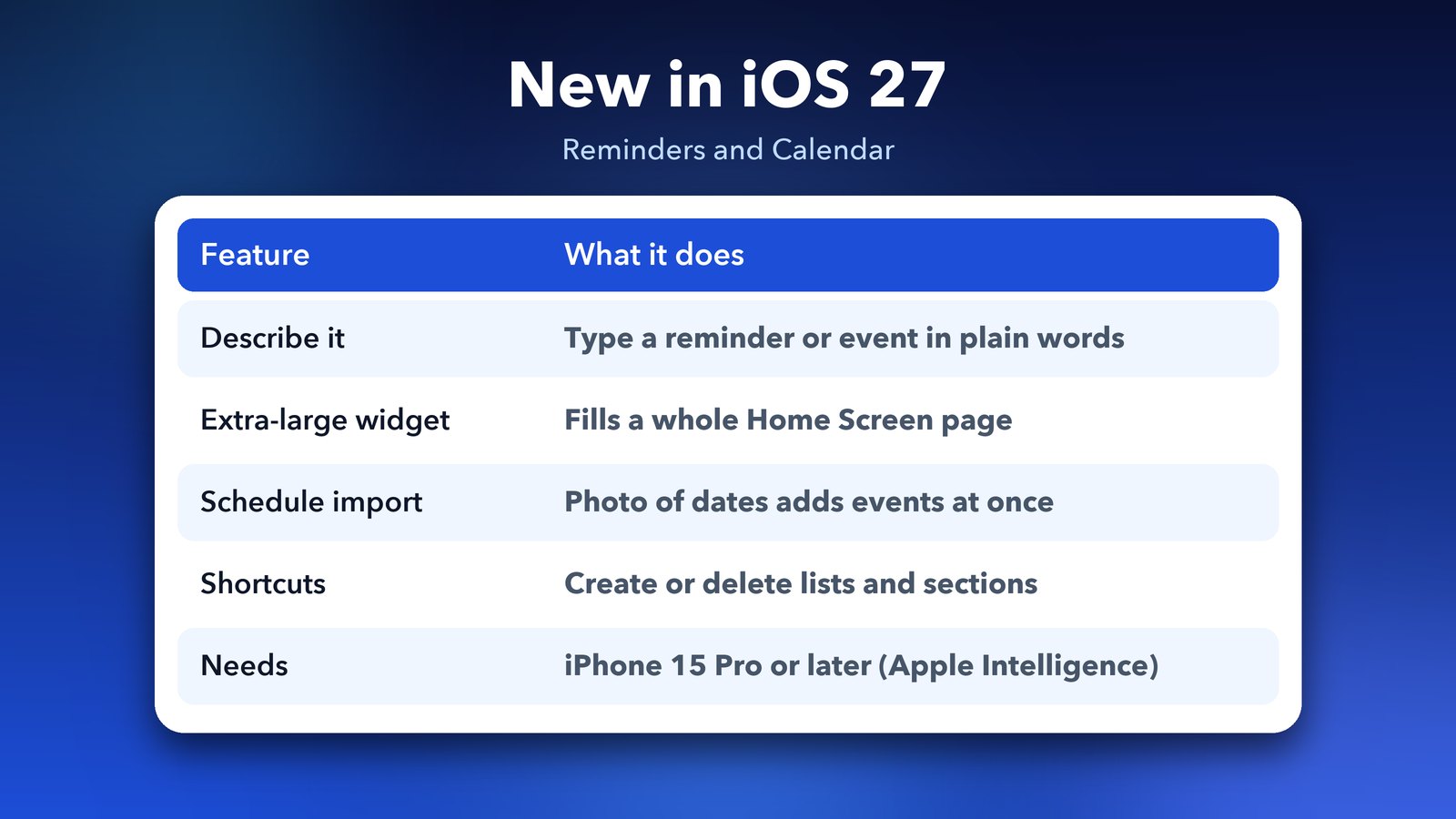
Here is the short list, based on MacRumors and 9to5Mac:
- Describe it: type something like "get the groceries at 6pm tonight" and the details are filled in for you.
- Reminder details box: in a list, controls for Date, Time, Urgent, Repeat, Location, Tag, Flag and Camera now sit in a box around the reminder you are editing.
- Extra-large widget: a new widget size that fills a whole Home Screen page, for both Calendar and Reminders.
- Schedule import: photograph a page of dates, such as a sports practice schedule, and add the events in one go with Visual Intelligence.
- Shortcuts: new actions for Reminders let you create or delete lists, groups and sections.
Two honest notes. The Apple Intelligence features need an iPhone 15 Pro or later, according to MacRumors. And MacRumors says the Calendar typing is less smooth than the third-party app Fantastical, so don't expect magic.
How do I add an event in plain words on iPhone?
Open Calendar, tap the plus button and type the event the way you would say it. Suggestions appear above the keyboard, and you tap one to fill in a person, date or place.
One catch from MacRumors: a new event goes on the day you have selected, which is today by default. If you type another date, tap the date suggestion above the keyboard so Calendar uses it.
Can Siri connect Mail, Messages and Calendar for me?
In iOS 27, yes, in part. MacRumors says Siri can create events from plain requests, including repeating ones, and can add events based on what is in apps like Mail and Messages. It can also search across Calendar and Reminders and edit an event for you. MacRumors describes these abilities only in general terms, so try a few requests of your own to see what works on your phone.
Two smaller tweaks are worth knowing. The day before a holiday, Calendar can ask whether you want to change your wake-up alarm. And grocery lists in Reminders now sort more accurately, in more languages. If you shop from a list, that one is a quiet daily win.
What is a good simple routine for both apps?
Keep appointments in Calendar and tasks in Reminders, but give every task a date. That way the task shows in your day. I like to give each task a time as well, so it lands in a real slot instead of floating in the all-day strip.
Then add the extra-large widget for the week ahead, and use Siri for quick adds when your hands are busy. If your phone acts up while you set this up, our guides on the iPhone touchscreen freezing on iOS 27 and iOS 27 stuck on Update requested may help.
Once your reminders sit in Calendar, you only have one place to check each morning. That small change saves more time than any app you could download.
Image credits: MacBook Air M4 render, iPhone 17 Pro vector (TheGoldenBox) and iPad Pro 11 mockup (Jem Riggs) from Wikimedia Commons (CC BY-SA 4.0), with illustrated screens. Calendar and Reminders app icons from Wikimedia Commons (public domain); the icons belong to Apple. Other graphics by Daily Techocracy.