Quick Share Not Working on Android? Here’s the Fix
Hello Folks,
We at Daily Techocracy are back with some juicy info for all you kind readers....lets get to it !!
You’re standing right next to a friend, phone in hand, trying to send them a photo with Quick Share, and… nothing. Their device never shows up in the list. Or it shows up, you tap send, and the transfer just sits there spinning until it times out. It’s supposed to be the fast, no-cable way to move files between Android phones, but when it breaks, it breaks in a way that makes you want to just email the file to yourself instead.
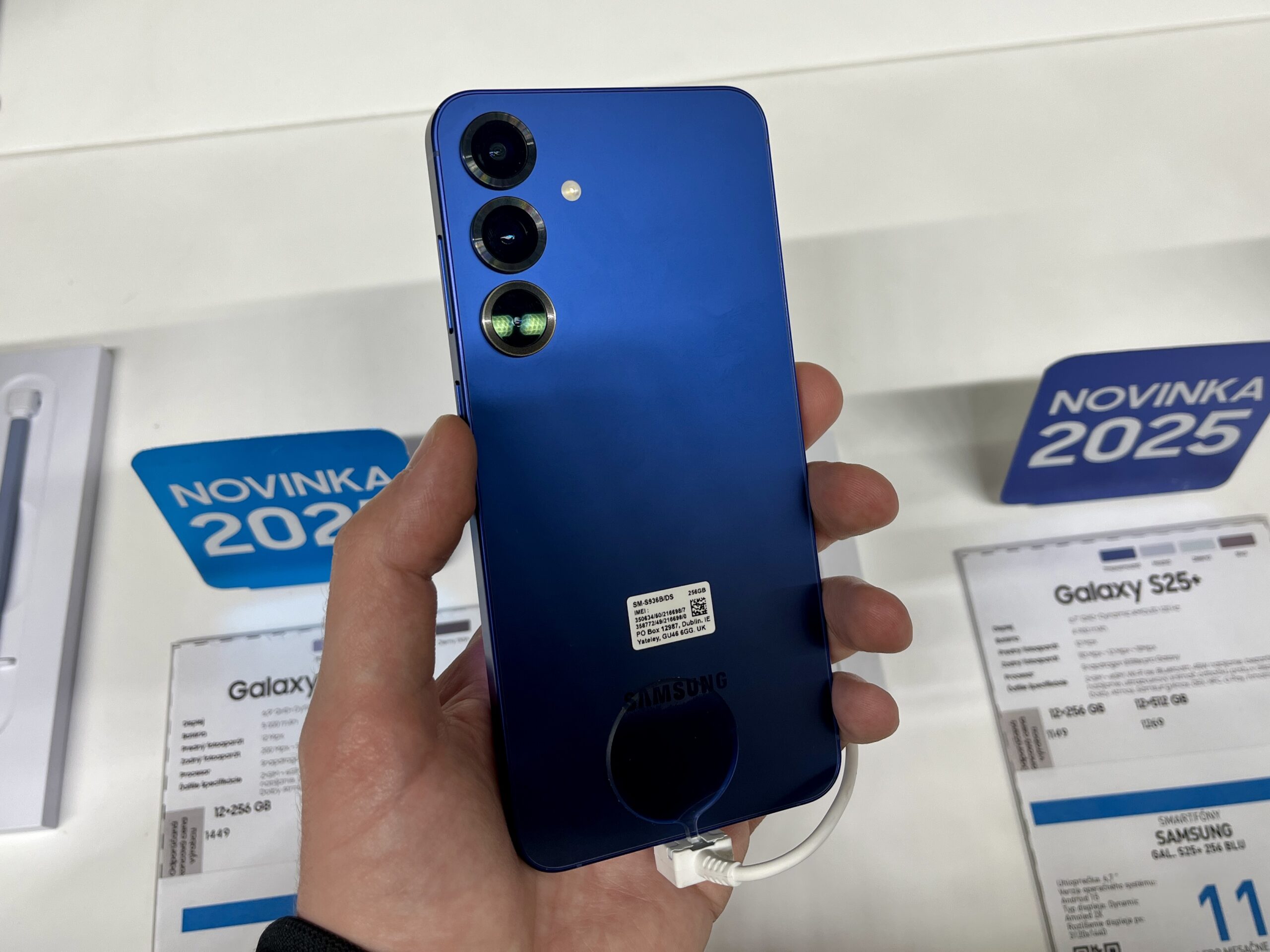
1. Turn on Bluetooth and Wi-Fi on both devices
Quick Share needs Bluetooth to find nearby devices and Wi-Fi Direct to actually move the file, so both need to be switched on, not just one. Swipe down to Quick Settings and check both toggles on the sending phone and the receiving phone. It sounds obvious, but I’ve lost count of how many times my Bluetooth had quietly turned itself off after a restart.
2. Fix your visibility settings
This is the one people miss most. Quick Share has a setting for who can see your device, and if it’s set too narrowly, your friend’s phone simply won’t appear as an option, or you won’t appear on theirs.
- Open Settings and search for Quick Share, or find it in Quick Settings and long-press the tile.
- Tap Who can share with you.
- Choose Everyone (some phones show this as “Everyone for 10 minutes”) for the transfer, then switch back to Contacts only afterward if you prefer.
If you and your friend are both signed into Google accounts that are already in each other’s contacts, the Your devices or Contacts setting should work too. But when you’re not sure, Everyone is the setting that just works.
3. Get the phones closer together
Quick Share’s Bluetooth discovery has a short range, and it gets worse through pockets, cases, or a bag. Keep both phones within about a foot of each other, screens unlocked, until the transfer starts. Once it begins, you can usually relax that distance a little.
4. Clear the Quick Share cache
Like most Android apps, Quick Share can build up a corrupted cache that makes it crash or freeze mid-transfer.
- Go to Settings > Apps.
- Search for Quick Share (on some phones it’s listed under Nearby Share).
- Tap Storage, then Clear cache.
Don’t tap Clear data unless the cache clear alone doesn’t help. Clearing data resets your Quick Share preferences, so you’ll need to redo your visibility settings afterward.
5. Turn off battery optimization for Quick Share
Aggressive battery-saving can stop Quick Share from running in the background, which shows up as transfers that start but never finish. Go to Settings > Apps > Quick Share > Battery, and set it to Unrestricted or turn off Battery Saver temporarily while you send the file.
6. Check for a pending software update
Quick Share bugs get patched more often than you’d expect. Samsung, for example, confirmed a fix for a run of Quick Share failures affecting some Galaxy phones on One UI 8.5, rolled into the May 2026 security patch. Check Settings > System > System update (or Settings > Software update on Samsung phones) and install anything waiting there before you try anything more drastic.
7. Restart both phones
When none of the settings tweaks help, a restart of both devices clears out whatever background process is stuck. Do this after you’ve already checked Bluetooth, visibility, and the cache, since restarting shouldn’t be your first move if a quick settings fix will do.
8. Fix “Can’t complete transfer”
This error means the two phones found each other but the actual file transfer dropped. It usually happens when the fast Wi-Fi Direct link can’t hold, so work through these in order:
- Turn off any VPN or private DNS on both phones while you share. On most phones that’s Settings > Network & internet > Private DNS (set it to Automatic or Off) and the VPN switch in your VPN app.
- Toggle Airplane mode on and off on both phones. It resets Bluetooth and Wi-Fi in one go, and it’s one of the steps Google itself suggests.
- Clear the cache of Quick Share and, on Samsung, Quick Share Connectivity too. Go to Settings > Apps, tap the filter or sort icon, turn on Show system apps, then clear the cache of both.
- Send one small file first. If a single photo goes through but a big video fails, keep the phones still and close, screens on, until the big transfer finishes.
- Reset network settings as a last step. On Samsung that’s Settings > General management > Reset > Reset network settings; on Pixel it’s Settings > System > Reset options > Reset Bluetooth & Wi-Fi. You’ll need to re-enter saved Wi-Fi passwords afterwards.
If this started right after a One UI update, it may be a known bug. Samsung confirmed a run of Quick Share failures after One UI 8.5 and said the fixes would come in a Quick Share app update, so also update Quick Share from the Galaxy Store.
9. Fix “Quick Share needs critical permissions to function”
This message pops up when Quick Share, or the Google Play services it runs on, has lost a permission it needs, often after an update or after you tidied up app permissions.
- Go to Settings > Apps > Quick Share > Permissions and allow Nearby devices. Allow Location (“Only while using the app” is enough) if it’s listed.
- Do the same for Google Play services: Settings > Apps, show system apps, open Google Play services > Permissions and allow Nearby devices.
- Make sure Location itself is switched on in Quick Settings while you share. Android 12 and older need it for Quick Share to find other devices.
- Open Quick Share again and accept any permission prompt it shows.
If you use a privacy-focused system like GrapheneOS, the error can come from a recent change in how Google Play services checks permissions. Giving Google Play services Location (only while in use) is the simplest workaround people report for now.
10. Sending to an iPhone? Quick Share now works with AirDrop
This used to be impossible, but it’s changed. Since late 2025, Quick Share can send files straight to an iPhone, iPad or Mac through AirDrop on newer phones. Google lists Pixel 8a and later, and support is rolling out to more phones from Samsung, OnePlus, Oppo, Vivo, Xiaomi, Honor and Motorola. On Samsung, the Galaxy S26 got it first with One UI 8.5, followed by the S25, S24 and the latest Z Fold and Z Flip phones.
- On the iPhone, open Settings > General > AirDrop and choose Everyone for 10 minutes.
- On your Android phone, open the photo or file, tap Share, then Quick Share.
- Pick the iPhone from the list of nearby devices.
- The iPhone user taps Accept on the AirDrop pop-up.
If your phone isn’t on the list yet, use the QR code option instead: tap Use QR code on the Quick Share screen and let the iPhone scan it. Both phones need internet for this, files stay available for 24 hours, and Google caps it at 10 GB a day.
Tips and troubleshooting
- Same Google Account, different result. If you’re sending to your own second device, make sure both are signed into the same Google Account. It’s set to always show up under “Your devices” without needing Contacts visibility.
- Large files time out more. If a big video keeps failing partway through, try sending a small test file first to confirm the connection itself works before blaming the file.
- Work profile can interfere. On phones with a separate work profile, Quick Share sometimes only sees devices tied to the matching profile. Try toggling the work profile off temporarily if a personal device won’t show up.
- iPhones are included now. Newer Pixel and Galaxy phones can send to an iPhone through AirDrop (see fix 10). Older phones can use the QR code option on the Quick Share screen.
- Still nothing? Uninstall updates for Quick Share (or Nearby Share) from the Play Store app info page, restart, then let it update again fresh. This has fixed stubborn cases for me when a cache clear alone didn’t.
Google covers the basics of sending and receiving in its official Quick Share help page, which is worth a skim if you’ve never changed the visibility settings before. And if the digital wellbeing timer on your phone has been acting up too, our post on fixing the Digital Wellbeing timer that won’t reset covers a similar app-cache reset process.
Files failing to save after a transfer? Your phone may be short on space. Here's how to fix Android storage almost full.
Frequently asked questions
Why can’t my phone find my friend’s phone on Quick Share?
The most common cause is a visibility setting that’s too restrictive. Set “Who can share with you” to Everyone, make sure Bluetooth is on for both phones, and keep them close together while they search for each other.
Does Quick Share need an internet connection?
No. Quick Share uses Bluetooth to discover devices and Wi-Fi Direct to transfer files, both of which work without an internet connection. You do need Bluetooth and Wi-Fi turned on, just not connected to a network.
Can I use Quick Share to send files to an iPhone?
Yes, on newer phones. Pixel 8a and later, recent Galaxy phones on One UI 8.5 and a growing list of other Android phones can send straight to an iPhone through AirDrop. The iPhone needs AirDrop set to “Everyone for 10 minutes”. On older phones, use the QR code option in Quick Share instead.
Why does Quick Share say “Can’t complete transfer”?
The phones found each other but the file transfer dropped. Turn off any VPN or private DNS, toggle Airplane mode on and off on both phones, clear the Quick Share cache, and keep the phones close with screens on until the transfer finishes.
Will clearing the Quick Share cache delete my files?
No. Clearing the cache only removes temporary data the app uses to run, not any files you’ve already sent or received. Those stay in your Downloads or Quick Share folder untouched.
Quick Share is one of those features you only think about the moment it stops working, right when you actually need it. Did one of these fixes get your transfer moving, or is your setup still refusing to cooperate?
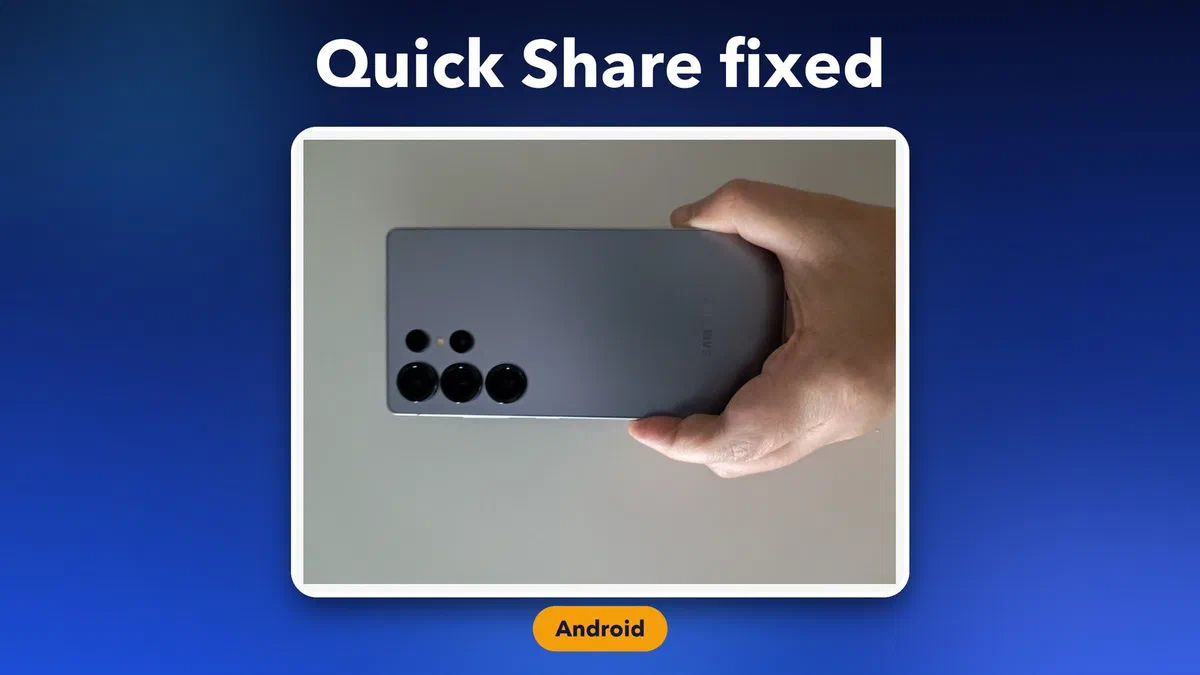
Photo credits: Samsung Galaxy S25 photos by Jakub CA and Alvis Jean, both licensed CC BY-SA 4.0 via Wikimedia Commons.
New image credits: “Pixel 9 & Pixel 9 Pro Hands-On Impressions (ShoAndTech) (2160p 24fps VP9 LQ-160kbit Opus)-00.01.35.600” by ShoAndTech, CC BY 3.0, via Wikimedia Commons.