How to fix Google Pixel lag after the Android 17 QPR1 update
Hello Folks,
We at Daily Techocracy are back with some juicy info for all you kind readers....lets get to it !!
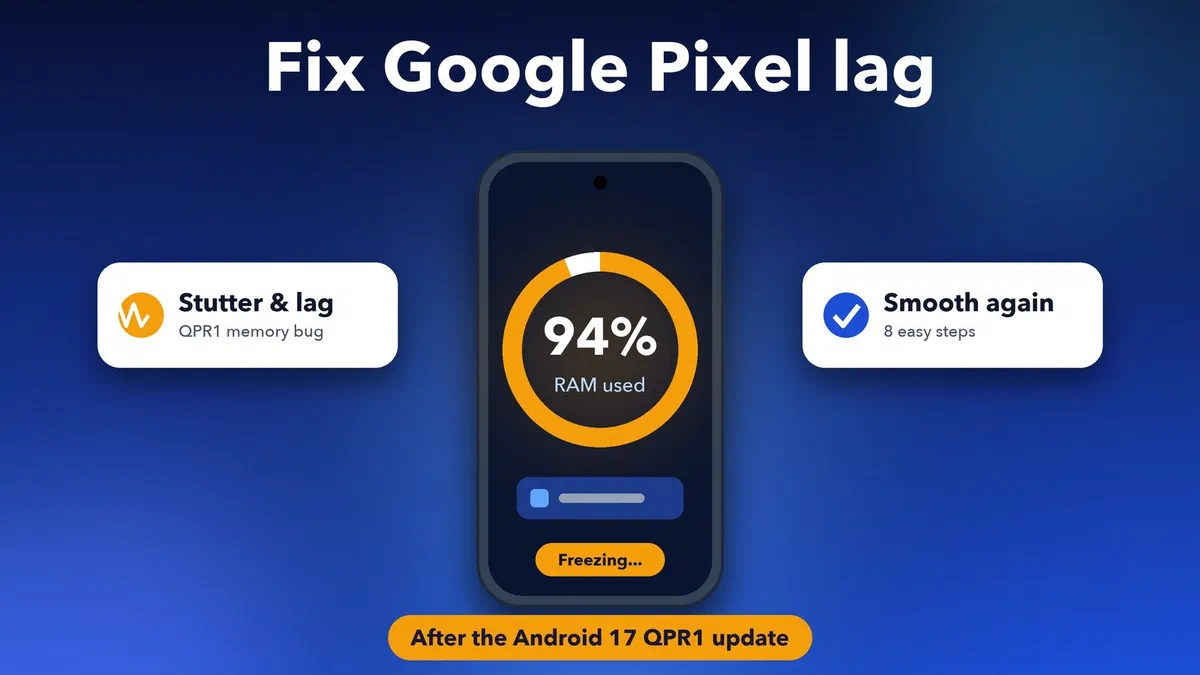
Has your Google Pixel phone felt slow since the September update? Maybe apps stutter when you switch between them, the keyboard freezes for a second, or a game drops frames it used to run fine. You're not imagining it. The Android 17 QPR1 update has a known bug that makes some Pixels lag and freeze when their memory fills up. Google hasn't fixed it yet, but there's a lot you can do to make your phone feel smooth again.
Quick answer: Pixel lag after the Android 17 QPR1 update comes from a bug that shows up when your phone runs low on free memory (RAM). To ease it, restart your phone, install the October update, close heavy apps, clear the System UI cache, and turn off the apps and widgets that eat memory in the background. These steps don't remove the bug, but they keep your phone out of the "memory pressure" zone where it strikes.
Why is my Pixel lagging after the Android 17 QPR1 update?
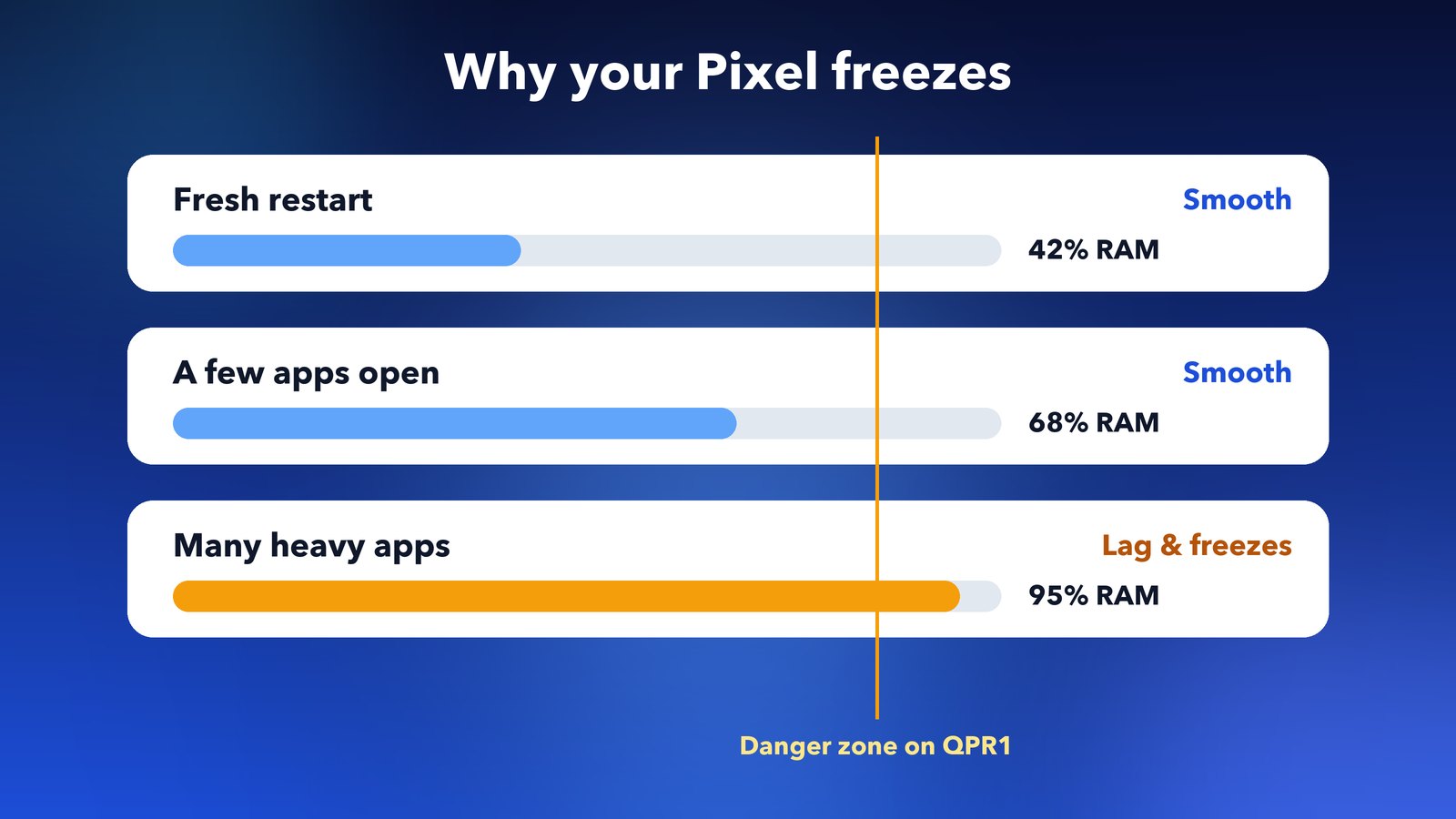
QPR1 stands for Quarterly Platform Release 1. It's the first of Google's big quarterly updates to Android 17, and it reached Pixels on 15 September as the September update. Your Pixel lags because of a bug in the low-level Pixel software that came with it. When free memory runs low, the phone can stutter, lag, freeze or even close apps. The GrapheneOS team found the cause, and Android Authority reports that it affects normal Pixel phones too.
"Memory pressure" sounds technical, but the idea is simple. Your phone has a fixed amount of RAM, the short-term memory that holds the apps you have open. When it's nearly full, Android has to shuffle things around to make room. On QPR1 that shuffling is badly broken on some phones, so you feel it as lag.
Did the October Pixel update fix the lag?
No, not as far as Google has said. The October 2026 Pixel update started rolling out on 6 October for the Pixel 6 and newer. Google lists only three fixes: a keyboard that sometimes didn't appear in search boxes, audio noise in some internet calls, and Pixel 11 photos saving the wrong way round. The lag isn't on the list.
It's still worth installing, because it brings this month's security fixes. Just don't expect it to cure the lag on its own. A proper fix may come in a later monthly update or with Android 17 QPR2.
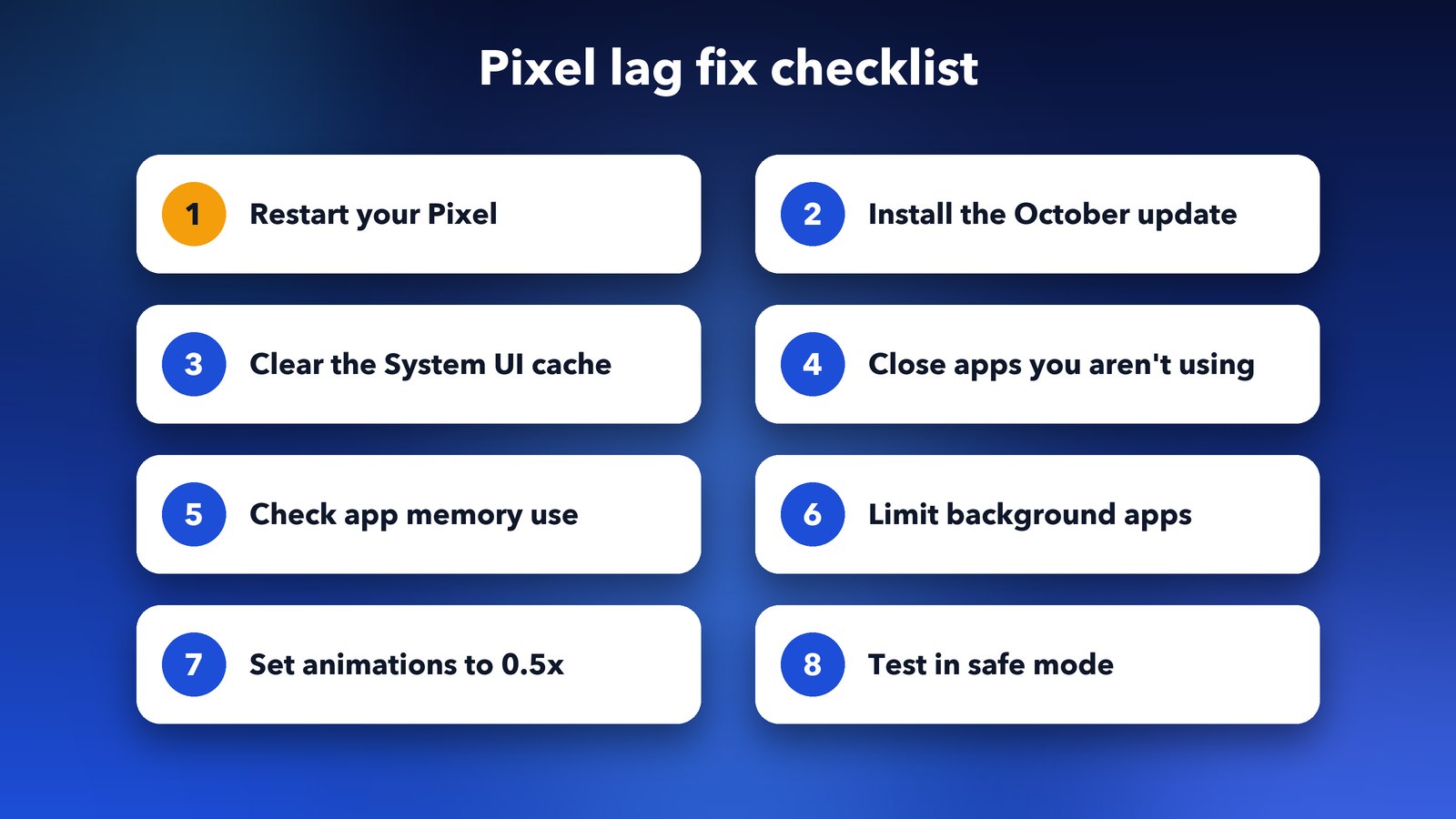
Step 1: Restart your Pixel
A restart is the fastest way to clear the lag for a while. It empties your RAM, so the phone starts fresh, far away from the memory limit that sets off the bug.
- Press and hold the Power button and the Volume up button together.
- Tap Restart.
I'd make a morning restart a habit until Google ships a fix. If your phone starts to stutter again by evening, that's a sign memory is filling up, and the next steps will help.
Step 2: Install the latest update
Make sure you're on the October update, even though it doesn't name the lag. It brings security fixes, and Google sometimes fixes bugs without listing them.
- Open Settings.
- Go to System > Software update.
- Tap Check for update, then install what's waiting.
Update your apps as well. Open the Play Store, tap your profile picture, then tap Manage apps & device and Update all. Some readers saw games run smoothly again after a Google Play services update.
Step 3: Clear the System UI cache
System UI is the part of Android that draws your home screen, notifications and quick settings. Clearing its cache often fixes lag in those places, and you won't lose any of your data.
- Open Settings > Apps > See all apps.
- Tap the three-dot menu at the top and choose Show system.
- Find and tap System UI.
- Tap Storage & cache, then Clear cache.
- Restart your phone.
If one app stutters more than the rest, clear that app's cache in the same way.
Step 4: Close the apps you aren't using
Every open app holds a piece of your RAM. Closing the ones you don't need gives your phone room to breathe, which is exactly what this bug needs.
Swipe up from the bottom of the screen and hold to see your recent apps. Swipe away the ones you're done with. Heavy apps matter most: games, video editors, camera apps and browsers with lots of tabs.
If an app keeps running in the background, stop it fully. Go to Settings > Apps > See all apps, tap the app and choose Force stop.
Step 5: Find out which apps use the most memory
Developer options has a Memory screen that shows how much RAM each app uses. It's the best way to find the app that keeps pushing your Pixel into lag.
- Go to Settings > About phone and tap Build number seven times. Enter your PIN if asked.
- Go back to Settings > System > Developer options.
- Tap Memory, then Memory used by apps.
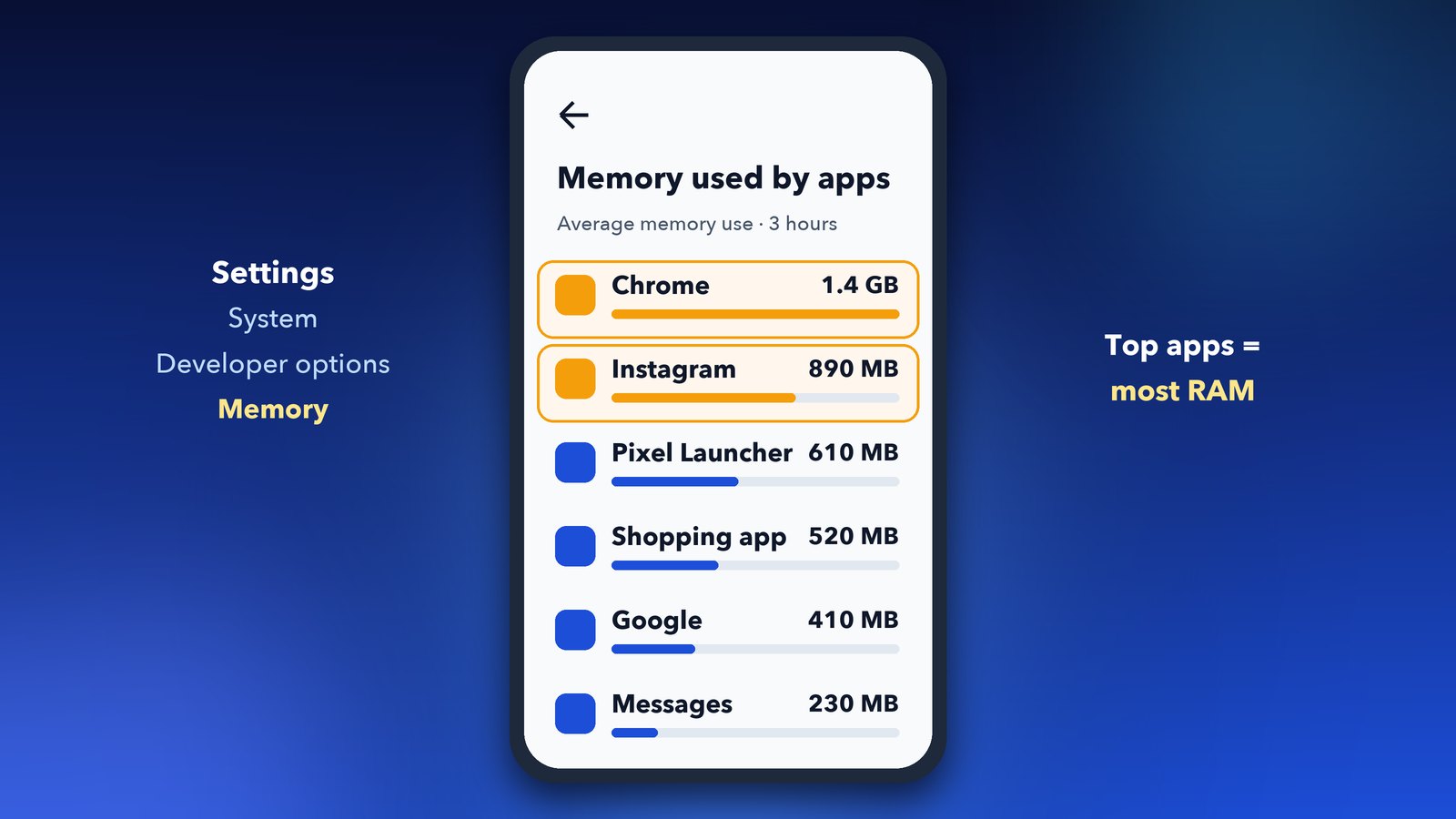
Look for apps you barely use near the top of the list. Social media apps, shopping apps and some launchers are common culprits. Uninstall the ones you don't need, or limit their background use in the next step.
Step 6: Limit background apps and live extras
Apps that run in the background keep using memory even when you can't see them. Limit them, and trim the extras on your home screen too.
- Restrict background use: go to Settings > Apps > See all apps, tap an app, then tap App battery usage and turn off Allow background usage. Don't do this for messaging apps, or you may miss messages.
- Remove widgets you don't look at: each live widget keeps a little app running. Touch and hold a widget, then drag it to Remove.
- Switch off a live wallpaper: a still photo uses less memory than a moving one.
Step 7: Speed up animations
Shorter animations won't fix the bug, but they make the phone feel snappier while you wait for Google. You'll find them in Developer options.
- Open Settings > System > Developer options.
- Scroll down to Drawing.
- Set Window animation scale, Transition animation scale and Animator duration scale to 0.5x.
I prefer 0.5x to turning them off. The phone still looks smooth, and everything opens faster.
Step 8: Test in safe mode
Safe mode starts your Pixel with only Google's own apps. If the lag disappears there, one of your downloaded apps is making things worse.
- Press and hold the Power button and the Volume up button together.
- Touch and hold Restart until you see Reboot to safe mode, then tap OK.
- Use the phone for a while. To leave safe mode, simply restart it.
If it's smooth in safe mode, remove your newest apps one at a time, restarting after each, until the lag stops.
Tips and troubleshooting
If your Pixel still lags after all eight steps, these extra checks can help.
- Free up storage: go to Settings > Storage. Google recommends keeping more than 10% free. A nearly full phone slows down on its own.
- Check Battery Saver: it limits performance on purpose. If it's on all the time, turn it off in Settings > Battery > Battery Saver and see if things improve.
- Don't factory reset yet: a reset wipes your phone, and it won't fix a bug in Google's own software. Save it for a last resort, and back up first.
If your Pixel has started looping on restart rather than lagging, see our guide to the Pixel boot loop fix. And if your widgets vanish after these steps, our post on Android 17 widgets disappearing can help.
When will Google fix the Pixel lag?
Google hasn't given a date. GrapheneOS has already fixed the bug in its own version of Android, so a fix is clearly possible. The most likely options are a later monthly update or Android 17 QPR2. Keep an eye on Google's Pixel update page and install each update as soon as it arrives.
Until then, the trick is to keep your phone's memory from filling up. A daily restart, fewer background apps and a quick tidy of your widgets will make most Pixels feel normal again. It's annoying, but it's not a broken phone, and the real fix should be on its way.