Ollama 0.40 makes local AI models nearly 2x faster on Macs
Hello Folks,
We at Daily Techocracy are back with some juicy info for all you kind readers....lets get to it !!
If you run AI models on your own Mac, Ollama just got a lot more interesting. Version 0.40 is now the main stable release, and it switches Apple Silicon Macs over to MLX, Apple's own machine learning engine, without you changing a single setting. That means faster answers from models like Qwen 3.8 and Gemma 4, right on your laptop. Here's what changed, what you need and how to get the most out of it.
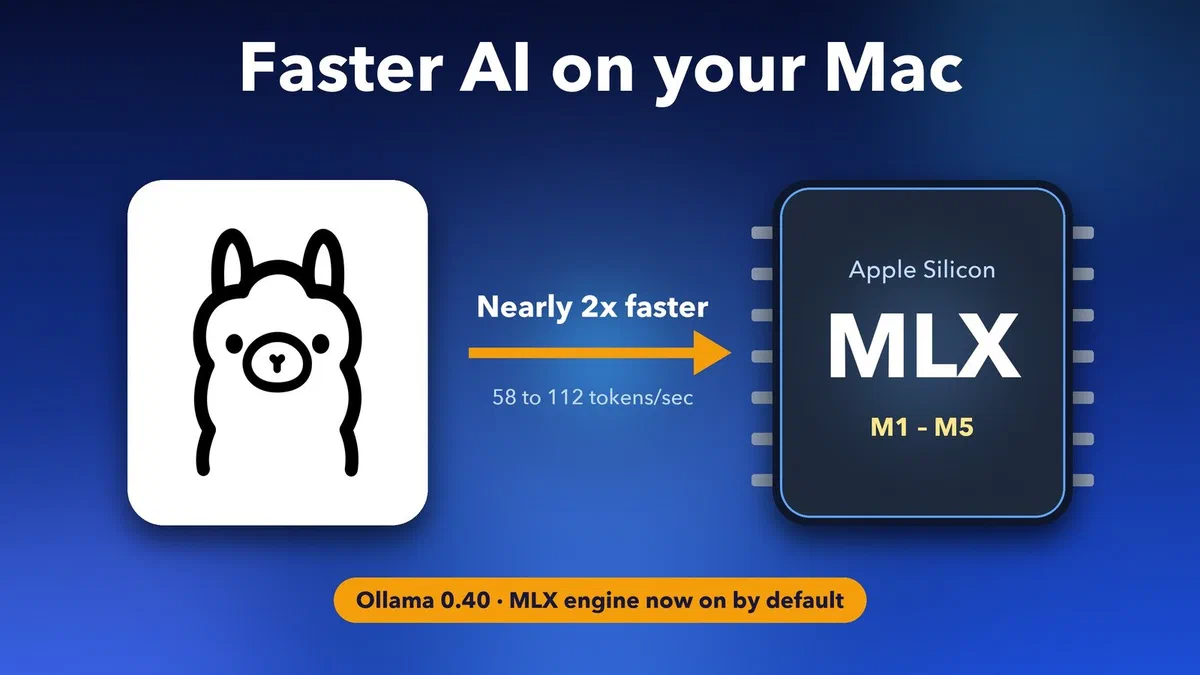
Quick answer: Ollama 0.40 runs supported models on Apple's MLX engine by default on M-series Macs. In Ollama's own tests, MLX roughly doubled the speed of replies (58 to 112 tokens per second) and made prompt reading about 1.6 times faster. To get it, update Ollama from ollama.com, then run a supported model such as ollama run qwen3.8 or ollama run gemma4.
What is new in Ollama 0.40?
The big change is simple: on Apple Silicon Macs, any model Ollama's MLX engine supports now runs on MLX automatically. Before this, MLX was an opt-in preview for a small set of models. The official 0.40 release notes list the models that run on MLX so far:
- Chat models: Qwen 3.8, Qwen 3.6, Qwen 3.5 and Gemma 4.
- Decision models: Nimble, Tev1, Clef and Clef Flash. These pick answers or give scores rather than writing text, so they suit jobs like sorting emails or tickets.
- Embeddings: EmbeddingGemma 2, which turns text into numbers so apps can search your own notes and files.
Ollama says it will keep testing and switching on more models. Anything not on the list still runs the old way, through llama.cpp, so nothing breaks.
What is MLX, and why does it make Ollama faster?
MLX is Apple's free, open-source engine for running machine learning on M-series chips. It's built around unified memory, where the CPU and GPU share one pool of memory. The model never has to be copied between them, and that saves a lot of time.
Running a large language model (LLM) is mostly a memory problem. Each word the model writes means reading through billions of numbers. The faster your Mac can move those numbers, the faster the reply appears. MLX is tuned for exactly this job on Apple's chips.
How much faster is Ollama with MLX?
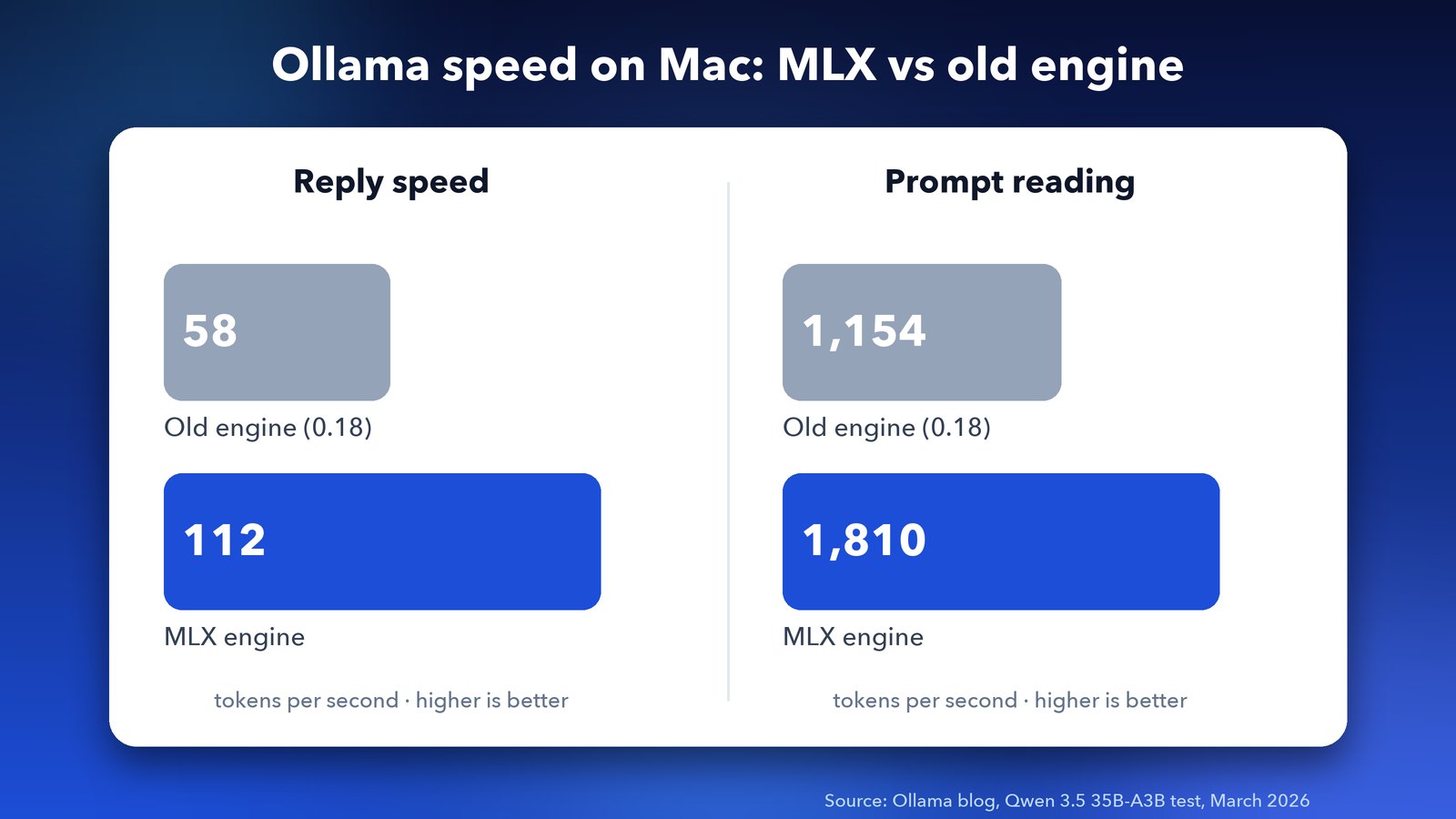
In Ollama's own March test, MLX nearly doubled reply speed, from 58 to 112 tokens per second. A token is roughly three-quarters of a word. Prompt processing, the time the model takes to read what you typed, rose from 1,154 to 1,810 tokens per second.
That test used the Qwen 3.5 35B-A3B model, as described on the Ollama blog. MacRumors also covered the speed-up when the preview first came out. Your numbers will depend on your Mac. M5, M5 Pro and M5 Max chips see the biggest jump, because Ollama also uses the new Neural Accelerators built into their GPUs.
A June update made the MLX engine up to 20% faster again. It also added smarter caching, so coding tools that send the same long instructions over and over don't make the model re-read them every time. For anyone using Ollama with Claude Code, Codex or OpenClaw, that's where you'll feel it most.
Which Mac do you need?
You need a Mac with an Apple Silicon chip (M1 or newer). Intel Macs don't get MLX. After that, the key number is your memory (RAM), because the whole model has to fit in it with room to spare.
| Your Mac's memory | Good model to try | Download size |
|---|---|---|
| 8 GB | Gemma 4 E2B (gemma4:e2b) | About 4.6 GB |
| 16 GB | Gemma 4 12B (gemma4:12b) | About 8 GB |
| 32 GB | Qwen 3.8 27B (qwen3.8) | About 18 GB |
| 48 GB or more | Qwen 3.6 35B (qwen3.6) | About 24 GB |
The sizes come from the Ollama model library. As a rule of thumb, leave at least a quarter of your memory free for macOS and your other apps. If a model is too big, your Mac slows to a crawl as it swaps memory onto the drive.
How to set up Ollama with MLX on your Mac
Setting it up takes about five minutes, and most of that is the download. There's no MLX switch to flip, because 0.40 does it for you.
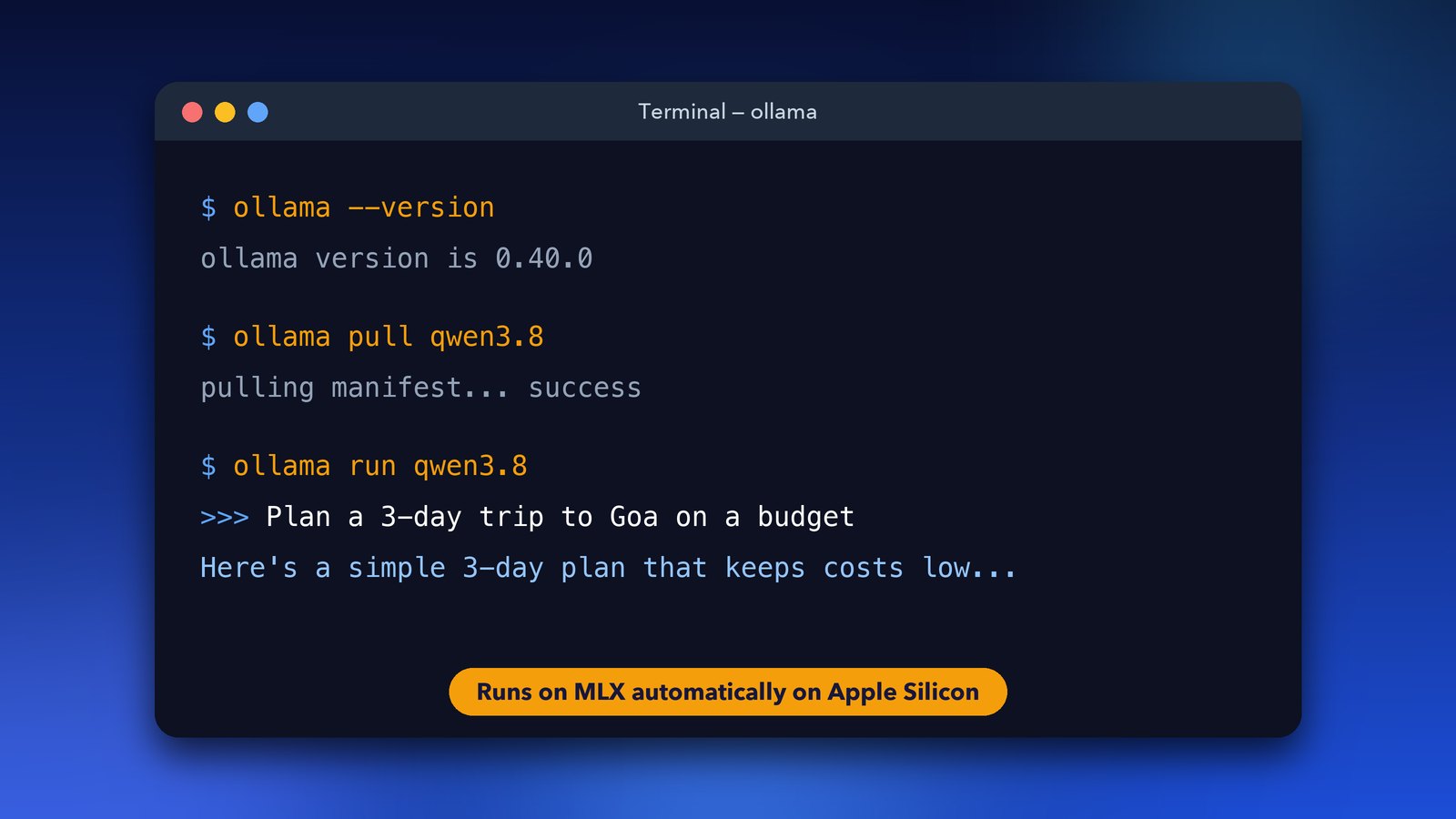
- Install or update Ollama. Download the Mac app from ollama.com/download, or let the app you already have update itself. Then open Terminal and type
ollama --versionto check it says 0.40.0 or later. - Download a supported model. For a 32 GB Mac, type
ollama pull qwen3.8. On a smaller Mac, tryollama pull gemma4:12b. - Start chatting. Type
ollama run qwen3.8(or your model's name), then ask it anything. - Check the model's settings.
ollama show gemma4lists the model's details, including whether "thinking" mode is on by default.
On the model library, some versions carry an MLX label, such as qwen3.8:27b-mlx. You don't need to hunt for these. Ollama's own release notes use the plain name (qwen3.8), because 0.40 picks MLX by itself on a supported Mac.
How to get the best speed from local models
A few habits make a bigger difference than any setting. Most come down to keeping memory free for the model.
- Pick the right size. A smaller model that fits easily beats a bigger one that barely fits. On a 24 GB MacBook Air, I'd start with Gemma 4 12B. A 27B model (about 18 GB) leaves very little room once Chrome is open.
- Close heavy apps. Browsers with lots of tabs, video editors and games all take memory the model could use.
- Plug in your MacBook. Low Power Mode slows the chip down, and the model with it.
- Turn thinking off for quick questions. Thinking models reason before they reply, which takes longer. Since version 0.34.3,
ollama showlists each model's thinking settings, so you can see what yours supports.
If you want to compare tools, LM Studio also runs MLX models on Macs. Ollama's big plus is how easily it plugs into other apps, like coding agents and even ChatGPT Desktop since version 0.34.
What it means for you
For Mac owners, this is the best news for local AI in months. You get faster replies for free, with no new settings to learn. Your chats also stay on your own computer, which matters if you work with private files.
The catch is memory. MLX makes models faster, not smaller, so an 8 GB Mac is still limited to small models. If you're curious about the bigger players too, see our look at Gemini 4 Argon and the Kimi K3 open model. For now, update Ollama, pull Qwen 3.8 or Gemma 4, and see how fast your Mac really is.
Image credits: Ollama logo by ParthSareen on behalf of Ollama, MIT licence, via Wikimedia Commons.