How to use Notes and Reminders together
Hello Folks,
We at Daily Techocracy are back with some juicy info for all you kind readers....lets get to it !!
Many of us plan in Notes and then forget to do anything about it. A packing list, a to-do note or a meeting summary sits there with no alarm and no due date. Reminders is the app that nags you at the right time, and the two Apple apps can work together without any extra download.
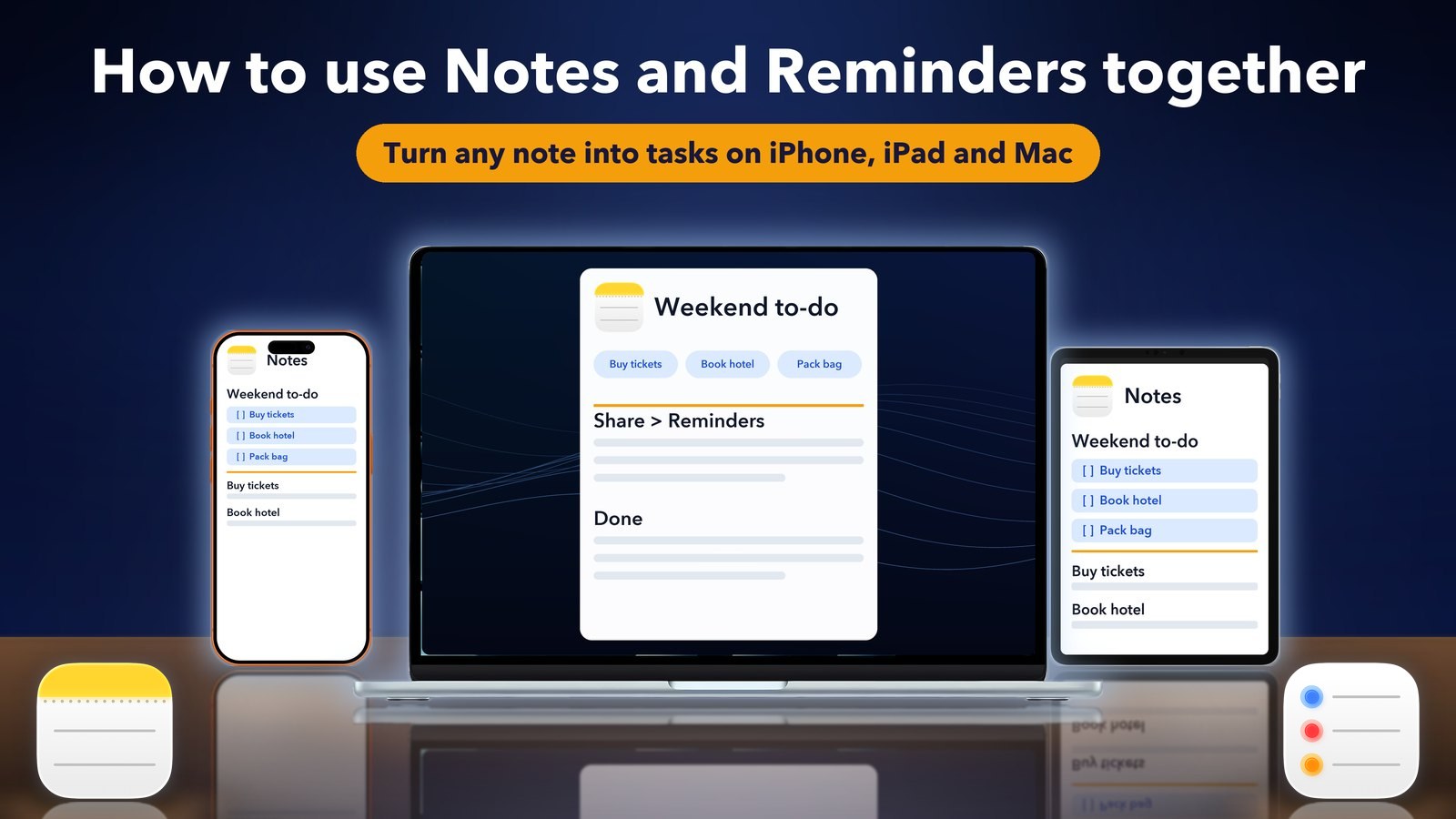
Quick answer: Open a note, tap Share, make sure it says Send Copy, then choose Reminders. Pick a list, add a date and save. The reminder then shows a small Notes icon that takes you back to the note. For something faster, build a shortcut in the Shortcuts app or ask Siri.
How do I turn a note into a reminder on iPhone?
Use the Share button inside the note and pick Reminders. This needs no setup, and you can send the whole note or only the lines you select. The steps below follow iDownloadBlog's guide, which was last updated in April 2026.
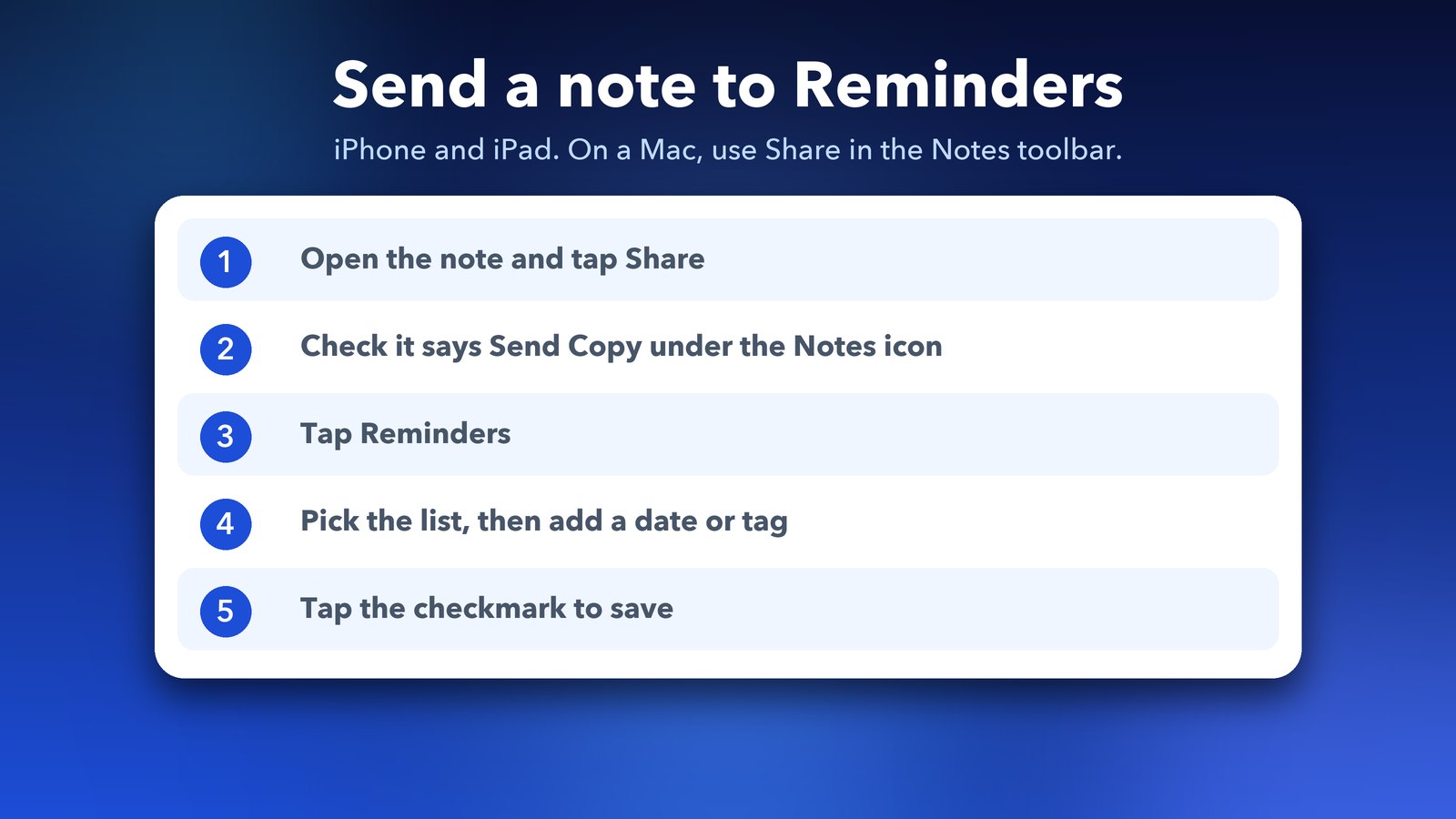
- Open the note and tap Share. To send only part of it, select that text, tap the arrow and then choose Share.
- Check that the menu under the Notes icon reads Send Copy, then tap Reminders. If Reminders isn't in the list, add it to the Share Sheet first.
- Confirm the list at the top, or tap it to choose another one.
- Tap the text box and use the icons above the keyboard to add a date and time, a place, tags, a flag or media.
- Tap the checkmark to save.
Why does my reminder not link back to the note?
Reminders made this way normally show a small Notes icon, and tapping it opens the full note. A reader on Hey World describes the same trick on a Mac. The icon can go missing when a note with many to-dos is split into separate reminders, so keep one reminder per note if you want the link.
How do I do it on a Mac?
Select the note, click Share in the Notes toolbar and choose Reminders. To send only part of a note, select the text, then right-click and choose Share. A small window opens where you can edit the name, the contents and the list, and then you click Add.
Check again that Send Copy sits under the Notes icon. That one word decides whether you get a real copy in Reminders or a different kind of share.
What if my note has a long to-do list?
When a note holds several tasks, Apple Intelligence may offer to make each line its own reminder. This is the quickest way to split a shopping list or a packing list into tick-off tasks. The offer depends on your device and settings, so it may not show up for everyone.
If it doesn't appear, a Shortcuts workflow can do the same job. A thread on AppleVis mentions a shortcut called Batch Add Reminders from the Shortcuts gallery. According to the thread, it makes one main reminder and puts the lines of the note under it as subtasks. You run it from the Share sheet of the note. These are forum comments, so try it on a test note first.
How do I add a reminder with Shortcuts?
Open the Shortcuts app, create a new shortcut and add the Add New Reminder action. Set the reminder text to Ask Each Time and choose your list. After that, one tap gives you a box to type into, and the reminder lands in the right list. How-To Geek walks through it this way:
- In Reminders, make a list for quick thoughts if you want one. Tap Add List, name it and tap Done.
- Open Shortcuts, go to My Shortcuts and tap the plus button.
- Tap Add Action and search for Add New Reminder.
- Tap the Reminder button in the action and choose Ask Each Time.
- Tap the Reminders button to pick another list if you like.
- Tap Next, give the shortcut a short name and tap Done.
To put it on your Home Screen, tap the three-dot menu on the shortcut, tap the three dots again on the shortcut screen and choose Add to Home Screen. Tapping the icon then slides a text box down from the top. Type your reminder, tap Done and it is saved.
Can Siri run my shortcut?
Yes. Apple says a shortcut can be added to Reminders using Siri, and the support page gives the example of saying "Remind me about this." Apple's own steps are on the Shortcuts page for Reminders and Siri. The same page notes that you can set a reminder to run a shortcut, such as showing your travel time home when you leave work.
Can Siri link Notes and Reminders for me?
For a quick one, yes. iDownloadBlog says you can say, "Hey Siri, remind me about my To-Do note," and Siri will confirm the reminder and let you change it. Say the name of the note clearly, because Siri needs to know which one you mean.
Which way should I use?
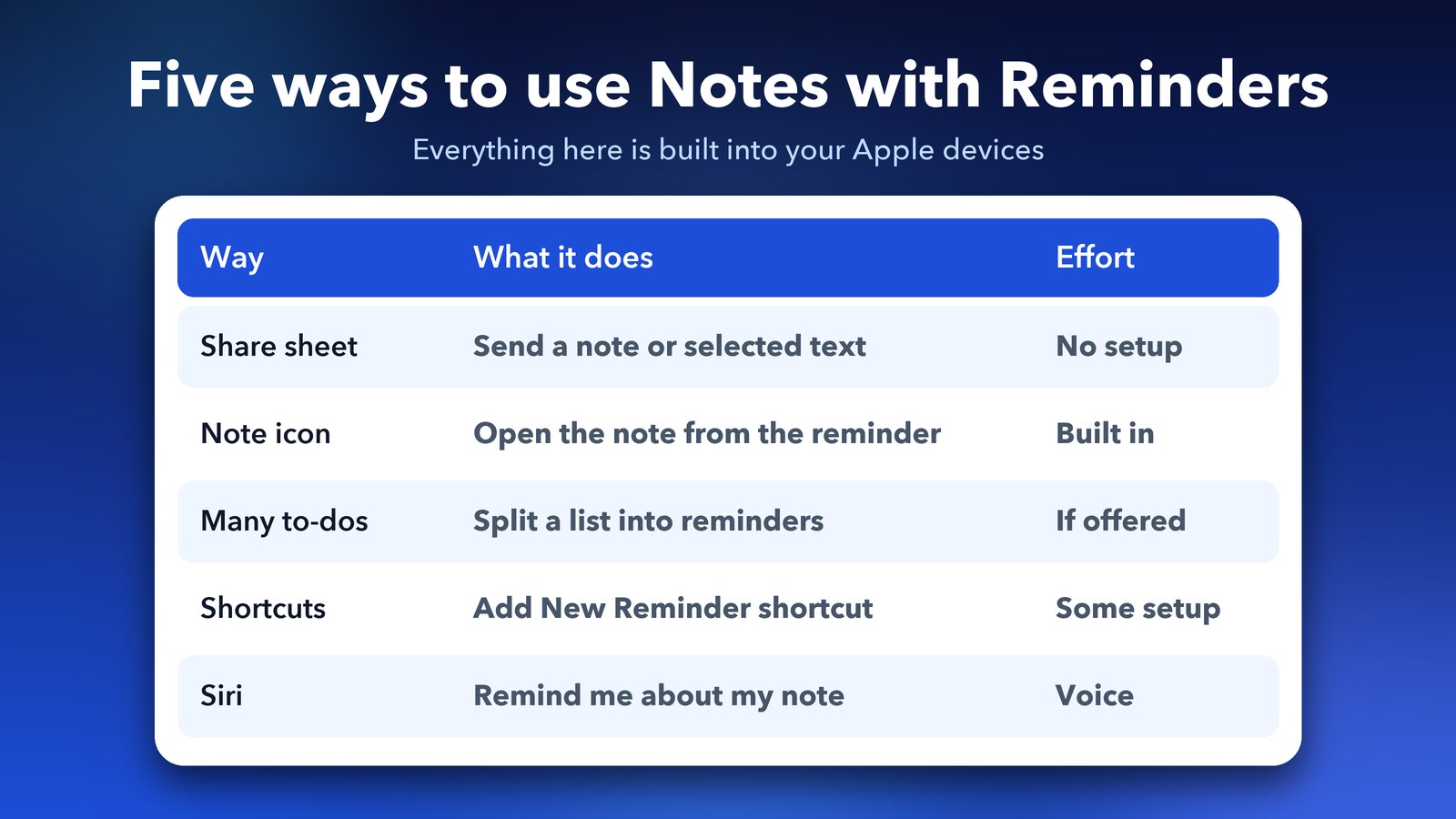
Start with the Share sheet, because it takes ten seconds and needs nothing. Move to a shortcut only when you do the same thing every day, such as sending a daily to-do note into Reminders. I would keep one note for ideas and one list in Reminders for things with a date, so each app does one job.
Notes stays the place for thinking and Reminders becomes the place for doing. When a plan has a day attached, you can go one step further and show those reminders next to your meetings. Our guide on using Reminders and Calendar together shows how. If you keep private plans in Notes, our post on a locked iPhone note and a forgotten password may also help.
Next time you finish typing a list in Notes, take the extra ten seconds to send it to Reminders. That small habit is what turns a note into something you actually do.
Image credits: MacBook Air M4 render, iPhone 17 Pro vector (TheGoldenBox) and iPad Pro 11 mockup (Jem Riggs) from Wikimedia Commons (CC BY-SA 4.0), with illustrated screens and a custom wallpaper. Notes and Reminders app icons from Wikimedia Commons (public domain); the icons belong to Apple. Other graphics by Daily Techocracy.