How to use Mail and Calendar together
Hello Folks,
We at Daily Techocracy are back with some juicy info for all you kind readers....lets get to it !!
A friend emails you about dinner on Friday at 8. You reply "sounds great" and then forget all about it. The date sits in your inbox while your calendar says you are free. Mail and Calendar are both built into your iPhone, iPad and Mac, and they can talk to each other so that email dates turn into real events.
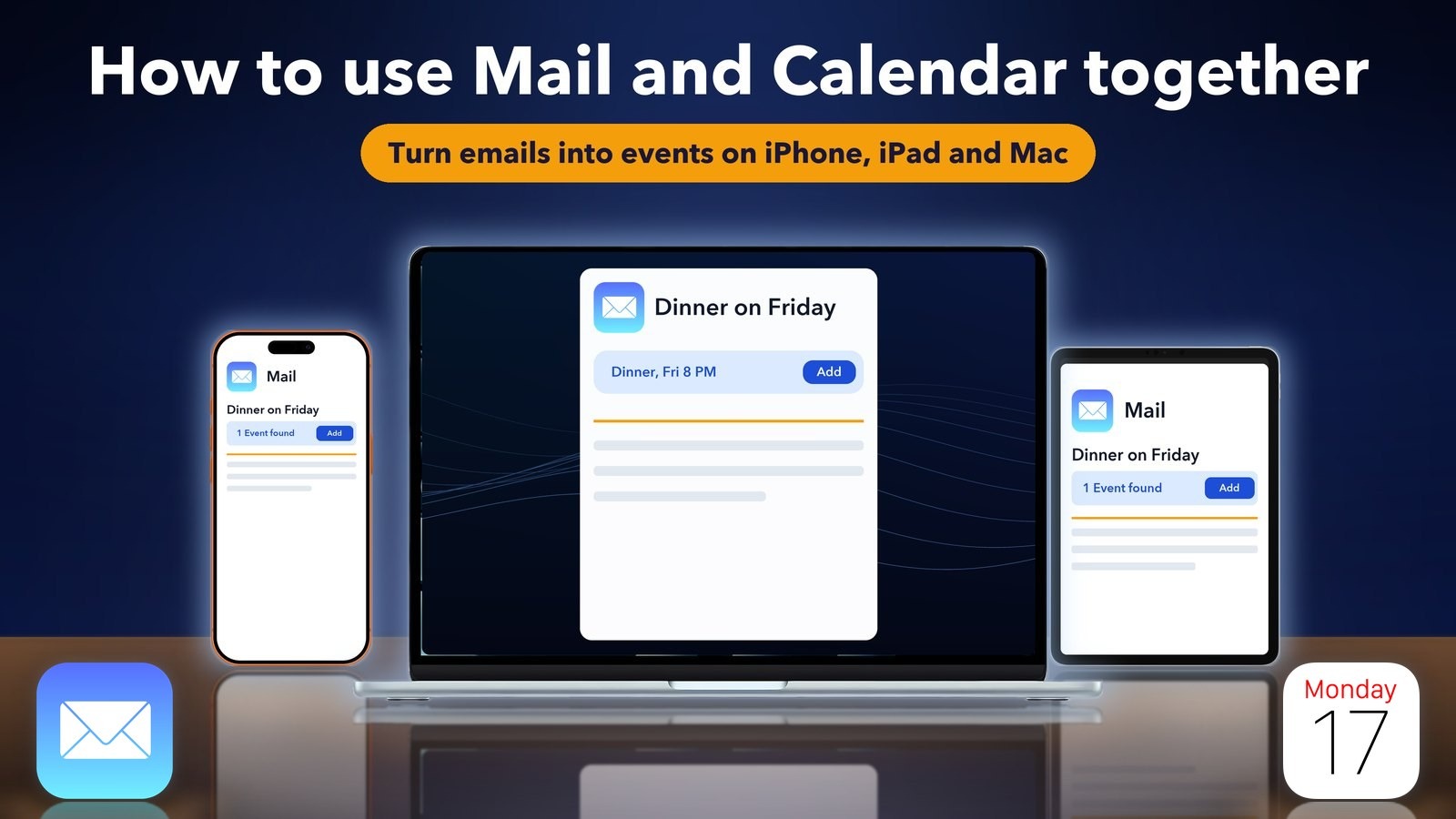
Quick answer: Open an email that mentions a date and time. If Mail spots it, you will see an Event found notice on iPhone or a Siri Suggestion on Mac. Tap or click Add, check the details and save. In iOS 27, Mail can also offer an add-to-Calendar action for flights and bookings, and Calendar lets you type an event in plain words.
How do I add an event from an email to Calendar on iPhone?
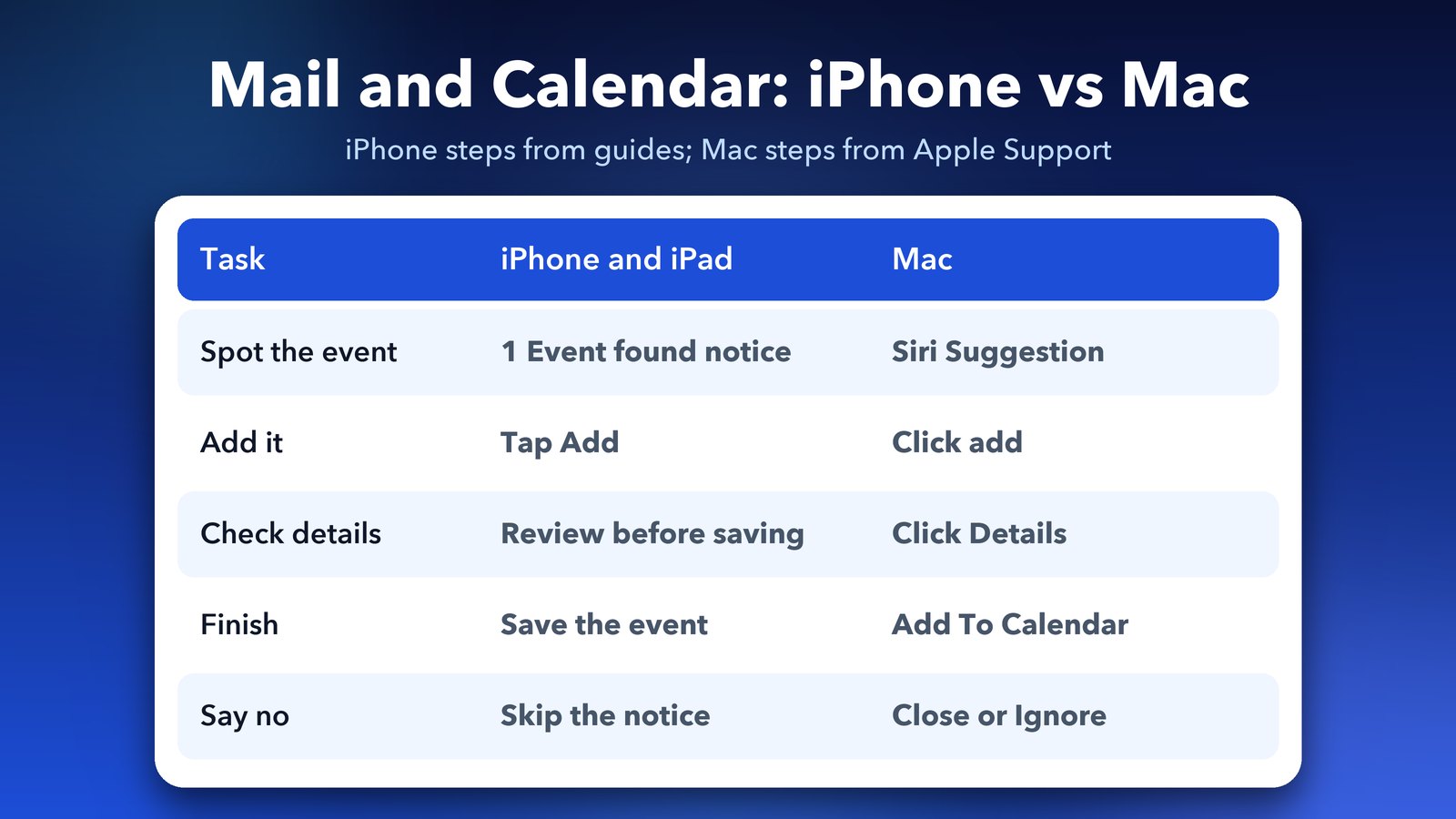
Open the email and look at the top of the message. When Mail finds a date and time, it shows a notice such as "1 Event found". Tap Add, check the details and save. The steps below follow an iPhone Life guide, which dates from 2021, so your screen may look a little different.
- Open the email that mentions the event in Mail.
- Tap Add on the "Event found" notice at the top.
- Check the title, date, time and alert.
- Tap Add again to save it to Calendar.
If there is no notice, try tapping the date inside the email text. The same guide says a highlighted date offers a Create Event option. You fill in the details yourself and tap Add.
How do I add an event from an email on a Mac?
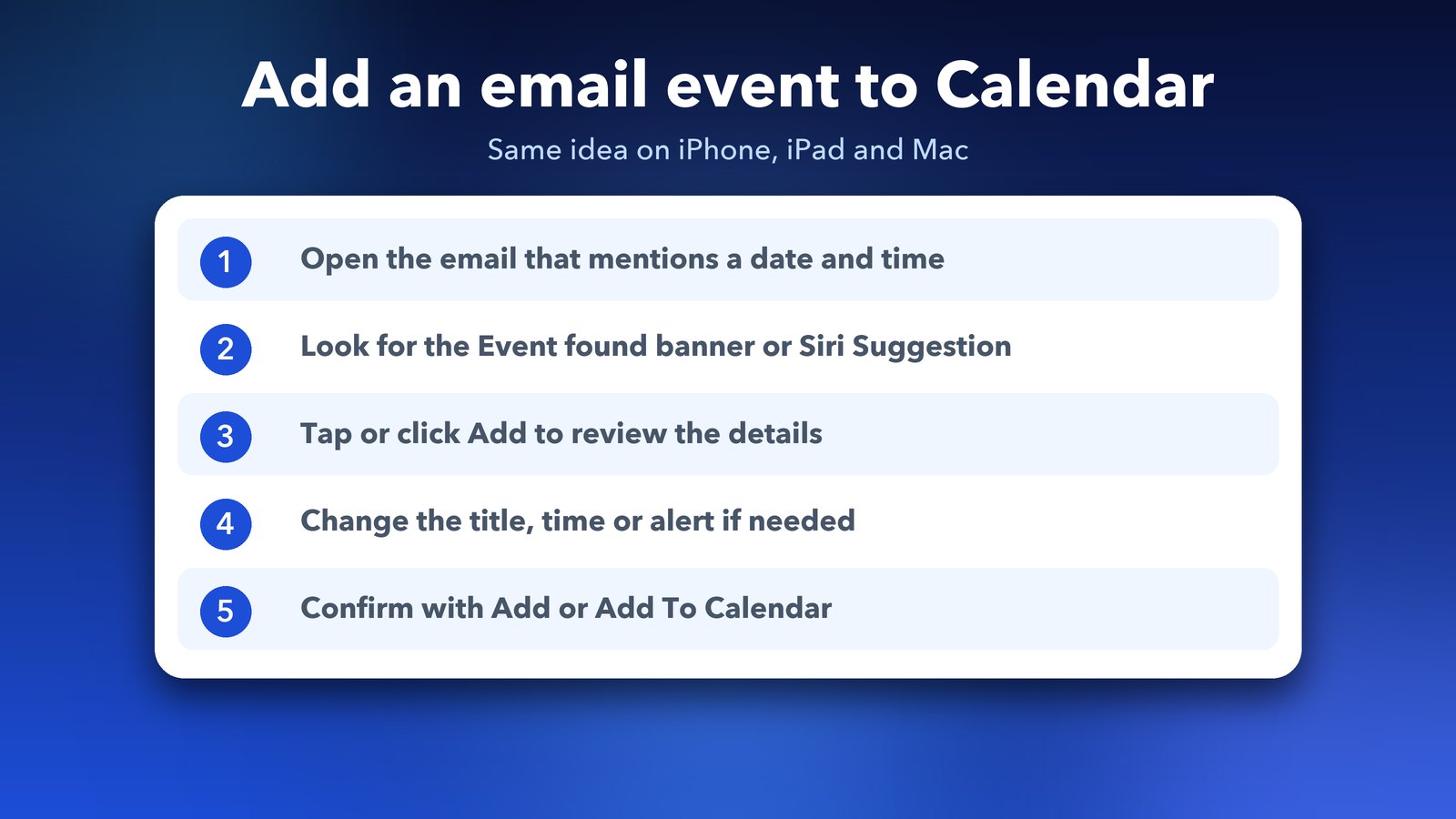
Select the email that has the Siri Suggestion, click add to review the event, then click Add To Calendar. Apple describes these exact steps on its Mail support page for using information found in Mail in other apps. This is the one part of this guide I could check against Apple's own words.
- In Mail, select the message that contains the suggestion.
- Click add to review the suggested event. Click Details if you want to change it.
- Click Add To Calendar to accept it, or click the Close button or Ignore to decline it.
Apple adds that you can also move the pointer over a date, time or address in an email until an outline appears, then click the arrow that shows up to pick an action.
What about work invitations?
Invitations from an Exchange account work a little differently. Apple says you answer them with the buttons in the banner at the top of the email: Accept, Decline, Maybe, or OK for a cancelled event. Your reply goes to the organiser, and Calendar updates when it syncs with the server.
What is new in iOS 27 for Mail and Calendar?
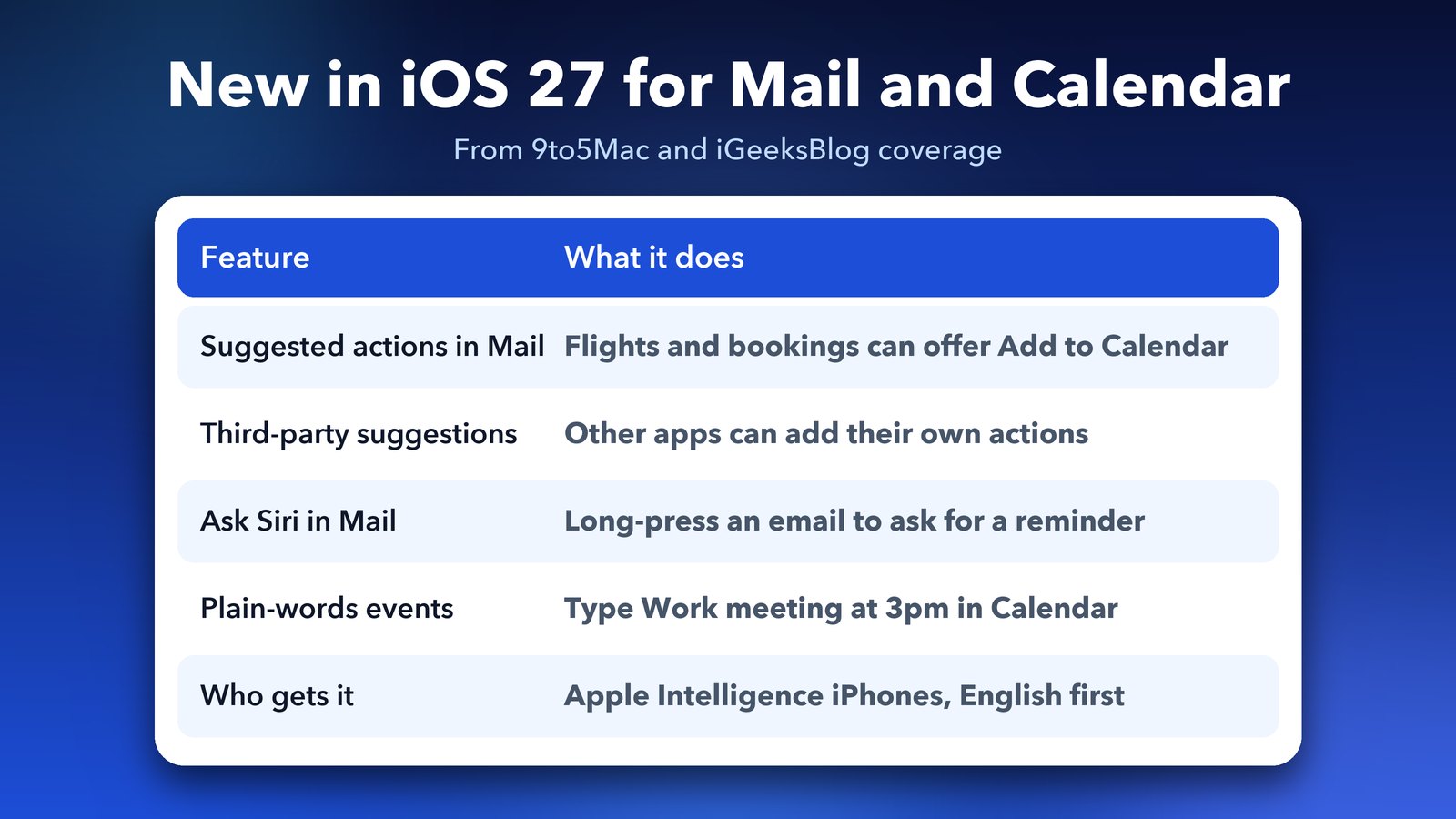
iOS 27 gives Mail redesigned suggestions. 9to5Mac's Mail roundup says an email with a detected event can show a suggestion at the top that lets you create an event in Calendar. Third-party apps can now add their own actions too, and a drop-down lists them when there are several.
iGeeksBlog says this works for things like flights and restaurant reservations. It also says the feature needs an iPhone that supports Apple Intelligence, and that it starts in English only. Neither source gives the exact button wording, so look for the suggestion inside the email and tap it.
Can I type an event in plain words?
Yes, in iOS 27. Calendar now understands natural language. 9to5Mac reports that you can type something like "Work meeting at 3pm" and Calendar fills in the time for you. Suggestions for an invitee or a place appear above the keyboard, and one tap adds them.
You can edit the text afterwards. In the article's example, changing a lunch meeting to a coffee chat updates the event to match. The same plain-words entry also works for reminders, according to 9to5Mac.
Can Siri turn an email into a reminder?
Possibly, if you have the new Siri in iOS 27. iGeeksBlog says you can long-press an email, choose Ask Siri and ask it to make a reminder from the email. Siri AI is a beta and needs an Apple Intelligence device in a supported language. Apple's iOS 27 notes also say it is not coming to the EU at launch.
Some emails hold a task, not an event. A bill to pay or a form to send back fits Reminders better than Calendar. Our guide on using Reminders and Calendar together shows how to see both in one place.
Why is Mail not suggesting events?
Most often, the email has no clear date and time. "Let's meet Friday evening" is vague, while "Friday at 8 PM" is easy to spot. Other likely causes are that suggestions are turned off, your device or language is not supported for the iOS 27 features, or the email is in a folder Mail does not scan the same way. These are my own best guesses, since Apple does not list the reasons.
If nothing shows, add the event by hand. Open Calendar, tap the plus button and type it in. On iOS 27, the plain-words entry makes that quick.
How do I stop Mail adding events I do not want?
On a Mac, Apple's older guide says to open the Apple menu, then System Preferences and Siri, click Siri Suggestions & Privacy, choose Mail in the sidebar and untick Show Siri Suggestions in App. Newer macOS versions renamed these panes, so look for Siri or Apple Intelligence in System Settings.
On iPhone, the old setting was called Events Found in Mail, under Settings, then Mail, Contacts, Calendars. I could not confirm that this is still the path in iOS 27, so check your own Settings. Suggestions only add events when you tap Add, so you stay in control either way.
Which way should I use?
For one-off emails, tap the Event found notice and be done in ten seconds. If your inbox is full of bookings, the iOS 27 suggestions should save the most time. I would keep the habit simple: when an email has a date, add it to Calendar before you close it.
Once your emails become events, the rest of your day starts to fit together. If you keep plans in notes as well, our guide on using Notes and Reminders together is a good next read. If Mail search is acting up, see how to fix Mail search on iPhone.
The next time a friend sends you a dinner invite, tap Add before you reply. Your future self will thank you.
Image credits: MacBook Air M4 render, iPhone 17 Pro vector (TheGoldenBox) and iPad Pro 11 mockup (Jem Riggs) from Wikimedia Commons (CC BY-SA 4.0), with illustrated screens and a custom wallpaper. Mail and Calendar app icons from Wikimedia Commons (public domain); the icons belong to Apple. Other graphics by Daily Techocracy.