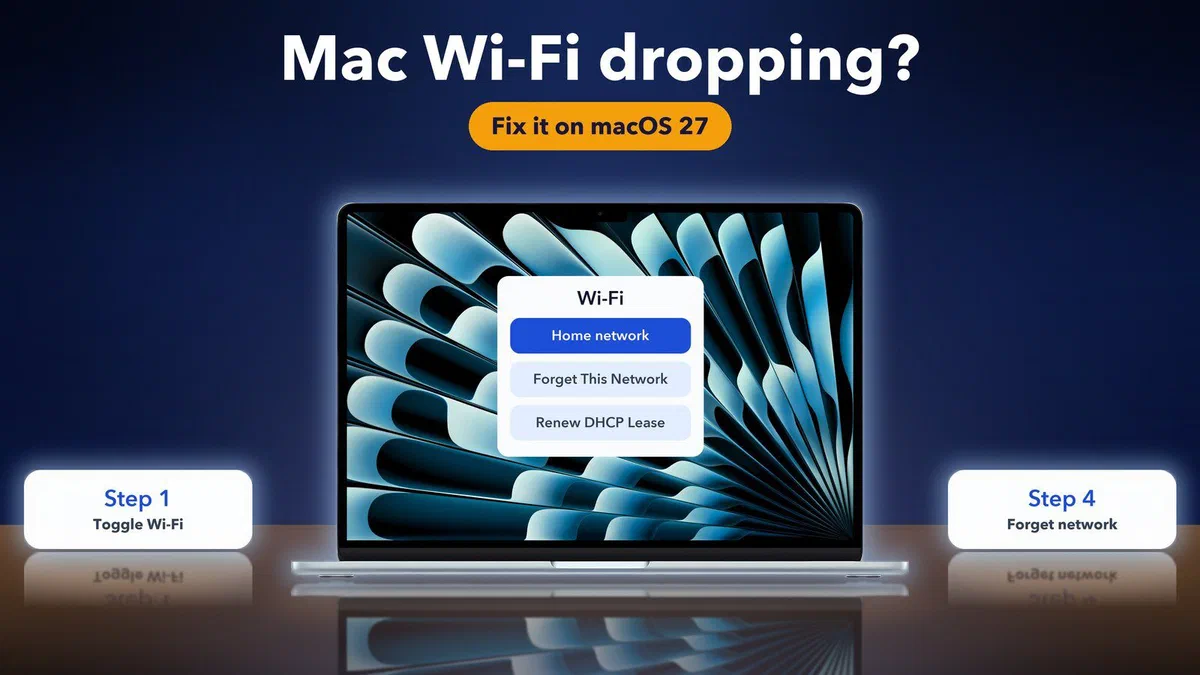
How to fix Wi-Fi dropping on a Mac running macOS 27
Hello Folks,
We at Daily Techocracy are back with some juicy info for all you kind readers....lets get to it !!
You update to macOS 27, and your Mac starts losing Wi-Fi. A video freezes, a call cuts out, and the Wi-Fi icon takes a moment to come back. Other devices on the same network are fine, which makes it extra annoying. The good news is that the fix is usually quick. Here are the steps in the order I'd try them.
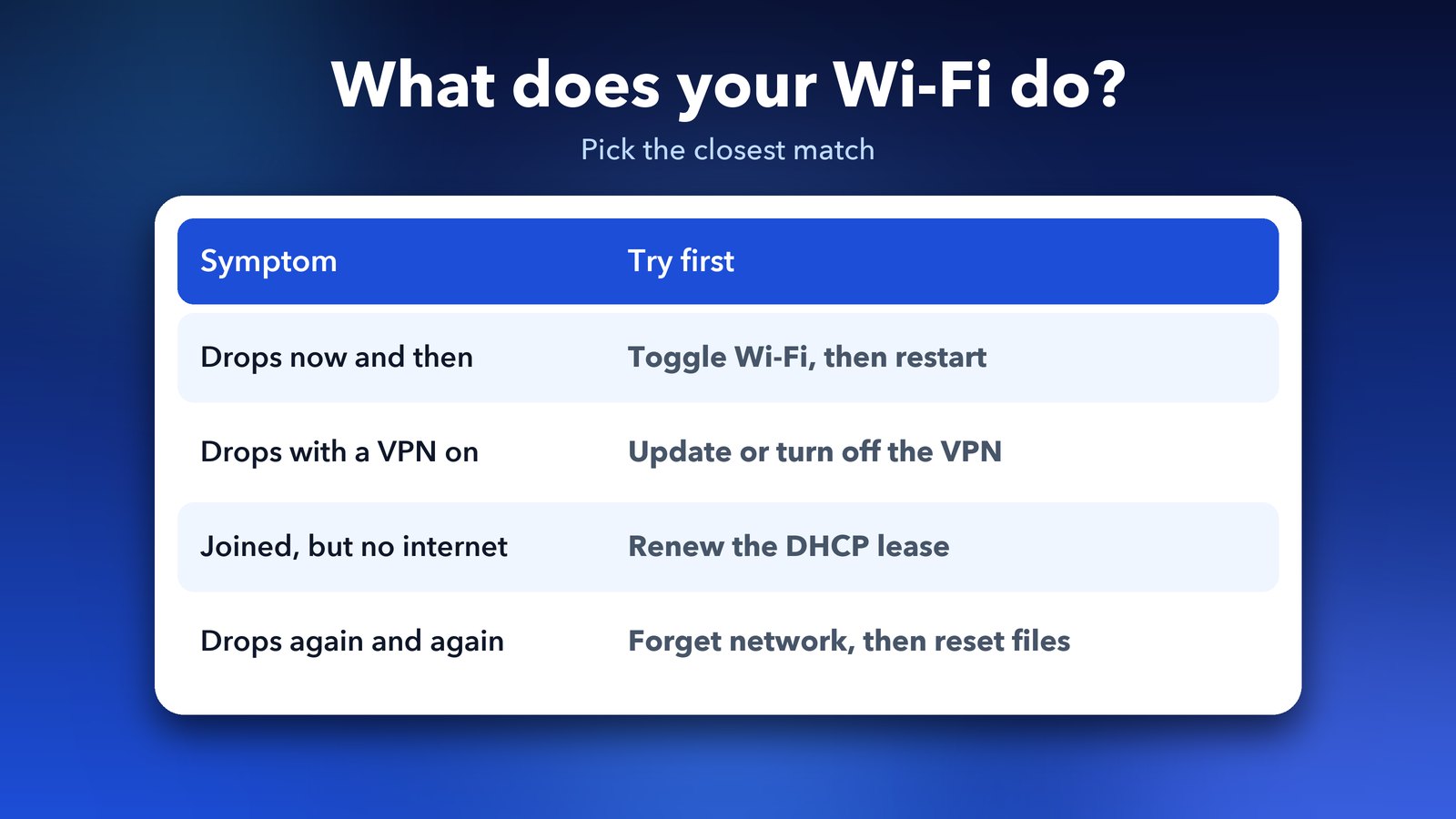
Quick answer: Turn Wi-Fi off and on, then restart your Mac fully. If the drops continue, update your VPN and security apps, then go to System Settings > Wi-Fi, open Details for your network and choose Forget This Network. Rejoin with your password. If it still drops, renew the DHCP lease and, as a last resort, reset the old network files.
Why does my Mac Wi-Fi keep dropping on macOS 27?
There are three common causes: a small bug in the new macOS, old network settings carried over from your last macOS, and VPN or security apps that don't fully work with macOS 27 yet. I haven't found an Apple statement that confirms a general Wi-Fi bug in macOS 27, so these steps come from Apple's own tools and from Mac troubleshooting guides.
One guide says the drops were reported mostly on M1 and M2 Macs. Another says the cause is often old network files from the previous macOS. So the fixes below start small and get stronger.
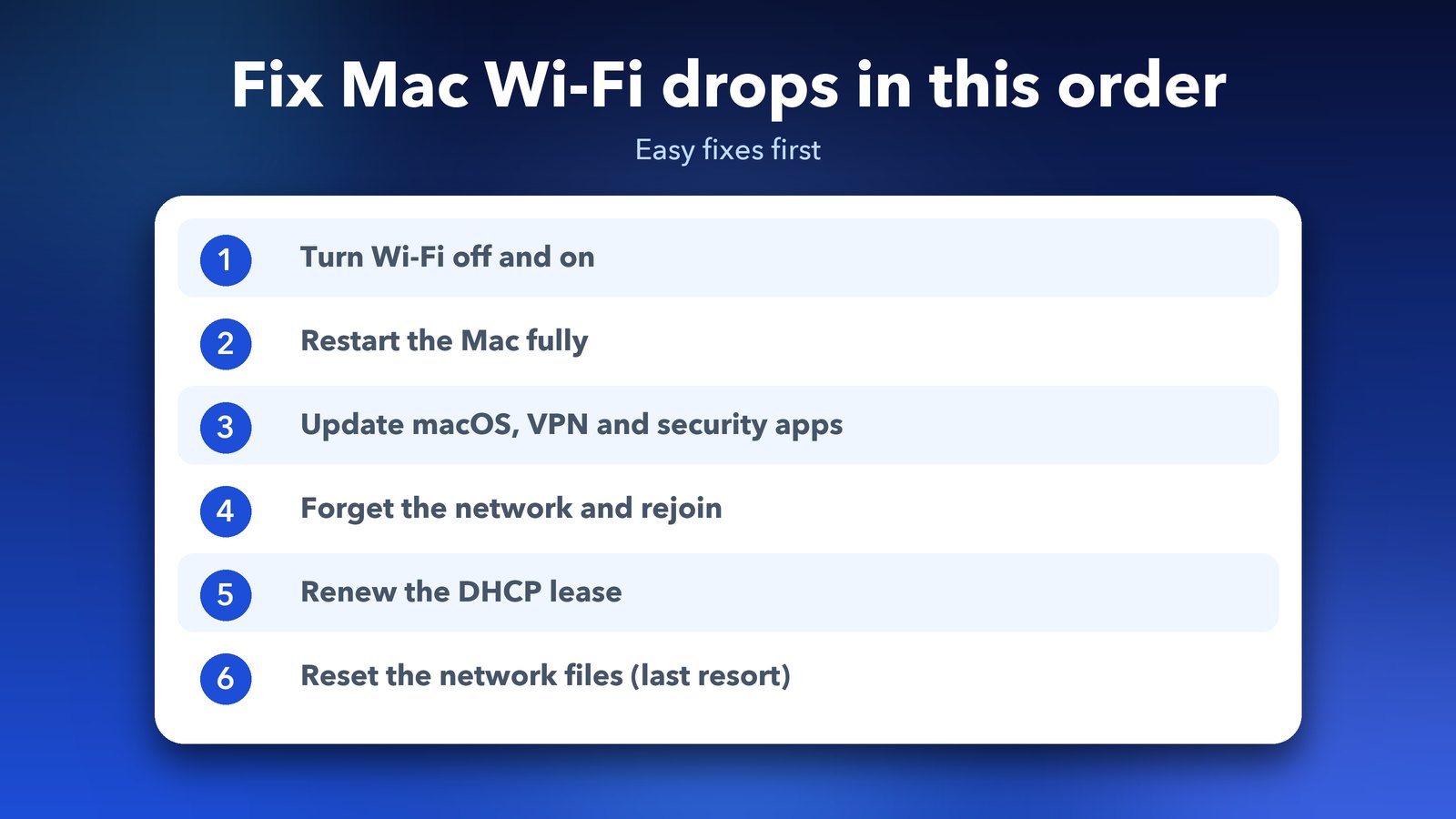
Step 1: Turn Wi-Fi off and on
This is the simplest fix, and one macOS 27 guide says it works for most people. Click the Wi-Fi icon in the menu bar, switch Wi-Fi off, wait ten seconds, then switch it on again.
First, check if the problem is your Mac or your router. If your phone stays connected to the same network while the Mac drops, the problem is more likely on the Mac.
Step 2: Restart your Mac fully
Choose Apple menu > Restart. Don't just close the lid and put the Mac to sleep. A guide on macOS 27 problems says a full restart works better than sleep when the drops keep coming back.
Step 3: Update macOS, your VPN and your security apps
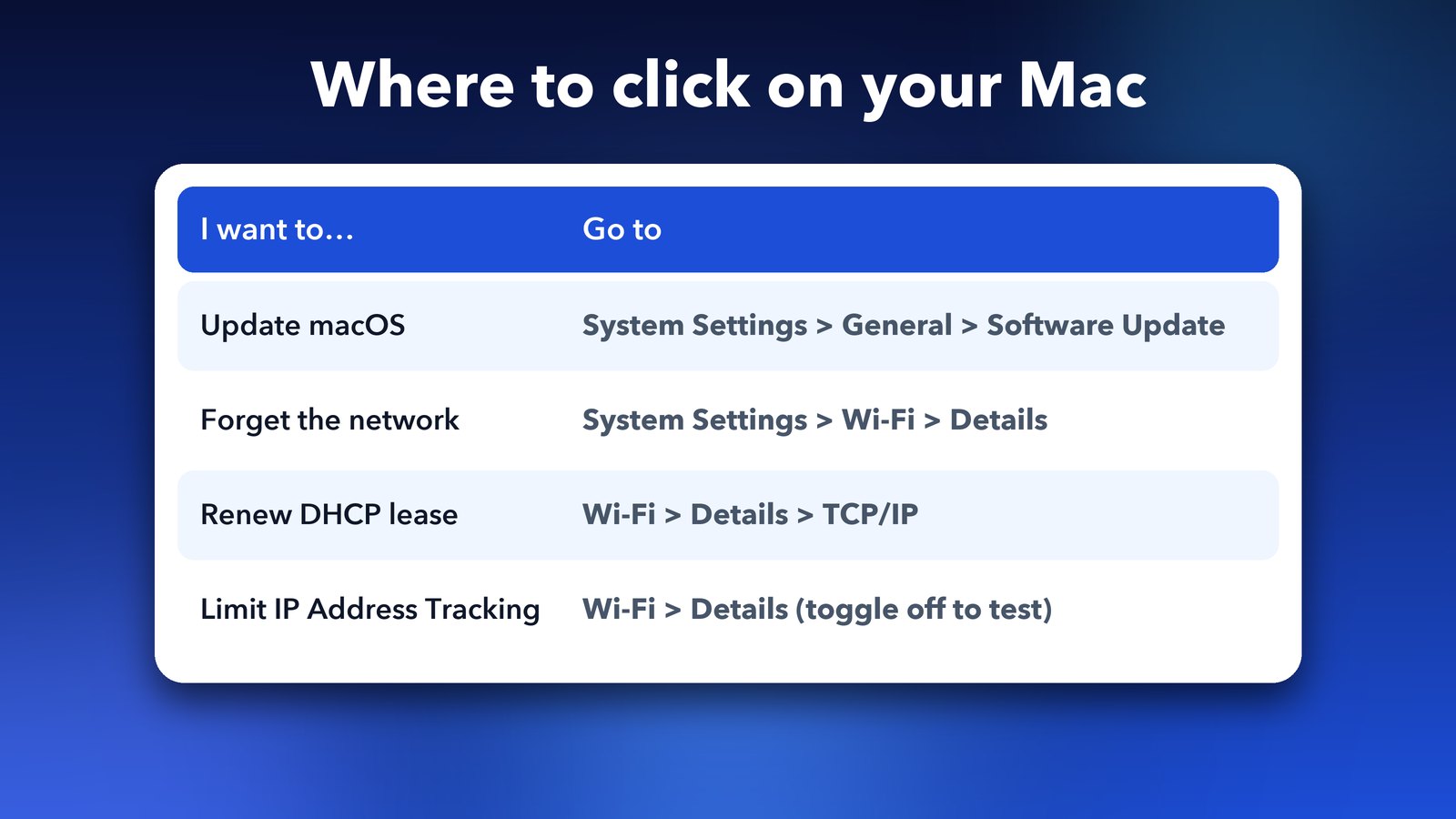
Open System Settings > General > Software Update and install anything waiting for you. Apple fixes bugs in point updates, so this step costs you nothing.
Then look at apps that sit on your network. A VPN, an antivirus app or a work security tool can cut the connection if it isn't ready for macOS 27. One guide names Cisco VPN and some other third-party VPN apps as having had known issues in the beta. Update them from the developer's site. To test, turn them off for an hour. If the drops stop, you've found the cause.
Step 4: Forget the Wi-Fi network and rejoin
Forgetting a network clears its saved settings on your Mac. You'll need the Wi-Fi password, so have it ready.
- Open System Settings > Wi-Fi.
- Click Details next to your network.
- Choose Forget This Network and confirm.
- Pick the network from the list again and enter the password.
The exact wording can change slightly between macOS releases, so look for the "Forget" option if your screen looks a little different.
Step 5: Renew the DHCP lease
If your Mac says it is connected but pages won't load, the lease your router gave your Mac may be stale. Renewing it asks the router for a fresh one.
- Open System Settings > Wi-Fi and click Details next to your network.
- Click TCP/IP.
- Click Renew DHCP Lease.
Step 6: Test Limit IP Address Tracking
This one is a "maybe". A MacPaw guide says the Limit IP Address Tracking setting can misbehave in early macOS 27 versions. To test it, open System Settings > Wi-Fi > Details and turn Limit IP Address Tracking off. If the drops stop, you have your answer. Keep in mind that this setting hides your IP address from trackers, so turn it back on if it makes no difference.
Step 7: Reset the old network files (last resort)
If nothing else worked, old network files from your previous macOS may be the problem. This step resets your saved network settings, so you may have to set up a VPN or proxy again. Back the files up first.
- In Finder, choose Go > Go to Folder.
- Paste
/Library/Preferences/SystemConfiguration/and press Return. - Drag these files to a new folder on your Desktop:
com.apple.airport.preferences.plist,com.apple.wifi.message-tracer.plist,NetworkInterfaces.plistandpreferences.plist. - Restart your Mac, then join your Wi-Fi network again.
macOS builds fresh copies of these files when it starts. If something goes wrong, you can put the backed-up files back.
How do I find out what is really wrong?
Apple's Wireless Diagnostics tool can watch your connection and save a report. Hold the Option key and click the Wi-Fi icon in the menu bar to find the diagnostics options. Apple's page on diagnosing Wi-Fi problems on a Mac explains how to use it. The report is useful if you end up talking to Apple Support.
Tips to stop the drops coming back
- Keep your router's firmware up to date, and try moving closer to it for a day as a test.
- Restart your router once. It takes two minutes and clears many odd glitches.
- Install macOS point updates as they arrive.
- Still setting up your new macOS? Our guides on fixing the Trash on macOS 27 and Intel apps not opening on macOS 27 may save you time.
Most people are sorted by Step 1 to Step 4. If yours isn't, the diagnostics report and a chat with Apple Support are your best next move. For more detail on other macOS 27 bugs, see this list of common macOS 27 problems and the MacPaw macOS 27 issues guide.
Image credits: Featured image uses a MacBook Air M4 render from Wikimedia Commons (CC BY-SA 4.0) with an illustrated Wi-Fi screen. Other graphics by Daily Techocracy.