How to fix macOS 27 not moving files to the Trash
Hello Folks,
We at Daily Techocracy are back with some juicy info for all you kind readers....lets get to it !!
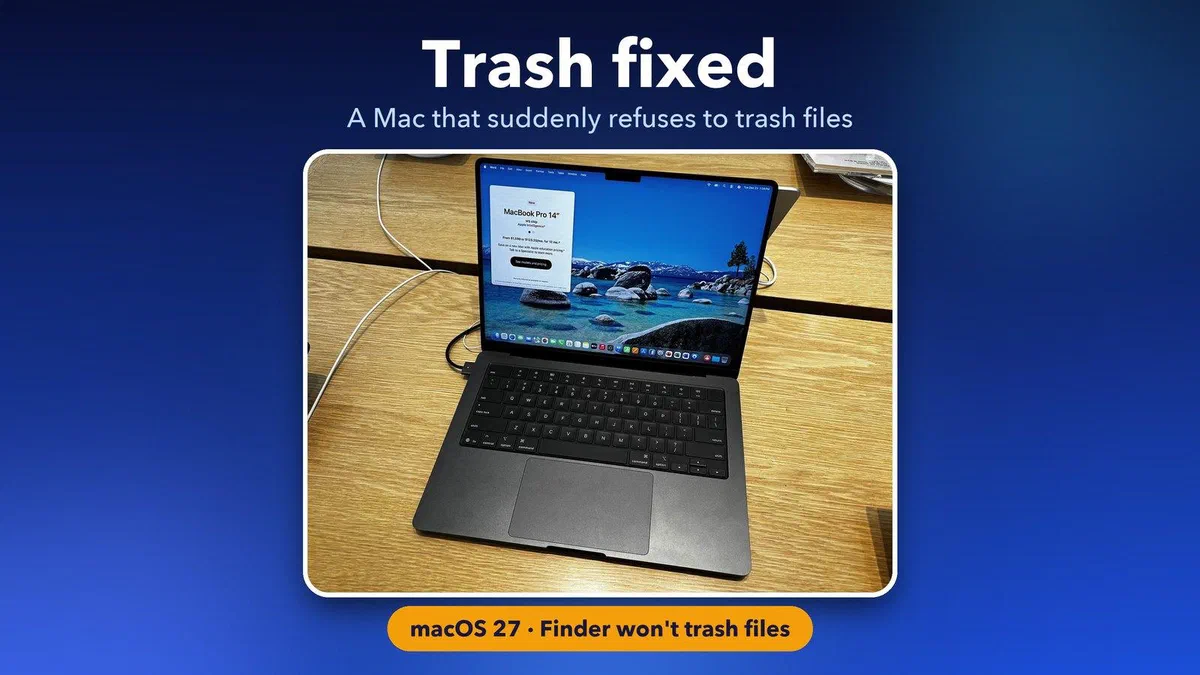
You update to macOS 27, drag a file to the Trash and nothing happens. The keyboard shortcut does nothing either. It's a small bug, but it's annoying when you're trying to clear space or tidy up a folder. The good news is that there's a quick fix, and a few more for the other reasons a Mac refuses to trash something.
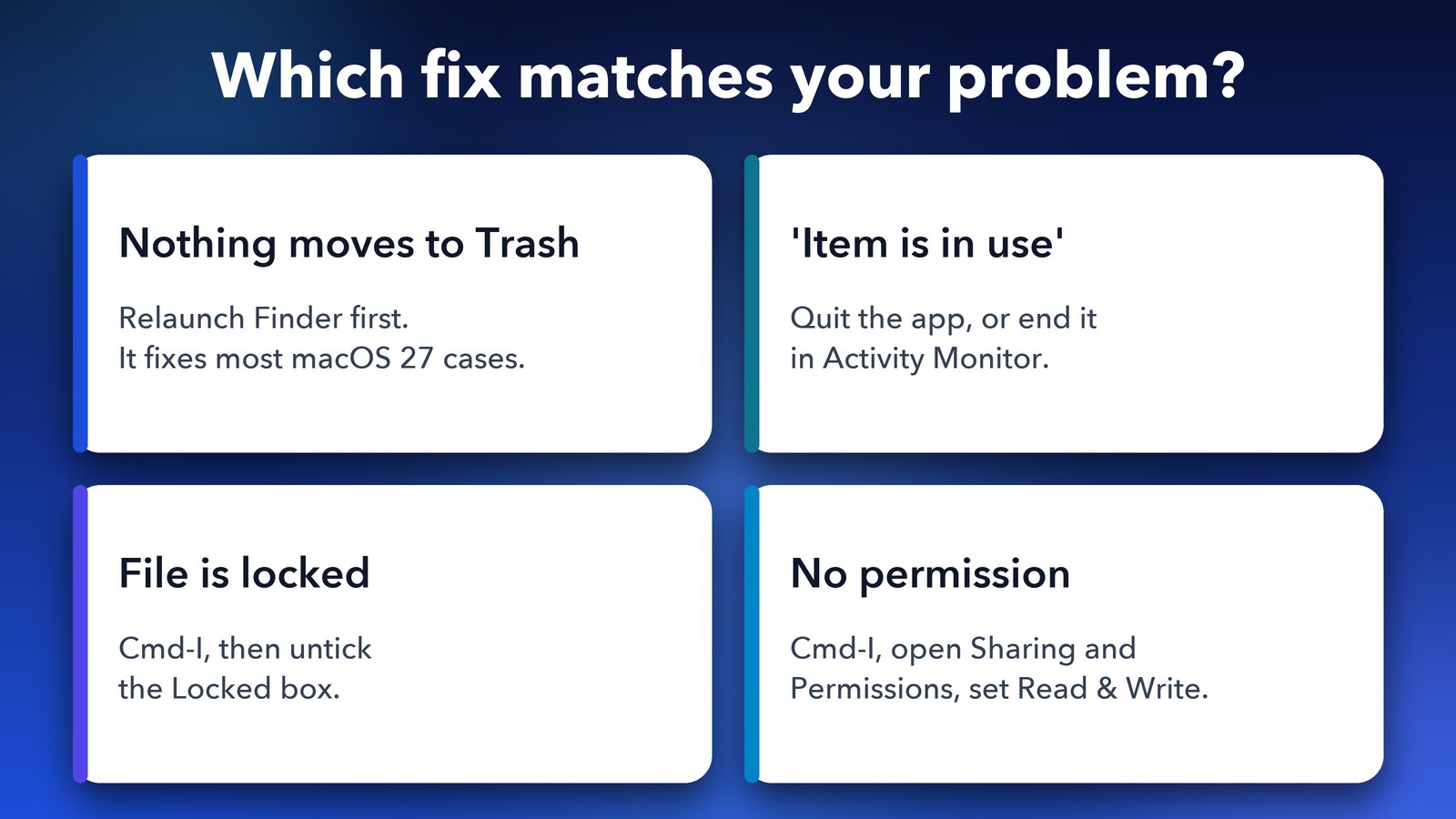
Quick answer: Open the Apple menu, choose Force Quit, select Finder and click Relaunch. Then try to move the file to the Trash again. This fixed the problem for the person who reported it after upgrading to macOS 27, though they said it came back later. If the error says the item is in use, locked or protected, use the matching fix further down.
Why can't I move files to the Trash on macOS 27?
There are two likely reasons. Either Finder (the app that manages your files) has glitched after the upgrade, or something is stopping that one file from being removed, such as an app that still has it open.
The glitch is the one to try first. A September 2026 report on AppleWorld.Today describes a Mac that wouldn't trash anything after the macOS 27 upgrade, whether by keyboard shortcut or by drag and drop. It looks like a bug in the new system rather than a problem with your files. If only one file is affected and you see an error message, skip to the sections on locked files and files in use.
How to relaunch Finder to fix the Trash
Relaunching Finder restarts the part of macOS that handles the Trash. It takes about ten seconds and won't close your other apps.
- Click the Apple logo in the top-left corner of the screen.
- Choose Force Quit.
- Select Finder in the list.
- Click Relaunch.
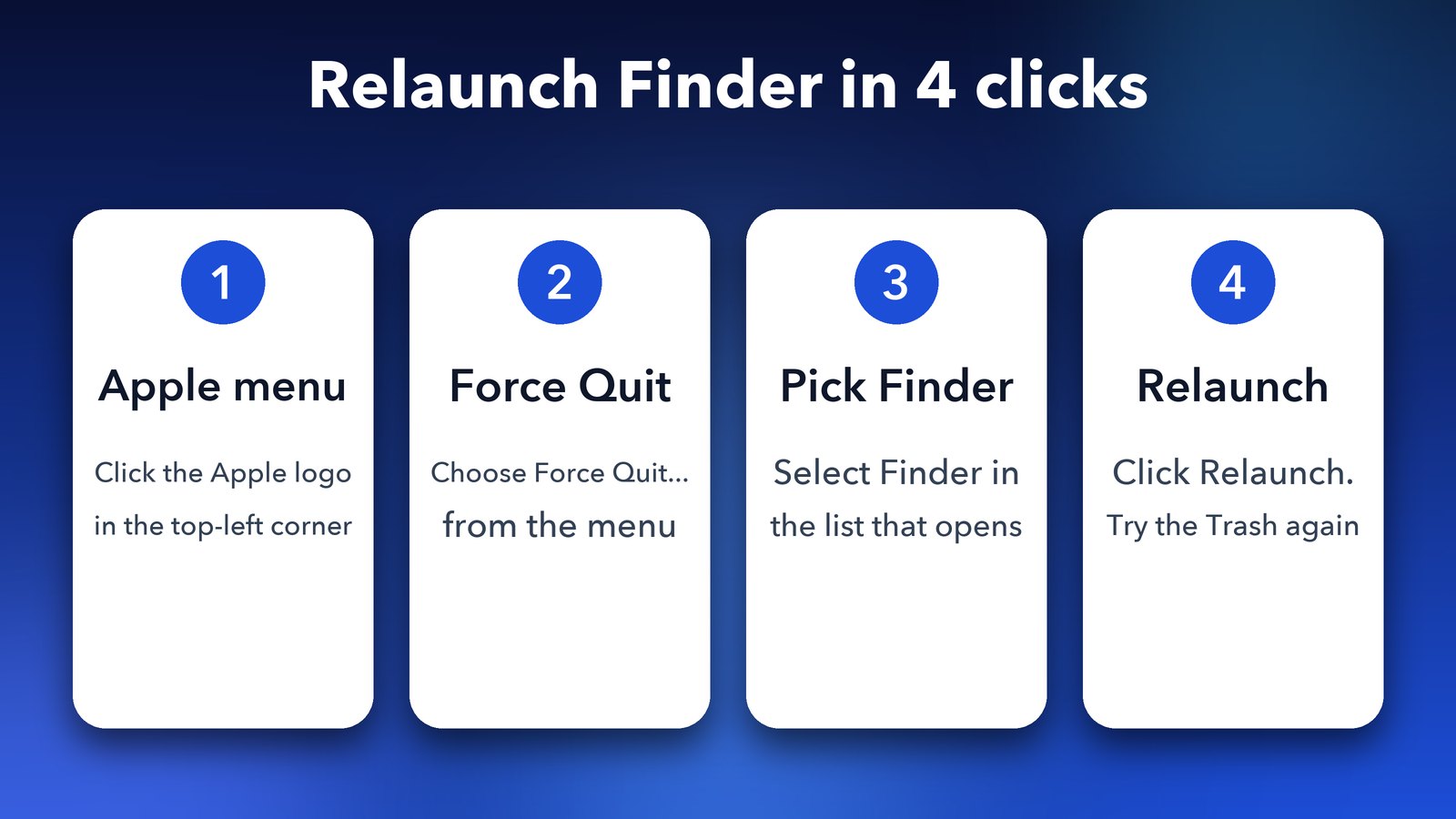
Your desktop will flicker for a moment as Finder restarts. Now try dragging a file to the Trash again.
There's a faster route too. Hold down the Option key, right-click the Finder icon in the Dock and choose Relaunch. It does the same job.
Does the Trash problem come back?
It can. The person who reported the bug found that it returned after a while, so they had to relaunch Finder again. They called it a glitch that Apple still needs to fix. If that happens to you, treat the relaunch as a quick patch and install the next macOS 27 update when it arrives.
Check System Settings > General > Software Update now and then. A point update is the most likely permanent fix, though I can't promise when Apple will ship it.
How to delete a file right away when the Trash won't work
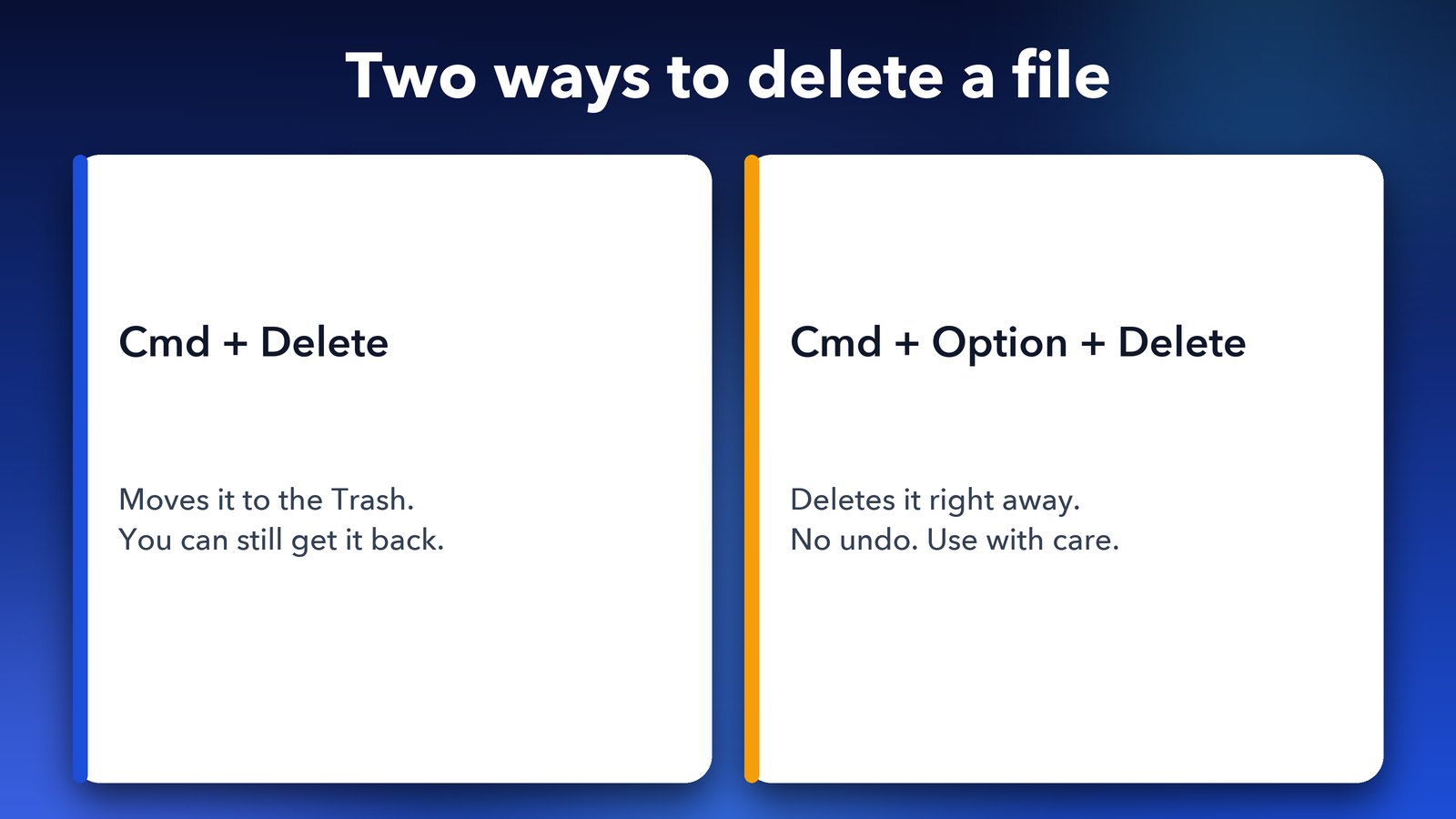
Select the file and press Command + Option + Delete. This skips the Trash and deletes the file immediately.
Be careful with this one. A file deleted this way can't be restored from the Trash, so only use it on things you're sure you don't need. If you're not certain, relaunch Finder first and use the normal route.
What if the error says the item is in use?
If you see a message that a file can't be moved to the Trash because it's open, an app is still using it. Close that app properly and try again.
- Press Command + Q in the app. Closing the window isn't enough.
- If it won't quit, press Option + Command + Esc, select the app and click Force Quit. Save your work elsewhere first.
- Still stuck? Open Applications > Utilities > Activity Monitor, search for the app or file name and click the stop button in the toolbar. Helper processes with unfamiliar names count too.
- As a last step, restart your Mac.
The culprit is often not the app you expect. A backup tool, a sync app or a helper that's still running in the background can all hold a file open.
How to fix a locked file that won't go to the Trash
A locked file is protected on purpose, and removing the lock takes two clicks. Select the file, press Command + I to open Get Info and untick the Locked box. Then move it to the Trash as normal.
For a whole folder of locked items, open Get Info on the folder, fix the permissions and use the gear menu to choose Apply to enclosed items.
How to fix a "you don't have permission" error
If Get Info shows your account as Read only, you need to give yourself access. This is common with files copied from another Mac or from a work account.
- Select the file and press Command + I.
- Open Sharing & Permissions at the bottom.
- Click the padlock and enter an administrator name and password.
- Set your account to Read & Write.
Leave system files alone. Anything inside the /System folder is protected by macOS on purpose, and you shouldn't try to remove it.
What about files on external drives and network shares?
Some drives behave differently. A drive formatted as NTFS opens read-only on a Mac, so you can't delete from it. Copy what you need off the drive, or delete the files from a Windows PC. Network shares may have no Trash at all, and Finder will offer to delete the item permanently instead, so read that message carefully.
Tips if the Trash still won't work
- Try Safe Mode. On an Apple silicon Mac, shut down, then press and hold the power button until "Loading startup options" appears. Choose your disk, hold Shift and click Continue in Safe Mode. Empty the Trash there, then restart normally.
- Run First Aid. Boot into macOS Recovery, open Disk Utility, select your disk and click First Aid. It checks for disk errors that can block deletions.
- Stop an app from coming back. If a deleted app keeps returning, open System Settings > General > Login Items & Extensions, switch off anything that belongs to it, then delete it again.
- Don't use Terminal commands like
rm. They skip the Trash and can't be undone, so they're not worth the risk for a simple glitch.
Final thoughts
For most people the fix is the first one: relaunch Finder and carry on. If your Trash keeps playing up, it's worth freeing up space the safe way while you wait for an update. Our guides on fixing Spotlight when it can't find files and on iCloud Drive stuck on "waiting to upload" cover two more Mac annoyances that often show up after a big update.
Image credits: featured image uses a photo of a MacBook Pro 14-inch (M5) by AzureSaturn, Wikimedia Commons, CC0. Other graphics by Daily Techocracy.