How to update to macOS 27.2: what's fixed and what's not
Hello Folks,
We at Daily Techocracy are back with some juicy info for all you kind readers....lets get to it !!
Apple released the macOS 27.2 update on 26 October, and Mac owners have one question: is it safe to install yet? It is the first big update to macOS 27 Golden Gate. Apple skipped 27.1 completely. Mission Control finally behaves again, Siri gets smarter, and there is a long list of security fixes. Still, a few annoying bugs remain, and the download is huge. Here is what changed, what did not, and how to update your Mac without trouble.
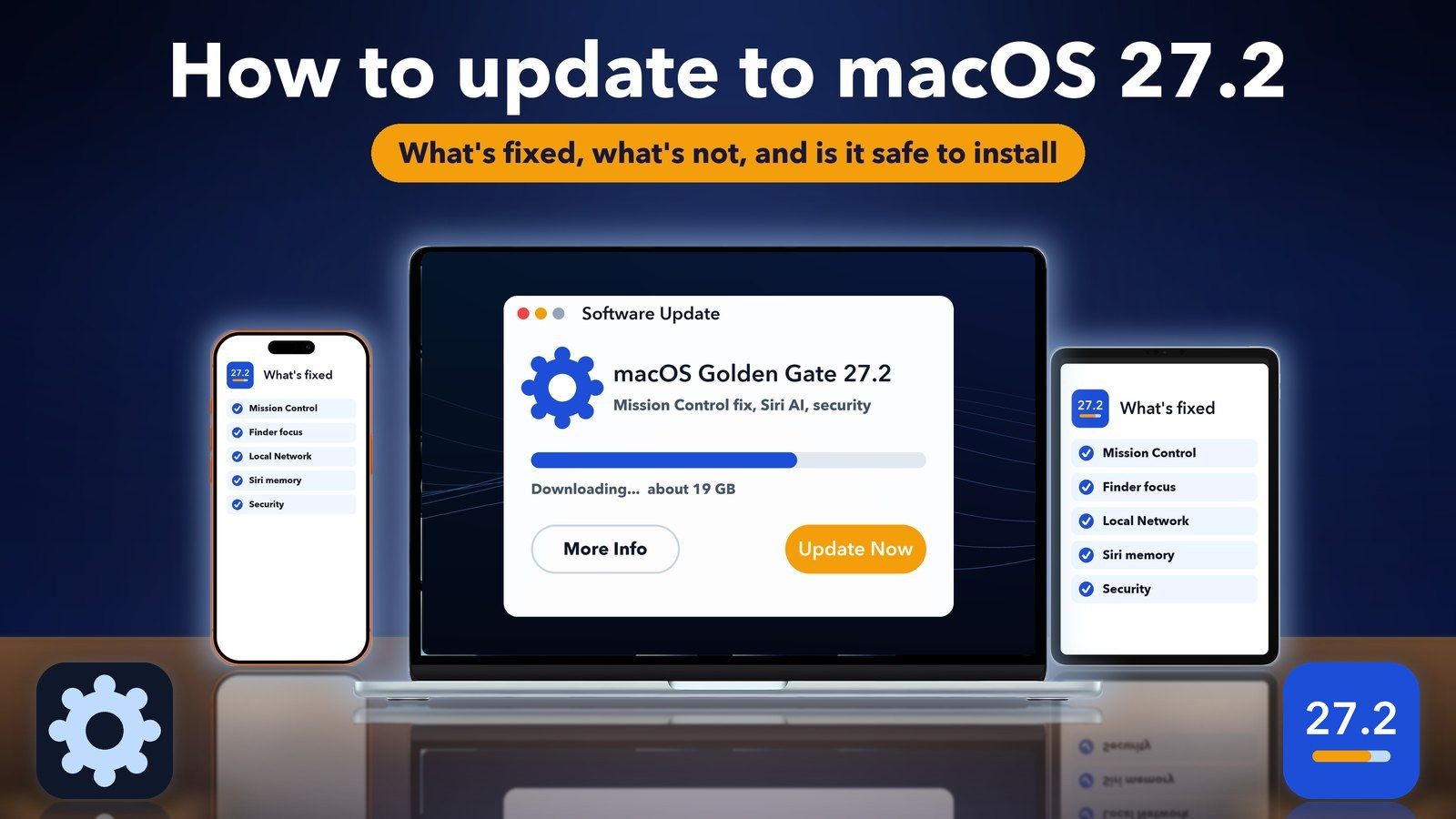
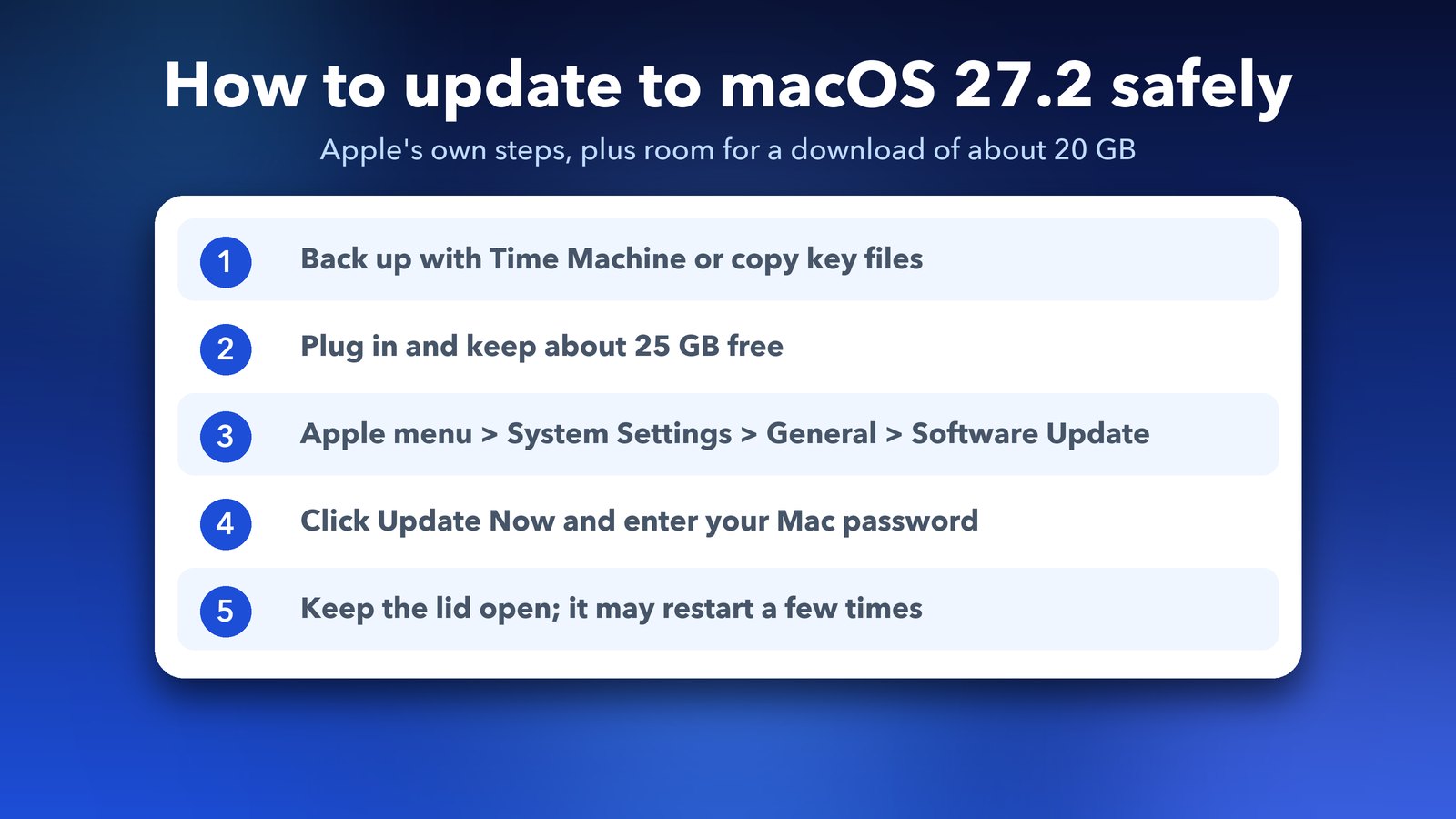
Quick answer: To update, open the Apple menu, choose System Settings, click General, then Software Update, and click Update Now. For most people on macOS 27.0 or 27.0.1, the macOS 27.2 update is worth installing. It fixes Mission Control and patches more than 200 security holes. Back up first and keep about 25 GB free, because the download is close to 20 GB.
What is new in the macOS 27.2 update?
The macOS 27.2 update is mostly about Siri, Messages and bug fixes. Apple's release notes put Siri AI first. Siri can now remember earlier chats and use more of your personal context. The update also adds a redesigned volume and brightness slider and more than 200 security fixes.
Here is what Apple lists in its official notes for the macOS 27 updates:
- Siri remembers. Siri can refer back to things you asked before. It can also look at photos in Messages, Calendar invitees, voicemails and your Safari history and Reading List.
- One place to control Siri's access. A single setting now decides which apps Siri, Search and Suggestions can read from.
- More languages. Siri AI now works in French, Japanese, Korean, Portuguese and Spanish, as well as English. It is still not offered in mainland China.
- Suggestions in Messages. If a friend invites you to dinner, Messages can offer to add it to Calendar or Reminders.
- Smaller changes. Write with Siri moves into Mail's formatting bar. Shared Albums in Photos get better captions and comments. Photos can also spot SynthID marks, which show an image was made or changed with AI.
The build number is 26B123. On the same day, Apple also released macOS Tahoe 26.7.2 and macOS Sequoia 15.8.2 for older Macs.
What does macOS 27.2 fix?
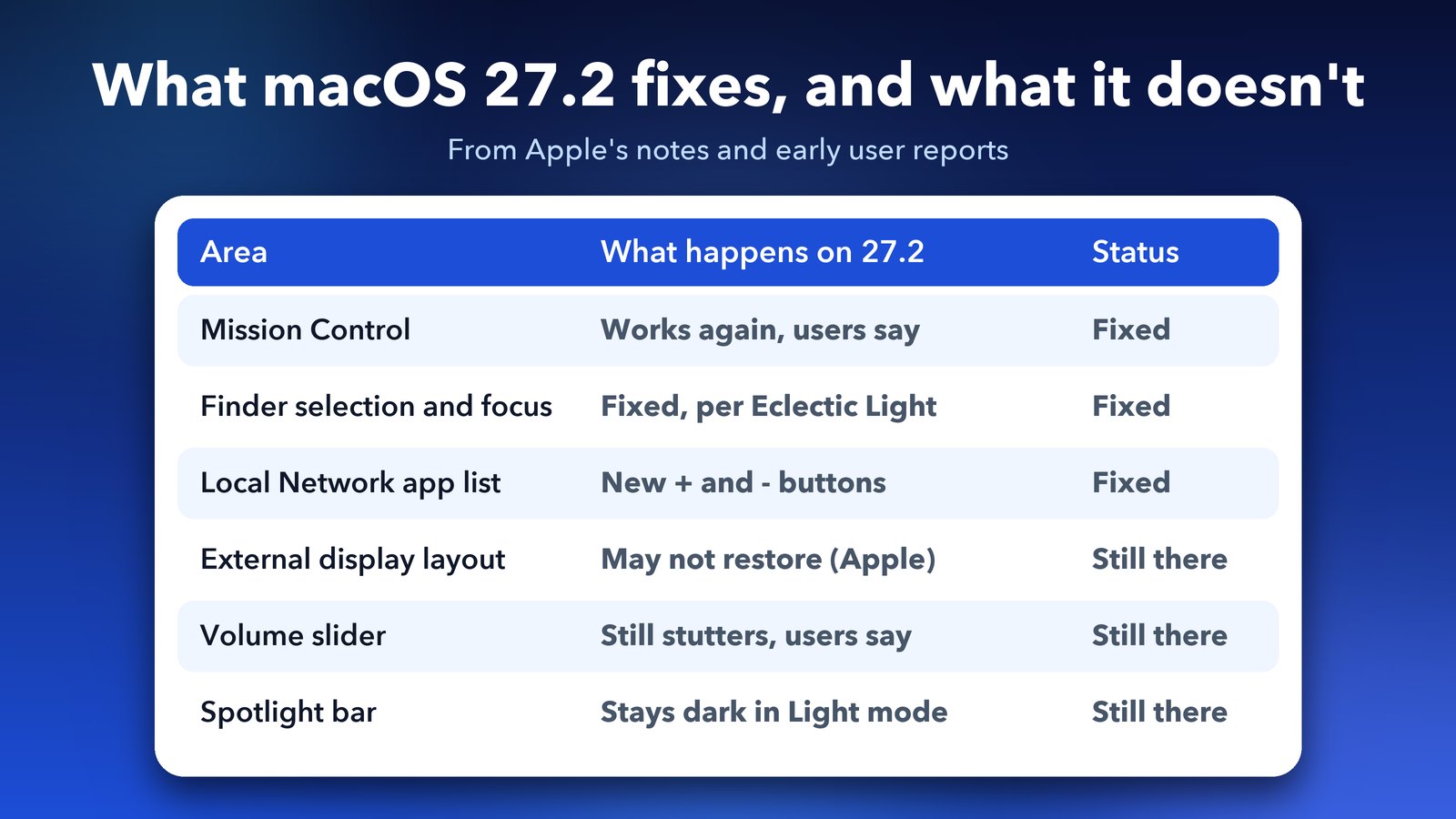
The biggest fix is Mission Control. Since macOS 27.0, many people saw it jump back to the first desktop, show missing previews or stutter when switching spaces. On r/MacOS, several users now say it works properly again on 27.2, and the desktop picker no longer jumps to the first desktop. Here are the other fixes reported so far:
- Finder. Howard Oakley of The Eclectic Light Company says 27.2 fixes the selection and focus problems in Finder windows.
- Local Network privacy. Users report that Privacy & Security > Local Network now has + and - buttons, so you can finally remove apps you deleted long ago.
- Spotlight settings. One Redditor found that clicking the small info button next to Files in Spotlight's settings lets you type file endings to leave out of search.
- Rosetta. Apple's notes for businesses say upgrading to macOS 27 no longer removes Rosetta, the tool that runs older Intel apps.
Which bugs are still there in macOS 27.2?
Some problems survived the update. None of them is a reason for most people to skip it. Apple lists a few known issues, as reported by 9to5Mac:
- External displays. With an external display connected, your display settings may not come back correctly, and the arrangement may change.
- Missing notification prompts. After a clean install, Calendar, Maps, Find My, Home and Weather may not ask for permission to send notifications. Turn them on yourself in System Settings > Notifications.
From users on Reddit and Mac blogs, so not confirmed by Apple:
- The volume slider still lags. A user who has reported it since the first macOS 27 beta says the slider still stutters on 27.2, while the brightness slider is smooth.
- The new Spotlight bar stays dark. People on r/MacOS dislike that the Spotlight search bar is black even in Light mode, with no way to change it.
- Safari and Passwords. One user sees Safari pages load slowly on 26B123, and another says Passwords autofill freezes halfway through.
There is also an open security item for Terminal users. In a support note about compromised eMudhra certificates, Apple says Safari and Mail are protected, but tools like curl and git get their fix in a future update. If you use Terminal a lot, read that note.
How big is the macOS 27.2 download?
It is big. Mr. Macintosh measured 18.77 GB going from 27.0.1 on an Apple silicon Mac, and 20.5 GB coming from macOS Tahoe. The Eclectic Light Company saw 21.8 GB. Plan for close to 20 GB of download and some room on top for the install.
If you use Time Machine, Howard Oakley says you may see a new snapshot of around 30 GB after the update. It should delete itself within 24 hours, so do not panic if free space drops for a day. If your Mac is tight on space, our guide on freeing up System Data storage on macOS 27 will help you make room first.
How to update to macOS 27.2 step by step
The update comes through Software Update, like any other. These steps come from Apple's guide to updating macOS.
- Back up your Mac. Run a Time Machine backup, or at least copy your important files somewhere safe.
- Plug in and free up space. Connect the charger and check you have about 25 GB free in System Settings > General > Storage.
- Open Software Update. Choose the Apple menu > System Settings, click General in the sidebar, then click Software Update.
- Click Update Now. If nothing shows, click Check for Updates or press Command-R. Enter your Mac login password when asked.
- Leave it alone. Keep the Mac awake with the lid open. It may restart a few times and show a blank screen or a progress bar. That is normal.
Why can't I see the macOS 27.2 update?
Work through these checks in order.
- You are on the beta. 9to5Mac says testers may need to turn off beta updates to see the final 26B123 build. In Software Update, click the info button next to Beta Updates and choose Off.
- Your Mac is an Intel Mac. macOS 27 runs only on Apple silicon Macs, which means M1 or newer, plus the MacBook Neo. Intel Macs get Tahoe 26.7.2 or Sequoia 15.8.2 instead.
- A tool is blocking it. Michael Tsai's blog quotes a developer who found that the RemoveMacAI tool can block the download. Removing its profile in System Settings > General > Device Management fixed it.
- The download stalls. Restart the Mac, check your free space and try again on stable Wi-Fi. Our guide to fixing Wi-Fi dropping on macOS 27 may help if your connection keeps cutting out.
Should you update to macOS 27.2 now?
For most people on macOS 27.0 or 27.0.1, yes. You get the Mission Control fix, the Finder fixes and a large batch of security patches. The Eclectic Light Company counts about 230 fixed security issues, while Mr. Macintosh counts 263 including Safari. Apple does not think any of these holes are being used in attacks yet, so you do not need to drop everything. Still, I would not wait more than a few days.
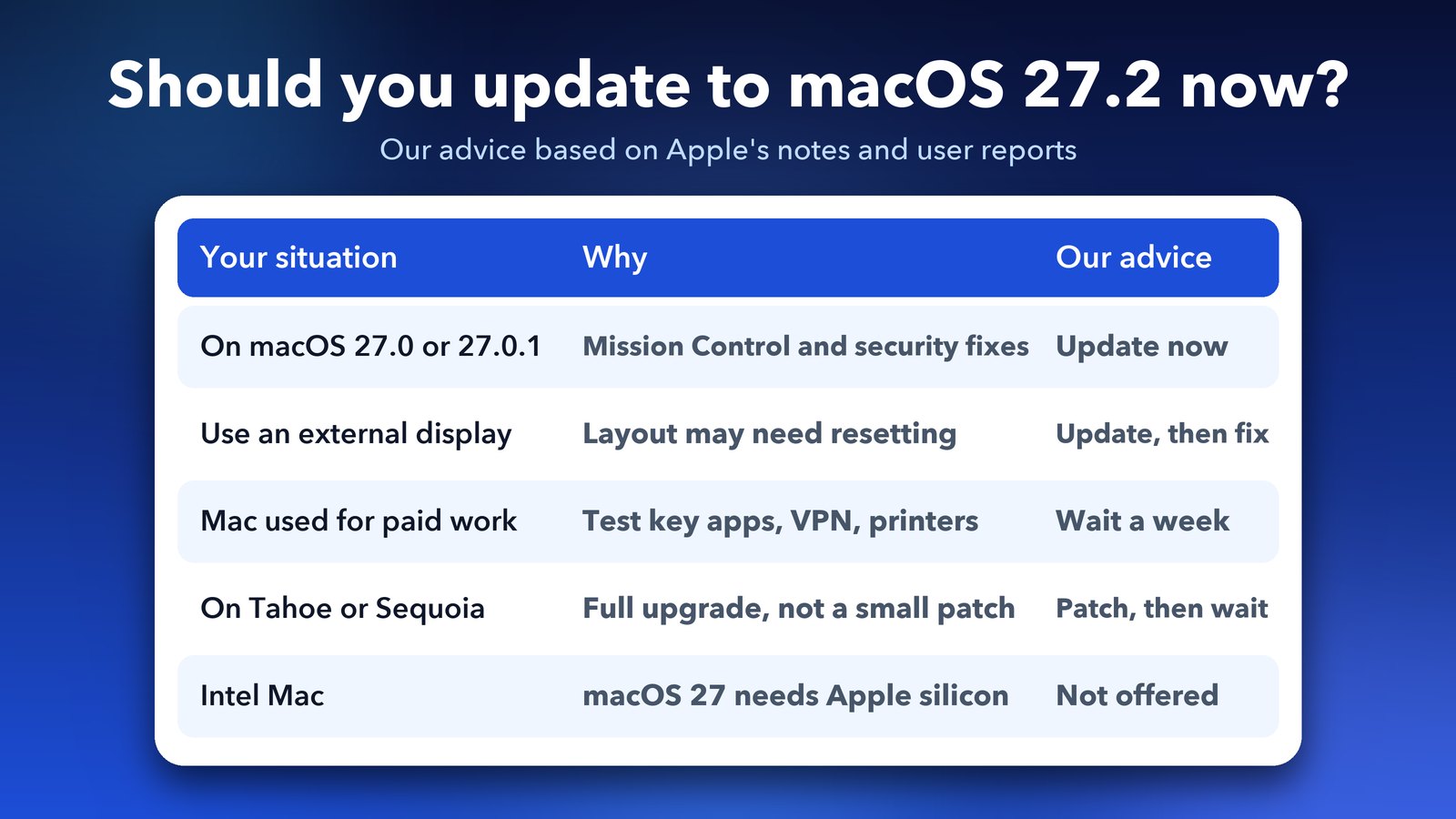
There are a few cases where waiting a week makes sense:
- You rely on an external display layout. Apple's own notes say the arrangement may not come back properly, so set aside time to fix it.
- You use your Mac for paid work. Check that your key apps, printers and VPN work on 27.2 first.
- You are still on Tahoe or Sequoia. Going to macOS 27 is a full upgrade, not a small update. Some r/MacOS users went back to Sequoia over battery life on macOS 27, so read up before you jump. Installing Tahoe 26.7.2 or Sequoia 15.8.2 gets you the security fixes either way.
If the new Siri features are not for you, you can still install 27.2 and switch them off. Our guide on turning off Apple Intelligence on macOS 27 shows you how.
If macOS 27 still isn't working for you after this update, here's how to downgrade macOS 27 to Tahoe or Sequoia safely.
My take on macOS 27.2
This is the update macOS 27 should have shipped with. Mission Control alone makes it worth it if you use several desktops. The lagging volume slider and the dark Spotlight bar are small annoyances, not deal breakers. Back up, make some space, and give your Mac half an hour to do its thing.
Image credits: MacBook Air M4 render, iPhone 17 Pro vector (TheGoldenBox) and iPad Pro 11 mockup (Jem Riggs) from Wikimedia Commons (CC BY-SA 4.0), with illustrated screens and a custom wallpaper. Update and settings tiles are original illustrations by Daily Techocracy.