Laptop Screen Black After Sleep? Here’s the Real Fix
Hello Folks,
We at Daily Techocracy are back with some juicy info for all you kind readers....lets get to it !!
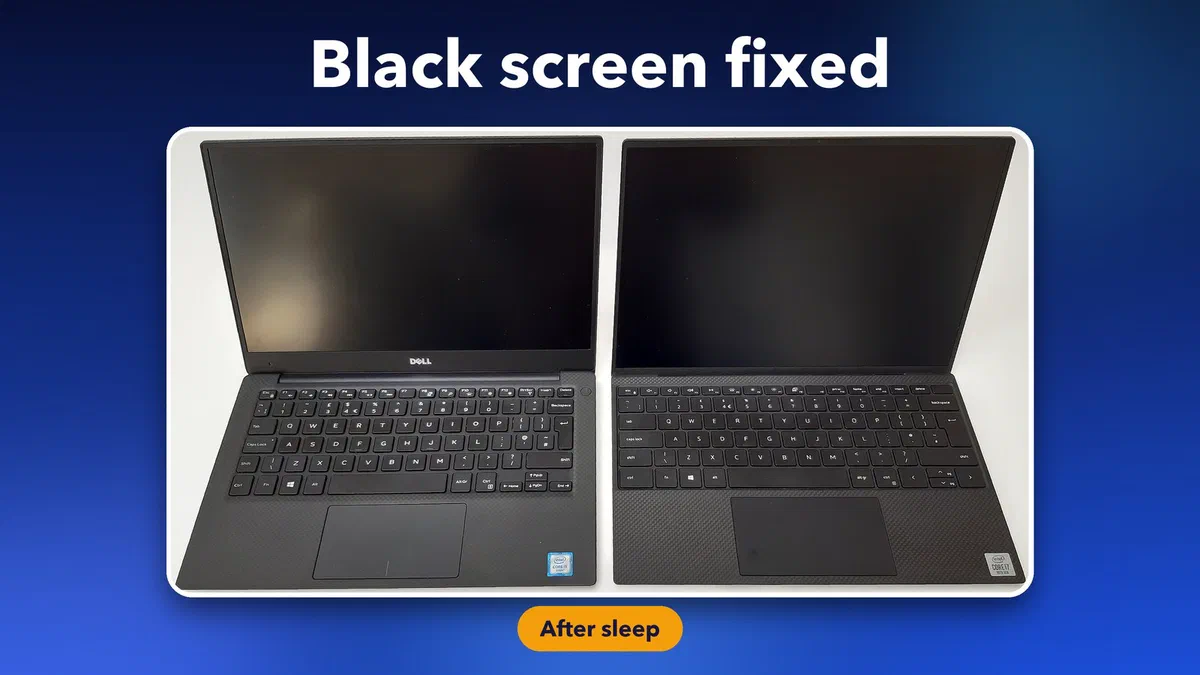
You close the lid, walk away, come back an hour later, and hit a key to wake your laptop up. The fan spins up right away, you can hear it working, but the screen just… stays black. No login prompt, no cursor, nothing. You start wondering if your laptop just died on you.
I’ve run into this exact thing on a Windows 11 laptop after a driver update, and it’s more common than it sounds. The good news: it’s almost always fixable without a trip to the repair shop.
Quick answer: A black screen with a spinning fan after wake-up is usually a graphics driver that failed to restart properly, not a dead laptop. Try a display driver restart (Windows key + Ctrl + Shift + B) first, then work through power settings, driver updates, and a hard reset if that doesn’t fix it. Full hardware failure is rare and only worth suspecting after these steps fail.
Laptop screen not turning on after sleep? Try these quick checks first
Before you change any settings, these three quick checks tell you what kind of problem you have. They work the same on Windows 11 and Windows 10.
- Press Windows key + Ctrl + Shift + B. This restarts the graphics driver. If you hear a short beep or the screen flickers, the laptop is fine and only the display driver got stuck.
- Press Ctrl + Alt + Delete. If the blue security screen appears, Windows is running and the problem is the display. If nothing happens at all, Windows itself froze during wake-up.
- Close the lid, wait 10 seconds and open it again. On many laptops this wakes the screen panel when a key press doesn't.
On Windows 10? The fixes below work there too. Fast Startup lives in the same place: Control Panel > Power Options > Choose what the power buttons do > Change settings that are currently unavailable, then untick Turn on fast startup. Microsoft's own black screen troubleshooting page also starts with the Windows key + Ctrl + Shift + B shortcut.
Why This Happens
When your laptop wakes up, dozens of small things have to happen in the right order: the display driver reinitializes, the screen panel gets power again, and Windows redraws everything on screen. If any one of those steps gets stuck, you end up with a laptop that’s clearly “awake” (fan running, lights on) but showing nothing.
The most common causes are an outdated or glitchy graphics driver, an aggressive power plan that cuts power to the display in a weird way, or Windows’ Fast Startup feature interfering with a clean wake cycle. Less often, it’s a loose display cable or a failing screen, but that’s not where you should start looking.
Step 1: Force a Display Driver Restart
Before you do anything drastic, try this shortcut: press Windows key + Ctrl + Shift + B. You’ll hear a short beep and maybe see a quick screen flicker. This forces Windows to restart the display driver without rebooting the whole machine. It fixes the black screen more often than you’d expect, and it costs you nothing to try.
If the screen comes back, great, you’re done for now. But it’s worth doing the rest of the steps below so it doesn’t keep happening.
Step 2: Do a Real Hard Reset
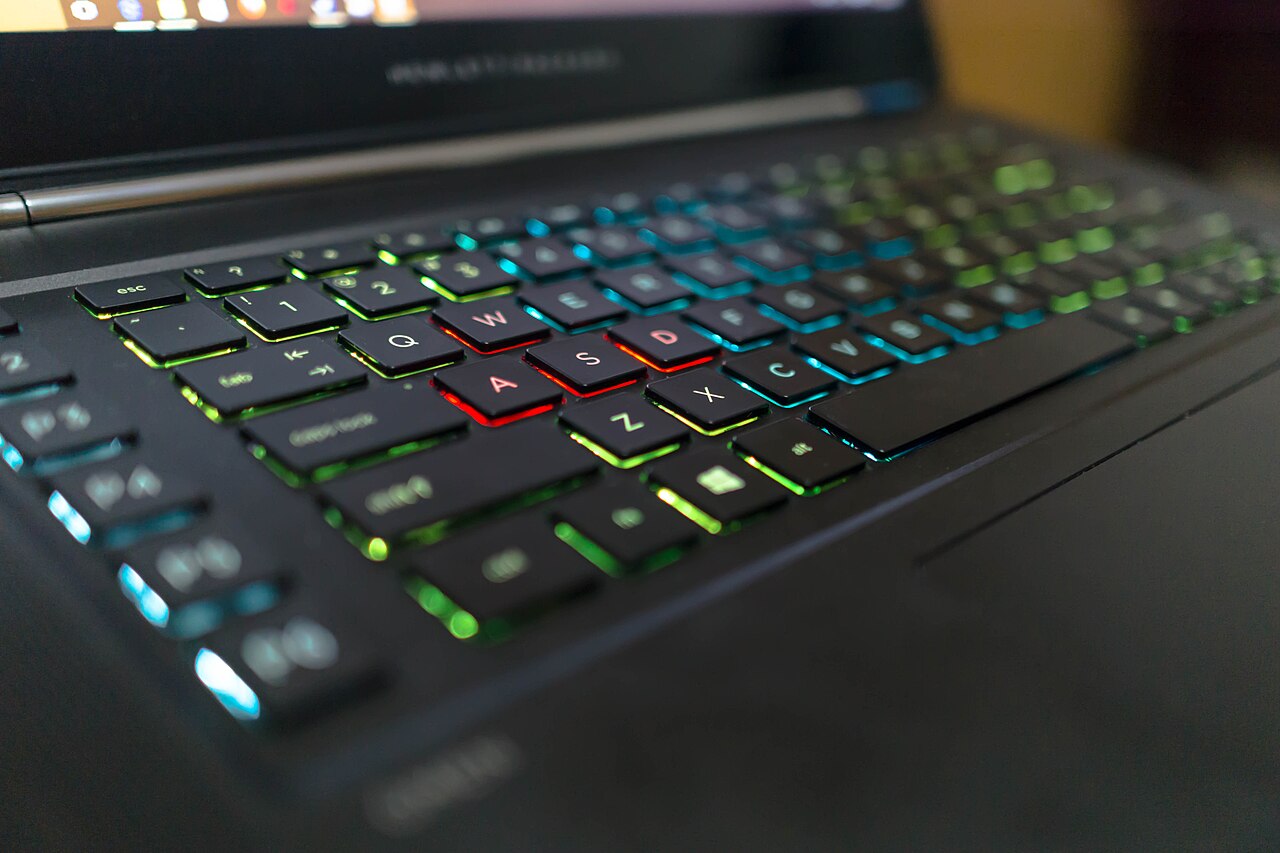
If the keyboard shortcut didn’t work, unplug the charger and disconnect any external monitors, mice, or USB drives. Hold the power button down for 15-20 seconds until everything shuts off completely, even the keyboard lights. Wait about 10 seconds, plug the charger back in, and power it on normally.
This clears out any leftover electrical charge sitting in the components, which sounds a little old-school but genuinely resolves a chunk of these black screen cases.
Step 3: Turn Off Fast Startup
Fast Startup is supposed to make your laptop boot quicker, but it can mess with how the display wakes up from sleep. To turn it off:
- Open the Start menu and search for “Control Panel,” then open it.
- Go to Hardware and Sound, then Power Options.
- Click “Choose what the power buttons do” on the left side.
- Click “Change settings that are currently unavailable” (you’ll need admin access).
- Scroll down to Shutdown settings and uncheck “Turn on fast startup.”
- Click Save changes.
Restart the laptop once after this, then test putting it to sleep and waking it again.
Step 4: Update Your Graphics Driver
An outdated graphics driver is probably the single biggest cause of this problem. Right-click the Start button, choose Device Manager, and expand “Display adapters.” Right-click your graphics card (Intel, AMD, or NVIDIA) and choose “Update driver,” then “Search automatically for drivers.”
For a more thorough fix, it’s worth going straight to the source instead of relying on Windows Update. Grab the latest driver directly from Intel, NVIDIA, or AMD’s own site, or from your laptop maker’s support page (Dell, HP, Lenovo, ASUS all have one), since they sometimes have a newer version tuned for your exact model.
Step 5: Check Your Power Plan Settings
Sometimes an overly aggressive power plan is the culprit, especially if you’ve tweaked settings before to save battery. Go to Settings, System, Power & battery, and set your plan back to “Balanced” instead of a custom or heavily optimized one. Also check that “USB selective suspend” isn’t set to aggressively cut power, since that setting has been known to cause wake-up glitches on some laptop models. Microsoft’s own troubleshooting page for wake-from-sleep issues covers a few more edge cases worth checking if you’re still stuck.
If your trackpad has also been acting up since a sleep or wake cycle, that’s usually a related but separate driver quirk. We covered it in our guide to laptop touchpad problems after sleep. And if your screen flickers instead of going black, that’s a different symptom with its own fix in this laptop screen flickering guide.
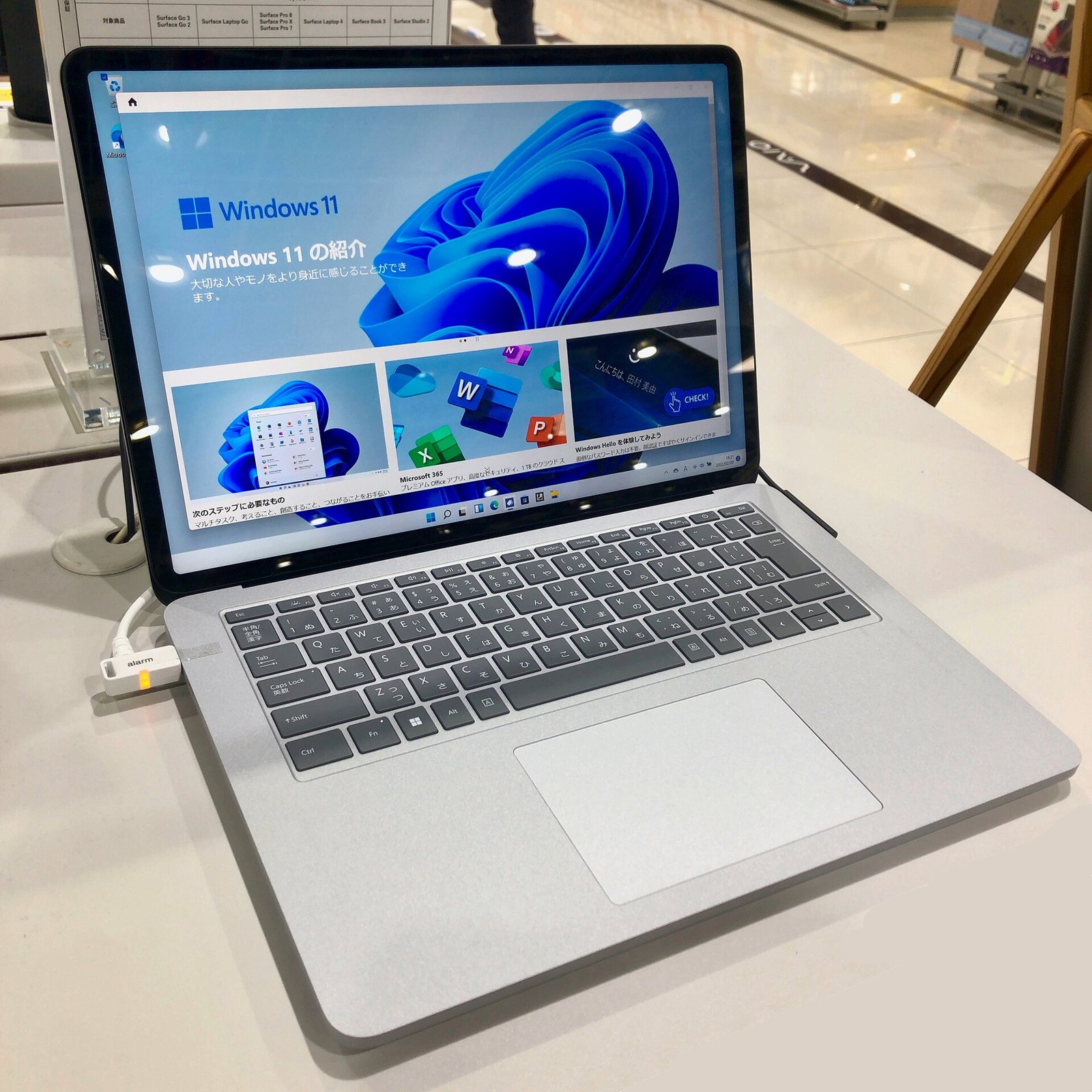
Step 6: Roll Back the Driver if This Started After an Update
If the black screen began right after a Windows or driver update, the new driver may be the problem rather than an old one.
- Right-click the Start button and open Device Manager.
- Expand Display adapters, right-click your graphics chip and choose Properties.
- Open the Driver tab and click Roll Back Driver. If the button is greyed out, there’s no older version saved, so use Step 4 instead.
- Restart and test sleep and wake a few times.
Step 7: Find Out Which Sleep Your Laptop Uses
Most laptops sold in the last few years don’t use the old sleep mode any more. They use Modern Standby, which keeps the laptop half-awake like a phone. It’s also the type of sleep most often linked to black screens on wake. Here’s how to check yours:
- Click Start, type cmd, and open Command Prompt.
- Type
powercfg /aand press Enter. - If the list shows Standby (S0 Low Power Idle), your laptop uses Modern Standby. If it shows Standby (S3), it uses classic sleep.
With Modern Standby, two things help most. First, update the BIOS and chipset drivers (Step 8). Second, go to Settings > System > Power & battery and, if you see a network connectivity option for when the screen is off, turn it off so the laptop sleeps more deeply. Some laptops let you switch to classic S3 sleep in the BIOS, but many newer ones don’t offer it, and registry tricks you’ll find online usually don’t work on them.
Step 8: Update the BIOS and Chipset Drivers From Your Laptop Maker
Wake-from-sleep bugs are often fixed in firmware, not in Windows. Go to your laptop maker’s support site (Dell, HP, Lenovo, ASUS, Acer and others), enter your model or serial number, and install the latest BIOS and chipset updates. Most makers also have an app that does this for you, like Dell SupportAssist, HP Support Assistant, Lenovo Vantage or MyASUS. Keep the charger plugged in during a BIOS update and don’t close the lid until it finishes.
Step 9: Use Hibernate Instead of Sleep (the Reliable Workaround)
If nothing else fixes it, switch the lid and power button to Hibernate. Hibernate saves everything to the drive and turns the laptop fully off, so there’s no half-awake state for the screen to get stuck in. Waking takes a few seconds longer, but it’s dependable and uses no battery while closed.
- Open Control Panel > Hardware and Sound > Power Options.
- Click Choose what closing the lid does.
- Click Change settings that are currently unavailable.
- Under Shutdown settings, tick Hibernate so it’s available.
- Set When I close the lid and When I press the power button to Hibernate for both battery and plugged in, then click Save changes.
Once a BIOS or driver update fixes sleep on your model, you can switch back.
Tips and Troubleshooting
- If an external monitor works fine but your built-in laptop screen stays black, that points to the laptop’s own display panel or cable rather than the graphics driver, and might need a technician.
- Keep a habit of checking for driver updates every couple of months, especially right after a big Windows update, since those tend to shake loose the graphics driver.
- If the black screen only happens after a specific app runs in the background, that app might be conflicting with sleep mode. Try closing background apps before closing the lid for a few days to test.
- Still stuck after all nine steps? Check the Reliability Monitor (search “View reliability history” in Start) to see if Windows logged a crash around the time of the black screen. That log can point you toward the exact driver or service causing trouble.
Frequently Asked Questions
Why is my laptop screen black after sleep but the power light is on?
Windows is usually awake, but the graphics driver or the screen didn’t restart properly. Press Windows key + Ctrl + Shift + B to restart the display driver. If that keeps happening, update or roll back the graphics driver, update the BIOS, or set the lid to Hibernate instead of Sleep.
Is a black screen after sleep a sign my laptop is dying?
Not usually. Most of the time it’s a software or driver hiccup, not failing hardware. Only start worrying about hardware if an external monitor also shows nothing, or if the laptop won’t turn on at all even with the charger connected.
Why does my laptop only do this after a Windows update?
Windows updates sometimes install a generic graphics driver that doesn’t play well with your specific laptop model. Updating to the manufacturer’s own driver version, as covered in Step 4, usually clears this up.
Will resetting my laptop fix a black screen after sleep?
A full reset can fix it, but it’s a last resort. Try the driver restart shortcut, hard reset, and driver update first. Most people never need to go further than that.
Should I just disable sleep mode instead of fixing this?
You can as a temporary workaround (Settings, Power & battery, Screen and sleep, set to Never), but that drains your battery a lot faster and doesn’t fix the actual cause. Treat it as a stopgap, not a real solution.
Ever had your laptop wake up looking dead, only to find it was a two-minute fix? What finally worked for you?
New image credits: “Dell XPS 13 9350 and 9300” by Green-Curtain, CC BY-SA 4.0; “Surface Laptop Studio - 2” by KKPCW, CC BY-SA 4.0, via Wikimedia Commons.