How to fix a loud laptop fan on Windows 11
Hello Folks,
We at Daily Techocracy are back with some juicy info for all you kind readers....lets get to it !!
You open a few browser tabs, and your laptop starts sounding like a tiny jet engine. Or worse, the fan roars even when you're doing nothing at all. It's annoying, and it makes you wonder if something is broken. In most cases nothing is broken. Something is keeping the processor busy, or the fan is stuck on a loud profile. Let's go through the fixes in the order that's quickest to try.
Quick answer: A loud laptop fan usually means the processor is working hard or the cooling profile is set to "performance". Open Task Manager to find the busy app, set the Windows power mode to Balanced, choose a quiet fan mode in your laptop maker's app, and install updates. If it's still loud, clean the vents. A fan that grinds or rattles may need a repair.
Why is my laptop fan so loud on Windows 11?
The fan gets loud because the laptop is getting hot. Heat comes from a busy processor, a high-performance profile, or blocked vents. A fan that is loud only while you game or edit video is doing its job. A fan that is loud while the laptop sits idle is the problem worth fixing.
Microsoft's own support community has threads from owners whose fans ran at full speed with nothing open, and the replies mostly point to the same short list: busy background apps, a fan profile set to high, dust and old firmware. That's the list we'll follow here.
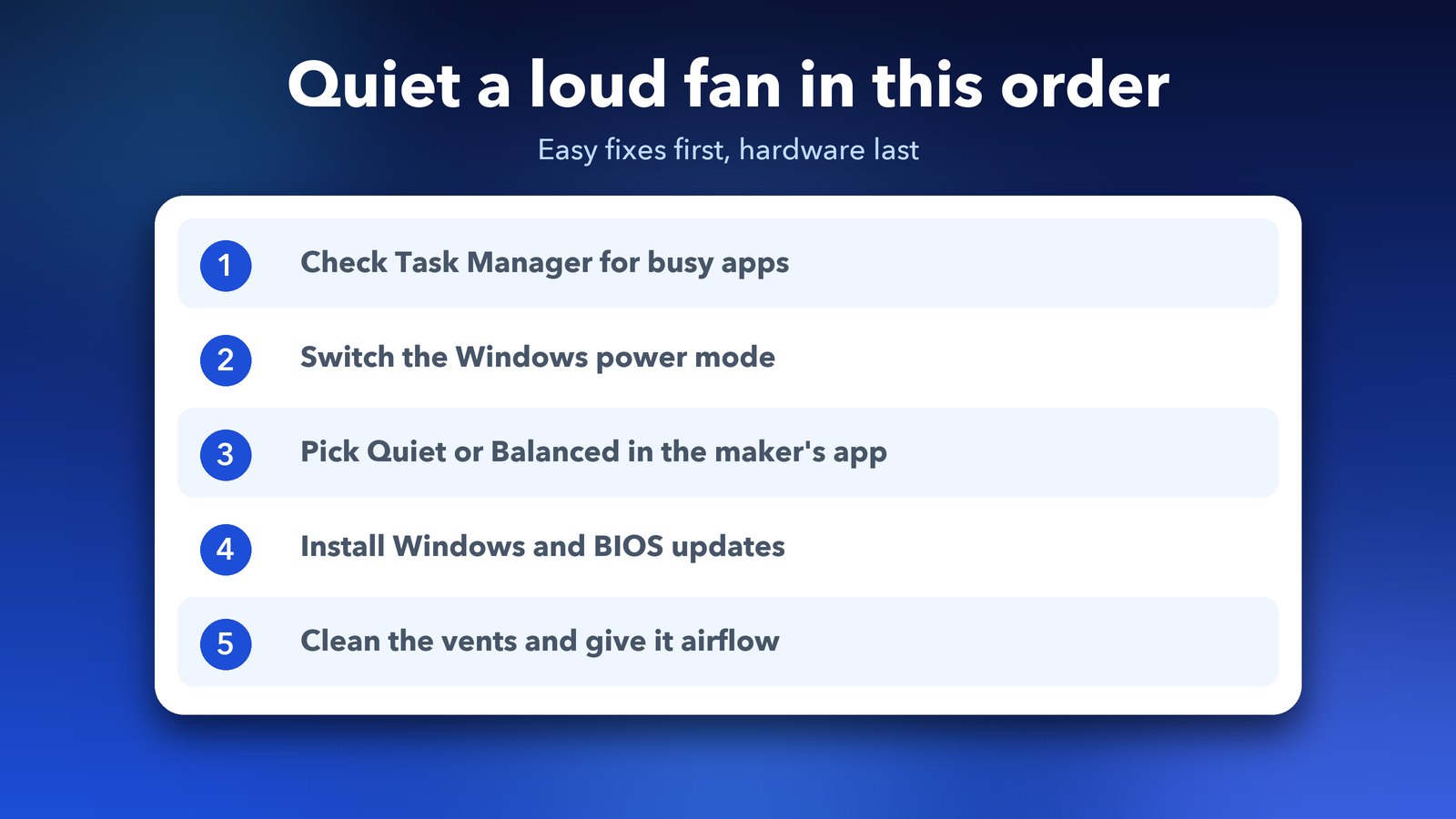
Step 1: Check which app is keeping the processor busy
Open Task Manager and look at the Processes tab. Any app using a lot of CPU (the processor) will make the fan work harder. Close it, and the fan should calm down within a minute or two.
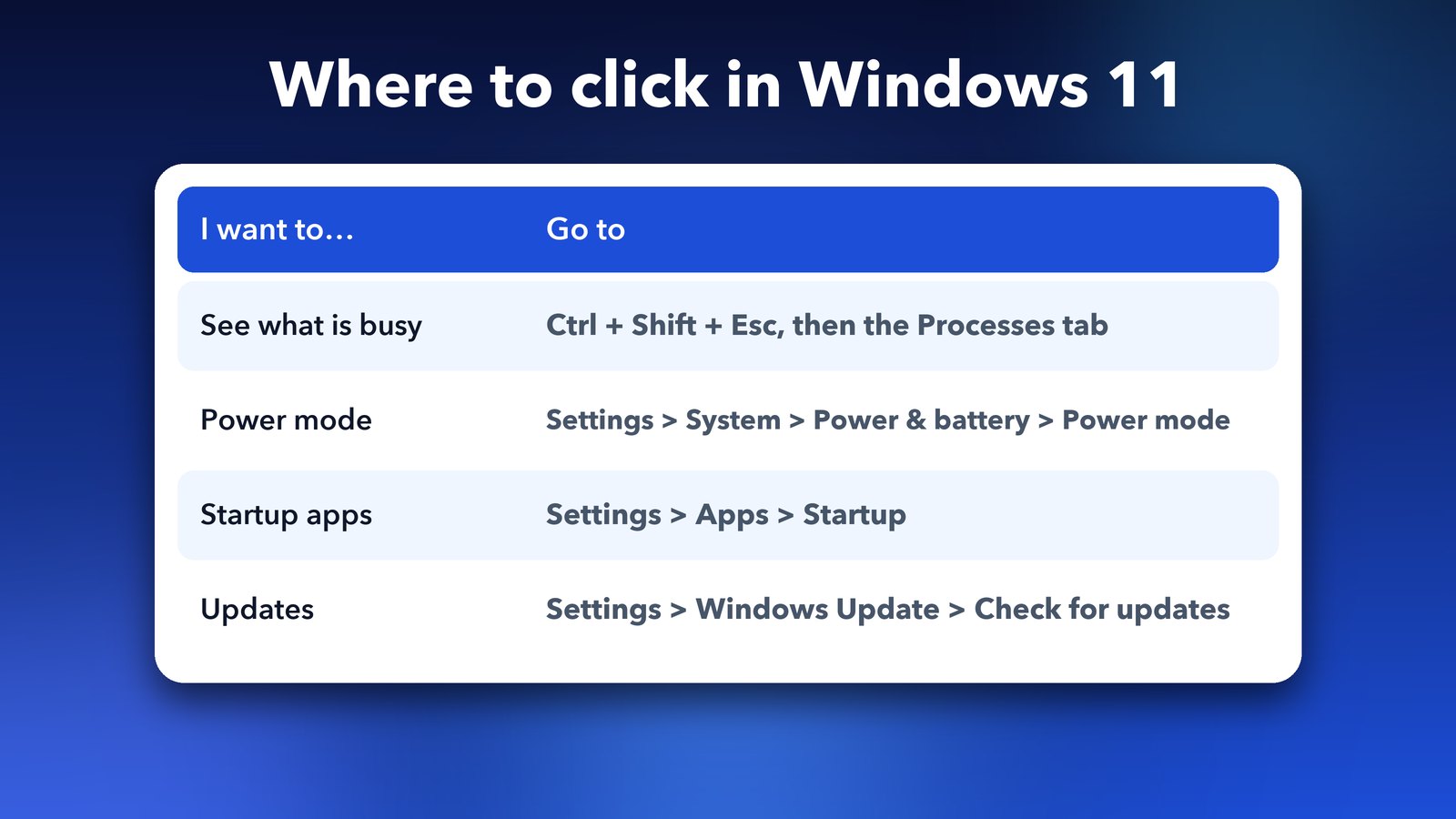
Press Ctrl + Shift + Esc to open Task Manager. Click the CPU column heading to sort by the busiest apps. Common culprits are browsers with many tabs, a Windows update running in the background, antivirus scans and cloud sync apps. Right-click the app and choose End task if you don't need it right now.
If the same app is busy every time, check if it needs an update, or remove it if you don't use it.
Step 2: Change the Windows power mode
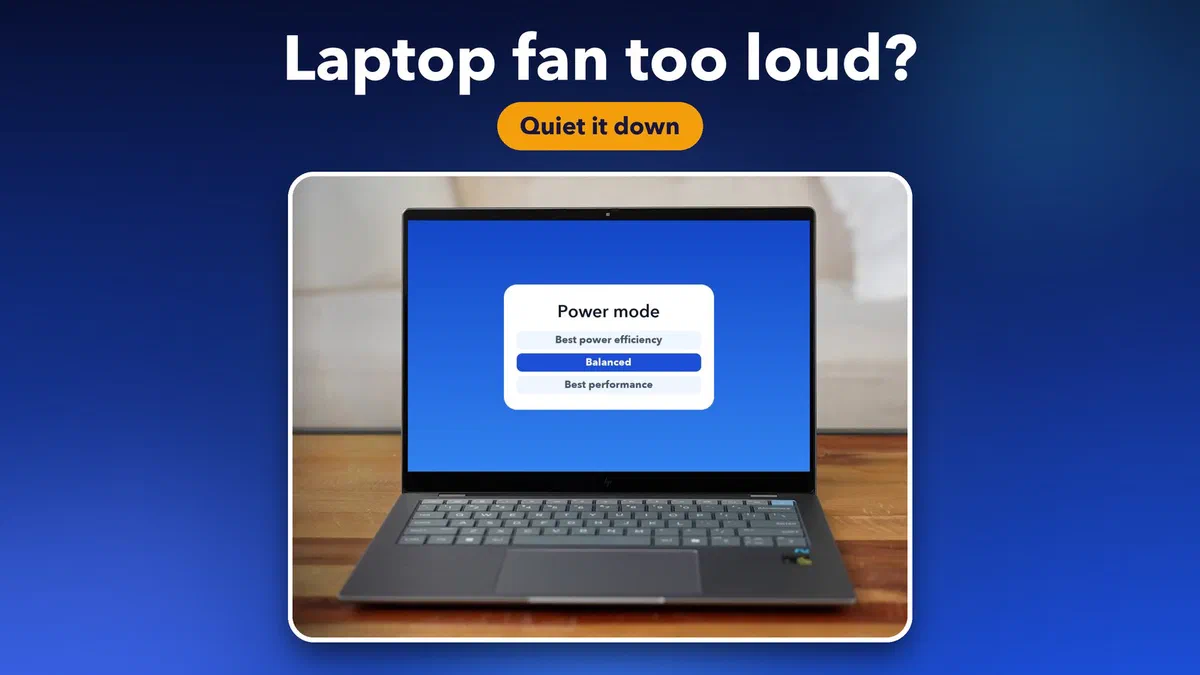
Windows 11 has a power mode that tells the laptop how hard to push. A higher mode means more heat and a louder fan. Switching to Balanced is the quickest way to cut the noise.
Go to Settings > System > Power & battery and open the Power mode menu. Pick Balanced, or Best power efficiency if you only browse and write. Keep Best performance for when you really need it. On my own laptop this one switch made the biggest difference.
Step 3: Pick a quiet fan mode in your laptop maker's app
Many laptops, especially gaming and creator models, have their own fan profile in the maker's app. A profile such as Turbo or Performance can keep the fan loud all the time, whatever the processor is doing. Setting it to Quiet or Balanced often fixes the noise at once.
The app depends on your brand. ASUS laptops often use Armoury Crate or MyASUS. Lenovo has Lenovo Vantage. Dell has Dell Power Manager. HP laptops usually have HP's own app, and gaming models have the Omen Gaming Hub. Open yours and look for words like fan, thermal, cooling or performance mode. The exact menu names differ from model to model, so I won't promise one path for all of them.
Check that the app is installed in the first place. Some laptops lose it after a clean Windows reinstall, and then the fan can behave oddly. You can download it from your maker's support page.
Step 4: Stop apps that start with Windows
Apps that launch at startup keep working in the background. Turning off the ones you don't need lowers the load and the heat.
Open Settings > Apps > Startup. Switch off apps you don't use every day, such as chat tools, game launchers and updaters. Restart the laptop afterwards and watch if the fan stays quieter.
Step 5: Install Windows and BIOS updates
Updates can fix how the laptop controls its fan. Windows updates are easy to check. BIOS updates come from your laptop maker, and they're a bit more careful work.
Go to Settings > Windows Update > Check for updates and install what it finds. For the BIOS, open your maker's support page, enter your laptop's model or serial number, and read the notes for any BIOS update that mentions fan or thermal fixes. Follow the maker's instructions closely, and keep the laptop plugged in the whole time. Never turn it off halfway through a BIOS update.
It's also worth reading our guide on the Windows 11 October 2026 update if the noise began after a recent update.
Step 6: Clean the vents and give the laptop room to breathe
Dust slows down the airflow, so the fan has to spin faster to get rid of the same heat. Clearing it helps a lot on laptops that are a few years old.
Turn the laptop off and unplug it. Use short bursts of compressed air at the vents, and hold the can upright. Don't push the air hard straight into the fan, because it can spin too fast and get damaged. If you're not comfortable opening the laptop, take it to a repair shop for a proper clean.
Also check where you use it. A laptop on a bed, a sofa or your lap blocks the air intake underneath. A hard, flat desk works best, and a simple stand lifts the laptop and lets more air in.
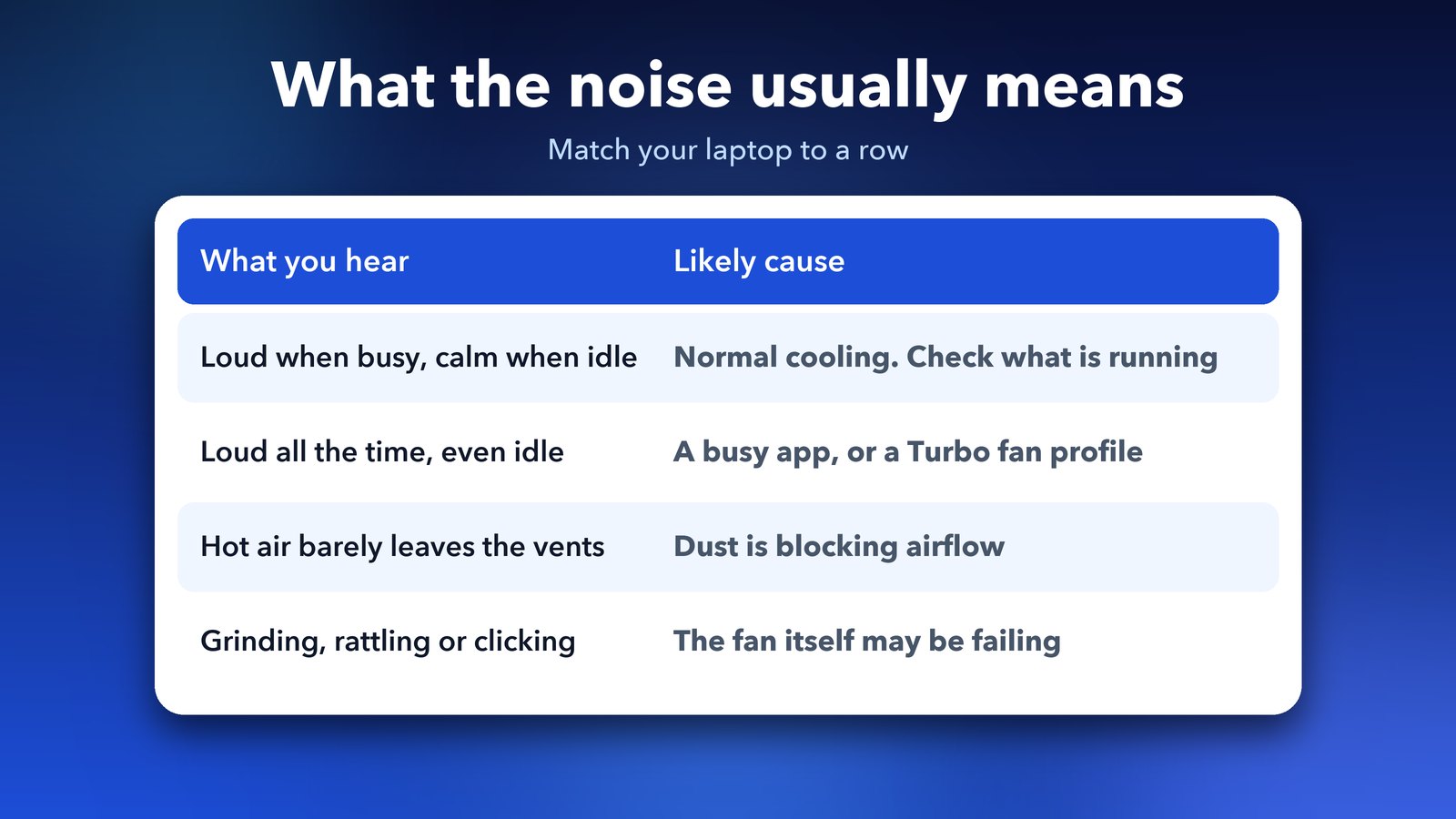
How do I know if the fan itself is failing?
A failing fan usually makes a grinding, rattling or clicking sound, or it gets louder in bursts even when the laptop is cool. These noises point to the fan hardware, not to software settings.
If you hear them, stop troubleshooting and contact the maker. If the laptop is still under warranty, a fan repair is often covered. Running the laptop hot for weeks can also wear down the battery and other parts, so it's better to sort it out early.
Tips if the fan is still loud
- Check the temperature with your maker's diagnostic tool. Most brands include a hardware scan that tests the fan and the sensors.
- Lower the screen brightness and unplug extra USB devices. Both draw a little extra power and add heat.
- A fan that spikes the moment you plug in the charger can be reacting to charging heat. Try a lower charge limit in your maker's battery app.
- If the fan is loud in every mode and the vents are clean, a fresh restart is worth one more try before you book a repair.
Most loud fans turn out to be a busy app or a profile set too high, and both take a few minutes to fix. For help with a similar heat problem, see our guide on laptop screen flickering on battery. For the official Windows power settings, see Microsoft's Windows support.
Image credits: HP OmniBook X photo by Booredatwork.com, CC BY 3.0, via Wikimedia Commons. The Windows screen on the featured image is an illustration.