How to fix an iPhone touchscreen that freezes on iOS 27
Hello Folks,
We at Daily Techocracy are back with some juicy info for all you kind readers....lets get to it !!
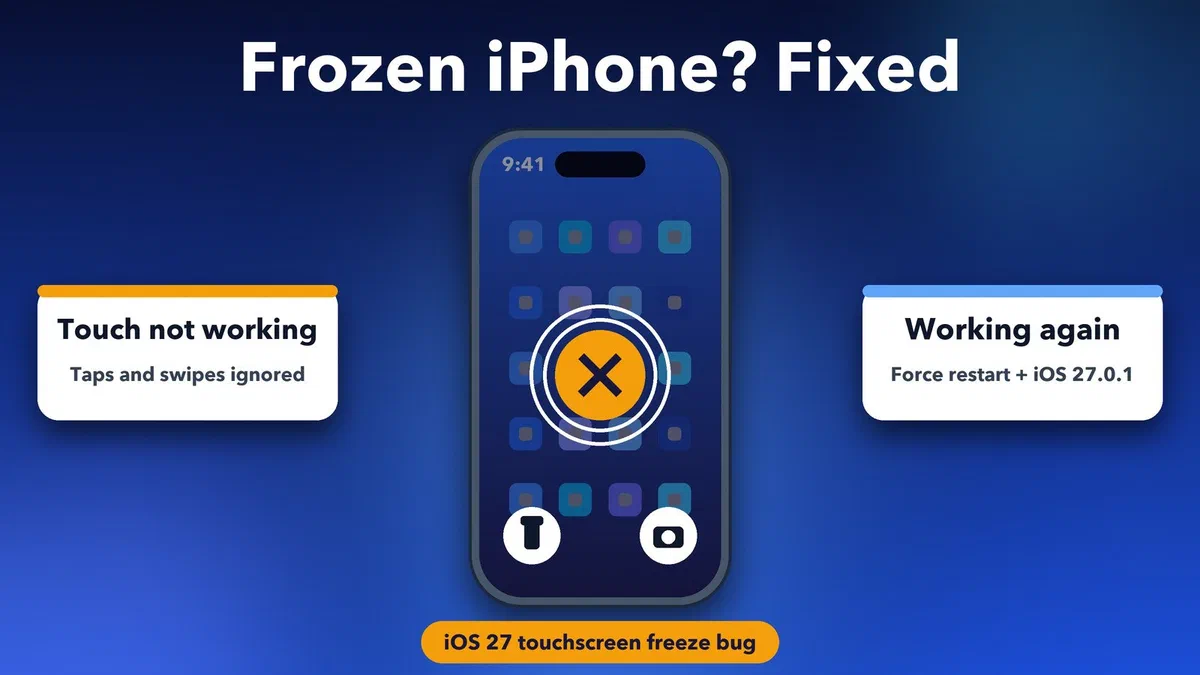
Did your iPhone screen suddenly stop listening to you after the iOS 27 update? Taps do nothing, you can't swipe between Home Screen pages, and the Camera and Flashlight buttons sit stuck at the top of the display. It's a scary moment, but your screen almost certainly isn't broken. iOS 27 has a known bug that freezes the touchscreen, and Apple has already fixed it. Here's how to get your iPhone working again and keep it that way.
Quick answer: An iPhone touchscreen that freezes on iOS 27 is usually caused by a bug that strikes when you open Notification Center and Control Center at the same time. Force restart your iPhone to unfreeze it right away, then install iOS 27.0.1, which fixes the bug. If the screen still misbehaves after that, check Touch Accommodations, remove the screen protector and reset all settings.
Why does my iPhone touchscreen freeze on iOS 27?
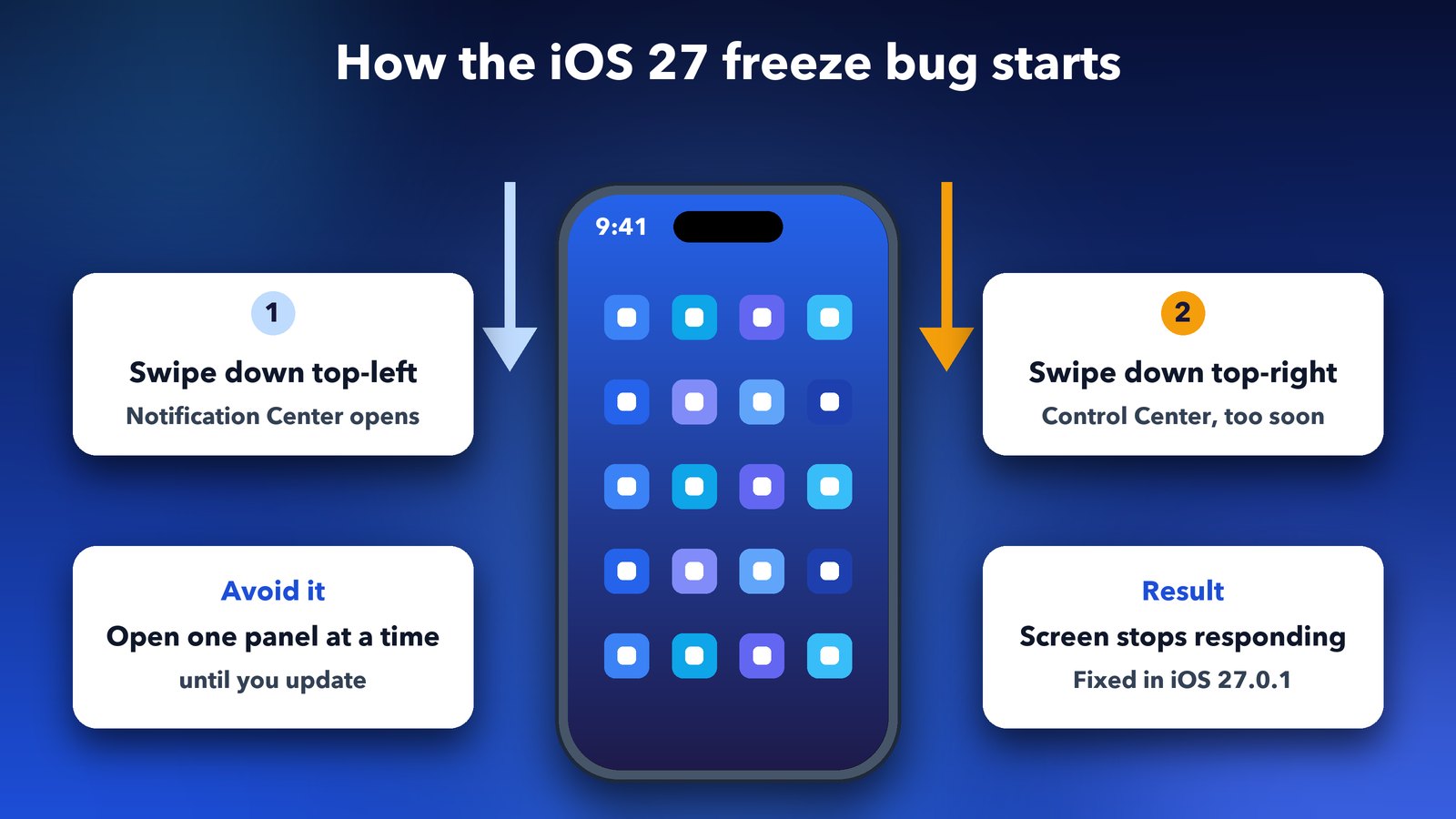
The most common cause is a bug in iOS 27 itself. It shows up when you swipe down from the top-left corner to open Notification Center and then swipe down from the top-right corner for Control Center before the first animation has finished. The two screens clash, and the iPhone stops responding to touch.
When it happens, you'll notice a few odd things at once. The Camera and Flashlight buttons from the Lock Screen can stay stuck on top of everything. Swiping between Home Screen pages stops working. Apps may open but ignore your taps. It affects all iPhones that run iOS 27, not just the new iPhone 18 models.
Apple listed this exact bug in the iOS 27.0.1 release notes on 28 September. Its wording is plain: opening Notification Center and Control Center at the same time "may cause the touchscreen to become unresponsive".
Step 1: Force restart your iPhone to unfreeze it
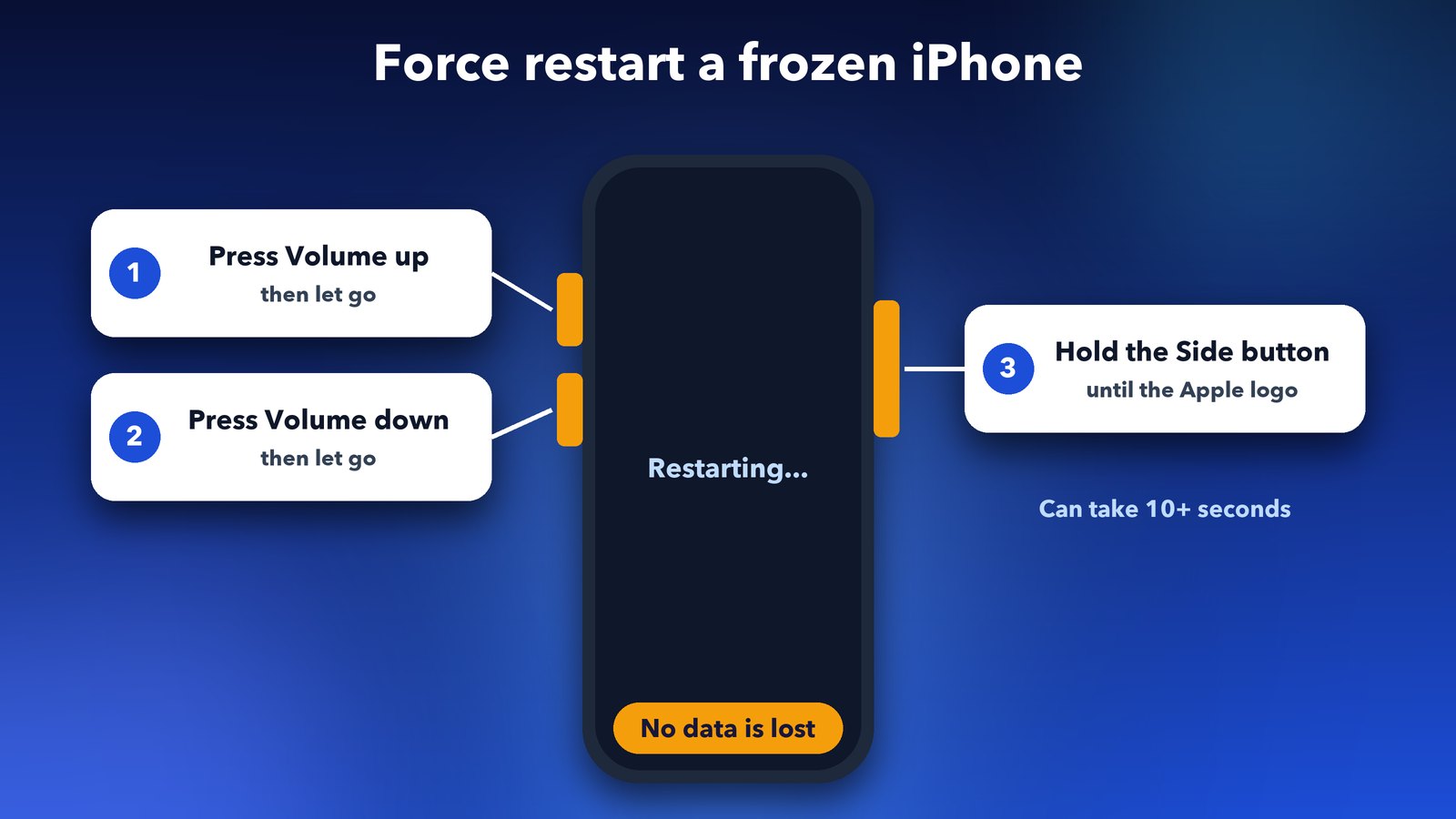
A force restart is the quickest way out of a frozen screen. It works even when the touchscreen ignores you, because it only uses the buttons on the side of the phone. You won't lose any photos, messages or apps.
- Press and quickly let go of the Volume up button.
- Press and quickly let go of the Volume down button.
- Press and hold the Side button. Keep holding until the Apple logo appears, then let go.
The logo can take more than 10 seconds to show up, so don't give up early. This is Apple's own method from its guide to restarting an unresponsive iPhone, and it works on every iPhone that can run iOS 27.
Step 2: Install iOS 27.0.1
iOS 27.0.1 is the real fix, so install it as soon as your screen is working again. Apple's update removes the bug that froze the touchscreen when both panels opened together.
- Open Settings.
- Go to General > Software Update.
- Tap Update Now if iOS 27.0.1 or a newer version is waiting.
Plug your iPhone in and stay on Wi-Fi while it installs. The same update also fixes two problems on the iPhone 18 Pro and iPhone 18 Pro Max: surprise restarts when Face ID fails, and a colour smudge on some 2x photos. If you already see a newer version than 27.0.1, install that one instead.
Step 3: Open Notification Center and Control Center one at a time
If you can't update right now, avoid the swipe that sets the bug off. Let one panel finish opening, or close it fully, before you pull down the other.
In practice, that just means slowing down a little. Swipe down from the top left, read your notifications, swipe back up, and only then swipe down from the top right. I got into the habit within a day, and the freeze never came back on my iPhone before the update landed.
Step 4: Make sure Touch Accommodations is turned off
Touch Accommodations is an accessibility setting that changes how your iPhone reads taps. If it got switched on by mistake, the screen can feel slow, ignore quick taps or react to the wrong spot.
- Open Settings > Accessibility > Touch.
- Tap Touch Accommodations.
- If it's on and you didn't set it up on purpose, turn it off.
While you're on the Touch screen, check Haptic Touch as well. A long touch duration can make the screen feel stuck when you press and hold.
Step 5: Clean the screen and take off the screen protector
Your iPhone senses the tiny electric charge in your fingertip. Water, grease or a thick, badly fitted screen protector can block it. Apple lists this among its first checks in its advice for screens that aren't working.
- Wipe the screen with a soft, lint-free cloth. Make sure it's completely dry.
- Remove the case and the screen protector, then test the screen again.
- If it works without the protector, the protector is the problem. Replace it with a thinner one.
Step 6: Unplug cables and accessories
A faulty charger or cable can confuse the touchscreen. If the screen only misbehaves while the phone is charging, that's a strong sign.
Unplug everything from the USB-C or Lightning port and test the screen again. If it works now, try a different cable, a different wall socket or an Apple charger. Cheap, uncertified chargers are a classic cause of "ghost touches" and dead spots.
Step 7: Update your apps and free up storage
If the screen only freezes inside one app, the app is more likely to blame than iOS. Updating it often fixes the problem.
- Open the App Store, tap your profile picture and choose Update All.
- Go to Settings > General > iPhone Storage and check how much space is left. When storage is nearly full, iOS slows down and can stutter. Delete or offload apps you don't use.
- Delete the app that keeps freezing and install it again from the App Store.
Step 8: Reset all settings
If the freezing carries on after the update, reset your settings. This clears any setting that has gone wrong without deleting your photos, apps or messages.
- Open Settings > General > Transfer or Reset iPhone.
- Tap Reset, then Reset All Settings.
- Enter your passcode to confirm.
You'll need to rejoin Wi-Fi networks and set up things like your wallpaper and Face ID again afterwards. It's a small price if it ends the freezing.
Tips and troubleshooting
A few quick extras can help if your iPhone still feels touchy after the steps above.
- Only part of the screen stops working: a dead strip or corner that never responds points to hardware, not iOS 27. Software bugs freeze the whole screen.
- The screen taps by itself: these "ghost touches" usually come from a damaged display, moisture or a bad charger. Unplug the charger and dry the phone first.
- It froze after a drop: look for cracks, even tiny ones near the edges. A cracked display often loses touch in that area.
- Back up first: before any big reset, back up your iPhone to iCloud or your computer.
When should I contact Apple?
Contact Apple if the screen still freezes after you've installed iOS 27.0.1, reset all settings and removed the screen protector. At that point, a hardware fault is more likely than the bug.
You can book a repair through the Apple Support app or visit an Apple Store or Apple Authorised Service Provider. If your iPhone is under warranty or AppleCare, a faulty display is normally covered unless it has accidental damage.
Final thoughts
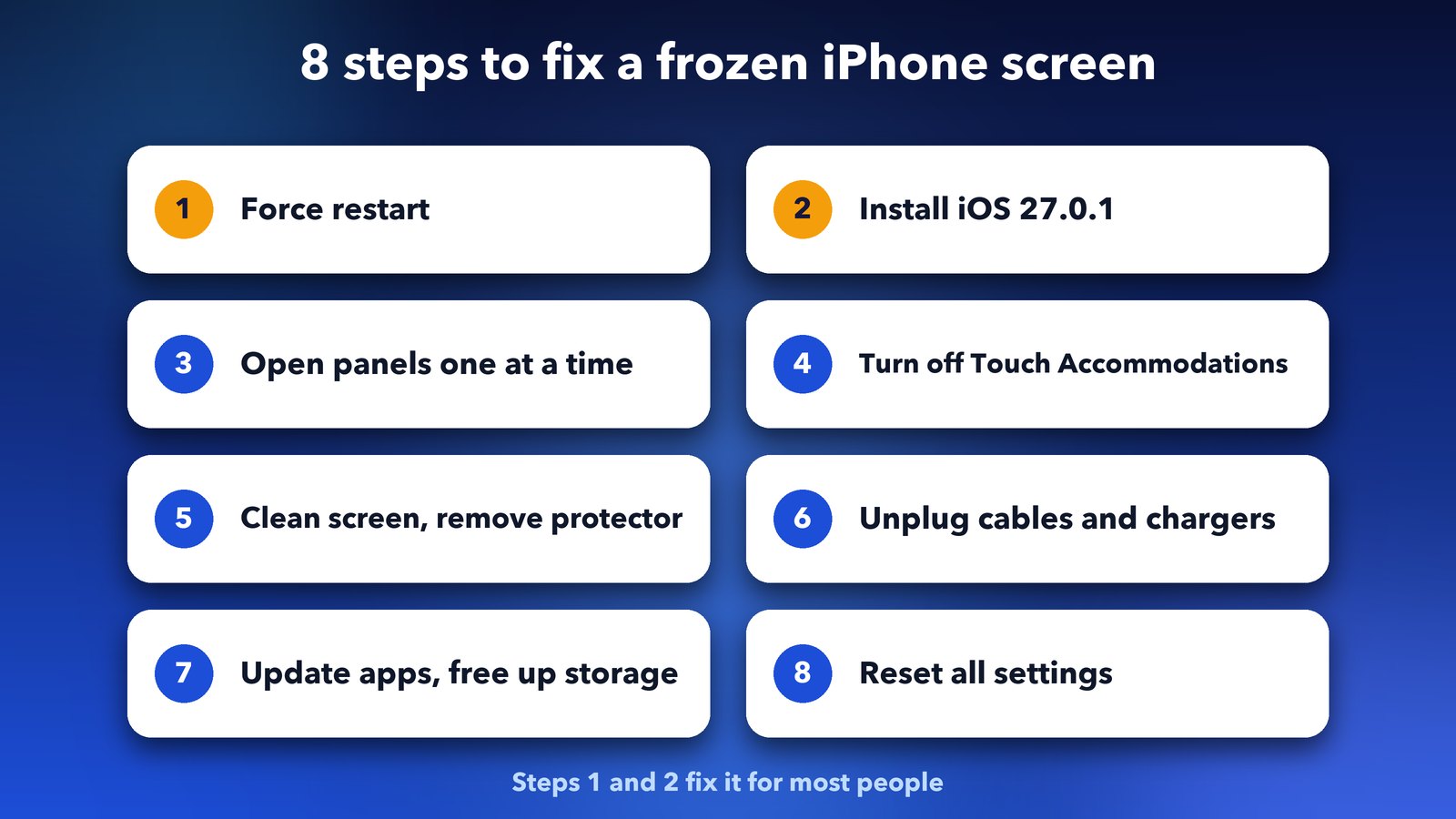
A frozen iPhone screen on iOS 27 looks frightening, but the cause is almost always that one swipe bug. Force restart to get going, install iOS 27.0.1 and the problem should be gone for good. If you're still settling in with Apple's new update, our guide on fixing an iPhone alarm that won't stop on iOS 27 covers another early hiccup, and our post on fixing iPhone battery drain helps if your battery is struggling too.