How to Fix an iPhone Alarm That Won’t Stop on iOS 27
Hello Folks,
We at Daily Techocracy are back with some juicy info for all you kind readers....lets get to it !!
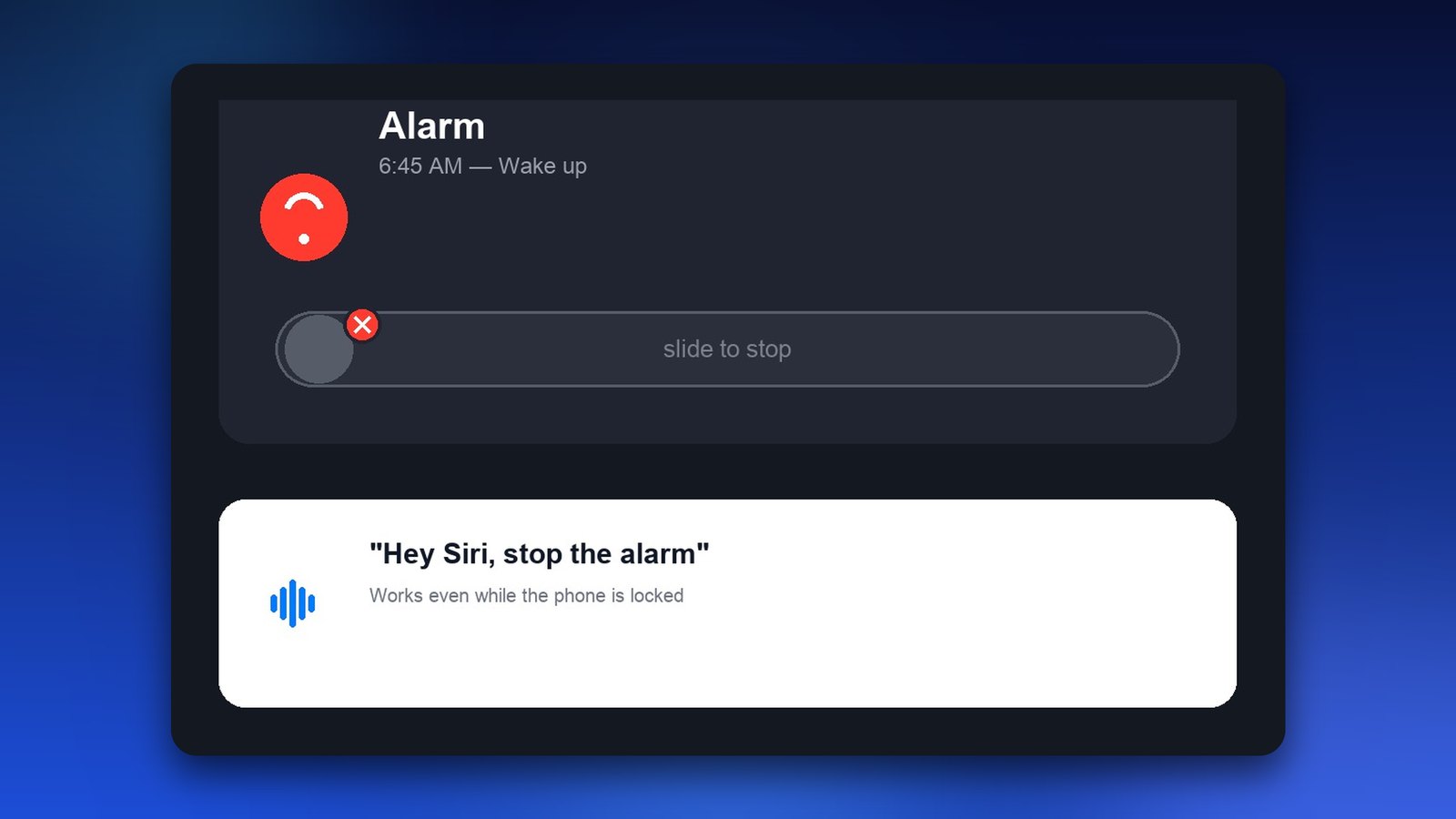
Your alarm is blaring, you’re half asleep, and you go to slide the stop button on your Lock Screen… and nothing happens. If you’re running the iOS 27 beta, this isn’t you being groggy. It’s a real bug Apple already knows about.
Quick answer: On iOS 27, the fastest way to stop a stuck alarm is to say “Hey Siri, stop the alarm” or unlock your iPhone and tap Stop in the Clock app. To make it easier every morning, turn on Settings > Accessibility > Touch > Prefer Single-Touch Actions, which swaps “slide to stop” for a simple Stop button. If your alarm is too quiet, only flashes or doesn’t ring at all, use the new Alarms and Timers volume in Settings > Sounds & Haptics, and update your Apple Watch to watchOS 27 if you wear one.
Why your iPhone alarm won’t stop (or won’t ring) on iOS 27
There are really three different alarm problems people run into on iOS 27, and each has its own fix:
- The alarm won’t stop. Since iOS 26.1, the Lock Screen uses “slide to stop” instead of a Stop button. When you’re half asleep, the slide often doesn’t register, and during the iOS 27 betas it sometimes didn’t work at all. Fixes 1, 2, 3 and 5 below sort this out.
- The alarm is too quiet or you sleep through it. On older versions the alarm followed your ringer volume, so turning the ringer down also quietened your alarm. iOS 27 finally gives alarms their own volume (Fix 6).
- The alarm only flashes or vibrates, with no sound. Since iOS 27 came out in September, some people with an Apple Watch report this. Updating the watch fixed it for several of them (Fix 7).
I hit the first one myself on an iPhone 16 Pro during the iOS 27 beta: the alarm kept going and the slider wouldn’t budge. Talking to Siri is what actually got it to stop.
Fix 1: Ask Siri to Stop It
This is the workaround Apple itself points to, and it’s the fastest one when you’re half asleep.
- Say “Hey Siri, stop the alarm” (or activate Siri by holding the side button if Hey Siri isn’t turned on).
- If that phrase doesn’t register, try “Hey Siri, stop music” instead — some users have had better luck with this exact wording.
- Siri may ask you to confirm. Just say “Yes.”
This works even while your phone is locked, since Siri doesn’t need the slider to respond.
Fix 2: Unlock Your Phone First
If Siri isn’t cooperating (or you’ve got Siri turned off), unlocking the phone fully tends to bypass the bug entirely.
- Use Face ID or enter your passcode to unlock the iPhone as normal.
- Once you’re on the Home Screen, open the alarm banner or go to the Clock app directly.
- Tap Stop from inside the app.
It’s an extra step you shouldn’t have to take, but it’s reliable while Apple works on a real fix.
Fix 3: Force Restart if Nothing Responds
On the rare morning where even Siri seems unresponsive, a force restart clears whatever’s stuck.
- Press and quickly release Volume Up.
- Press and quickly release Volume Down.
- Press and hold the side button until the Apple logo appears.
Your alarm will stop as the phone reboots, though obviously save this for when you’re actually stuck, not as your everyday fix.
Fix 4: Update to the Latest iOS 27 Version
Apple ships iOS 27 point updates every few weeks, and alarm and Lock Screen bugs are often fixed in them.
- Go to Settings > General > Software Update.
- If you joined the iOS 27 beta earlier and want the stable version, tap Beta Updates and choose Off, then install the next public update when it arrives.
- Tap Update Now on any iOS 27 update that’s waiting. Apple fixes alarm and Lock Screen bugs in point releases.
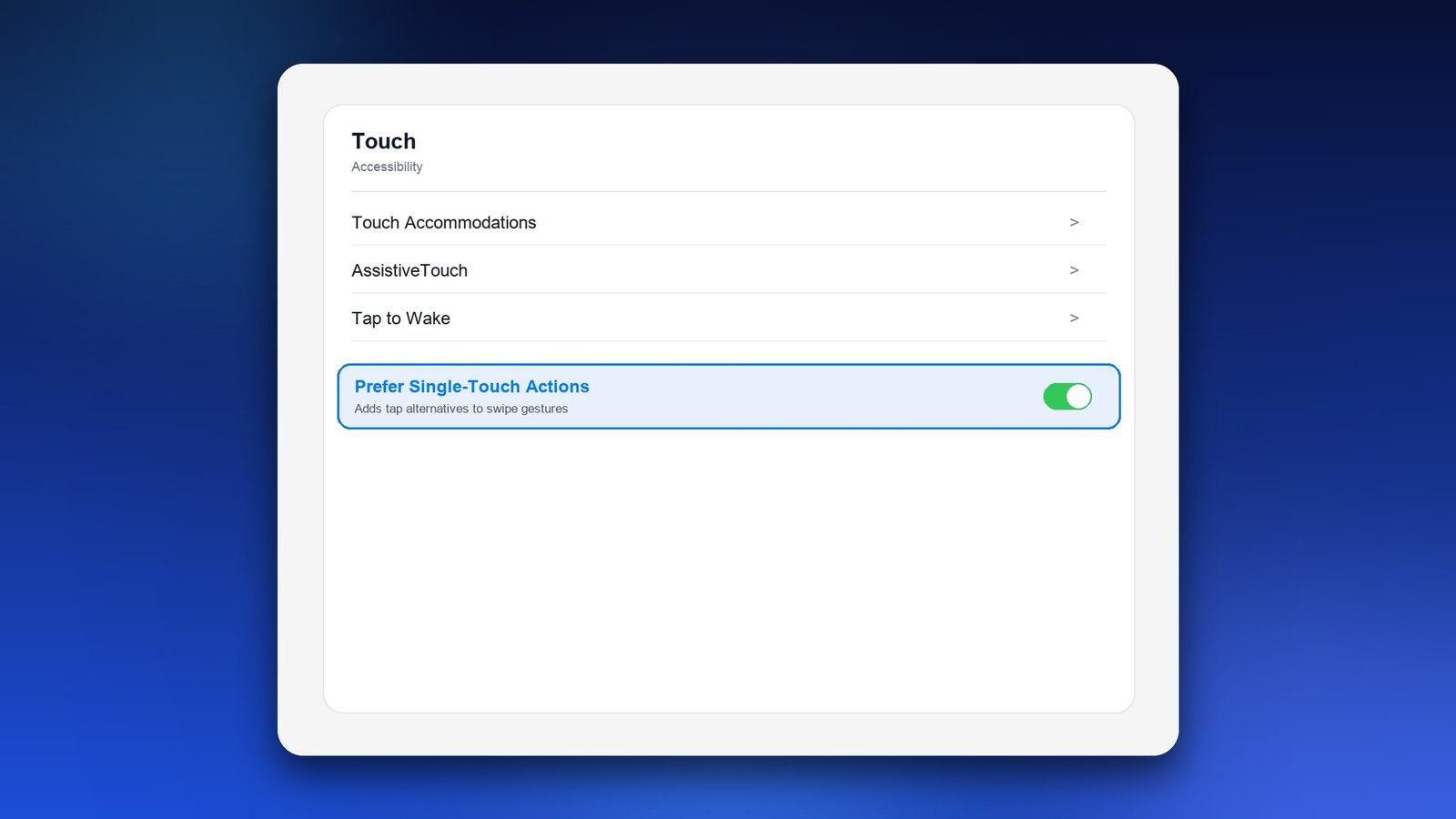
Fix 5: Make Alarms Easier to Dismiss Overall
This won’t fix the underlying bug, but it can reduce how often you get stuck fighting the slider in the first place.
- Go to Settings > Accessibility > Touch.
- Scroll down and turn on Prefer Single-Touch Actions.
- This brings back a simple tap-to-stop button on some alarm screens instead of requiring the slide gesture.
Fix 6: Give Your Alarm Its Own Volume (New in iOS 27)
If you’ve ever slept through an alarm because you turned the ringer down the night before, this one’s for you. iOS 27 lets alarms and timers have their own volume.
- Open Settings > Sounds & Haptics.
- Find the Alarms and Timers section.
- Turn off Match Ringtone Volume.
- Drag the new slider up to a level that will actually wake you.
Now you can keep the ringer quiet for calls without making your alarm quiet too. While you’re there, open the Clock app, tap your alarm, and check that Sound isn’t set to None.
Fix 7: Alarm Only Flashes or Vibrates? Check Your Apple Watch
After iOS 27 came out, some people found their alarm went off with a flash or a buzz but no sound, or the sound came about 30 seconds late. In an Apple Community thread, the people who fixed it had one thing in common: a paired Apple Watch on an older watchOS version.
- On your iPhone, open the Watch app, go to General > Software Update, and install watchOS 27.
- Set a test alarm two minutes ahead, lock your iPhone, and check that it rings out loud.
- If you can’t update the watch, unpairing it was the fix for at least one user. Only do this as a last resort, since you’ll need to set the watch up again.
No Apple Watch? Then restart your iPhone, check the alarm’s sound and the Alarms and Timers volume, and turn off any Focus that might silence alerts.
Troubleshooting Tips
- Snoozing usually still works with a normal tap even when the full stop slider is broken, so snooze and deal with it once you’re properly awake if you’re in a rush.
- If mornings are too important to risk, set two alarms a few minutes apart until you’re sure your fix worked.
- Keep a backup alarm method (a bedside clock, smartwatch, or second device) for important mornings like flights or exams.
Another iPhone setting that often resets after an update is Call Screening. Here’s how to fix Call Screening not working on iPhone.
Frequently Asked Questions
Is the alarm problem only in the iOS 27 beta?
No. The stuck slider showed up most during the iOS 27 betas, but on the public iOS 27 release people still report alarms that are hard to stop, too quiet, or only flash. Turn on Prefer Single-Touch Actions, set the new Alarms and Timers volume, and keep iOS and watchOS up to date.
What if I don’t have “Hey Siri” turned on?
You can still trigger Siri by pressing and holding the side button, then saying “stop the alarm” once Siri appears.
Does this affect the Snooze button too?
Mostly no. Snoozing has generally kept working with a simple tap, it’s the full Stop action on the Lock Screen that gets stuck.
Why does my iPhone alarm only flash and not make a sound?
Since iOS 27, some iPhone users with a paired Apple Watch on an older watchOS report alarms that flash but stay silent. Updating the watch to watchOS 27 fixed it for several of them. Also check that the alarm has a sound (not None) and that the Alarms and Timers volume isn’t turned down.
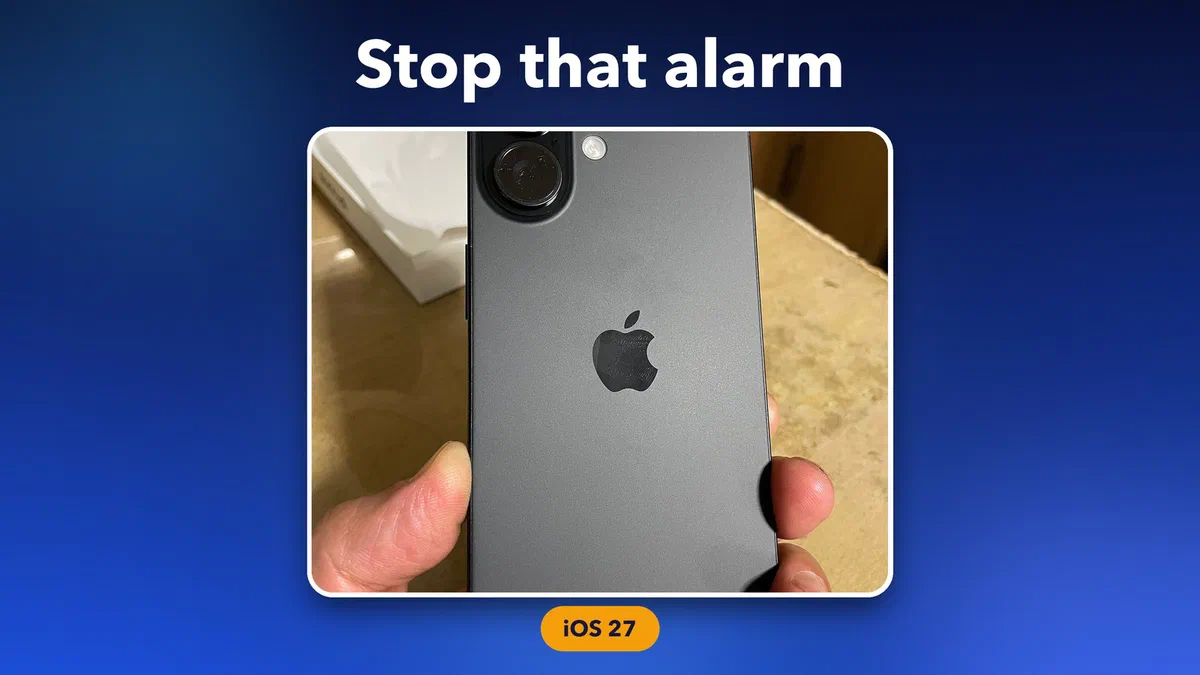
New image credits: “Back of iPhone 16 - 2” by Kyu3a, CC BY-SA 4.0, via Wikimedia Commons.
For what Apple has officially acknowledged, check the iOS & iPadOS 27 release notes straight from Apple. If you’re also dealing with iPhone battery drain on this update, our guide on fixing iPhone battery drain covers a lot of the same settings worth double-checking.
Has the Siri workaround been getting you out of bed on time, or are you sticking with a backup alarm until Apple sorts this out?