How to fix iPad battery drain after the iPadOS 27 update
Hello Folks,
We at Daily Techocracy are back with some juicy info for all you kind readers....lets get to it !!
You updated your iPad to iPadOS 27, and now the battery seems to melt away. It was at 80% after breakfast and needs a charger by lunch. It may even feel a little warm on the sofa. Don't panic. This happens after almost every big iPad update, and in most cases it isn't a faulty battery. Here's why it happens, how long it should last and the simple steps that bring your battery life back.
Quick answer: Battery drain in the first two days after the iPadOS 27 update is normal, because your iPad is re-indexing files and photos in the background. If it lasts longer, install the latest iPadOS 27 update, update all your apps, check Settings > Battery for the app using the most power, and turn off Background App Refresh for apps that don't need it. Low Power Mode and a lower screen brightness give you extra hours straight away.
Why does my iPad battery drain fast after the iPadOS 27 update?
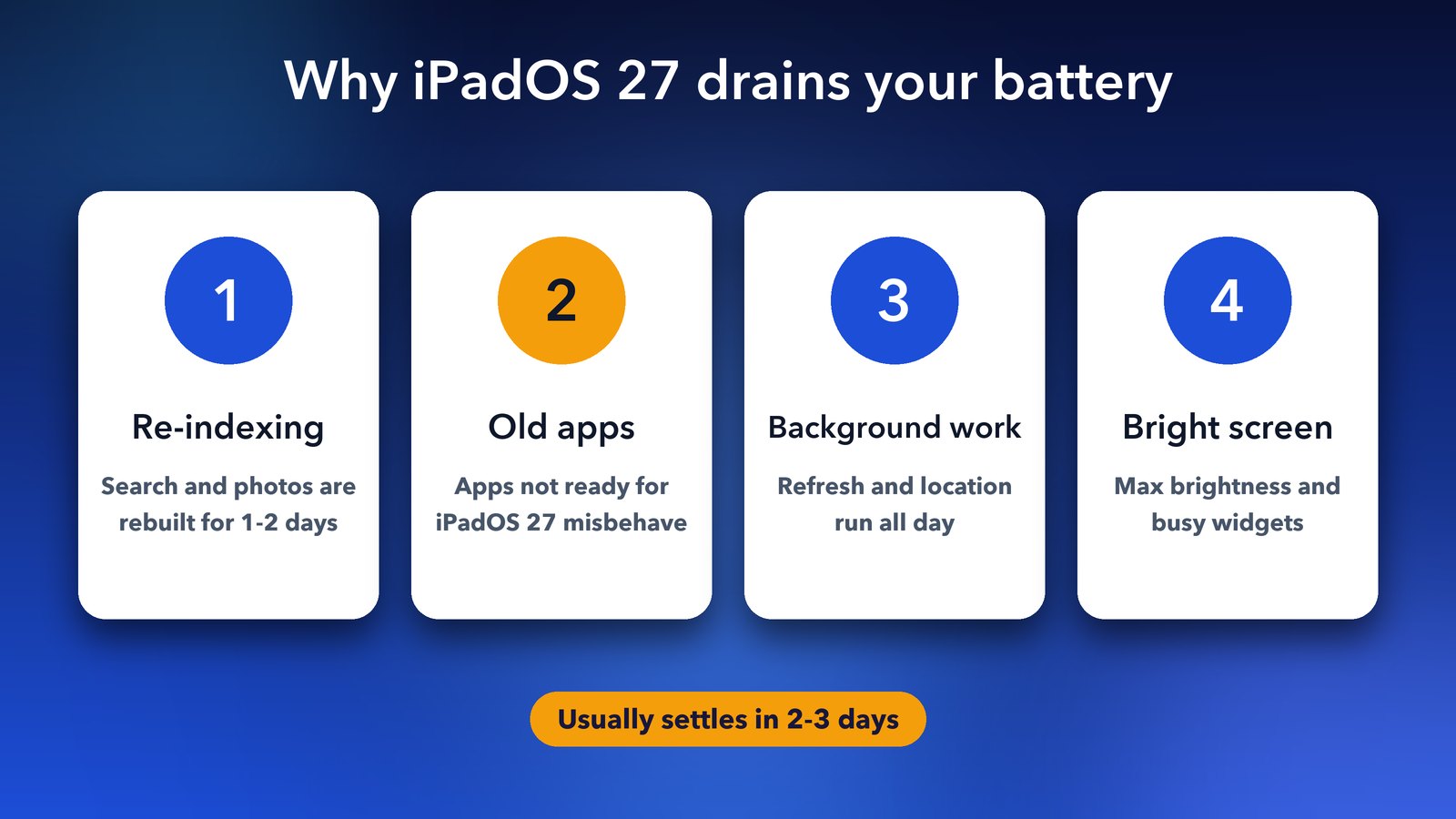
Your iPad works hard in the background after a big update. It rebuilds the Spotlight search index, scans your photos again and syncs iCloud data. That extra work uses power and can make the iPad feel warm for a day or two.
A few other things often add to it. Some apps haven't been updated for iPadOS 27 yet, so they misbehave and keep running. New widgets may refresh all the time. A setting can also get switched on during the update without you noticing. The good news is that each of these is easy to check.
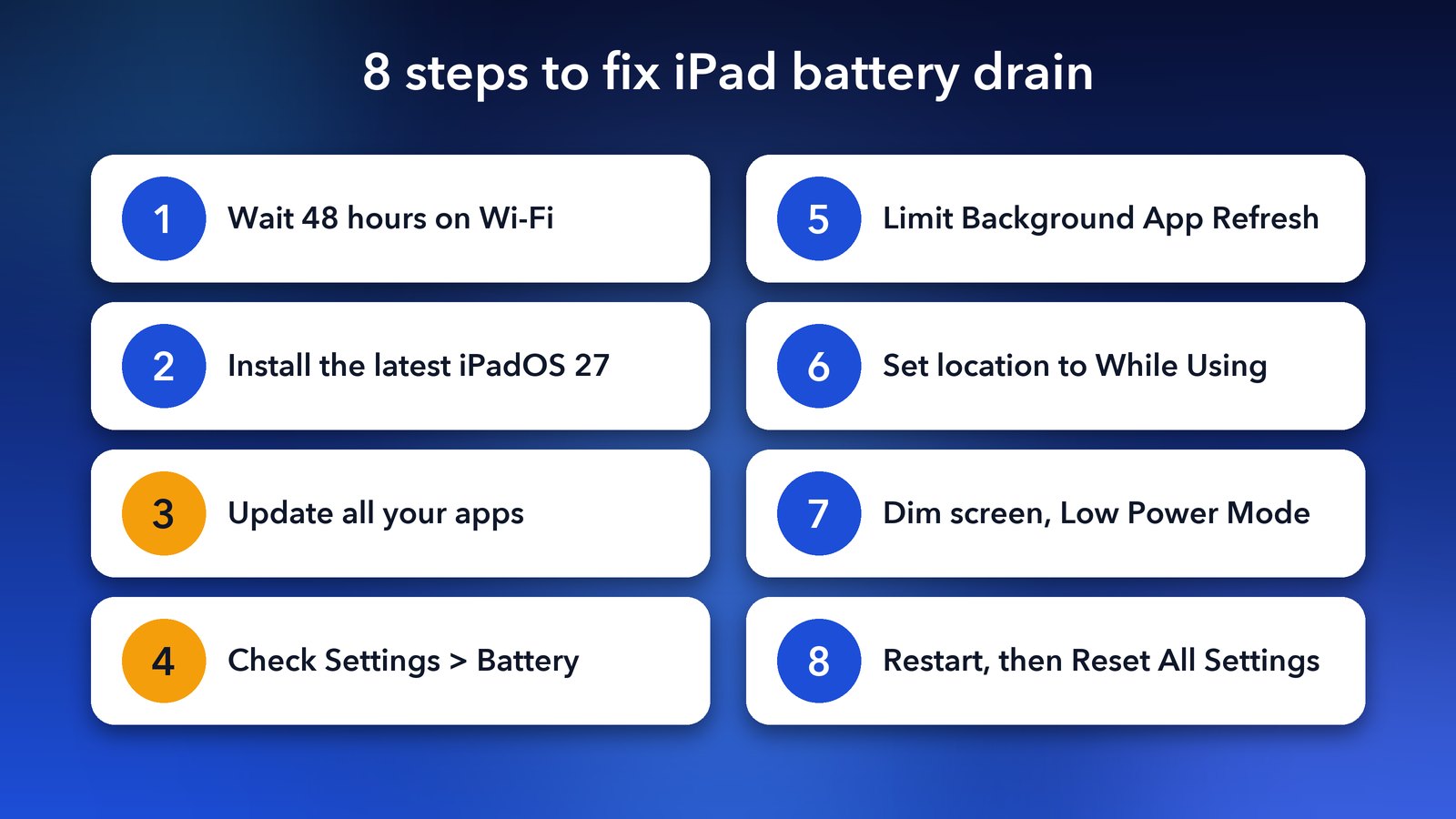
Step 1: Give your iPad 48 hours on Wi-Fi and the charger
The quickest fix is often patience. Leave your iPad on Wi-Fi and plugged in for a few hours, ideally overnight, so it can finish its background jobs in one go.
Many people judge battery life on day one, which isn't fair to the iPad. After two full days, look again. If the drain has calmed down, you're done. If it's still bad, carry on with the steps below.
Step 2: Install the latest iPadOS 27 update
Apple usually fixes early bugs, including battery bugs, in the first small updates after a big release. Make sure you're on the newest version.
- Open Settings > General > Software Update.
- If an update is waiting, tap Update Now and keep the iPad on the charger while it installs.
Apple's own battery tips page puts this first for a reason. A newer version often fixes problems you'd otherwise spend hours chasing.
Step 3: Update all your apps
Old apps are one of the biggest causes of drain after an update. An app that isn't ready for iPadOS 27 can crash and restart in the background over and over.
- Open the App Store.
- Tap your profile picture at the top right.
- Tap Update All.
Do this again in a week, as many developers push iPadOS 27 fixes in the weeks after launch.
Step 4: Find the app using the most battery
Your iPad shows exactly which apps use the most power. This one screen often points straight at the problem.
- Go to Settings > Battery.
- Scroll down to the list of apps and switch between Last 24 Hours and Last 10 Days.
- Tap the list to see how long each app was on screen and how long it worked in the background.
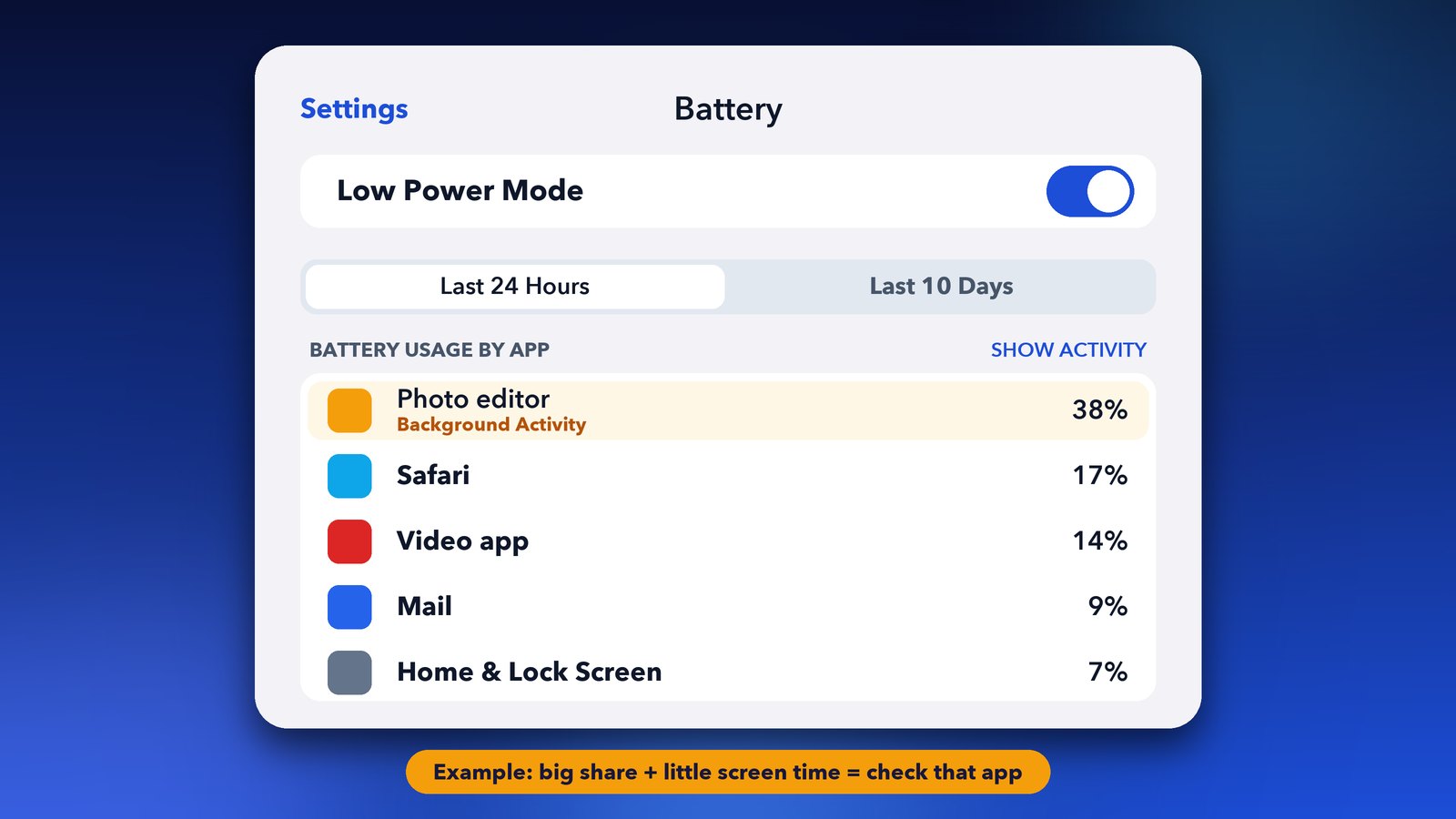
Look for an app with a big share of battery but little screen time. That app is busy behind your back. Update it, close it from the app switcher or delete it and reinstall it. More often than not, one badly behaved app is the real problem, not the whole iPad.
Step 5: Turn off Background App Refresh for apps that don't need it
Background App Refresh lets apps fetch new content while you're not using them. It's handy for a few apps, but it wastes battery for most of them.
- Go to Settings > General > Background App Refresh.
- Turn it off for games, shopping apps and anything you don't need updated in the background.
- Keep it on for apps like messaging or maps if you rely on them.
Step 6: Check which apps use your location
Apps that track your location all the time drain the battery quietly. Most apps only need it while you're using them.
- Go to Settings > Privacy & Security > Location Services.
- Tap each app and pick While Using the App or Never instead of Always.
Step 7: Lower the screen brightness and use Low Power Mode
The screen is the biggest power user on any iPad. A slightly dimmer screen and a shorter Auto-Lock time can add hours of use.
- Swipe down from the top right corner to open Control Center and drag the brightness slider down a little.
- Turn on Auto-Brightness in Settings > Accessibility > Display & Text Size.
- Set a shorter lock time in Settings > Display & Brightness > Auto-Lock.
- Turn on Low Power Mode in Settings > Battery when you need the iPad to last longer. It cuts background activity until you charge again.
It's also worth removing busy widgets you don't look at, such as live news or stock widgets, from your Home Screen.
Step 8: Restart, then reset all settings if nothing else works
A simple restart clears stuck background tasks. If the drain still won't go away after a week, resetting your settings is the next step, and it doesn't delete your apps, photos or files.
- Restart your iPad. On an iPad without a Home button, press and hold the top button and either volume button, then drag the slider. On an iPad with a Home button, press and hold the top button. Wait 30 seconds and turn it back on.
- If that doesn't help, go to Settings > General > Transfer or Reset iPad > Reset > Reset All Settings.
This resets things like Wi-Fi passwords, wallpaper and privacy choices, so you'll need to set those again. Your data stays where it is.
How long does battery drain last after an iPad update?
For most iPads, the extra drain settles within two to three days. Owners with lots of photos or files may see it last up to a week while indexing finishes.
If your iPad still loses charge fast after a week, and you've tried every step above, the battery itself may be worn. That's more likely on an iPad that's several years old. In that case, contact Apple Support or visit an Apple Store for a battery check.
Tips to keep your iPad battery healthy
- Avoid leaving your iPad in a hot car or in direct sun. Heat ages the battery faster than anything else.
- Use Wi-Fi instead of mobile data when you can on cellular iPads.
- Keep iPadOS and your apps up to date, as many battery fixes arrive quietly in small updates.
- Running low on space? Our guide on clearing iPad System Data helps, since a nearly full iPad works harder in the background.
Got an iPhone with the same problem? Our iPhone battery drain guide walks through the iPhone version of these fixes.
Start with the first five steps, give it a day or two, and your iPad should be back to lasting all day. Happy tapping!
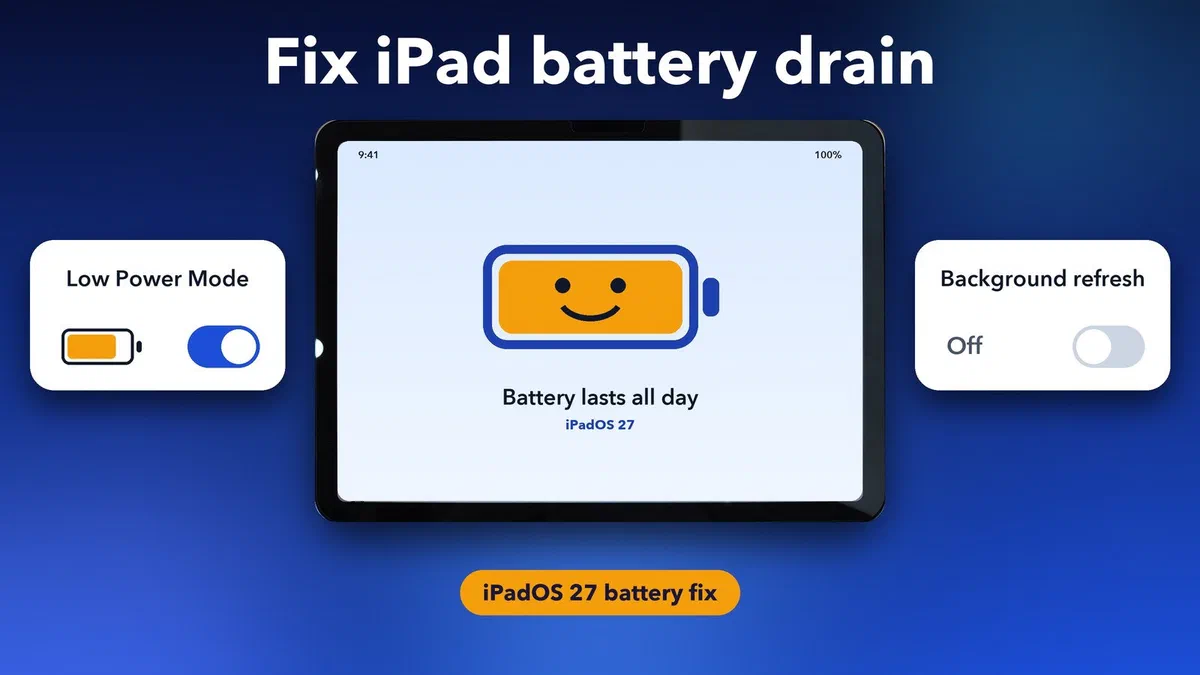
Image credits: Featured image uses an iPad Air 11-inch (M2) photo by 茅野ふたば (Wikimedia Commons, CC BY-SA 4.0) with an illustrated screen. Other graphics by Daily Techocracy.