How to fix iOS 27 stuck on 'Update requested'
Hello Folks,
We at Daily Techocracy are back with some juicy info for all you kind readers....lets get to it !!
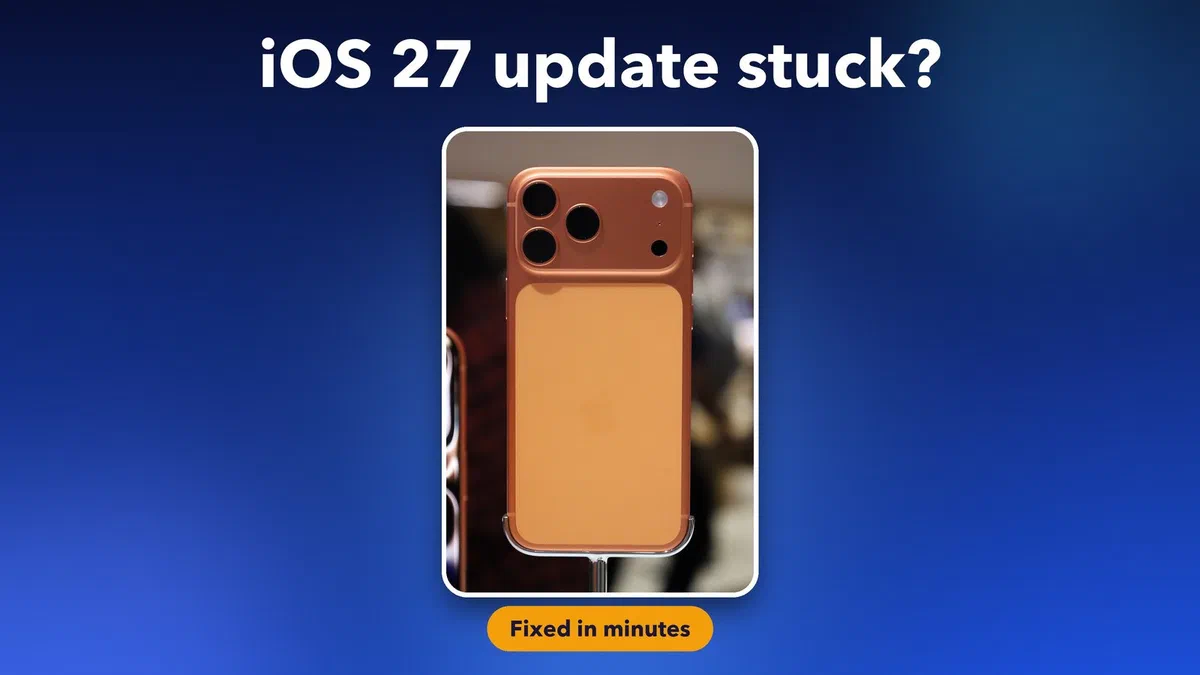
You tap "Download and install" on your iPhone, and then nothing happens. The button just says "Update requested" and the little wheel keeps spinning. Or the iOS 27 update doesn't show up at all. It's annoying, but it's almost never a sign that your phone is broken. Here are the fixes, in the order I'd try them.
Quick answer: If your iPhone is stuck on "Update requested", wait 30 to 60 minutes on Wi-Fi with the phone plugged in. Then restart it, switch off any VPN, delete the half-downloaded update in iPhone Storage and download again. If that fails, update with a cable from a Mac or a Windows PC.
Why is my iPhone stuck on "Update requested"?
Usually the phone is waiting for Apple's servers, or the download stopped halfway. Busy servers, a weak Wi-Fi connection, a VPN or a lack of free space can all cause it.
Apple has already released iOS 27.0.1, a fix-up update after the first iOS 27 release. So if you've been waiting for the "first bugs to be fixed", the update you want may be the newer one. Either way, the steps below work for both.
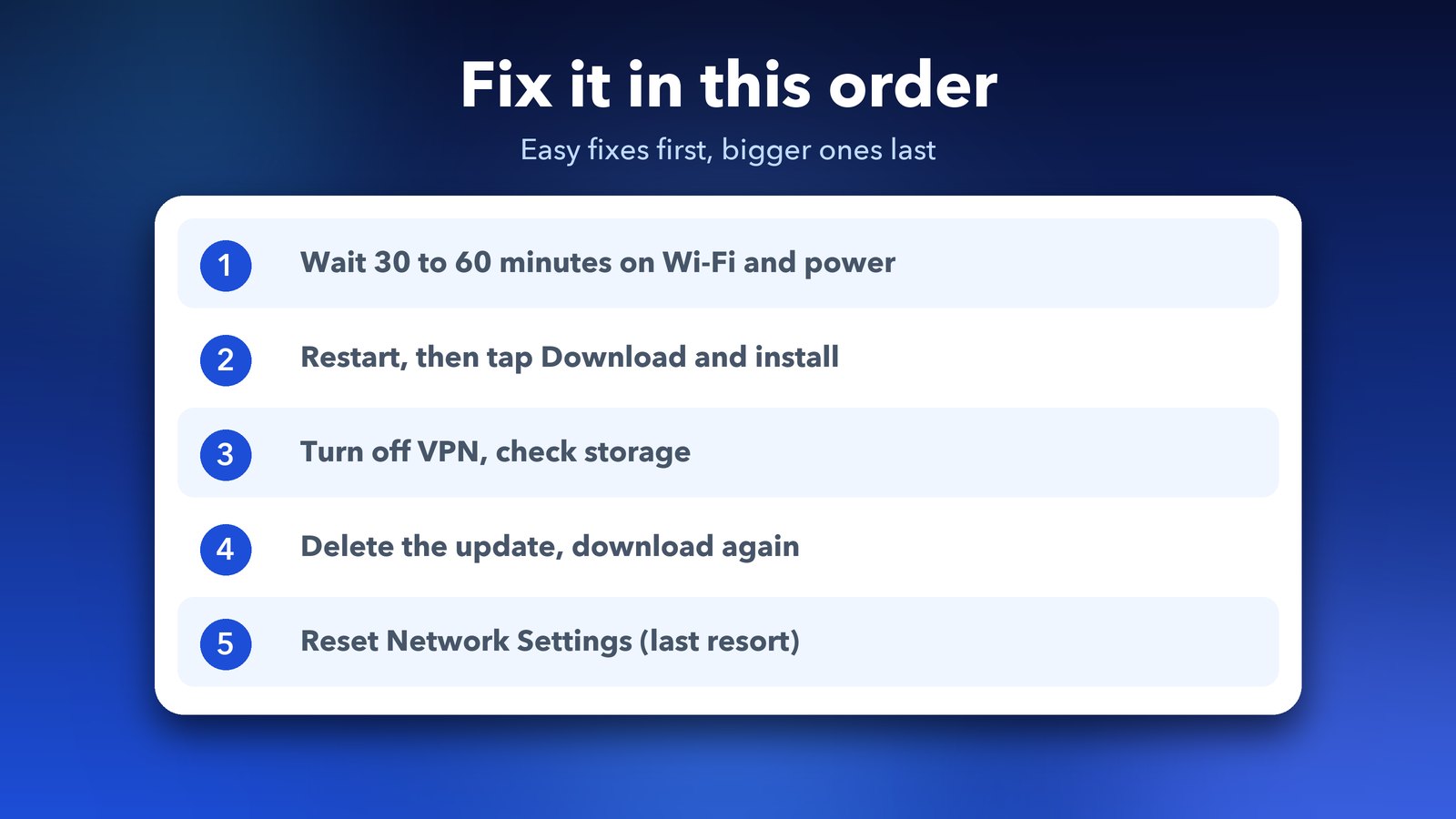
Step 1: Wait on Wi-Fi with the phone plugged in
Give it 30 to 60 minutes before you try anything else. New updates put a lot of load on Apple's servers, and cancelling and restarting the download over and over only makes the wait longer.
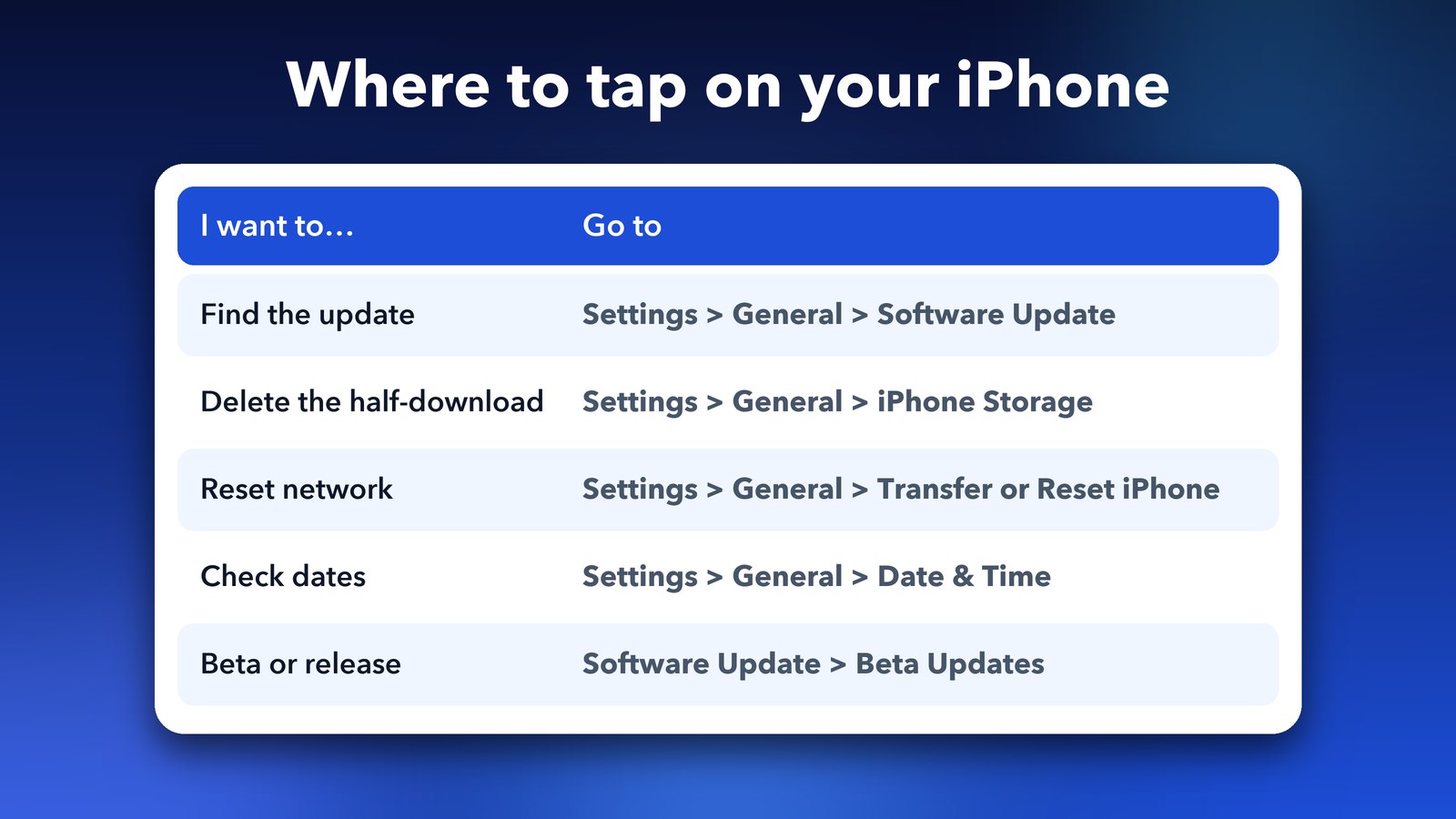
Keep the iPhone on a steady Wi-Fi network and on its charger. Go to Settings > General > Software Update and check again after the wait.
Step 2: Can't see the update? Scroll down the page
The update may be there but hidden. Open Settings > General > Software Update, let the page finish loading and scroll past the first card. A smaller security update can sit at the top, while iOS 27 is listed lower down under "Also available".
Step 3: Restart the iPhone and try again
A restart clears a lot of small glitches. Switch the iPhone off, switch it back on, reconnect to Wi-Fi and open Software Update again. If the button still says "Update requested", tap "Download and install" once more.
Step 4: Turn off your VPN and check your free space
A VPN or proxy can block the connection to Apple's update servers. Turn it off for now and try again.
Then look at your storage. Go to Settings > General > iPhone Storage. Updates need room to download and unpack, so free up a few gigabytes if the phone is nearly full. Deleting old videos or unused apps is the quickest way.
Step 5: Delete the update and download it again
If a half-finished download is stuck, remove it and start fresh. In Settings > General > iPhone Storage, look in the app list for an iOS 27 entry. Tap it and choose Delete Update. Restart the phone, then go back to Software Update and download again.
If there is no iOS 27 entry in the list, there's nothing to delete, so just move on to the next step.
Step 6: Reset network settings (only if nothing else worked)
This is the biggest fix on the list, so keep it for last. Go to Settings > General > Transfer or Reset iPhone > Reset > Reset Network Settings.
It wipes your saved Wi-Fi passwords and VPN settings, so you'll need to join your Wi-Fi again. Your photos, apps and messages stay where they are.
What if the Software Update page keeps spinning?
Sometimes the Software Update screen never loads at all. That usually means the phone can't reach Apple, so the problem is the connection and not the update. Try switching from Wi-Fi to mobile data, or the other way round. Join a different Wi-Fi network if you have one nearby. Toggling Airplane Mode on for ten seconds and off again also forces a fresh connection. Once the page loads, go back to step 1 and let the download run.
How to fix a "cannot verify update" message
This message can appear when your phone's clock is wrong. Open Settings > General > Date & Time and switch on "Set Automatically". Then try the update again.
Are you on the beta instead of the final version?
If you tried the public beta earlier, your phone may keep offering beta builds. Go to Settings > General > Software Update > Beta Updates and turn off beta updates if you want the normal release. Check the page again afterwards.
How to update iOS 27 using a Mac or a Windows PC
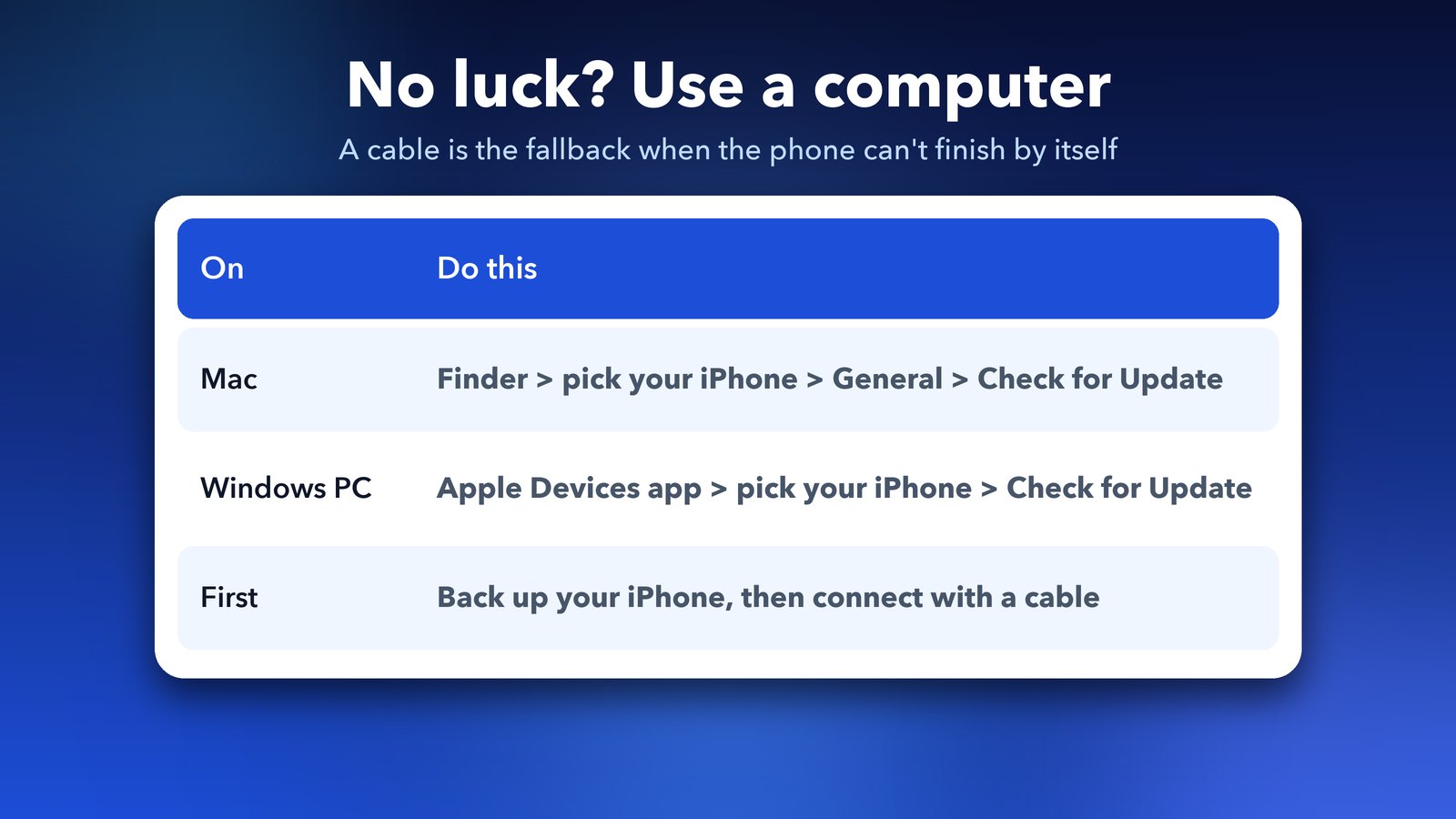
If the phone can't finish the update on its own, a cable gives you a second route. Back up your iPhone first.
- Connect the iPhone to your computer with a cable.
- On a Mac, open Finder and pick your iPhone in the sidebar. On Windows, open the Apple Devices app.
- On the Mac, go to the General tab. Click "Check for Update", then follow the steps.
Apple's iPhone User Guide explains the normal update steps too.
Tips so the update goes smoothly
- Back up first, in iCloud or on a computer. It takes a few minutes and saves a lot of worry.
- Aim for at least 10 to 15 GB of free space before you start.
- Plug in the charger. A low battery can stop an update from starting.
- After the update, expect a bit of extra warmth and battery use for a day or two while the phone re-indexes your files. If it keeps going, read our guide on fixing battery drain after the iPadOS 27 update, since the same ideas apply to iPhone.
Once iOS 27 is installed, an odd freeze is the next thing some people report. We have a separate guide for an iPhone touchscreen that freezes on iOS 27.
In most cases, patience plus one restart does the trick. If you've gone through every step and the update still won't install, the cable method nearly always gets it done.
Image credits: Cosmic Orange iPhone 17 Pro Max photo by Ahmad Ali Karim via Wikimedia Commons (CC0). Other images made by Daily Techocracy.