How to fix Intel apps not opening on macOS 27
Hello Folks,
We at Daily Techocracy are back with some juicy info for all you kind readers....lets get to it !!
You updated your Mac to macOS 27 Golden Gate, and now an older app just won't open. Maybe it's a scanner tool, a printer utility or a photo editor you've used for years. It bounces in the Dock, throws up a pop-up, or does nothing at all. The good news: in most cases the app isn't broken. Your Mac is simply missing a small piece of software called Rosetta.
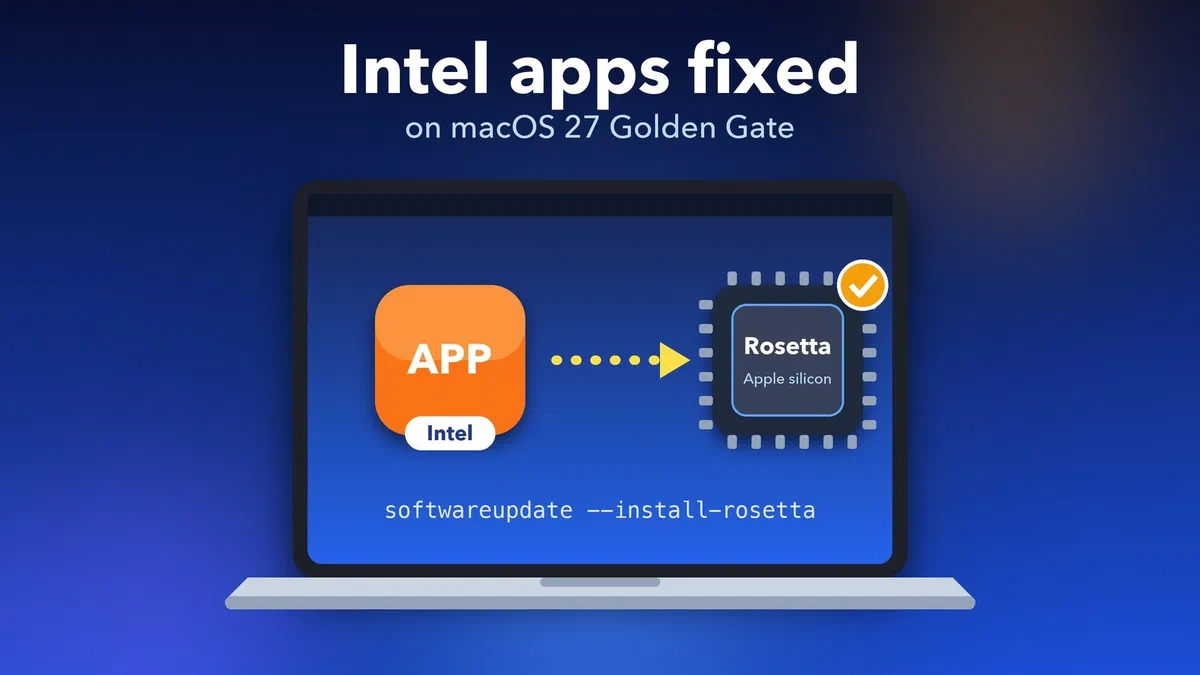
Quick answer: macOS 27 doesn't install Rosetta for you anymore, and Intel-only apps need it to run on Apple silicon Macs. Open the app and click Install when asked, or open Terminal and run softwareupdate --install-rosetta. Then check System Settings > General > About > Intel-based Apps to see which apps will stop working in macOS 28 next year.
Why do Intel apps stop opening on macOS 27?
Intel apps stop opening because macOS 27 Golden Gate no longer installs Rosetta automatically during the upgrade. Rosetta is Apple's translator that lets apps built for older Intel Macs run on newer Apple silicon Macs (M1 and later). Without it, those apps simply can't start.
Apple released macOS 27 on 14 September 2026, and it only runs on Apple silicon Macs. So every app that was never updated for M-series chips now leans on Rosetta. Most people never noticed Rosetta before, because older versions of macOS set it up quietly in the background.
There's a second change too. Apple has said macOS 27 is the last version where Intel apps work the way they do today. In macOS 28, due in 2027, Rosetta will only stay for some older games. That's why you're also seeing new warnings that an app "will not open" in macOS 28.
Step 1: Let the Rosetta prompt install it
The easiest fix is to open the Intel app and accept the install prompt. It takes a minute or two and needs an internet connection.
- Make sure your Mac is online (Wi-Fi or Ethernet).
- Double-click the app that won't open.
- When a message says the app needs Rosetta, click Install.
- Enter your Mac user name and password when asked.
- Wait for the download to finish, then open the app again.
If you clicked "Not Now" by mistake, don't worry. The prompt comes back the next time you open the app. If it never shows up at all, use Step 2.
Step 2: Install Rosetta with one Terminal command
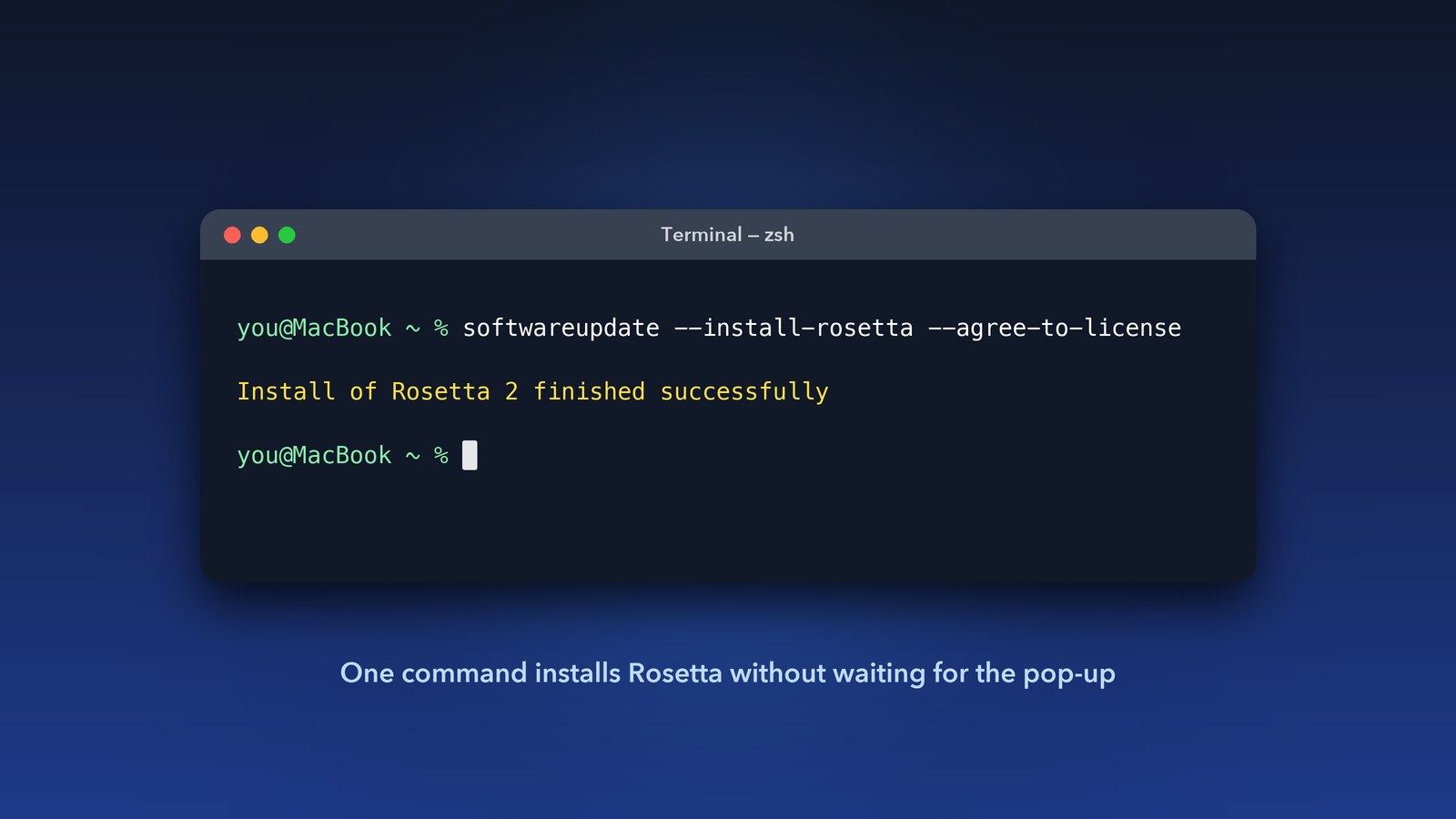
If the pop-up never appears, you can install Rosetta yourself in Terminal. This is the same method Apple lists on its official Rosetta support page, and it works even when no app has asked for it yet.
- Open Terminal (press Command + Space, type Terminal, press Return).
- Type
softwareupdate --install-rosettaand press Return. - Type A and press Return to agree to the licence when asked.
- Wait until you see "Install of Rosetta 2 finished successfully".
Want to skip the licence question? Add --agree-to-license to the end of the command. Either way, you only have to do this once.
Step 3: Find out which of your apps are Intel-only
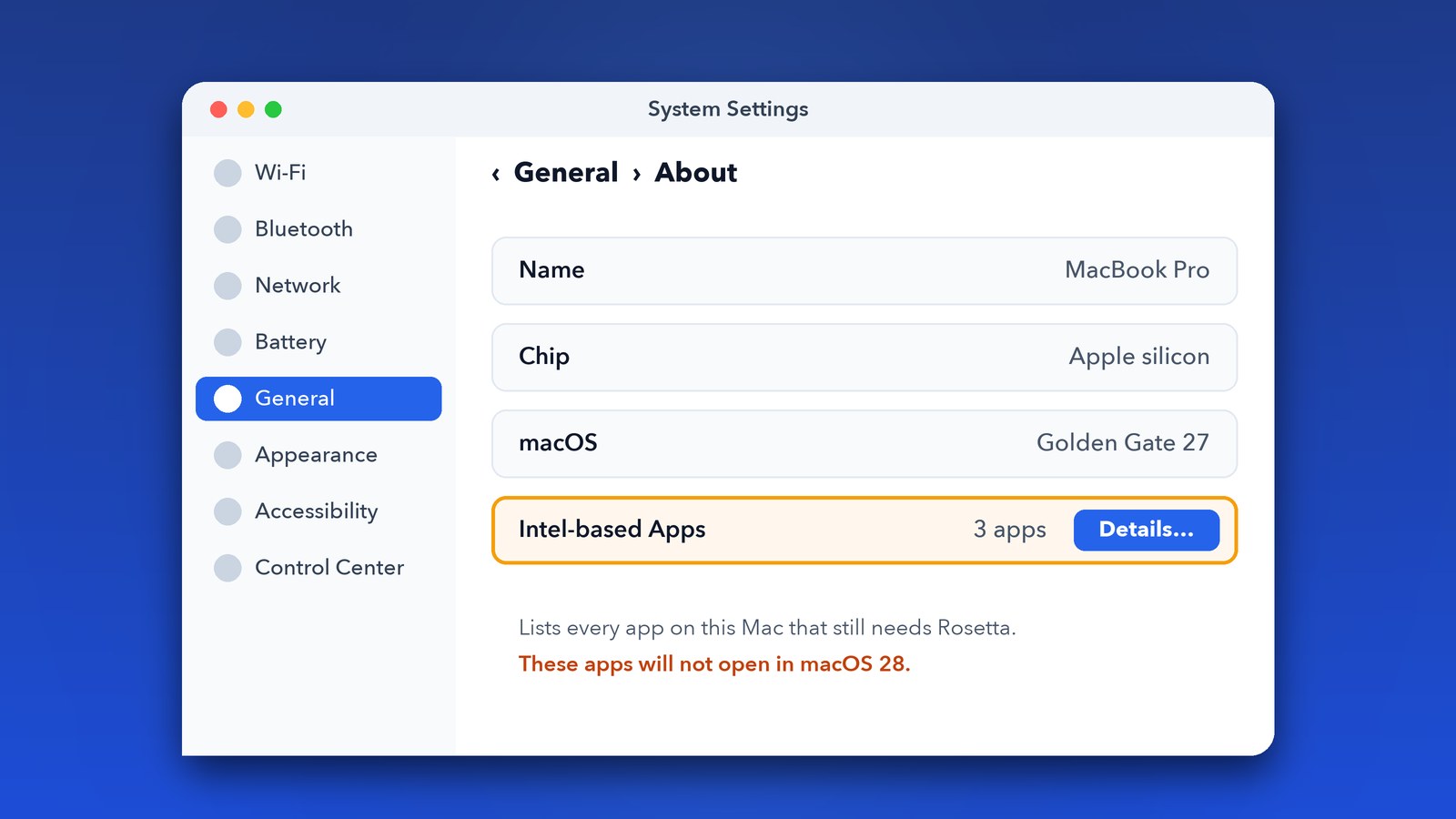
macOS 27 has a new list that shows every Intel-based app on your Mac. Open System Settings > General > About, find Intel-based Apps and click Details. This is the fastest way to see what needs Rosetta today and what will break next year.
You can also check a single app by hand:
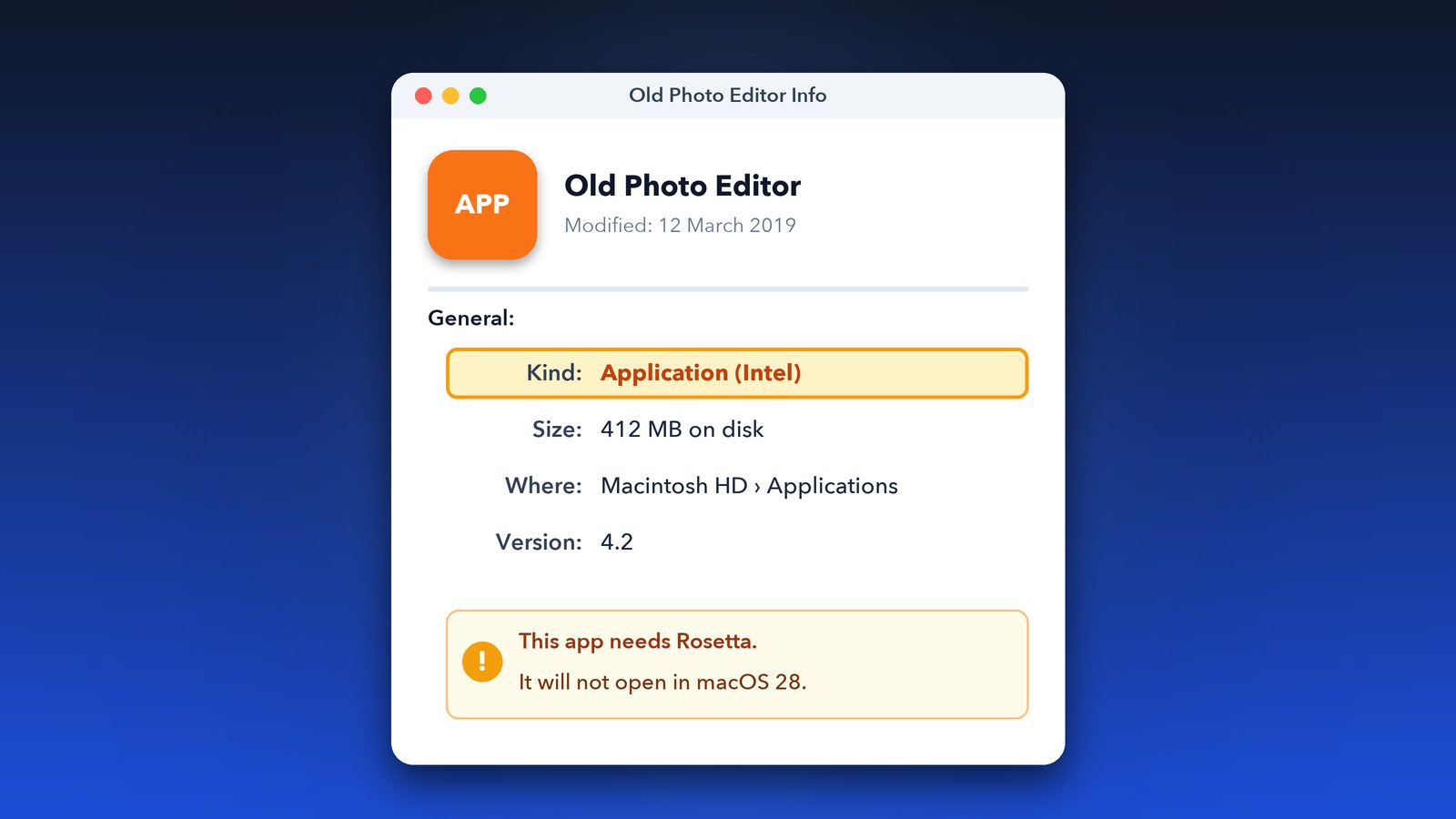
- Finder: select the app in Applications, press Command + I, and look at "Kind". Application (Intel) means it needs Rosetta. Universal or Apple silicon means you're fine.
- Activity Monitor: open the app, then open Activity Monitor. The Kind column shows "Intel" or "Apple" for everything that's running.
Step 4: Fix apps that open but crash or miss features
Some apps open fine but crash when they load an old plug-in. This happens with audio apps, printer drivers and colour tools that still use Intel-only add-ons, even when the main app is Universal.
- Run the app in Rosetta: select it in Finder, press Command + I and tick Open using Rosetta. This box only shows for Universal apps. It lets the app load old Intel plug-ins.
- Check plug-in folders: look in
~/Library/Audio/Plug-Ins,~/Library/Printersand~/Library/ColorPickersfor old add-ons, and update them from the maker's website. - Update the app: open the App Store's Updates tab, or the app's own "Check for Updates" menu. Many developers already ship Apple silicon versions.
Tips and troubleshooting
If Rosetta is installed and an app still won't open, the cause is usually something else. Work through these quick checks before you give up on it.
- Restart once. A fresh start after installing Rosetta clears stuck launches more often than you'd think.
- Look at Privacy & Security. If macOS blocked an app from an unknown developer, go to System Settings > Privacy & Security and click Open Anyway. Only do this for apps you trust.
- Re-download the app. A fresh copy from the developer often fixes damaged files left over from years of updates.
- Give the Mac a day. Right after a big update, your Mac re-indexes everything and can feel slow. Our Spotlight slowdown guide covers how to tell normal indexing from a real problem.
- Moving to a new Mac? Old Intel apps come across too. See our Migration Assistant guide if the transfer itself gets stuck.
What should you do before macOS 28 arrives?
Use the next year to replace or update every app on your Intel-based Apps list. When macOS 28 lands in 2027, Rosetta will only remain for some older games, so most Intel-only apps will stop opening for good.
My honest advice: go through the list this week while it's fresh in your mind. Email the developer of any app you rely on and ask if an Apple silicon version is coming. If it isn't, start looking for an alternative now, not the night before a deadline. Printer and scanner tools are the usual stragglers, so check those first. If a newer Mac is on your shopping list anyway, our look at Apple's M6 chip may help with timing.
That's it for this one. Install Rosetta, check your list, and you've got a full year to sort out the stragglers. Catch you in the next fix!