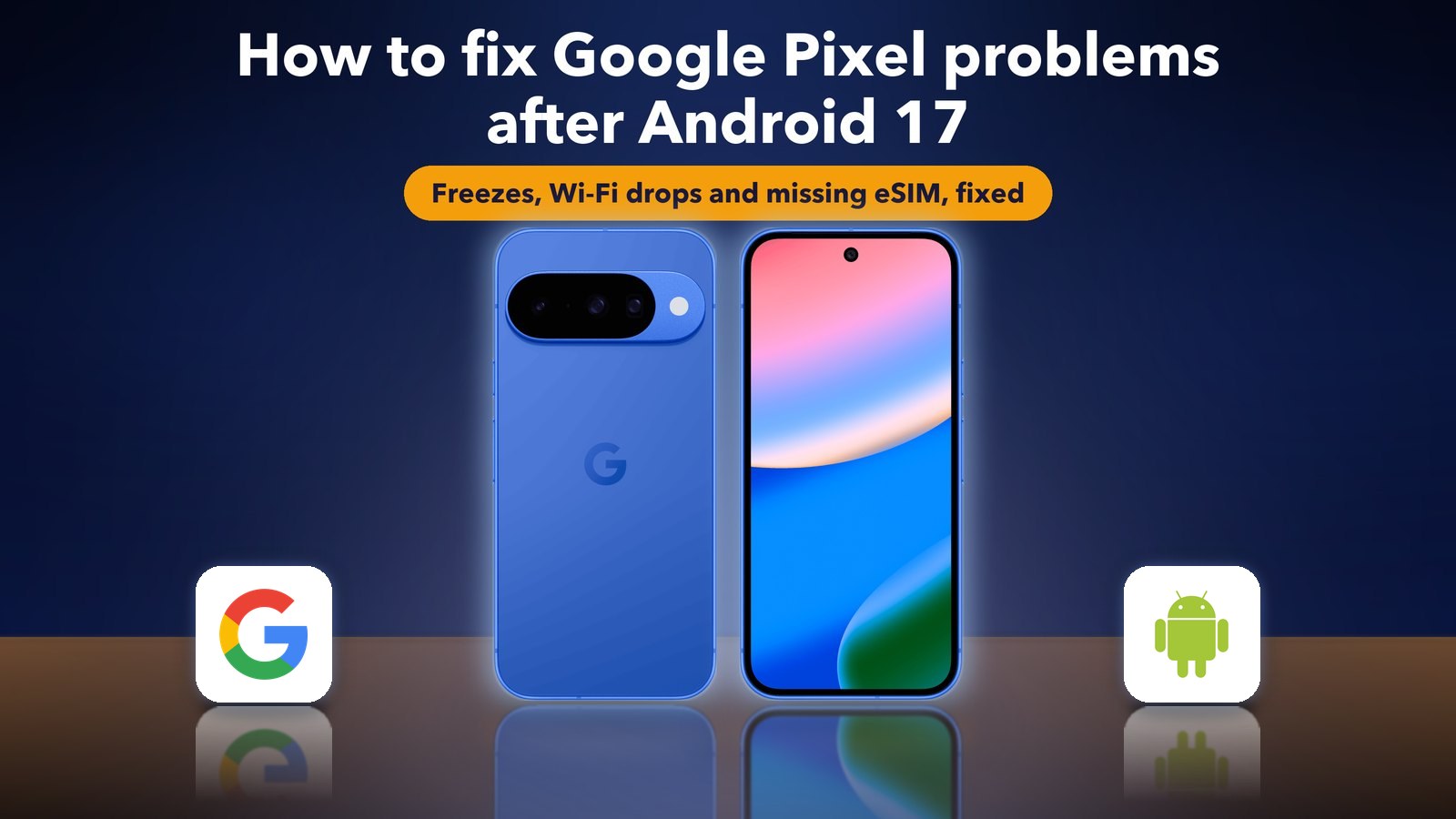
How to fix Google Pixel problems after Android 17
Hello Folks,
We at Daily Techocracy are back with some juicy info for all you kind readers....lets get to it !!
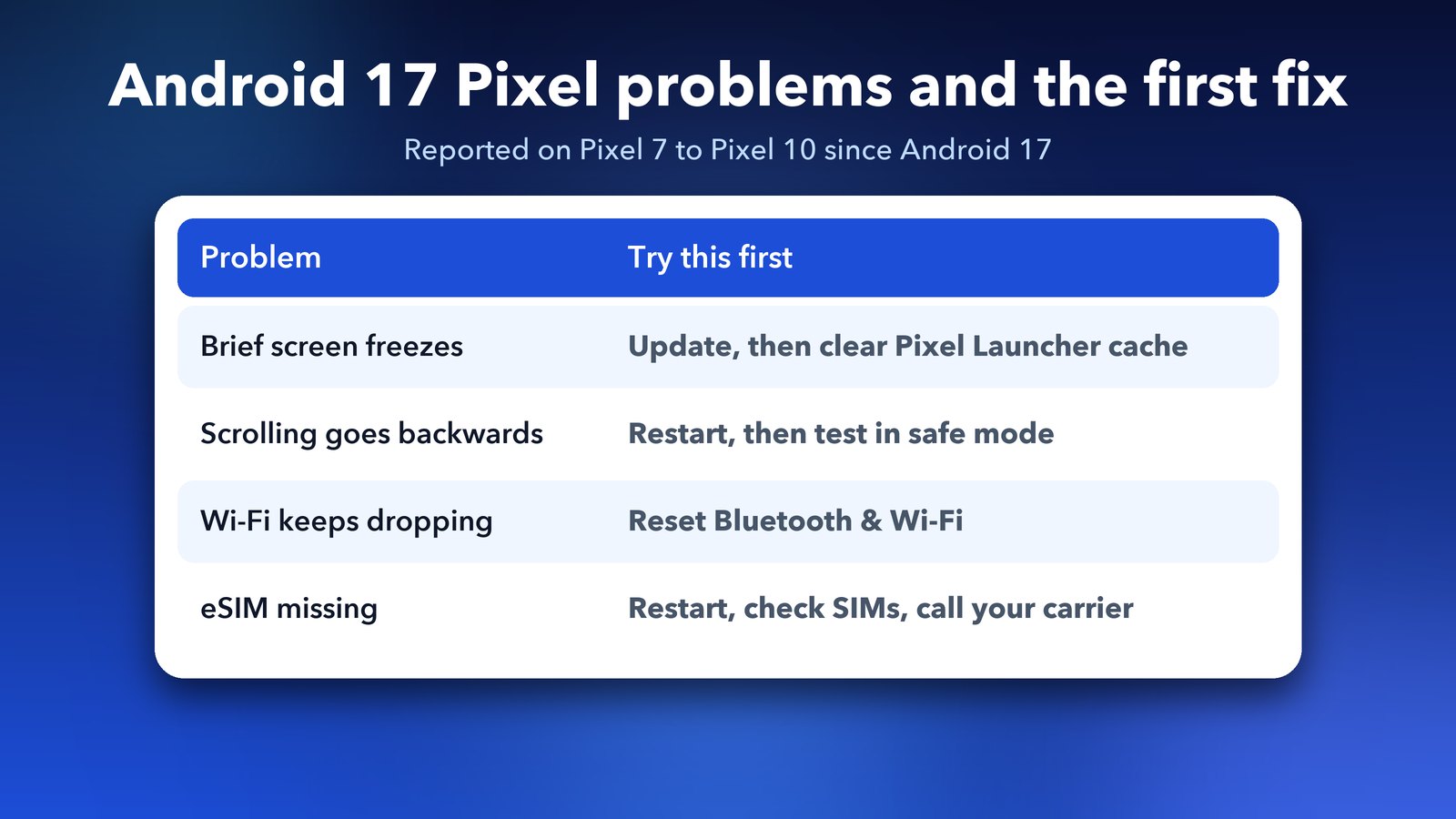
Android 17 brought a pile of complaints from Google Pixel owners. In the last 30 days alone, they started more than 50 Reddit threads about bugs, with over 800 comments. The same problems keep coming up: brief screen freezes, scrolling the wrong way, Wi-Fi drops, and an eSIM that vanishes after a restart. Here is what Google has confirmed, and the fixes in the order I'd try them.
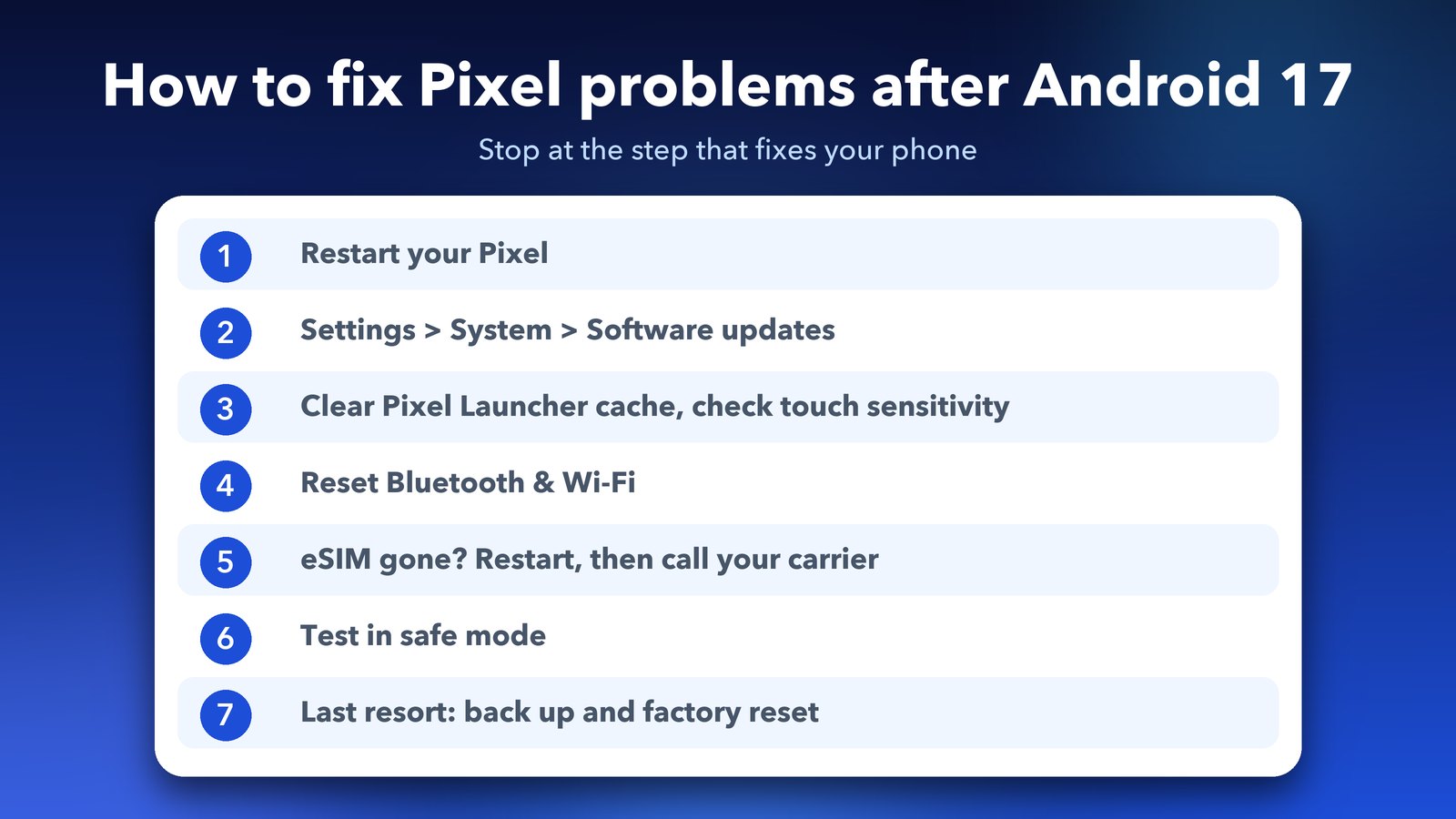
Quick answer: Restart your Pixel, then go to Settings > System > Software updates and install everything waiting, including the Google Play system update. For touch freezes, clear the Pixel Launcher cache and check Settings > Display & touch > Touch sensitivity. For Wi-Fi or eSIM trouble, use Settings > System > Reset options > Reset Bluetooth & Wi-Fi. Test in safe mode before you think about a factory reset.
What is going wrong with Pixel phones on Android 17?
Several different bugs are being reported, and they don't all hit the same phones.
- Brief freezes and reversed scrolling. Notebookcheck reported on 22 June 2026, less than a week after Android 17 arrived, that Pixel 10, 9, 8 and 7 owners were seeing the screen stop responding for a moment. Some also saw scrolling flip, so a swipe up moved the page down.
- New bugs after the September update. Android 17 QPR1 reached Pixels in the September 2026 Pixel Drop. Wirefly, citing Reddit reports and an informal Android Authority reader poll, said 20% of voters saw odd behaviour in the interface, 16% saw display glitches, 13% had connection problems and 12% noticed slowdowns. A third of voters said they had no new problems at all.
- Wi-Fi drops and a missing eSIM. Some owners say their phone keeps dropping Wi-Fi, or that the eSIM profile disappears after a restart. Google is aware of the reports through its issue tracker, but I couldn't find an official fix for the eSIM problem yet.
So, if your Pixel is acting up, it's very likely a software problem, and those can usually be fixed at home.
Has Google fixed the Android 17 bugs yet?
Partly. Google acknowledged the freezing and scrolling reports in June, and it has shipped monthly updates since then. The October 2026 Pixel update fixed a bug where the keyboard sometimes didn't appear in search fields on Pixel 8 to Pixel 10 models, and another that distorted ringtones during some internet calls. The November 2026 Android security bulletin patches 216 security flaws, and its fixes arrive with the 2026-11-01 and 2026-11-05 patch levels.
Google's November Pixel release notes weren't out at the time of writing, so install every update as soon as it lands.
If your main problem is that the whole phone feels slow rather than frozen, our separate guide on fixing Pixel lag after the Android 17 QPR1 update goes deeper into memory and background apps.
Step 1: Restart your Pixel properly
A restart clears many short-lived glitches after a big update, when Android 17 is still doing background work.
- Press and hold the Power button and the Volume up button together.
- Tap Restart.
- Leave the phone alone for a minute after it starts up.
If the screen is frozen and won't respond, hold the Power button for about 30 seconds until the phone restarts on its own.
Step 2: Install every update waiting for you
This matters most, because Google's real fixes arrive through updates.
- Open Settings.
- Go to System, then Software updates.
- Tap System update and install anything it finds.
- Go back and also check the Google Play system update and Security update entries.
Restart again after each update.
Step 3: Fix touch freezes and reversed scrolling
Two things have helped some owners. Neither is guaranteed, but both are quick and safe.
Clear the Pixel Launcher cache. This was the tip from Google's Pixel Community team. It doesn't delete your home screen layout.
- Open Settings and tap Apps.
- Tap See all apps, then find Pixel Launcher. You may need to tap the menu and choose Show system to see it.
- Tap Storage & cache, then Clear cache.
- Restart the phone.
Check the touch sensitivity setting. Google's help page lists the path as Settings > Display & touch > Touch sensitivity. On the Pixel 9 series you'll see Adaptive touch. On the Pixel 8a and older, including the Fold, you'll see Screen protector mode. Try switching it the other way for a while. With a thick screen protector, keep Screen protector mode on.
The Pixel 9 series also has a built-in touch test. Go to Settings > Display & touch > Touch diagnostics. If the test shows dead areas on the screen, it may be a hardware fault rather than Android 17.
Also try without the case and screen protector, because a lifted protector edge can cause ghost touches.
Step 4: Fix Wi-Fi that keeps dropping
First, try a different Wi-Fi network. If it works fine there, restart your router before you change the phone.
If the drops happen on every network, forget your network and join it again. Open Settings > Network & internet > Internet, tap the gear icon next to your network, tap Forget, then connect again with the password.
If that doesn't help, reset the Wi-Fi settings. Google's Wi-Fi help page gives this path:
- Open Settings and tap System.
- Tap Reset options.
- Tap Reset Bluetooth & Wi-Fi, then Reset settings.
This removes saved Wi-Fi passwords and Bluetooth pairings, but not your photos, apps or messages.
Step 5: What to do if your eSIM disappears
Without your eSIM you can't make calls or use mobile data. Don't delete the eSIM yourself, or you'll need a new one from your carrier.
- Restart the phone once more. For some people, the eSIM comes back after a second restart.
- Go to Settings > Network & internet > SIMs and check whether the eSIM is listed but turned off. If it is, turn it back on.
- Install any waiting updates from Step 2, including the carrier and Google Play system updates.
- If the eSIM is gone from the list, contact your carrier. They can send a new eSIM to the same number.
Avoid the Reset mobile network settings option unless your carrier tells you to use it. It can make an eSIM problem harder to sort out.
Step 6: Test in safe mode
Safe mode starts your Pixel with all downloaded apps turned off. If the freezes, Wi-Fi drops or battery drain stop in safe mode, a third-party app is the cause, not Android 17 itself. Google's help page gives these steps for the Pixel 6 and later:
- Press and hold the Power button and the Volume up button.
- Touch and hold Restart until you see the safe mode message, then tap OK.
- When the phone starts, you'll see Safe mode at the bottom of the screen.
- Use the phone for a while to see if the problem goes away.
- Restart normally to leave safe mode.
If safe mode fixes things, remove recent apps one at a time. Launchers, battery savers and VPN apps are common troublemakers.
Step 7: Factory reset only as a last resort
A factory reset wipes the phone and often fixes stubborn problems. Only do it if Steps 1 to 6 haven't helped.
- Back up first: Settings > System > Backup. Check that your photos are safe in Google Photos.
- Write down your eSIM details, or check with your carrier how to get it back after a reset.
- Go to Settings > System > Reset options > Erase all data (factory reset).
If you're short on space for the backup, see our guide to fixing "Storage almost full" on Android first.
Should you install Android 17 if you haven't yet?
If your Pixel is still on Android 16 and works well, a short wait for a bug-fix update makes sense. But don't wait long: the November security bulletin fixes a critical flaw that could let an attacker run code on a phone without you doing anything.
Other Android 17 problems we've covered
If your home screen widgets keep vanishing, read how to fix widgets disappearing on Android 17. If your widgets reset every time you restart, see how to fix Android widgets resetting after a restart.
My honest take
Android 17 isn't a disaster, and a third of Pixel owners in the poll had no new problems. But touch freezes and a missing eSIM make a phone feel unreliable, and Google has been slow to explain them. Keep your Pixel updated, try the quick fixes, and save a factory reset for last.
Image credits: Pixel 10 product images by Google (Google Store). Google "G" and Android robot logos via Wikimedia Commons. Panels by Daily Techocracy.
Sources: Notebookcheck (22 Jun 2026); Wirefly (18 Sep 2026); Android Security Bulletin, November 2026 (source.android.com); Google Pixel Help pages on touch problems, safe mode and Wi-Fi; October 2026 Pixel update notes.