How to run GitHub Copilot CLI on local AI models with Ollama
Hello Folks,
We at Daily Techocracy are back with some juicy info for all you kind readers....lets get to it !!
If you run AI models on your own computer with Ollama, GitHub just made them a lot more useful. Since 7 October, GitHub Copilot CLI can spot the models sitting in your local Ollama and use them as its brain, with no config files to edit. Your code gets written by a model running on your own laptop instead of a server in the cloud. Here's what changed, how to set it up and the one privacy catch you should know about.
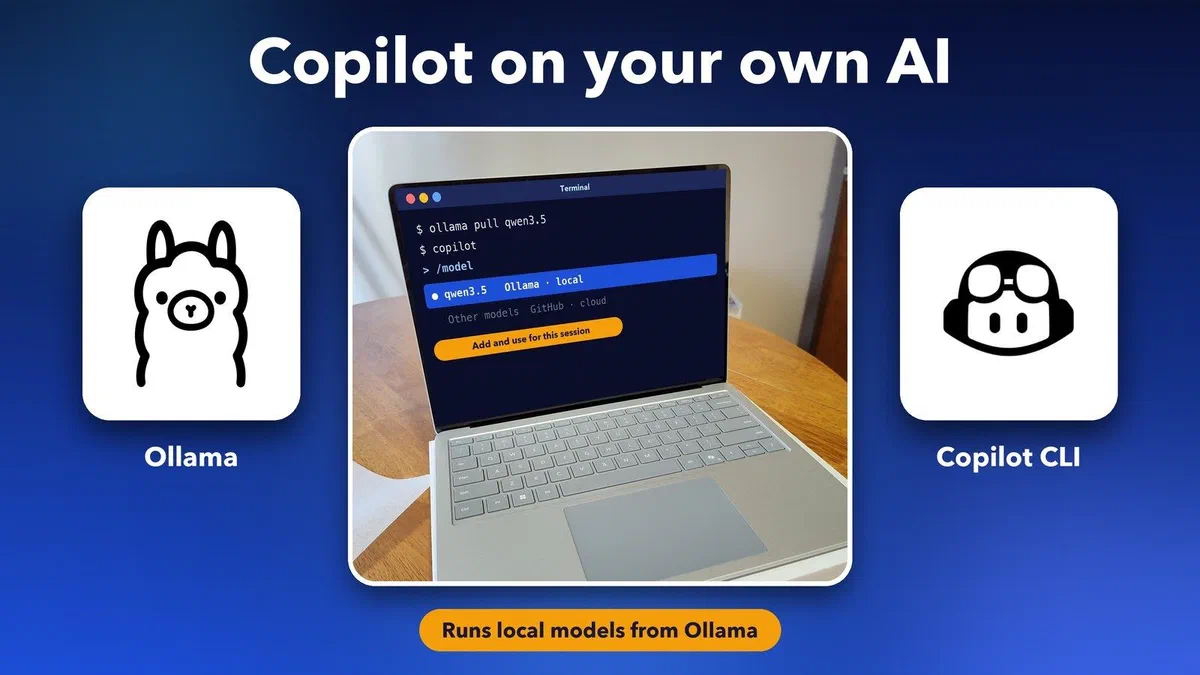
Quick answer: GitHub Copilot CLI version 1.0.94-0 and later can find models in a running Ollama app. Type /model, pick a local model such as qwen3.5 and choose "Add and use for this session". The model must support tool calling and streaming, and you should give it at least 64K of context. Using a local model does not make Copilot fully offline unless you also set COPILOT_OFFLINE=true.
What is new in GitHub Copilot CLI?
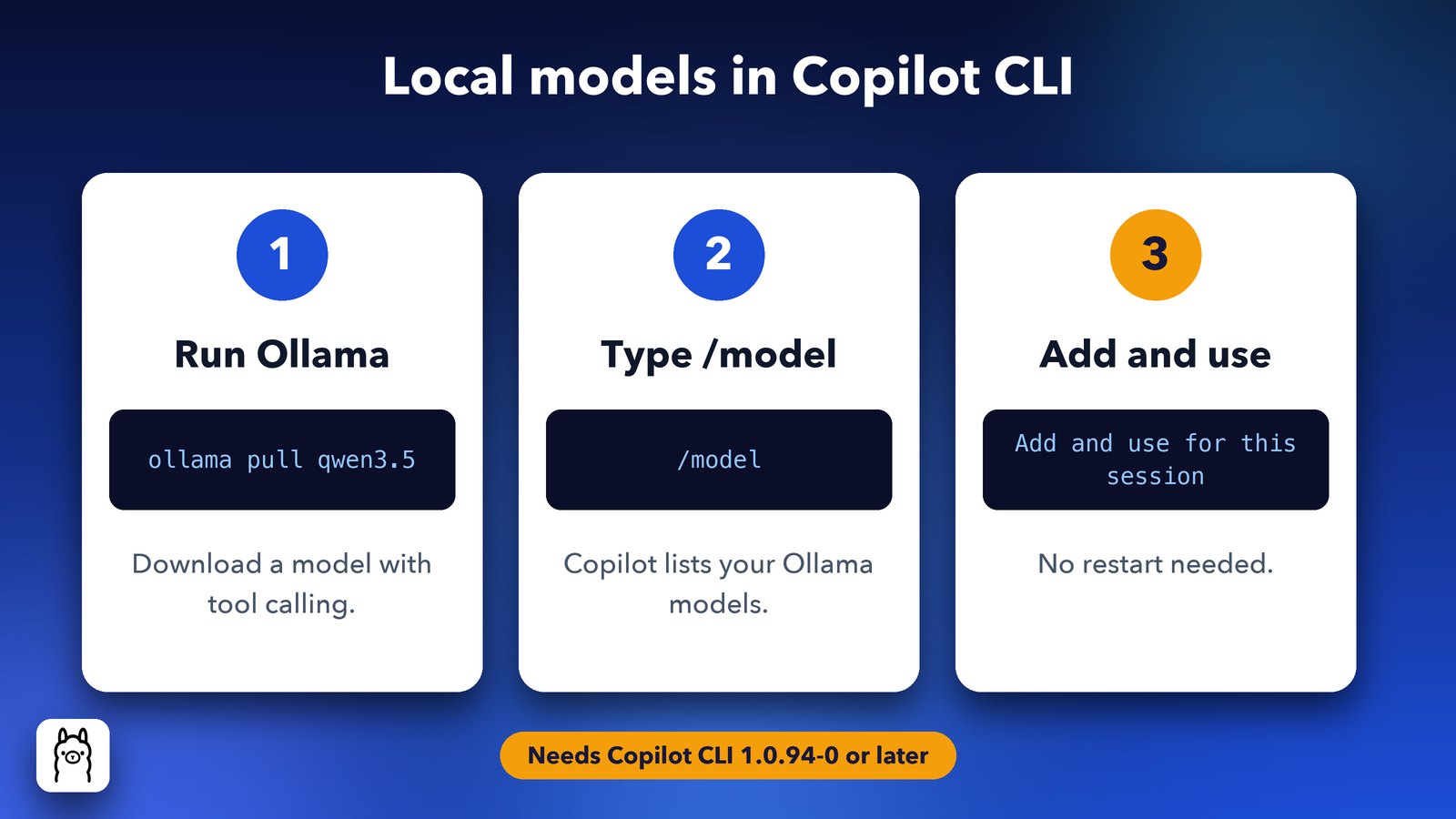
Copilot CLI now finds your Ollama models automatically. Starting in version 1.0.94-0, the /model command lists models from a running Ollama app right next to GitHub's own cloud models, so you can switch to one in a couple of keystrokes.
Copilot CLI is GitHub's coding assistant for the command line, the text window called Terminal on a Mac and PowerShell or Terminal on Windows. You ask it in plain words to fix a bug or explain a file, and it reads your project and makes the changes. Ollama is a free app that downloads open AI models and runs them on your own machine.
According to the GitHub changelog, nothing gets added without your say. You pick a model, check its provider and address, then choose "Add and use for this session" or "Add without switching". There's no need to restart the CLI. The same day, GitHub also made local sandboxing generally available, which lets Copilot run commands in a walled-off space on your machine.
Why use a local model with Copilot?
A local model keeps the heavy AI work on your own computer. It's handy on a flight or slow Wi-Fi, for code you'd rather not send to a cloud model, and for trying out the newest open models the day they come out.
There are trade-offs, though. Local models are smaller than the big cloud ones, so they're slower and make more mistakes on large, tricky jobs. In practice, a mid-sized local model is a good fit for explaining code and making small fixes. For a big refactor across many files, the cloud models are still stronger.
What do you need before you start?
You need four things: Ollama installed and running, a downloaded model that supports tools, Copilot CLI 1.0.94-0 or newer, and enough memory. GitHub's install page also lists an active Copilot subscription as a requirement, so sign in with your GitHub account.
- Ollama: download it free from ollama.com/download for Mac, Windows or Linux. Copilot doesn't install it for you.
- A model with tool calling: Copilot needs a model that can call tools (run commands and edit files) and stream its answer. Ollama's own guide suggests
qwen3.5orglm-4.7-flashfor local use. - Copilot CLI: install it with
npm install -g @github/copilot(needs Node.js 22 or later),brew install --cask copilot-clion a Mac, orwinget install GitHub.Copiloton Windows. Runcopilot --versionto check. - Enough memory (RAM): the whole model has to fit in memory with room to spare. See the guide below.
If your version is older than 1.0.94-0, update it. With npm, just run the install command again. With Homebrew, use brew upgrade copilot-cli.
How to set up Copilot CLI with Ollama
Setup takes about ten minutes, and most of that is the model download. Do these steps in order.
- Download a model. In Terminal, type
ollama pull qwen3.5. This grabs the 9B version, about 6.6 GB. - Give the model a bigger memory window. Ollama uses a 4,096-token context by default, which is far too small for Copilot. Quit the Ollama app, then start it from Terminal with
OLLAMA_CONTEXT_LENGTH=65536 ollama serveand leave that window open. Ollama recommends at least 64K tokens, and GitHub suggests 128K for the best results. - Start Copilot. Open a second Terminal window in your project folder and type
copilot. - Pick your local model. Type
/model. Choose qwen3.5 from the Ollama section, check the details, then choose Add and use for this session. - Ask it something. Try "explain what this project does" to make sure it's working.
Want a shortcut? Ollama's Copilot CLI guide offers a one-line launcher, ollama launch copilot, which starts Copilot already pointed at Ollama.
Which local model should you pick?
Pick the biggest model that fits comfortably in your computer's memory. Leave at least a quarter of your RAM free for the system and your apps, and remember that a large context window uses extra memory on top of the download size.
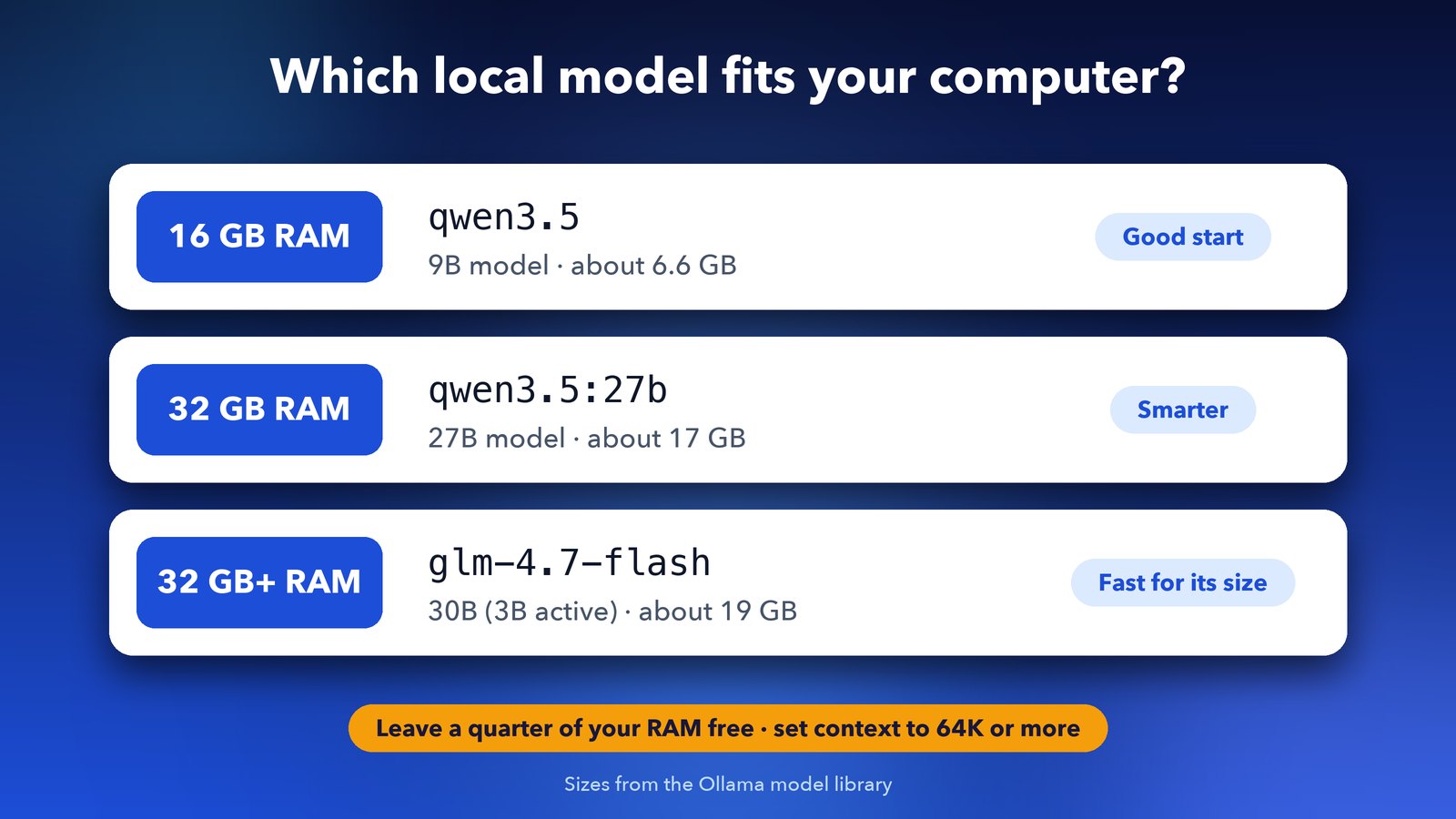
In short, qwen3.5 (9B, about 6.6 GB) suits a 16 GB laptop. With 32 GB or more, try qwen3.5:27b (about 17 GB) or glm-4.7-flash (about 19 GB), a 30B model that only uses about 3B at a time, so it stays quick. The sizes come from the Ollama model library. If replies crawl or your computer starts to lag, drop to a smaller model.
Does a local model make Copilot work offline?
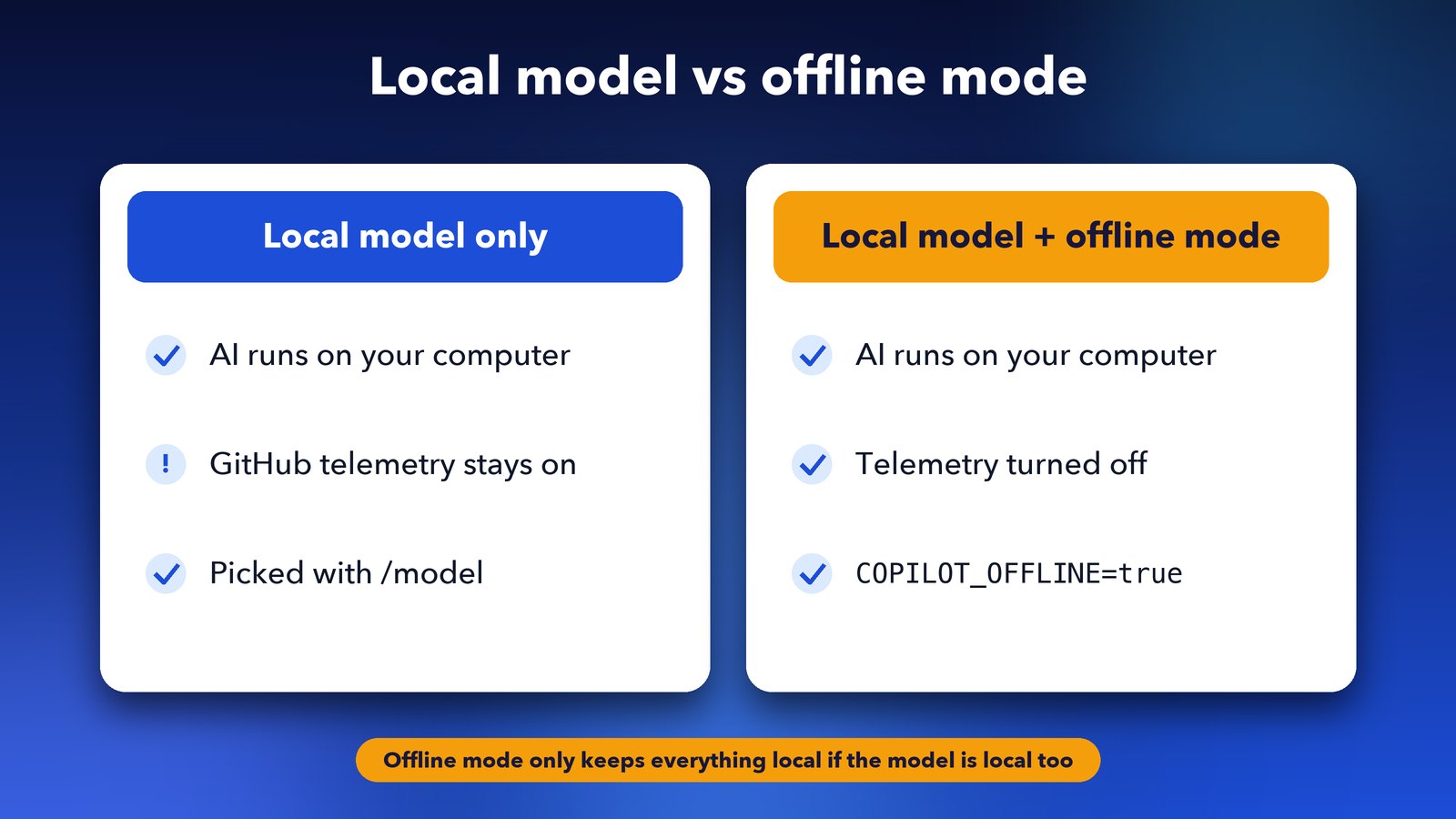
No, not on its own. Picking a local model only changes where the AI thinking happens. GitHub's telemetry, the usage data the CLI sends back, stays switched on until you turn on offline mode yourself.
To do that, set COPILOT_OFFLINE=true before you start Copilot. On a Mac, type export COPILOT_OFFLINE=true in Terminal, then run copilot. GitHub's documentation adds one more catch. Offline mode only keeps everything on your machine if the model provider is local too. If you point Copilot at a remote server, your prompts and code can still travel over the network.
What's next for local AI in Copilot?
GitHub is also working on smart routing that sends each job to a local or a cloud model, depending on how hard it is. It was announced on the Microsoft Command Line blog alongside this update. That could be the best of both worlds: quick, private answers on your laptop for small things, and the big cloud models only when you really need them.
Final thoughts
This is a small update with a big effect for anyone who already uses Ollama. Your local models now plug straight into a proper coding assistant, and setup takes minutes. Just remember to raise the context length and to switch on offline mode if privacy is the reason you went local. If you're on a Mac, our post on how Ollama 0.40 makes local AI models nearly 2x faster on Macs will help you squeeze more speed out of the same models.
Image credits: featured image uses a photo of a Microsoft Surface Laptop 7 by StrangeApparition2011, Wikimedia Commons, CC0 (screen content illustrated by Daily Techocracy); Ollama logo (MIT) and GitHub Copilot logo (public domain) via Wikimedia Commons. Other graphics by Daily Techocracy.