Gemini Live Guided Vision: what it is and how to turn it on
Hello Folks,
We at Daily Techocracy are back with some juicy info for all you kind readers....lets get to it !!
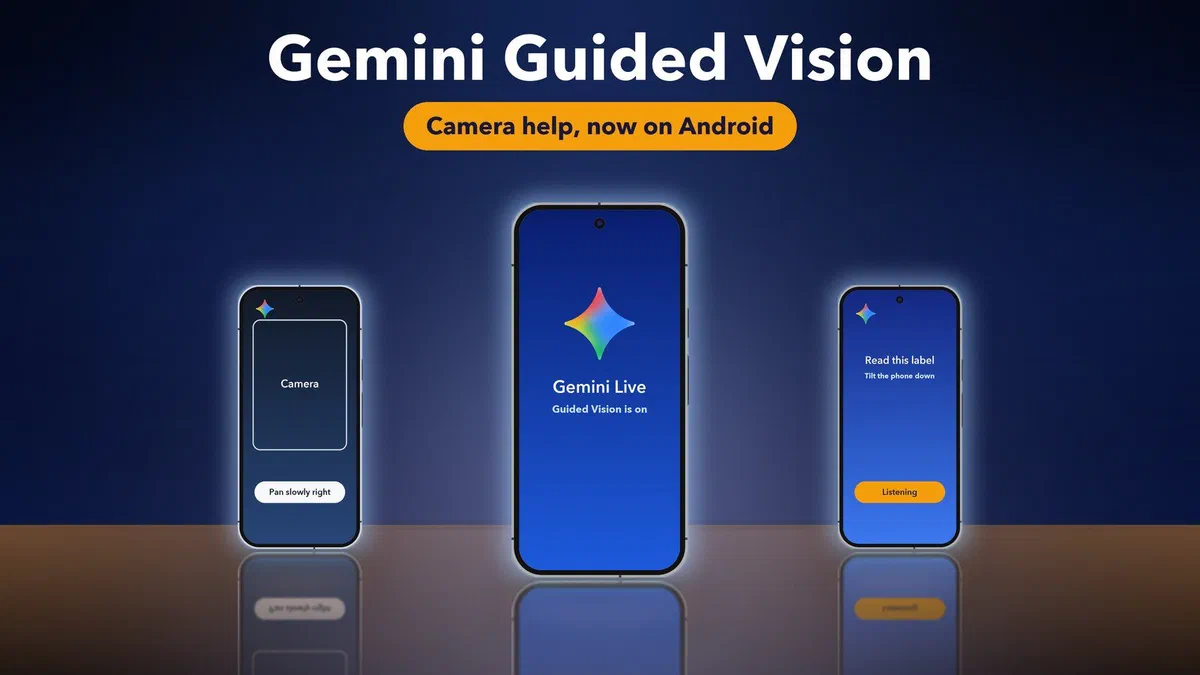
Imagine pointing your phone at a food label, a dial or a cluttered shelf and having an AI describe it to you out loud. That is what Google's new Guided Vision does inside Gemini Live. It started rolling out on 1 October 2026, and it was built mainly for people who are blind or have low vision. Anyone can use it, though. Here's what it does and how to switch it on.
Quick answer: Guided Vision is a Gemini Live mode for Android phones. You share your camera, and Gemini describes what it sees, answers follow-up questions and tells you how to move the phone. Turn it on in your Gemini profile settings with Use Guided Vision in Live, or from Settings > Accessibility > Vision assistance > Guided Vision. You need Android 9 or newer.
What is Guided Vision in Gemini Live?
Guided Vision is a mode of Gemini Live, Google's voice chat with Gemini, that works with your phone camera. You share the camera and Gemini describes your surroundings, answers questions, and gives spoken tips as you go. Google says it was developed with the accessibility community.
The special part is the coaching. If your camera is too high, too close or pointing off to the side, Gemini says so. It might ask you to pan slowly, tilt down or step back until the object is in view. That matters a lot if you can't see the screen to frame a shot yourself.
What can Guided Vision help with?
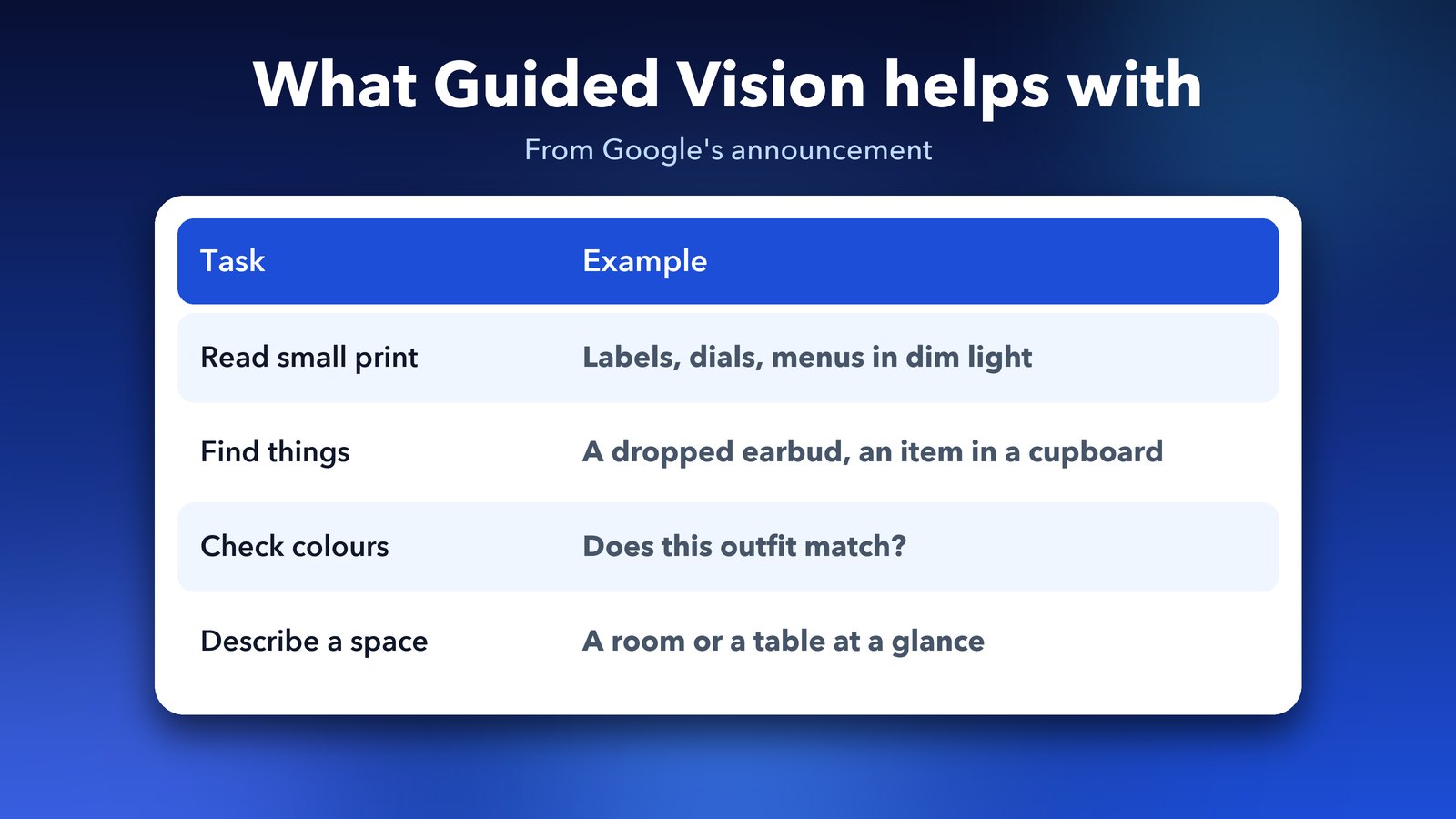
Google lists everyday jobs. It can read small print such as food labels, appliance dials and menus in dim light. It can help you find a dropped earbud or something in a crowded cupboard. It can check colours and patterns, for example whether two clothes match. It can also give you a quick picture of a room or a table, and it can chat in more than one language.
How do I turn on Guided Vision?
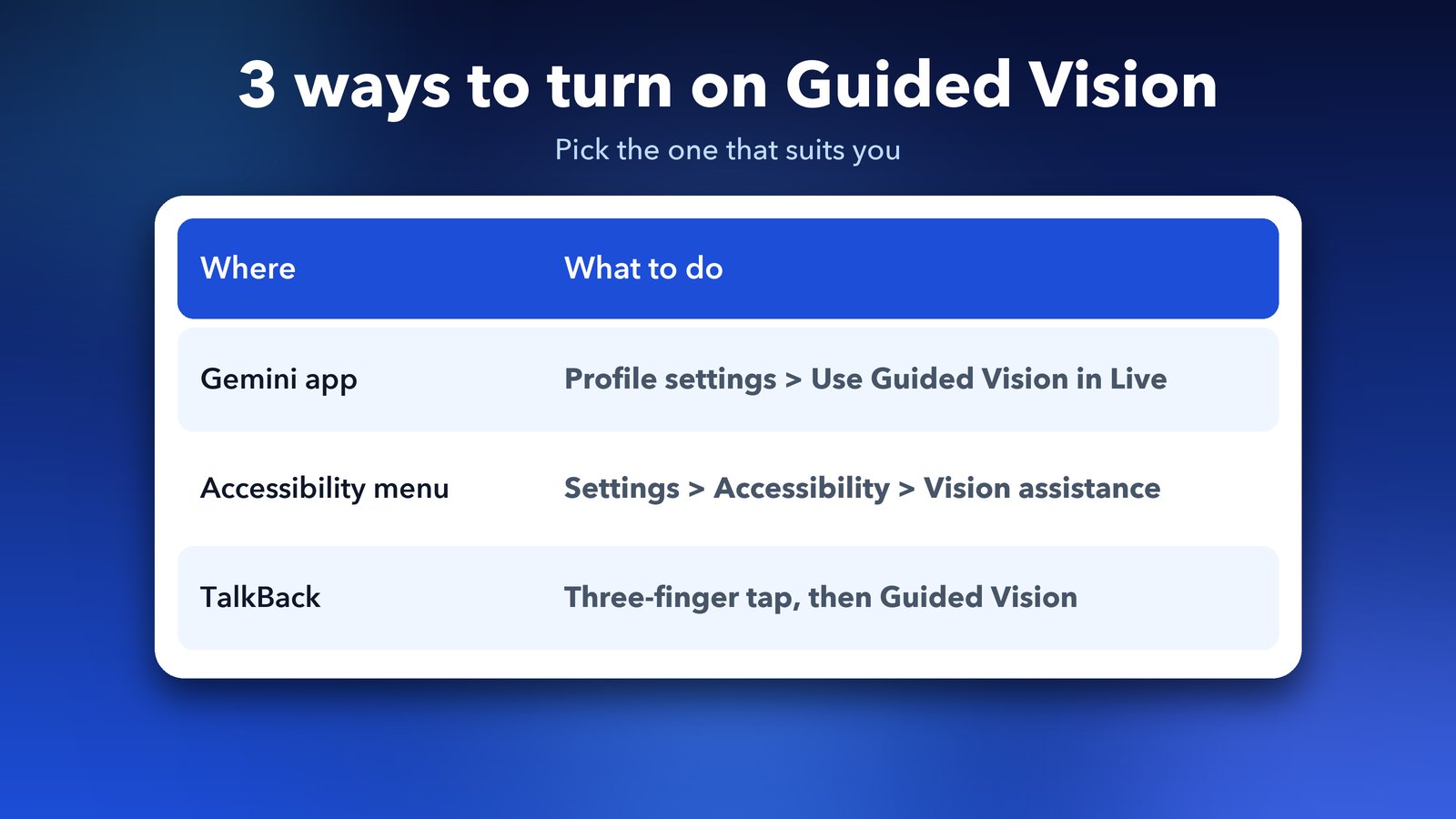
There are three ways to switch it on, according to Google. Pick whichever fits how you use your phone.
From the Gemini app
- Open the Gemini app and tap your profile picture to get to settings.
- Turn on Use Guided Vision in Live.
- Open Gemini Live and tap to share your camera.
From Android accessibility settings
Go to Settings > Accessibility > Vision assistance > Guided Vision. There you can pick a shortcut to start it fast: the floating accessibility button, a two-finger swipe, or pressing both volume keys.
From TalkBack
If you use TalkBack, do a three-finger tap to open the TalkBack menu, then choose Guided Vision.
What do I need to use Guided Vision?
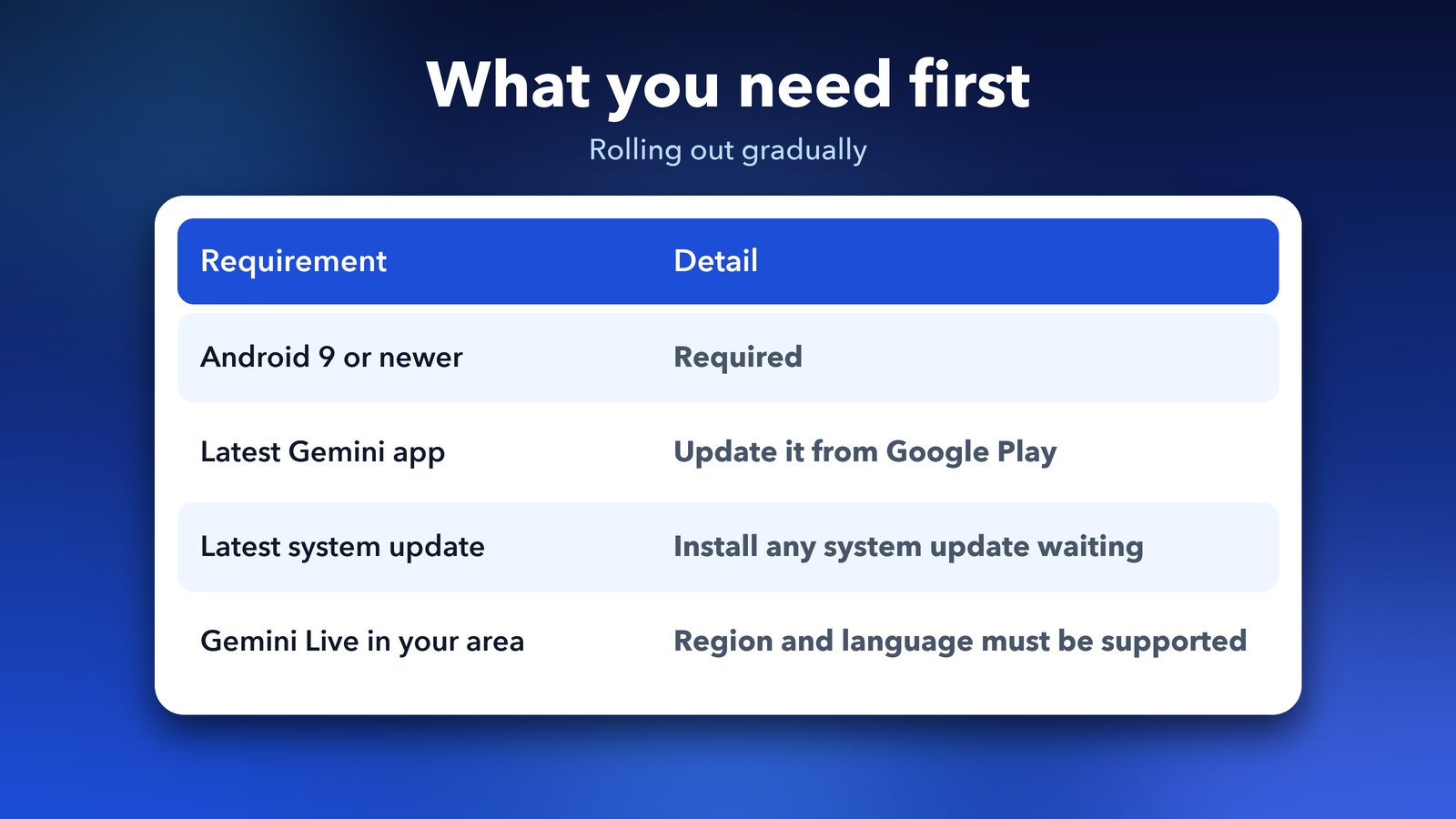
You need a phone running Android 9 or newer, the latest Gemini app and the latest Android system update. It also only works in places and languages where Gemini Live is available. Google says it is rolling out gradually, so you may not see the setting on day one. If it's missing, update the Gemini app, check for a system update and look again in a few days.
How was Guided Vision built?
Google worked with Aira, a company that provides visual interpreting for blind and low-vision people. Google says the model learned from tens of thousands of hours of visual interpretation. More than 1,000 members of Aira's Trusted Tester group helped test it, and Aira specialists helped set and check the safety limits.
What can't Guided Vision do?
Be careful with it, because Google is clear about its limits. Guided Vision can make mistakes. It is not a medical device, a mobility aid or a replacement for a white cane. It is not meant for navigation, safe-travel guidance or spotting obstacles. Keep using your usual mobility aids and travel habits. Treat it like a helpful friend reading a label for you, not like a guide for crossing the road.
Google's post doesn't give a minimum age or a full list of supported languages, so check the Gemini app help page for your own region.
Is it worth trying?
If you live with low vision, I think it is well worth a try, especially for reading labels and finding small things at home. If you see fine, it's still a handy way to read tiny print or sort out a messy drawer. Just don't trust it for anything safety-critical. If you want to see how Gemini fits into other recent AI changes, read our post on ChatGPT virtual try-on for a comparison of how the big assistants use your camera and photos.
Read Google's own announcement, Guided Vision in Gemini Live: built for accessibility, for the full details.
Image credits: Featured image uses Google Pixel 10 Pro renders from Wikimedia Commons (CC BY-SA 4.0) and the Gemini icon (public domain), with illustrated Gemini screens. Other graphics by Daily Techocracy.