How to fix S Pen not working on a Samsung Galaxy Tab
Hello Folks,
We at Daily Techocracy are back with some juicy info for all you kind readers....lets get to it !!
You pick up your S Pen to sketch or sign a document, and nothing happens. No ink, no pointer, or the remote button does nothing at all. It's annoying, but the fix is usually small. Most S Pen problems on a Samsung Galaxy Tab come from a case, a setting or a pen that has run flat. Here's how to find out which one it is.
Quick answer: Take off any screen protector and magnetic case, then restart the tablet and attach the S Pen to the back of it so it can charge. If it still won't connect, open Settings > Advanced features > S Pen, tap the three dots and choose Reset S Pen. Check that your tablet's pen can charge and use Air actions at all, because some newer models can't.
Why is my S Pen not working on my Galaxy Tab?
There are two different kinds of S Pen trouble, and each has its own fix. Knowing which one you have saves a lot of time.
The first kind is a pen that won't write or draw on the screen. That is almost always a case, a screen protector, a worn tip or a software glitch. The second kind is a pen that writes fine, but the button and the Air actions (the wave-in-the-air remote features) don't work. That one is usually about the Bluetooth connection, the pen's battery or a permission.
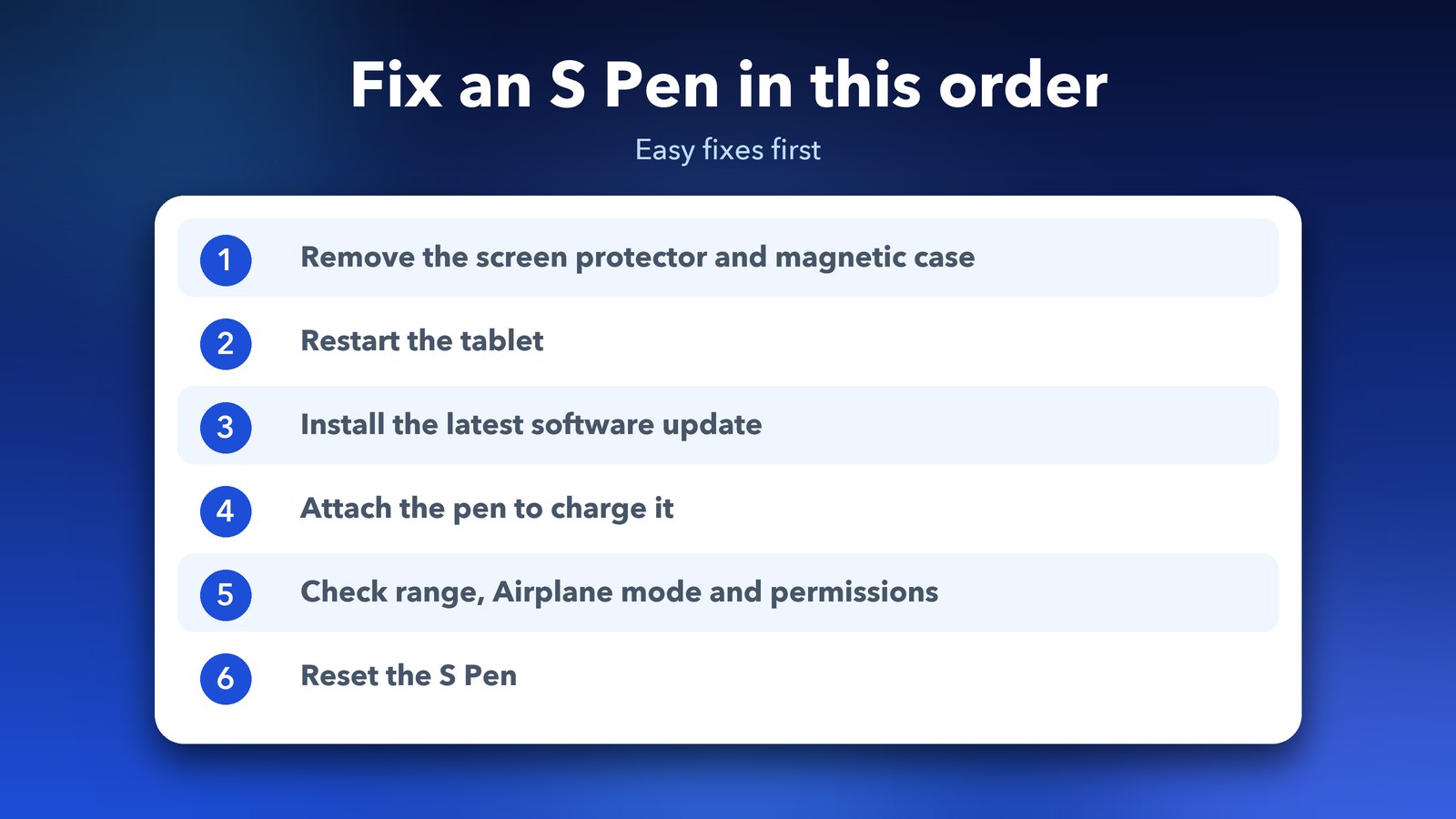
Step 1: Take off the screen protector and any magnetic case
Start with the cheapest check. Samsung says a screen protector, or a third-party case or cover, can stop the tablet from recognising the pen. Magnetic cases are the worst offenders because the magnets can confuse the pen.
- Remove the screen protector if you added one.
- Take the tablet out of its case, especially a magnetic one.
- Try the S Pen again.
If the pen works now, you've found the cause. Look for a case that is made for your exact tablet and has no extra magnets near the pen area.
Step 2: Restart your tablet
A restart clears small glitches and can help the pen connect again. It takes 30 seconds, so do it before anything else complicated.
- Hold the Power button and tap the Power icon, then tap Restart.
- On a tablet where holding the side button opens Bixby or another assistant, swipe down from the top and use the Power icon in the Quick settings panel instead.
Step 3: Install the latest software update
Samsung fixes pen bugs in software updates, so make sure you're on the newest one.
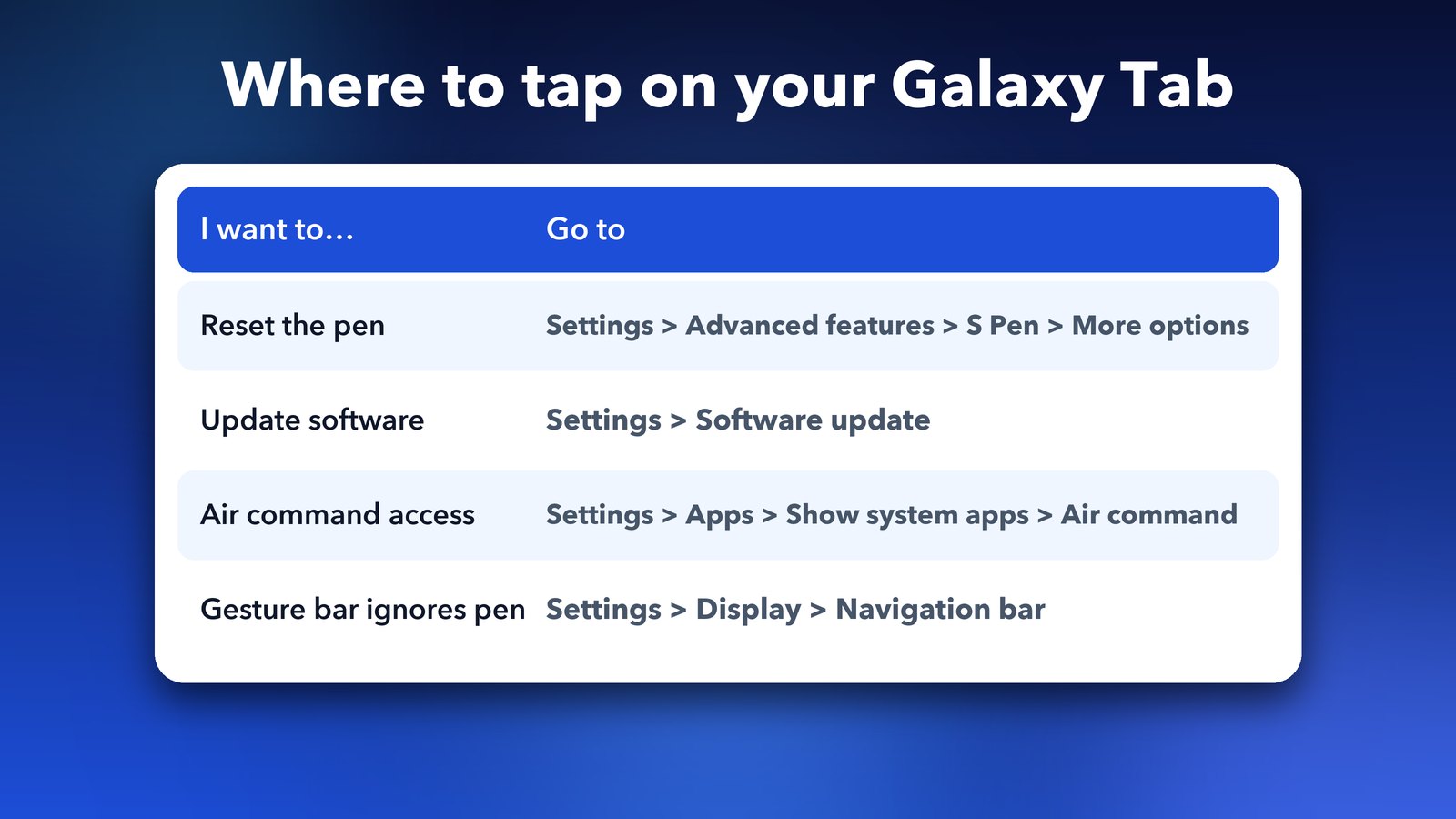
- Open Settings > Software update.
- Tap Download and install, then follow the prompts.
- Keep the tablet charged and on Wi-Fi while it installs.
Step 4: Charge the S Pen the right way
Many Galaxy Tab pens charge wirelessly while they stick to the back of the tablet. If the pen's battery is flat, the button and Air actions stop working, even though writing on the screen often still works. Samsung says a low pen usually charges in a couple of minutes once it's attached properly.
The direction matters on older tablets. On the Galaxy Tab S6, the pen tip faces away from the camera. On the Tab S7 and S8, the tip faces toward the camera. On the Tab S9 and newer, the pen charges either way round. Make sure it sits on the charging spot and lines up with the slot.
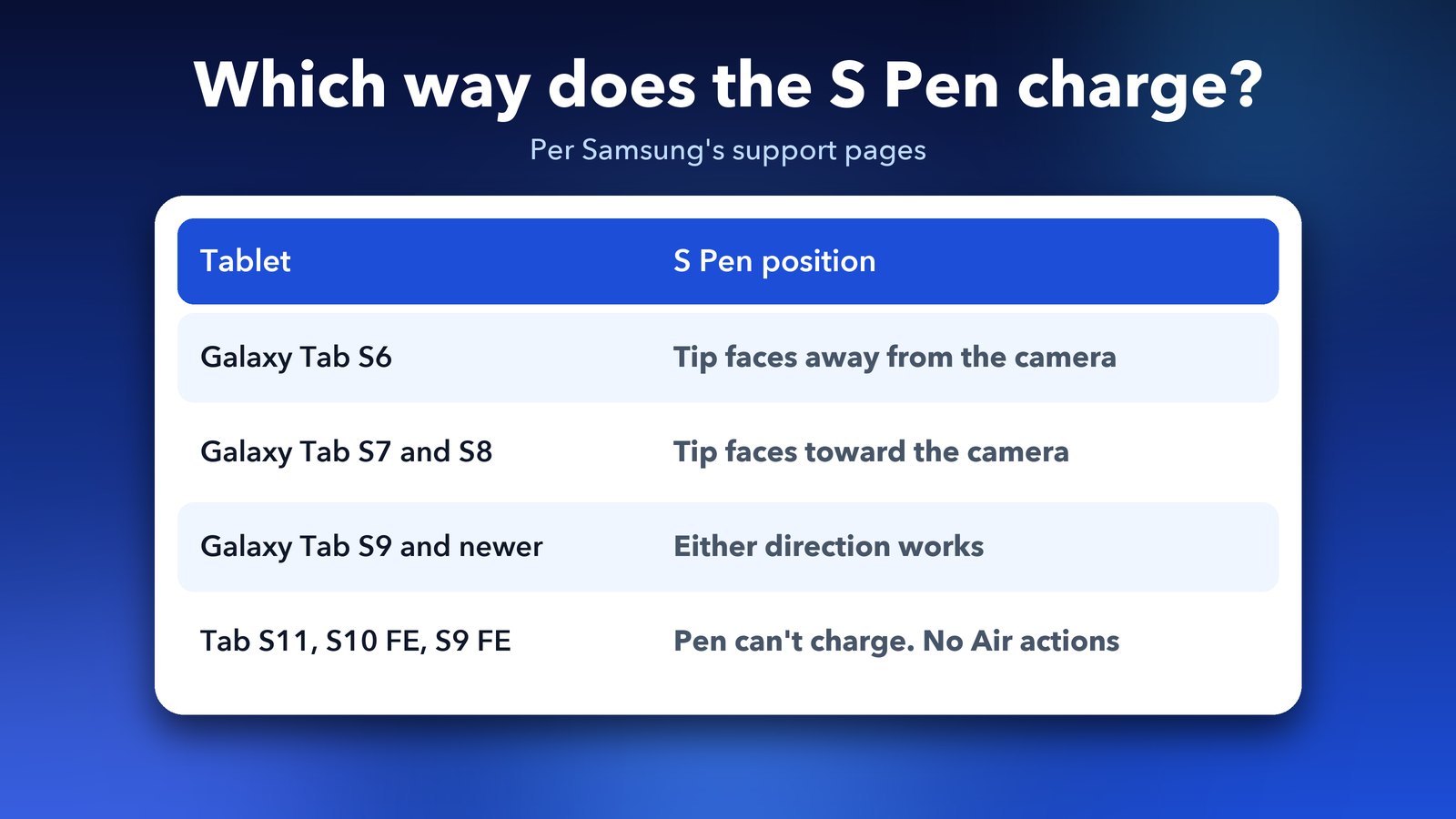
To see the pen's battery level, open the Air command menu and tap the Settings icon. The percentage shows at the top while the pen is connected.
Does my S Pen even support charging and Air actions?
Some do not, and that surprises many owners. Samsung lists several pens that don't charge at all, because they have no battery to charge. These include the pens for the Galaxy Tab S11 and Tab S11 Ultra, the Tab S10 FE and S10 FE+, and the Tab S9 FE and S9 FE+. Samsung's list also names some newer models, so check the official S Pen charging page for your exact tablet.
These same pens also lack Bluetooth features like Air actions. That means the remote button, the air gestures and the Reset S Pen option won't exist on them. If your pen is on that list, it isn't broken. It simply doesn't have those features.
Step 5: Check the range and the modes that cut the connection
If Air actions are the problem, check the basics. Samsung says the pen must be within 30 feet of the tablet, with nothing in between. Go beyond that and the connection drops. If the pen comes back within five minutes, it reconnects by itself. After that, you need to attach it to the tablet again.
- Turn off Airplane mode. It cuts the pen's Bluetooth link.
- If you use Power saving mode, turn off Limit apps and Home screen, because that setting also disconnects the pen's wireless features.
- Remove any third-party case, then attach the pen again.
Step 6: Give the Air command app its permissions
Air actions need a few permissions to work. If one is switched off, the remote features go quiet.
- Open Settings > Apps and tap the filter icon (three horizontal lines) next to Your apps.
- Turn on Show system apps, then tap OK.
- Tap Air command, then Permissions.
- Set Nearby devices, Physical activity and Notifications to Allow.
Step 7: Reset the S Pen
If the pen still won't connect, a reset is the next move. It clears the pairing and starts fresh.
- Attach the S Pen to the back of the tablet.
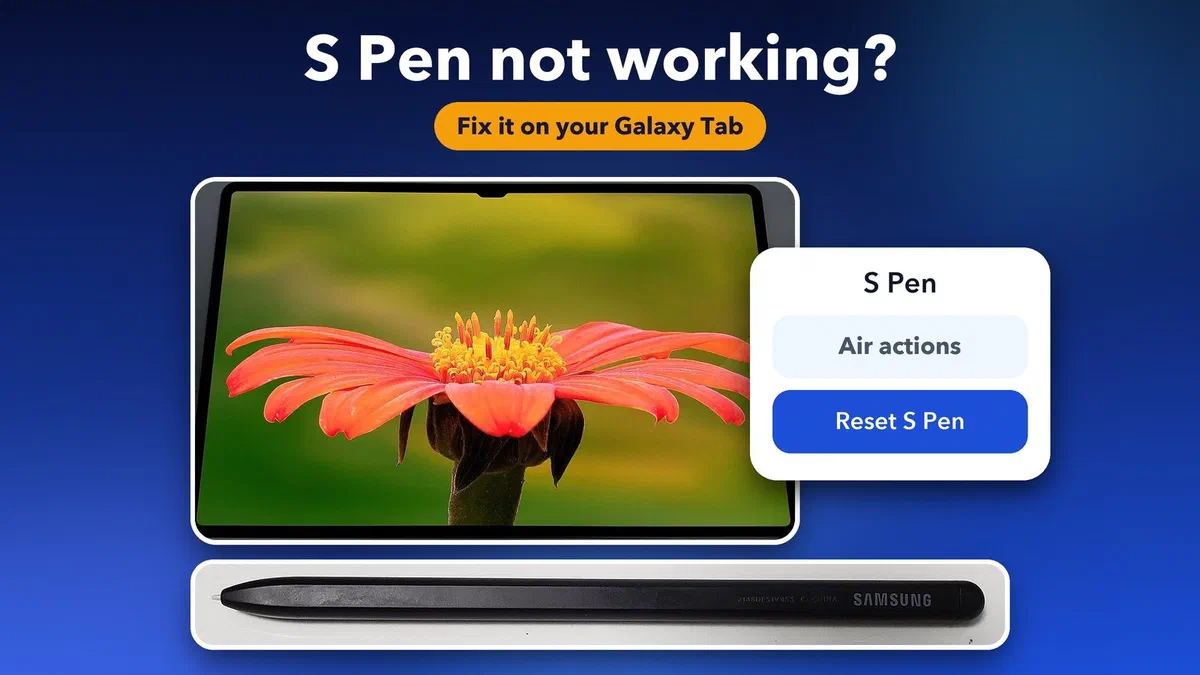
- Open Settings > Advanced features > S Pen.
- Tap the three-dot More options menu, then tap Reset S Pen.
- Wait a moment while the pen resets itself.
This puts every pen setting back to its default, including any Air actions you customised. You'll need to set those up again. You can also find the same option by searching for Air actions in Settings.
What if the S Pen draws but the tip feels wrong?
If a pointer shows but your touches don't register, or you have to press hard, the tip may be worn out. On pens with a replaceable tip, pull the old one out with the tip tool and push a new one in by hand until it clicks. Samsung says tips aren't sold separately for the Galaxy S23 Ultra and newer, so a worn pen may mean buying a new S Pen.
What if only the bottom of the screen ignores the pen?
This one is a known quirk with the gesture bar. Tap that area slowly first. If it keeps happening, try these settings from Samsung:
- Go to Settings > Display > Navigation bar > Swipe gestures > More options and turn off Block gestures with S Pen.
- Or go to Settings > Display > Navigation bar and switch to Buttons.
Using more than one S Pen?
If you have two pens, such as an S Pen Pro or an S Pen Creator Edition alongside the one that came with the tablet, they can fight each other. Go to Settings > Advanced features > S Pen > More S Pen settings and check Allow multiple S Pens. Samsung's steps say to turn it off if pairing is stuck, then go back, turn Air actions on and reattach the pen. Samsung's separate "not recognised" guide says to turn it on when you do use a second pen on a device that has its own. So try it one way, and if nothing changes, try the other.
Tips to keep your S Pen working
- Wipe the pen slot on the back of the tablet with a soft cloth now and then. Dust can stop the pen from sticking and charging.
- Keep wireless charging pads away when the pen needs to connect, as Samsung warns they can get in the way.
- Test the pen on another S Pen tablet, or test another pen on yours. If your pen fails everywhere, it needs replacing. If another pen fails on your tablet, the tablet needs service.
- Own a tablet where apps look stretched? Our guide on fixing stretched apps on an Android tablet can help.
If nothing here helps, contact Samsung support or visit a service centre. Samsung's own Air actions troubleshooting page has extra detail for stubborn cases. Most of the time, though, it's the case or a quick reset, and you'll be back to sketching in minutes.
Image credits: Featured image uses a Samsung Galaxy Tab S8 Ultra photo by Dylan240 (Wikimedia Commons, CC0) and a Samsung S Pen photo (Wikimedia Commons, CC0), with an illustrated settings card. Other graphics by Daily Techocracy.