How to free up System Data storage on macOS 27
Hello Folks,
We at Daily Techocracy are back with some juicy info for all you kind readers....lets get to it !!
You updated to macOS 27, opened Storage, and a grey bar called System Data now takes up a huge slice of your disk. One reader on a Mac forum reported 121.6 GB of it on a 500 GB Mac mini, after the update. That is a lot of space for something you cannot even click. Here is what System Data really is, what you can safely clear, and what to leave alone.
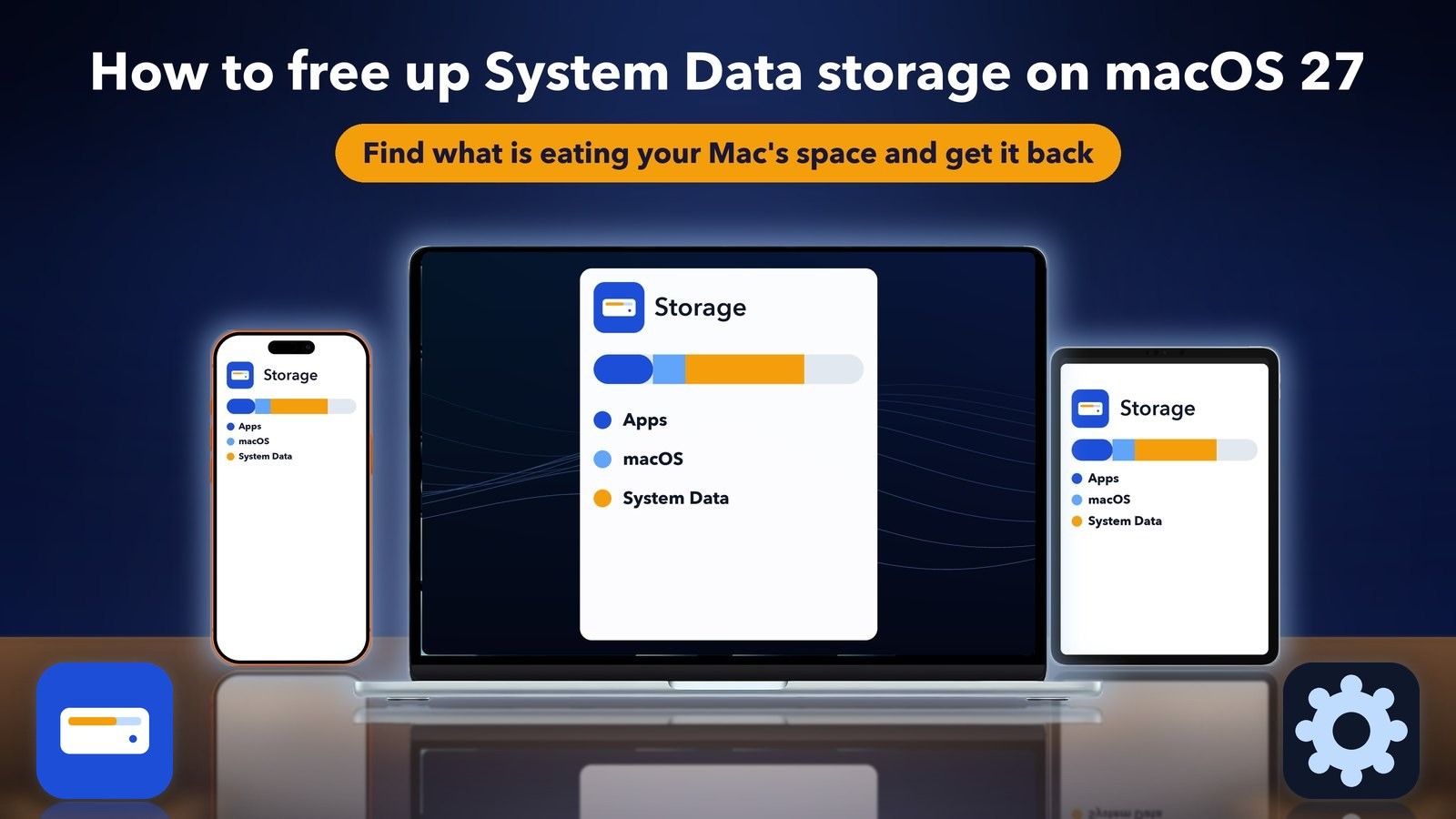
Quick answer: There is no "Delete System Data" button, because it is a catch-all for caches, logs, snapshots, update files and more. Restart your Mac, wait a day, then use the recommendations in System Settings, General, Storage. After that, remove old device backups and check Time Machine local snapshots. Skip cleaner apps and random Library deletions.
Why is System Data so big on macOS 27?
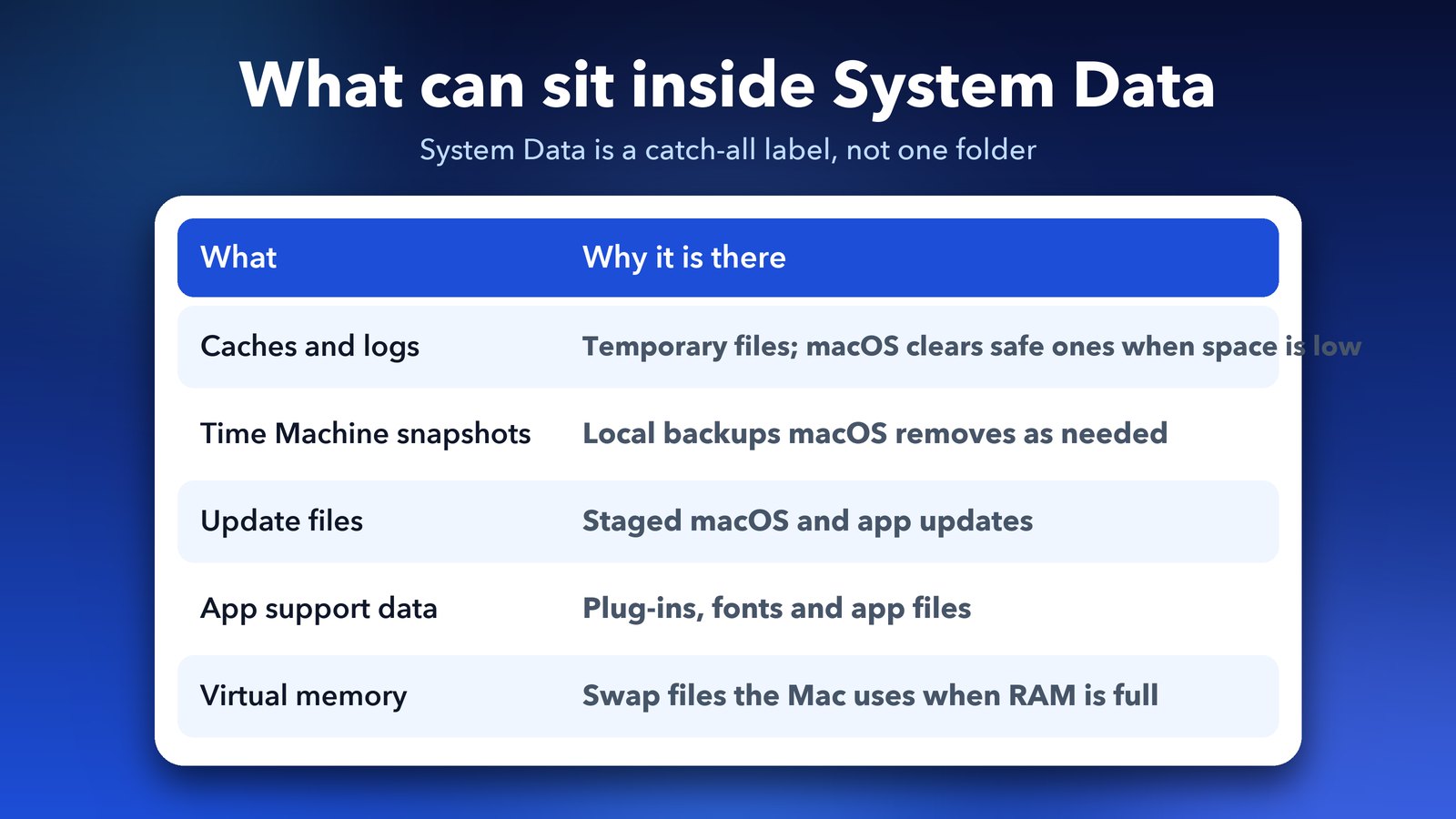
System Data is everything Storage cannot sort into Apps, Photos, Documents or macOS itself. It is a mix, and it often grows right after a big update. I could not find any Apple page that explains a bigger System Data on macOS 27 in particular, so treat the causes below as common reasons, not a confirmed diagnosis.
Based on Macworld's guide, the usual suspects are Time Machine local snapshots, old iPhone and iPad backups, caches, disk images and developer build files. Apple also says macOS clears caches and logs that are safe to delete, along with staged macOS and app updates, when it needs the room.
Does Apple Intelligence count as System Data?
Possibly, but I could not confirm it. Apple says Apple Intelligence uses up to 14 GB on a Mac with an M3 chip or later and at least 12 GB of memory, and up to 8 GB on other supported Macs. Real Macs report more. In one forum thread, a user on macOS 27.0.1 said they saw about 20 GB of System Data and blamed roughly 30 GB of their total on the Siri AI files. That is one person's guess.
The models may show as their own line in Storage or may sit inside System Data. Apple has not said which. Macworld also warns you not to delete the Apple Intelligence files by hand in system folders. If AI is your main worry, read our guide on how to turn off Apple Intelligence on macOS 27, which also covers what that does and does not do to your storage.
Step 1: Restart, wait, and check Storage again
Restart your Mac, give it a day or two, then look at Storage again. A reply in the iBoysoft forum thread points out that macOS can use extra space for update files and local snapshots for a while after an upgrade. That space may come back on its own. Nobody in the thread confirmed it, so this is a cheap thing to try first, not a promise.
To open Storage, choose Apple menu, then System Settings, then General, then Storage. Apple's page on freeing up storage space describes the same path.
Step 2: Use the recommendations in Storage settings
Apple's own tool is the safest place to start. On the Storage screen, review the recommendations and switch on the ones that suit you. Apple lists three.
- Store in iCloud: moves your Desktop and Documents files, photos, videos and messages to iCloud. When space runs low, only recent files stay on the Mac. You need enough iCloud storage for this.
- Optimize Storage: removes Apple TV movies and shows you have already watched, and keeps only recent email attachments on the Mac.
- Empty Trash automatically: erases items that have been in the Trash for more than 30 days.
Also click the small info button next to each category, such as Applications or Documents. It shows the biggest files, so you can delete the ones you no longer need. If you have a pile of files stuck in the Trash, our guide on fixing macOS 27 when you cannot move files to the Trash may help.
Step 3: Delete old iPhone and iPad backups
Old device backups can be huge, and they are an easy win. Connect the iPhone or iPad, open Finder and select the device in the sidebar. On the General tab, click Manage Backups, select the outdated ones and click Delete Backup. Only delete a backup if you are sure you have a newer one or no longer need it. Deleting is permanent.
Step 4: Check Time Machine local snapshots
Local snapshots are small Time Machine copies stored on your Mac. They are a common reason for a big System Data number. Macworld says to usually leave them alone, because macOS removes them as they age or when it needs space. Two forum replies say the same.
If you still want to look, open Terminal and run this command. It only lists snapshots, so it is safe:
tmutil listlocalsnapshots /
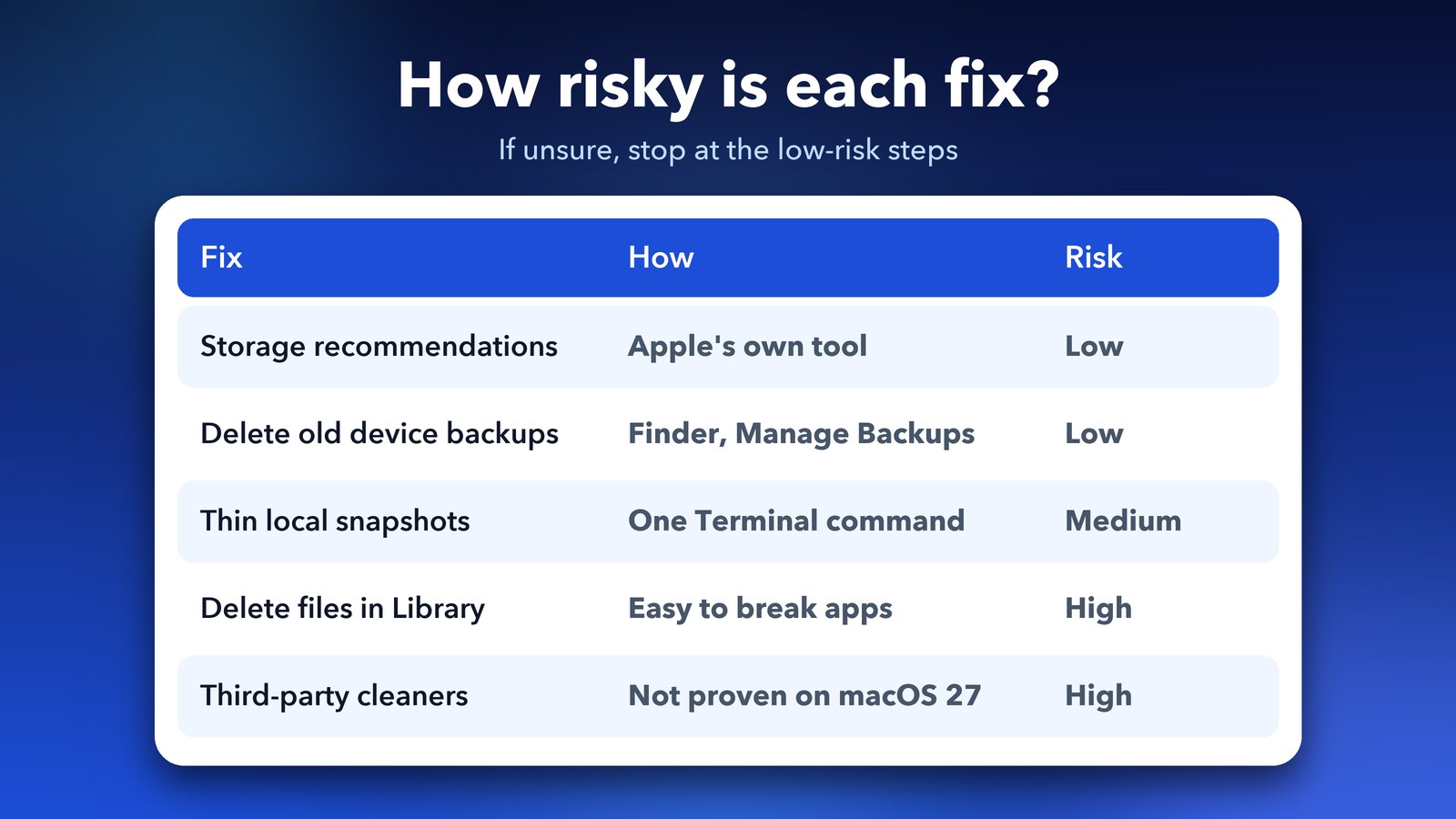
If you see snapshots and want some space back, Macworld suggests a gentler trick. Open System Settings, General, Time Machine, then Options. Set the backup frequency to manual, click Done, wait a few minutes, then set it back. The same guide also lists a Terminal command that asks macOS to thin out about 10 GB of snapshots, but it needs your admin password and I would only use it after a backup. I have not tested these steps on macOS 27, so the menu names may look a little different on your Mac.
Step 5: Remove old installers and big app files
Search Finder for files ending in .dmg or .pkg. These are installers you no longer need once the app is installed. Clear your browser cache from the browser's own settings too. If you write apps, quit Xcode and clear the DerivedData folder, which rebuilds itself the next time you build. Check what is in a folder before you delete it.
If your Mac is full because iCloud Drive is not syncing, our guide on fixing iCloud Drive stuck on waiting to upload is worth a look.
What about the dasd process and the powerlog trick?
You may see advice to run sudo rm -rf /private/var/db/powerlog to fix a process called dasd. I would skip it for storage. The post that shared it, on a macOS 27 beta, was about dasd using a lot of memory and slowing a MacBook Air, not about disk space. The author found the command in a Reddit thread and said they did not know what it does. That is one person's experience, not Apple advice, and the command deletes a system folder with no confirmation.
If your Mac feels slow and System Data is large, deal with the storage steps first. Slowness from dasd is a separate problem.
Should you use a cleaner app?
I would not. A Malwarebytes forum staff reply says macOS manages local snapshots itself and advises against third-party cleaners for System Data. Some replies in the forum threads I read promote their own cleaning apps, and none of them showed proof of recovered space on macOS 27. Macworld also warns that deleting the wrong System Data files can make macOS unstable or stop it starting up.
When should you erase and reinstall?
Only as a last resort. Macworld notes that reinstalling macOS without erasing the disk may not shrink System Data, and restoring a Time Machine backup may bring the problem back. A full erase means you must be sure your backup works first. If System Data is still huge after every step above, ask Apple Support before you wipe anything.
Screenshots piling up on your desktop eat space too. You can change where macOS 27 saves screenshots in a few clicks.
Which way should you go?
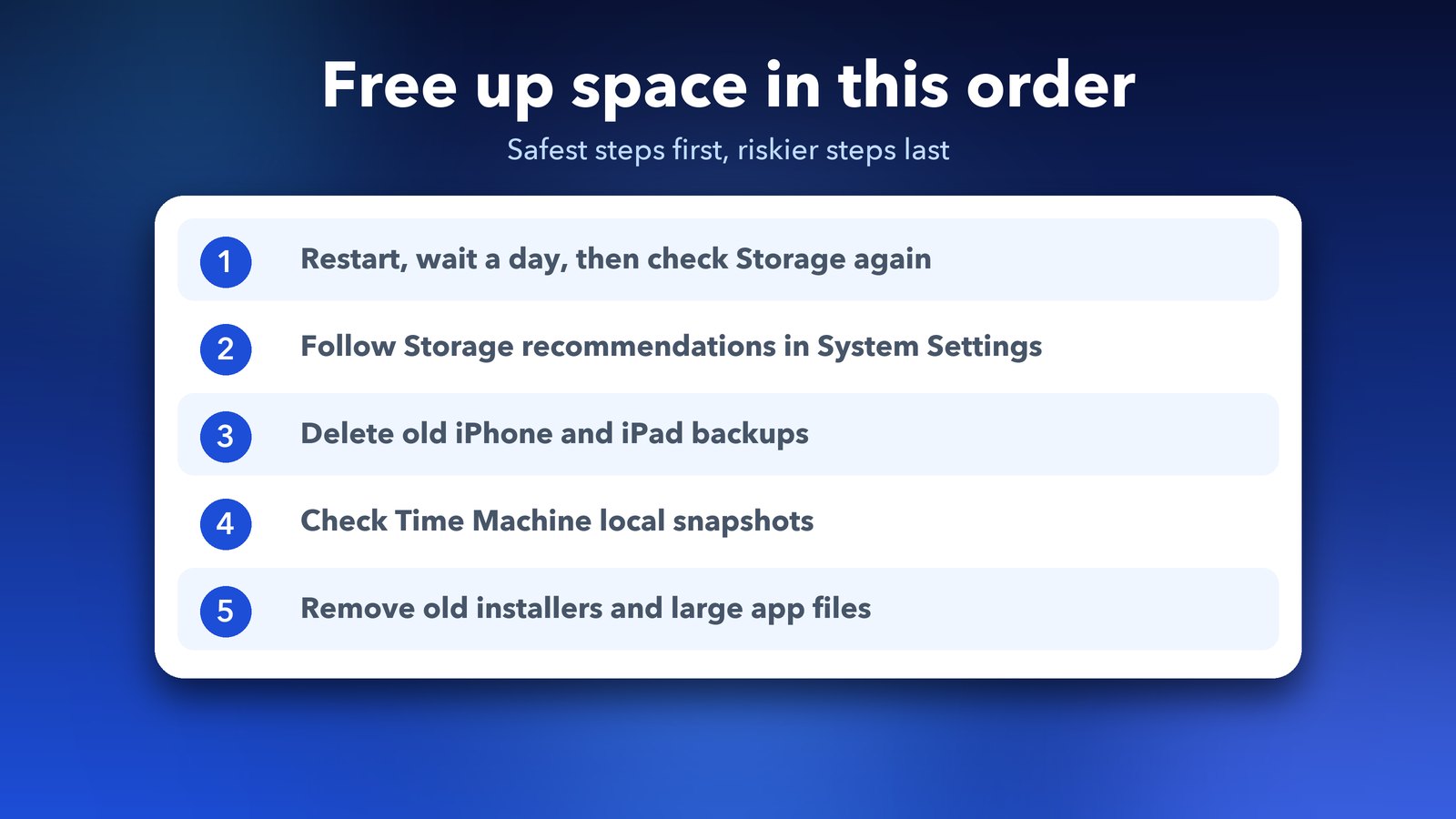
Do the low-risk steps in order: restart and wait, Storage recommendations, old device backups. Then check your snapshots. Most people will get meaningful space back before they ever reach Terminal. If a few days pass and the number does not move, it may be Apple Intelligence or normal system files, and there is little you can do about those safely.
Seeing the same mystery on an iPad? Read our iPad System Data storage fix. Then open Storage on your Mac and see which step gives you the most space today.
Image credits: MacBook Air M4 render, iPhone 17 Pro vector (TheGoldenBox) and iPad Pro 11 mockup (Jem Riggs) from Wikimedia Commons (CC BY-SA 4.0), with illustrated screens and a custom wallpaper. Storage and Settings tiles are original illustrations by Daily Techocracy.