How to fix Ctrl+Alt+Del not working after Windows 11 update
Hello Folks,
We at Daily Techocracy are back with some juicy info for all you kind readers....lets get to it !!
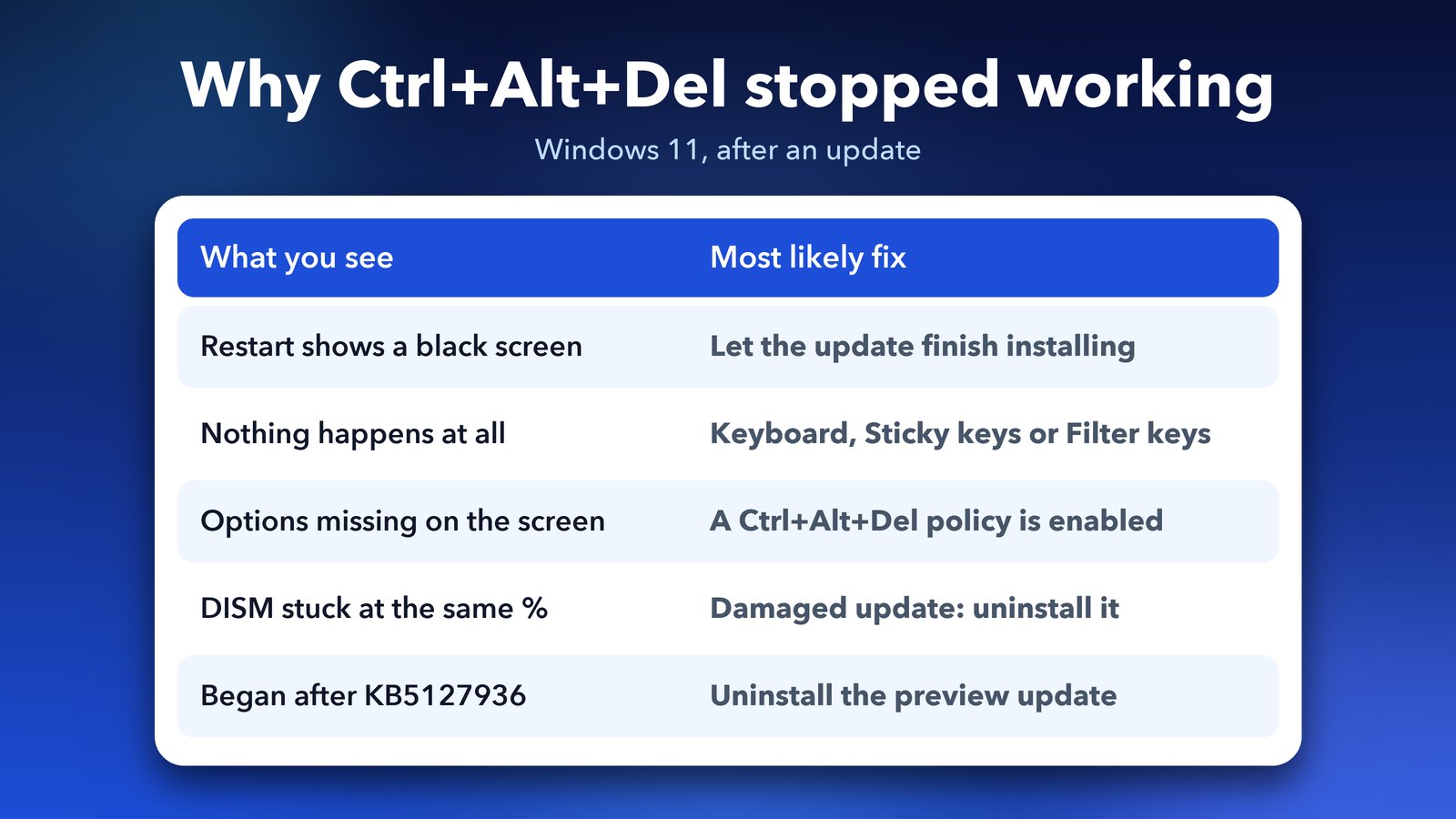
You press Ctrl+Alt+Del and nothing happens. Or the blue screen with Lock, Switch user, Sign out and Task Manager does show up, but when you click Restart, both monitors go black and only the spinning cursor is left. If this started right after a Windows 11 update, you're not alone. Here's why it happens and how to fix it, step by step.
Quick answer: First, finish any update that's still waiting: shut down and start the PC again, and let Windows complete "Updates are being installed". Then test the keyboard, turn off Sticky keys and Filter keys, and run SFC and DISM to repair system files. If the trouble started with an optional preview update such as KB5127936, uninstall it in Settings > Windows Update > Update history > Uninstall updates, and wait for the next regular update.
Why does Ctrl+Alt+Del stop working after an update?
There are three common causes. An update may not have finished installing. A system file may have been damaged during the install. Or a setting, driver or app is now blocking the key combination.
Ctrl+Alt+Del is special in Windows. It's called the secure attention sequence, which means Windows itself listens for it, not your apps. When it fails, the problem is usually in Windows, the keyboard driver or a policy setting, rarely in the keyboard itself.
Did KB5127936 break Ctrl+Alt+Del?
It might have on some PCs, but Microsoft hasn't listed it as a known issue. KB5127936 is the optional preview update for Windows 11 versions 25H2 and 26H2, released on 28 October 2026 (builds 26200.9818 and 26300.9818). Preview updates are test versions of next month's update, and you only get them if you choose to install them.
On the ElevenForum Windows 11 forum, one user said that after installing KB5127936 on 3 November, Ctrl+Alt+Del followed by Restart left both screens blank with only the animated cursor. DISM repair scans also got stuck at 98.1%. Other members said the update worked fine on their PCs. Separate threads blamed the same update for an unresponsive taskbar and a broken Win+X admin shortcut.
So, it isn't a widespread bug, but if your problem began right after this update, it's the first suspect. The fixes below work whatever the cause.
Step 1: Use another way in while you fix it
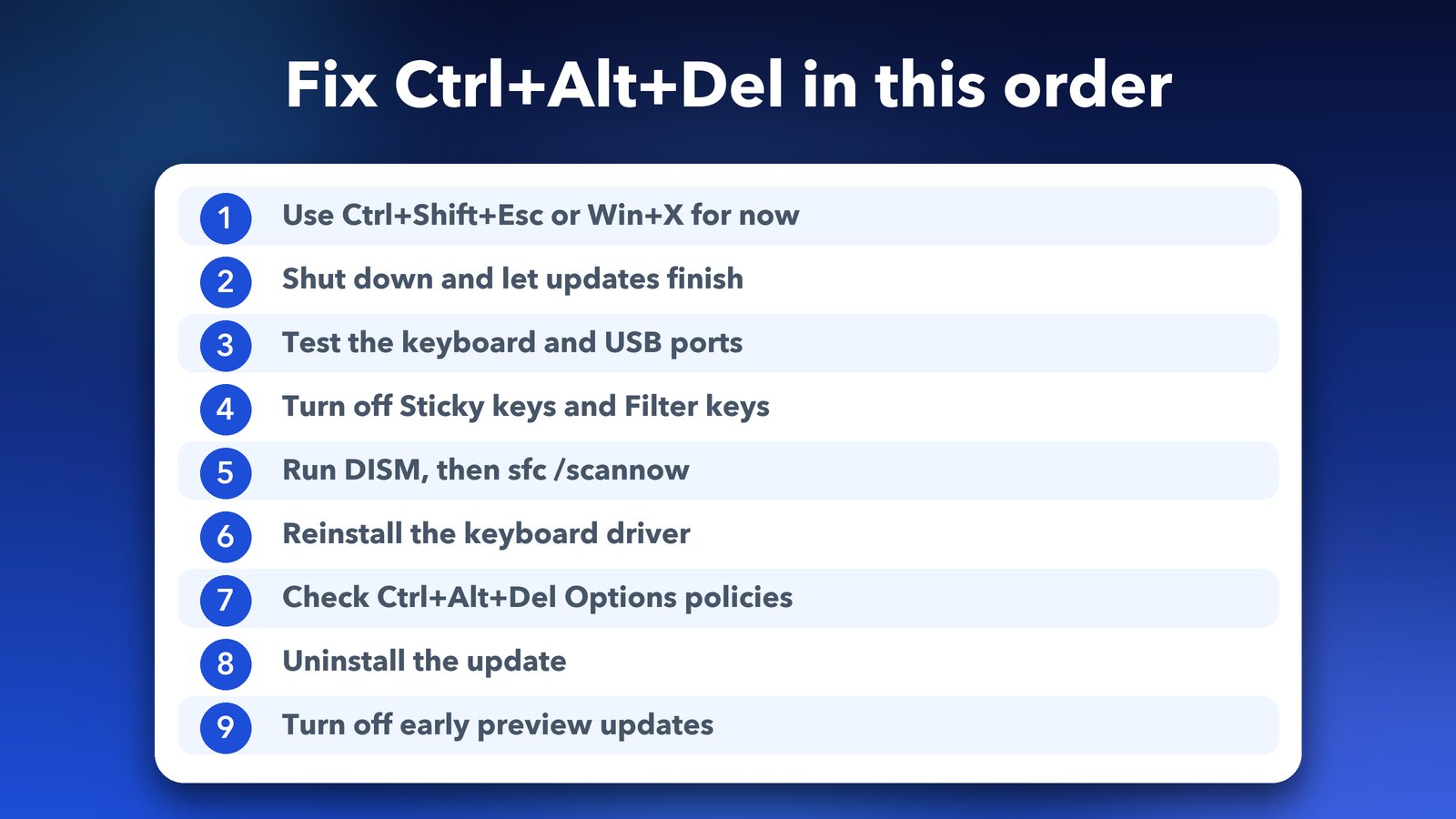
You still need Task Manager and the restart button while you troubleshoot. These shortcuts don't rely on Ctrl+Alt+Del:
- Press Ctrl+Shift+Esc to open Task Manager directly.
- Press Windows key + X for the power user menu, which has Task Manager and Shut down or sign out.
- Press Windows key + L to lock the PC.
- To restart from a command, press Windows key + R, type
shutdown /r /t 0and press Enter.
If Task Manager also freezes, our guide on how to fix Task Manager freezing on Windows 11 covers that problem on its own.
Step 2: Let the update finish installing
Many "broken" restarts are just an update that's still working. Big cumulative updates install in stages and need more than one restart. In the ElevenForum case, a full Shut down showed a quick "Updates are being installed" message, and after the next start, Restart worked again.
So, save your work, click Start > Power > Shut down, wait 30 seconds and turn the PC back on. Then open Settings > Windows Update and check whether anything still says "Pending restart" or "Pending install". Finish those first.
Step 3: Check the keyboard
Rule out the simple stuff before you dig into Windows.
- Unplug USB hubs, game controllers and extra input devices, then restart. A faulty device can confuse the keyboard input.
- Plug the keyboard into a different USB port, or try another keyboard. On a laptop, try an external one.
- Press both Ctrl keys and both Alt keys in turn with Delete. One dead key is enough to break the shortcut.
- Open Settings > Accessibility > Keyboard > On-screen keyboard and press Ctrl, Alt and Del there. If that works, your physical keyboard is the problem.
Step 4: Turn off Sticky keys and Filter keys
These accessibility features change how key presses are read. Sticky keys lets you press shortcut keys one at a time. Filter keys ignores quick or repeated presses. Either one can stop Ctrl+Alt+Del from registering, and some people switch them on by accident.
Open Settings > Accessibility > Keyboard and switch off Sticky keys and Filter keys. Then try Ctrl+Alt+Del again.
Step 5: Repair system files with SFC and DISM
An update can leave damaged system files behind. Windows has two built-in repair tools for this. SFC (System File Checker) fixes damaged Windows files, and DISM repairs the Windows image that SFC copies its good files from.
- Click Start, type
cmd, right-click Command Prompt and choose Run as administrator. - Type
DISM /Online /Cleanup-Image /RestoreHealthand press Enter. This can take 10 to 20 minutes. - When it finishes, type
sfc /scannowand press Enter. - Restart the PC and test Ctrl+Alt+Del.
If DISM gets stuck at the same percentage for more than 30 minutes, don't force it again and again. That's a strong sign the update itself has gone wrong, so go to Step 8.
Step 6: Reinstall the keyboard driver
A driver is the small program that lets Windows talk to a device. Updates sometimes replace it with one that doesn't work well.
- Right-click Start and choose Device Manager.
- Expand Keyboards.
- Right-click your keyboard and choose Uninstall device, then confirm.
- Restart the PC. Windows reinstalls the driver on its own.
On a laptop, also check your maker's support app, such as Lenovo Vantage, HP Support Assistant or MyASUS, for a newer keyboard or chipset driver.
Step 7: Check that a policy isn't blocking it
Windows has settings that hide options from the Ctrl+Alt+Del screen. They're often used on work PCs, but a cleaner app or bad software can switch them on too. On Windows 11 Pro, you can check them in the Group Policy Editor.
- Press Windows key + R, type
gpedit.mscand press Enter. - Go to User Configuration > Administrative Templates > System > Ctrl+Alt+Del Options.
- Check Remove Task Manager, Remove Lock Computer, Remove Change Password and Remove Logoff. Each should say Not configured.
- Double-click any that say Enabled, choose Not configured and click OK.
Windows 11 Home doesn't have the Group Policy Editor. These same settings live in the registry under HKEY_CURRENT_USER\Software\Microsoft\Windows\CurrentVersion\Policies\System, but only edit the registry if you're comfortable doing it, and back it up first. If this is a work or school PC, ask your IT team, because they may have set these on purpose.
While you're at it, run a full scan in Windows Security (Start > Windows Security > Virus & threat protection > Scan options > Full scan). Some malware turns off Task Manager to stop you from closing it.
Step 8: Uninstall the update that caused it
If the trouble began right after an update and nothing above has helped, remove that update. This is the fix that worked for the ElevenForum user, though they restored a full disk backup instead.
- Open Settings > Windows Update > Update history.
- Scroll down and click Uninstall updates.
- Find the update, for example KB5127936, and click Uninstall next to it.
- Restart the PC.
Microsoft's page on Windows Update explains how updates and restarts work if you'd like more detail. If you can't reach the desktop, hold Shift while you click Restart on the sign-in screen, then choose Troubleshoot > Advanced options > Uninstall Updates.
You can also use System Restore if you have a restore point from before the update. One warning from the forum thread: System Restore failed twice for that user, and only their full Macrium Reflect backup worked. That's a good reminder to keep a recent backup.
Step 9: Stop preview updates from coming back
To avoid this next time, don't install optional preview updates. Open Settings > Windows Update and switch off "Get the latest updates as soon as they're available". You'll still get every regular monthly update with its security fixes, just without the test versions.
If you'd like a short break from updates while you wait for a fix, click Pause updates on the same page. Don't pause for too long, though, because the regular updates carry important security patches.
Will the November update fix it?
Probably, if KB5127936 was the cause. The regular November 2026 update starts rolling out on 10 November. It usually includes the fixes tested in the October preview, along with fixes for problems that people reported in it. Once it arrives, install it and test Ctrl+Alt+Del again. For a look at what changed last month, see our roundup of the Windows 11 October 2026 update.
My honest take
Most of the time, Ctrl+Alt+Del problems after an update come down to an install that hasn't finished or a damaged system file, and Steps 2 and 5 sort them out. The KB5127936 reports are few, but they're a good lesson: preview updates are tests, so leave them alone unless they fix something you really need. Keep a recent backup, and a bad update becomes a short annoyance instead of a lost weekend.
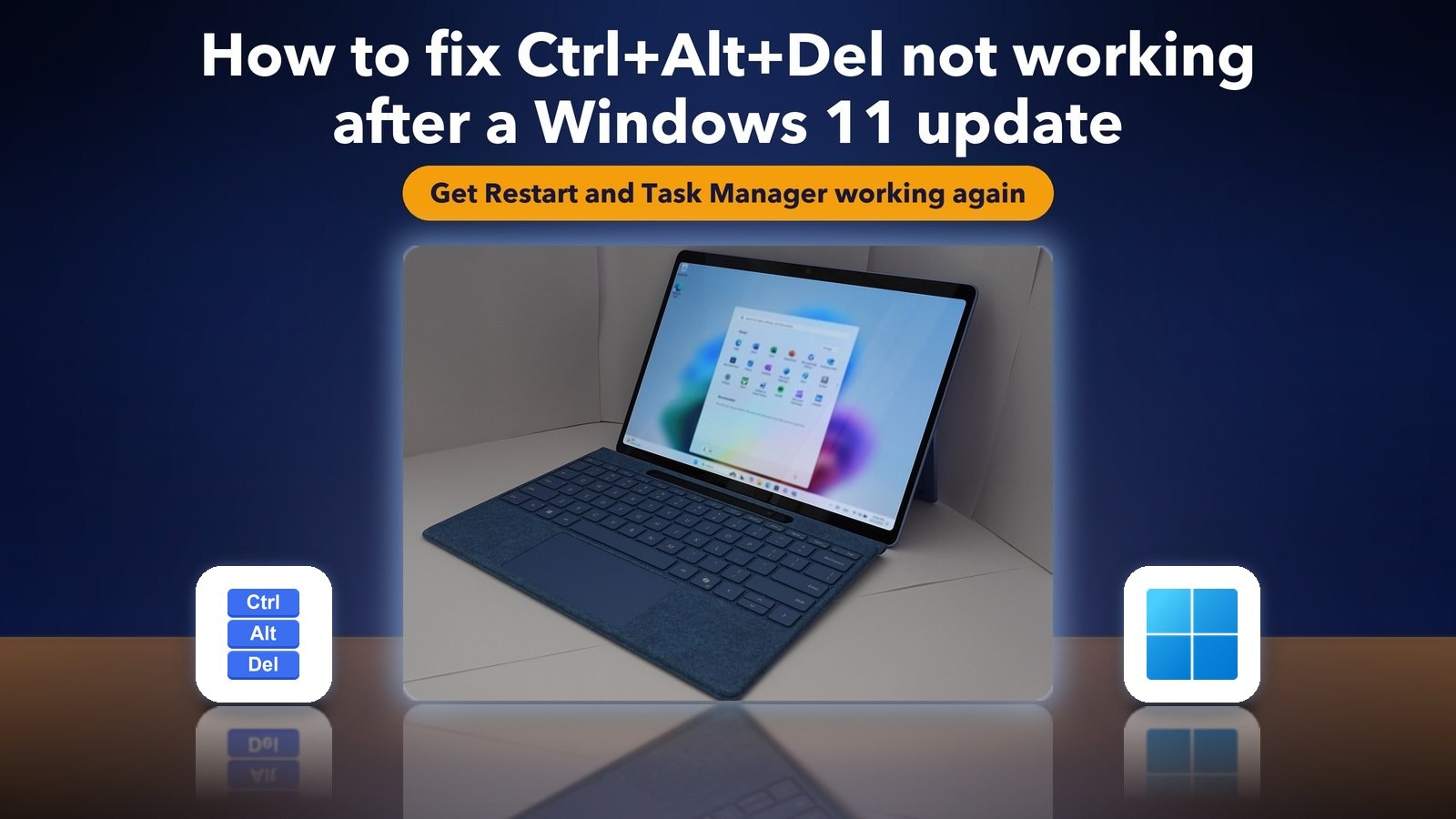
Image credits: Microsoft Surface Pro photo by KK IN HK, Wikimedia Commons, CC BY-SA 4.0. Windows 11 logo via Wikimedia Commons. Keycaps and panels by Daily Techocracy.
Sources: ElevenForum thread "KB5127936 broke Ctrl-Alt-Del/Restart" (3-4 November 2026); Microsoft Learn, Ctrl+Alt+Del Options policies (ADMX_CtrlAltDel); Microsoft Q&A on KB5127936 and the Win+X shortcut; NinjaOne KB5127936 overview (builds and release date).