How to Fix Call Screening Not Working on Your iPhone
Hello folks! You turned on Call Screening hoping to finally dodge those “Hi, this is about your car’s extended warranty” calls, and… nothing happened. Your iPhone still rings straight through, no transcript, no screening prompt, just the same unknown number popping up like always. You’re not imagining it. This is one of the more inconsistent features Apple has shipped in a while, and a handful of small settings can quietly break it.
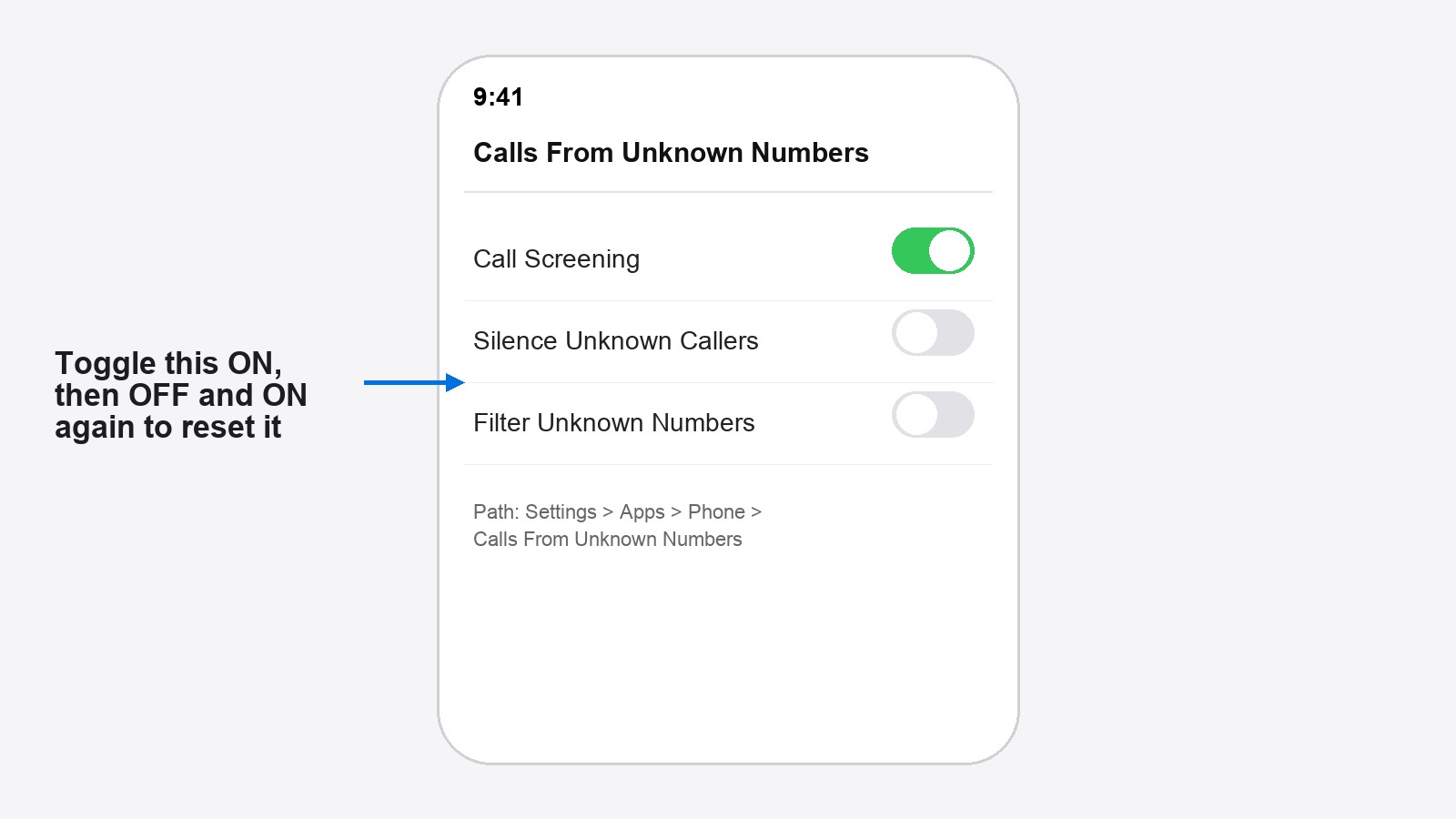
Quick answer: Call Screening lives in Settings > Apps > Phone > Calls From Unknown Numbers, and it only works if it’s toggled on there, your iPhone language is set to a supported region (US English), and Low Power Mode is off. Most broken cases fix themselves once you flip that toggle off and back on, then restart the phone.
Why Call Screening stops working on iPhone
Before you start flipping switches, it helps to know what’s actually going on under the hood. Call Screening isn’t a simple on/off feature. It leans on a few background systems working together, and if any one of them is off, the whole thing quietly fails without telling you why.
- The toggle got switched off during an iOS update (this happens more than Apple would like to admit)
- Your language or region isn’t one Apple currently supports for the feature
- Low Power Mode is limiting background activity, which Call Screening depends on
- A third-party call-blocking app is fighting with Apple’s built-in system for control of incoming calls
- You’re just running an older iOS version where the feature is buggy or missing pieces
How to fix Call Screening not working on iPhone
1. Check that Call Screening is actually turned on
This sounds obvious, but it’s the single most common cause. Go to Settings > Apps > Phone, then look for Calls From Unknown Numbers. Tap in and make sure Call Screening is switched on. If it’s already on, turn it off, wait a few seconds, then turn it back on. That reset alone clears up a surprising number of cases.
2. Restart your iPhone
Call Screening depends on a background process that can get stuck after weeks of uptime. Press and hold the side button along with either volume button until the power-off slider shows up, slide it, wait ten seconds, then hold the side button again to turn the phone back on. I know it’s the “have you tried turning it off and on again” answer, but it genuinely resolves this more often than it should.
3. Confirm your language and region settings
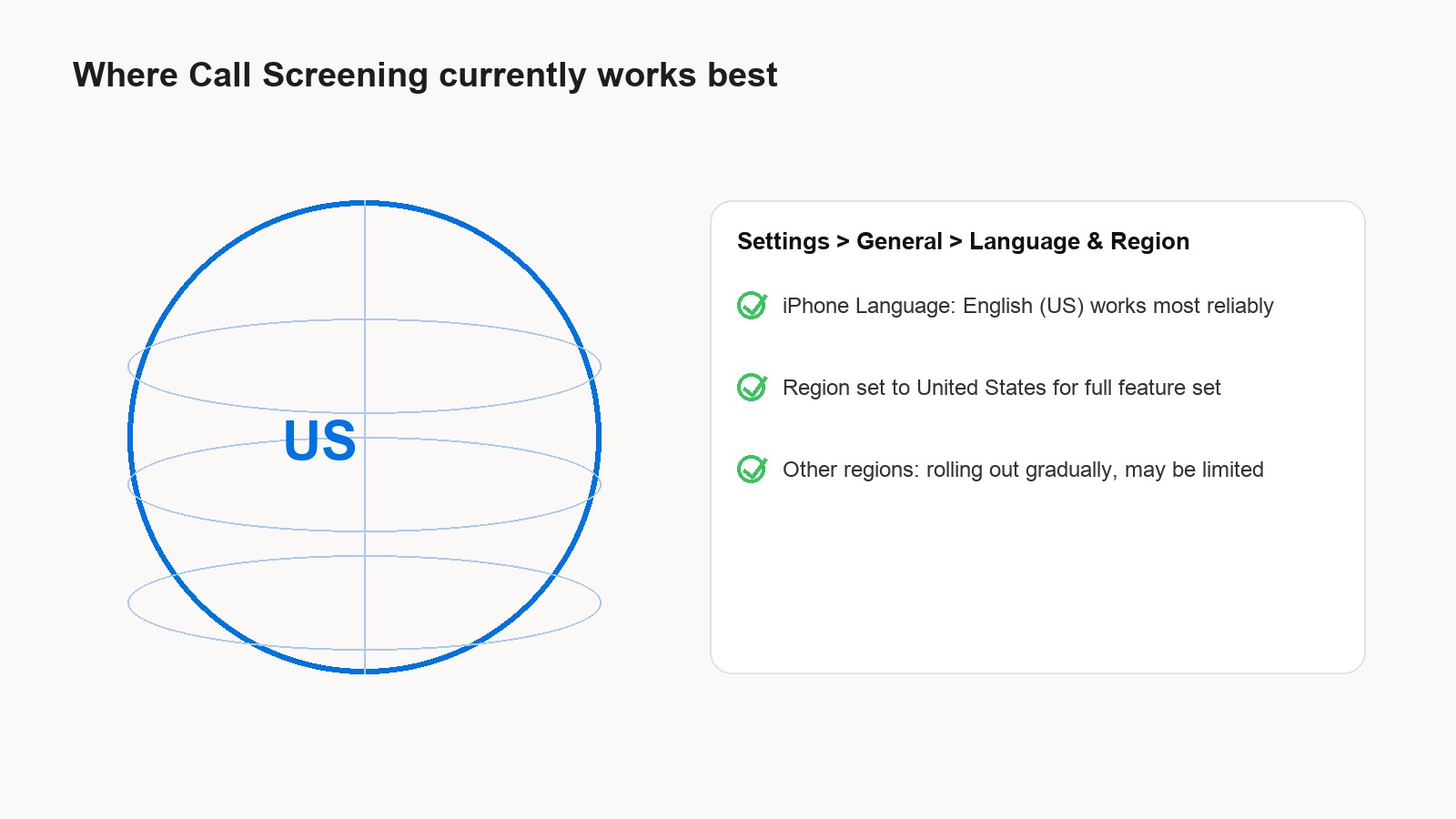
Call Screening isn’t available everywhere yet. Go to Settings > General > Language & Region and check what your iPhone Language and Region are set to. If you’re outside the US and the feature seems half-broken (toggle is there but nothing actually happens on calls), that’s often the reason. Some users get it working reliably by switching iPhone Language to English (United States) as a workaround, though that also changes some other formatting on your phone, so weigh that trade-off.
4. Turn off Low Power Mode
Head to Settings > Battery and switch Low Power Mode off. This mode throttles background activity to stretch your battery, and Call Screening’s live transcription is one of the things that gets quietly deprioritized. If you tend to leave Low Power Mode on most of the day, this is probably your answer.
5. Disable third-party call-blocking apps temporarily
If you have a spam-blocking app installed, it may be grabbing incoming calls before iOS gets a chance to screen them. Go to Settings > Phone > Call Blocking & Identification and turn off any third-party apps listed there. Test a call, and if Call Screening kicks in, you’ll need to decide which feature you’d rather keep.
6. Update iOS
Open Settings > General > Software Update and install anything available. Call Screening shipped with rough edges, and Apple has patched several bugs tied to it in point releases. Running an older build is one of the more common reasons people write in confused about why it “used to work.”
Tips and troubleshooting
If you’ve done all of the above and it’s still misbehaving, a couple of extra things worth trying:
- Test with someone calling from a number that’s genuinely not in your contacts. Calling yourself from a second device sometimes doesn’t trigger screening the way a real unknown caller does.
- Check that Silence Unknown Callers isn’t also switched on in the same Phone settings menu. Having both features active can cause conflicting behavior where calls get silenced before screening even gets a chance to run.
- If it works for a day and then quietly stops again, that’s usually the region/language issue resurfacing after a settings sync from iCloud. Worth checking Language & Region again if the problem is intermittent rather than constant.
For the full official rundown straight from Apple, their guide to screening and blocking calls on iPhone and the managing unknown callers support page cover the feature basics if you want Apple’s own wording on what each toggle does.
If your Phone app has been acting up in other ways lately, we’ve also covered why message read status stops syncing on iPhone and how to fix iPhone battery drain on iOS 26, both worth a look if this isn’t the only odd behavior you’ve noticed since updating.
Frequently asked questions
Does Call Screening work in every country?
Not yet. Apple has been rolling it out region by region, and it’s most reliable on US-region iPhones right now. If you’re elsewhere and it’s flaky, that’s likely why.
Will Call Screening block spam calls automatically?
No, and this trips people up. Call Screening asks unknown callers to say who they are and why they’re calling, then shows you a transcript so you can decide whether to pick up. It doesn’t silently block anything on its own, that’s what Silence Unknown Callers does instead.
Why does Call Screening only work sometimes?
Intermittent behavior almost always traces back to Low Power Mode being on, a language/region setting that got reset, or a third-party call app quietly taking priority. Work through those three first.
Do I need to update to a specific iOS version for it to work properly?
Apple has shipped several fixes to Call Screening in point updates since it launched, so staying current on the latest iOS version available to you is worth doing before assuming something’s permanently broken.
Did one of these actually get Call Screening working again for you, or are you still stuck on a specific step? Drop a comment below and let us know what fixed it, it helps the next person scrolling through this at 11pm trying to silence a robocall.