How to fix 'Storage almost full' on an Android phone
Hello Folks,
We at Daily Techocracy are back with some juicy info for all you kind readers....lets get to it !!
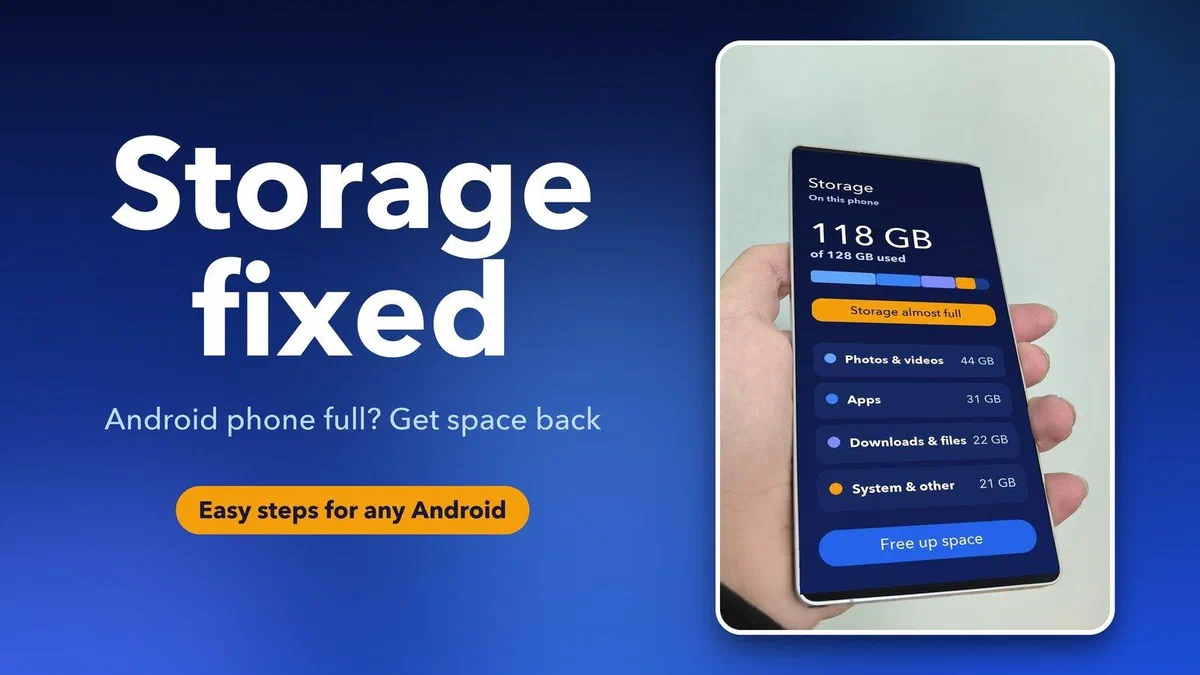
You try to take a photo and your phone says "Storage almost full". You delete a few things, and the warning comes straight back. The frustrating part is that your files never seem to add up to the number on the screen. Where is all that space going? The answer is usually in a handful of places, and most of them take a minute to clear.
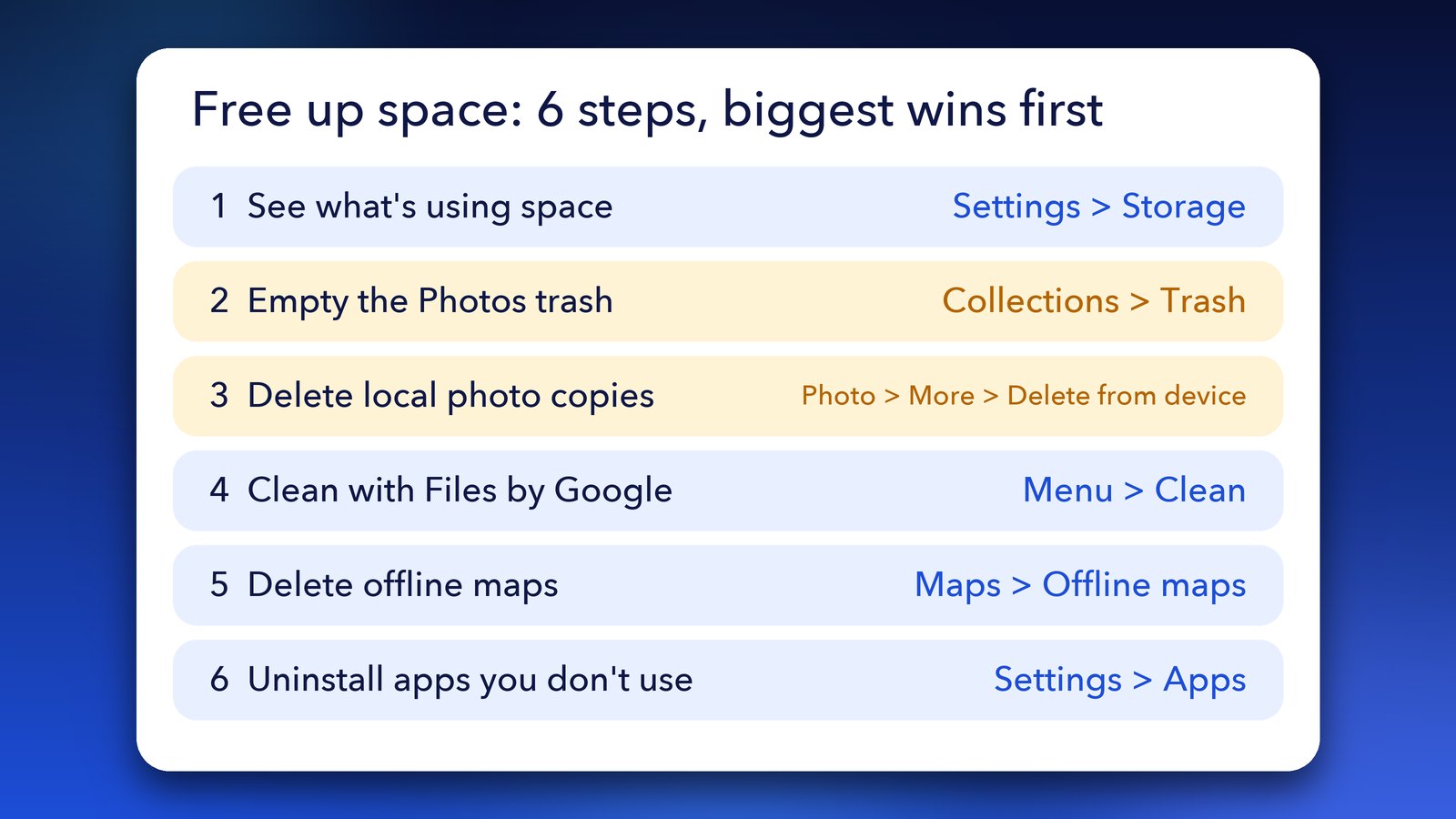
Quick answer: Open Settings > Storage to see what's using the space. Then empty the trash in Google Photos, remove the on-device copies of backed-up photos, run the Clean tool in Files by Google and delete old offline maps. These four steps free the most space on most phones.
Why does my Android phone say storage is full when I have few files?
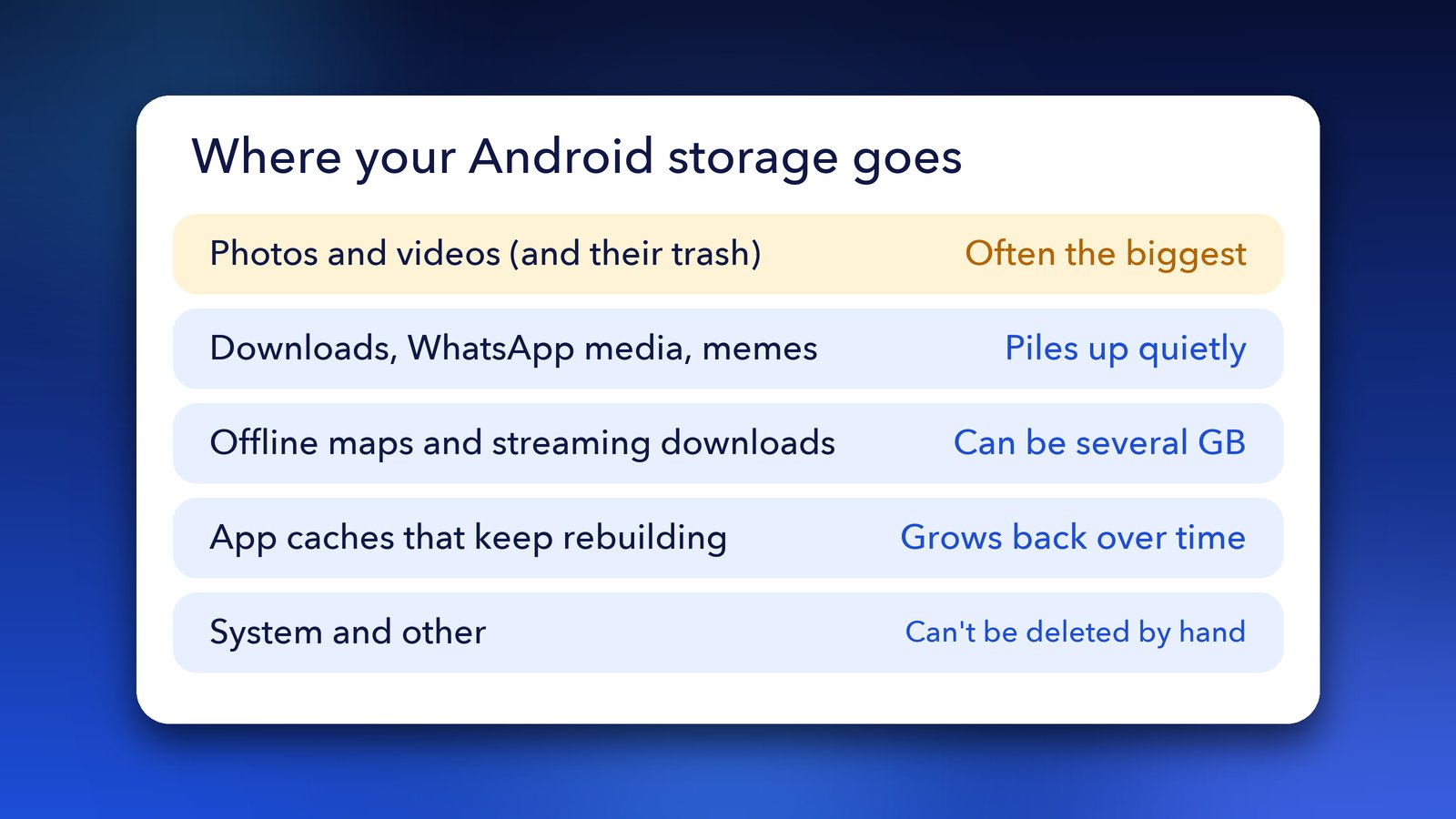
Deleted items are often still on the phone. Trash folders, app caches, downloads and offline maps all take space without showing up as "files" you remember saving.
Photos are the usual culprit. Google Photos keeps backed-up items in its trash for 30 days, and Files by Google has its own list of junk and duplicates. Messaging apps such as WhatsApp keep every photo and video that was sent to you. Streaming apps hold offline downloads, and Google Maps keeps the offline maps you saved before a trip. Add the Android system itself, and the numbers start to make sense.
How to see what is using your Android storage
Start with Google's own storage screen. It shows each category and its size, so you know where to look first instead of deleting at random.
- Open Settings.
- Tap Storage.
- Tap a category, such as photos, apps or downloads, to see what's inside.
Google's Android help page says menu names can differ by phone. If you can't find the screen, use the search box at the top of Settings.
How to empty the Google Photos trash
Items you delete in Google Photos stay in the trash for 30 days. Emptying it is the fastest way to get space back if you've recently cleared a lot of pictures.
- Open Google Photos.
- Tap Collections, then Trash.
- Tap More, then Empty Trash.
- Choose Delete permanently.
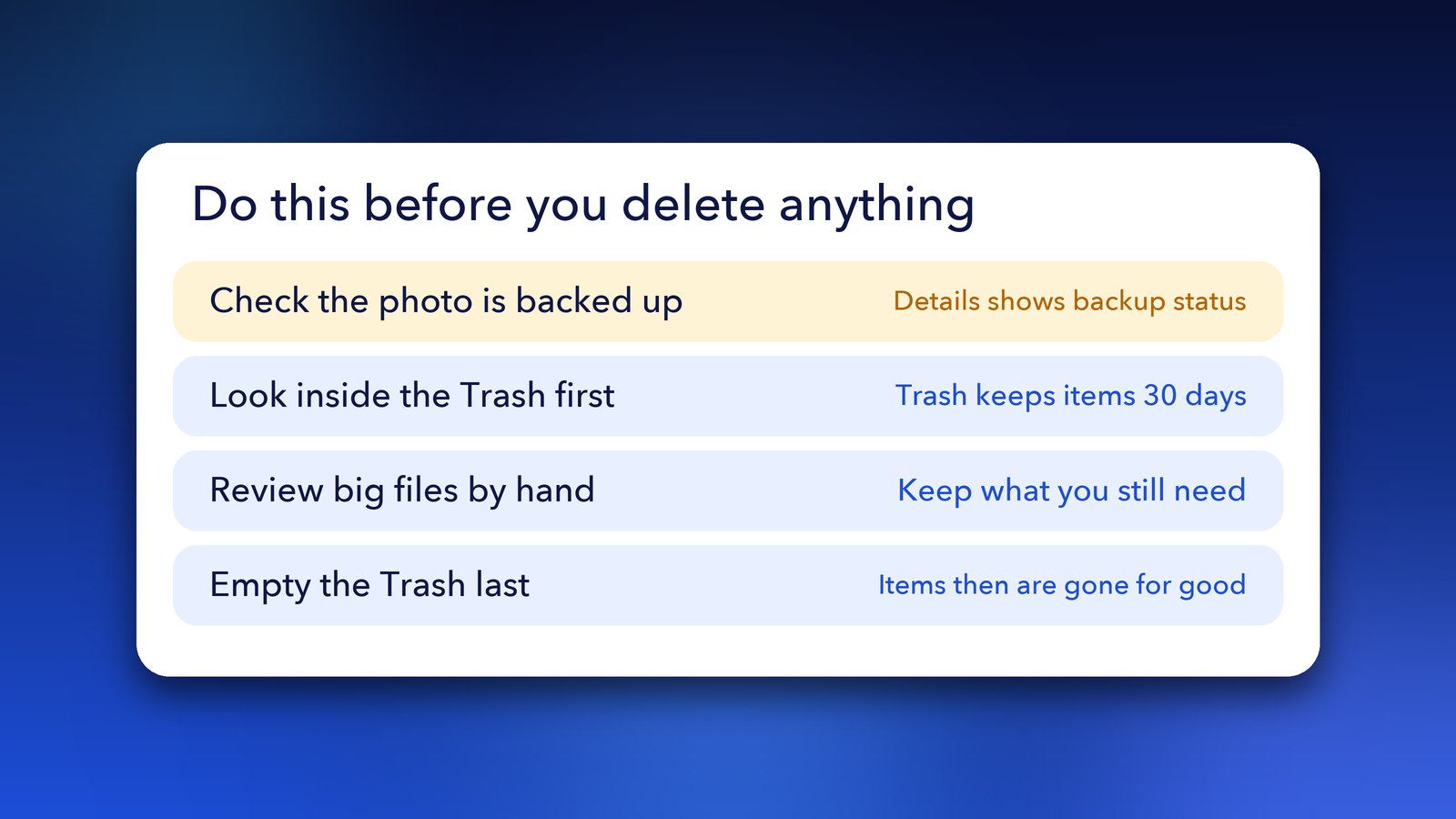
Be sure before you do this. Permanently deleted items can't be restored. Look through the trash first if you're not certain.
How to delete photos from your phone but keep them in Google Photos
Backed-up photos can sit on your phone and in the cloud at the same time. Removing the phone copy frees space while the picture stays safe in Google Photos.
- Open the photo in Google Photos.
- Tap More, then Delete from device.
This only works safely if the photo is really backed up. Open More > Details to check the backup status first. Don't use the normal Trash button for this job. According to Google's help page, deleting a backed-up photo in the app also removes the copy on your device.
How to clean junk files with Files by Google
Files by Google is a free app that finds junk, duplicates, big files and downloads in one place. It's the quickest way to review what's safe to remove.
- Open Files by Google. If you don't have it, install it from the Play Store.
- Tap the menu at the top left.
- Tap Clean.
- Go through each suggestion and delete what you don't need.
Google's Files help page lists separate guides for junk files, duplicates, screenshots, downloads, large files, memes and WhatsApp media. It also lets you turn on an alert for when your storage is almost full, under Menu > Settings > Notifications. Turn that on, because it warns you before you hit a wall.
How to clear WhatsApp media and big downloads
WhatsApp keeps every photo, video and document people send you. Over a year, that adds up to several gigabytes, and forwarded videos are often the worst of it.
Files by Google has a WhatsApp media section, so start there. Check the Downloads folder as well. Old installers, PDFs and videos tend to sit there forever. Sort by size and delete the biggest items you no longer need.
How to delete offline maps in Google Maps
Offline maps are saved to your phone's internal storage by default, so a few of them can take up real room. If you downloaded a map for one trip, you may not need it any more.
- Open Google Maps.
- Tap your profile picture or initial, then Offline maps.
- Tap the map you want to remove.
- Tap Delete.
Google's Maps help page also says you can save offline maps to an SD card, if your phone has one set up as portable storage. You'd need to download the maps again after switching.
How to remove apps and clear app cache
Unused apps are easy wins. If you uninstall an app and want it later, you can download it again.
- Go to Settings > Storage and tap the apps category, or open Settings > Apps.
- Sort by size if your phone offers it.
- Uninstall anything you haven't opened in months.
For apps you keep, you can clear the cache. Google says this deletes temporary data, so the app may load a little slower next time. Avoid Clear data unless you mean it, because it permanently removes the app's data. Google advises trying to delete data inside the app first.
What is System storage on Android, and can you delete it?
System storage holds Android itself, updates and data the system manages. You can't delete it by hand. The part you can influence is everything else on the phone, so use the steps above and let this number stay as it is.
If "System" or "Other" looks huge, the steps above are still your best bet. Clearing trash, downloads and caches shrinks the total. I wouldn't wipe anything from a recovery menu unless your phone maker's support page tells you to.
How to delete files safely
A few habits save you from regret. Check that photos are backed up before you remove them from the phone. Look inside the trash before you empty it. Review big files one at a time rather than tapping "delete all". Empty the trash last, because that's the step that can't be undone.
Tips to stop your Android storage filling up again
- Turn on the storage alert in Files by Google so you hear about it early.
- Use "Delete from device" in Google Photos every few months for old, backed-up pictures.
- Remove offline maps and streaming downloads once the trip or the show is over.
- Check WhatsApp media now and then.
If your phone is also slow or heats up, storage might not be the only cause. Our guides on Pixel lag after the Android 17 QPR1 update and Quick Share not working on Android cover two other common problems.
Clear the trash, trim the photos and maps, and the warning should go away for good. If you only have time for one thing today, do the Photos trash and "Delete from device" steps. Those two usually give the most space back.
Image credits: phone photo "Samsung Galaxy S25 Ultra phone's screen" by HuangWending18072009 on Wikimedia Commons (CC0). The screen shown on the phone is our own illustration.